


Your kid wants to be a YouTuber. They've watched Ryan's World, Vlad and Niki, and Diana and Roma pull in millions of views, and now they want their own channel. You're not sure where to start — or whether you should start at all.
Here's the good news: starting a YouTube channel can genuinely be a positive experience for kids. It builds creativity, communication skills, and confidence. But it also comes with real legal requirements, privacy risks, and monetization realities that most guides gloss over.
This guide walks you through the entire process — from creating the account to publishing the first video — with a focus on keeping your child safe and staying on the right side of the law.
Before You Start: What Every Parent Needs to Know
Age Rules on YouTube
YouTube has strict age policies. Understanding them is non-negotiable:
| Your Child's Age | Can They Have a Channel? | How It Works |
|---|---|---|
| Under 13 | Not on their own | Parent must create and manage the channel using their own Google account. The child cannot legally own the account. |
| 13–17 | Yes, with parental permission | Can create their own channel. Parents can set up a supervised account through Google Family Link for oversight. |
| 18+ | Yes, independently | Full access to all YouTube features. |
The critical rule: If your child is under 13, the channel is legally yours. You manage it, you upload to it, and you're responsible for everything on it. Your child can appear in videos and help create content, but the account must be in your name.
What Is COPPA and Why Should You Care?
COPPA (Children's Online Privacy Protection Act) is a US federal law that restricts how websites collect data from children under 13. YouTube paid a $170 million fine in 2019 for violating it. Since then, the rules have gotten stricter.
If your channel features kids or creates content aimed at children, you must mark it as "Made for Kids." This isn't optional — getting it wrong can result in fines of up to $42,530 per video.
Here's what YouTube considers when determining if content is "Made for Kids":
- The subject matter (toys, cartoons, nursery rhymes, etc.)
- Whether children are the intended or actual audience
- Whether child actors or models appear
- Whether it includes characters, toys, or activities that appeal to kids
- Whether the language is aimed at children
- Whether it features play-acting, simple songs, games, or early education
If any of these apply, mark the content as "Made for Kids." When in doubt, mark it. The penalty for not marking is far worse than the restrictions that come with marking.
What You Lose With "Made for Kids" (The Trade-Offs)
Marking your channel as "Made for Kids" triggers significant restrictions. You need to understand these before starting:
| Feature | Available? | Impact |
|---|---|---|
| Personalized ads | No | Advertisers pay less because they can't target viewers. CPM drops significantly. |
| Comments | No | Automatically disabled on all videos. |
| Notification bell | No | Subscribers won't get push notifications for new uploads. |
| Community tab | No | Can't post polls, images, or text updates to subscribers. |
| Stories | No | Feature completely disabled. |
| Channel memberships | No | Can't offer paid memberships. |
| Super Chat / Super Thanks | No | No live donation features. |
| Merch shelf | No | Can't display products below videos. |
| End screens & cards | Limited | Only certain types allowed. |
| Miniplayer | No | Viewers must watch in full-screen. |
| Save to playlist | No | Viewers can't save your videos to their playlists. |
| Personalized recommendations | No | YouTube won't recommend your videos based on viewer watch history. |
That's a lot of restrictions. But here's the reality: these are the rules, and ignoring them puts your family at legal risk. The successful kids' channels you see — Cocomelon (200M subscribers), Vlad and Niki (149M subscribers), Like Nastya (131M subscribers) — all operate within these constraints and still thrive.
 PostPlanify
All your social media in one simple dashboard
Schedule posts, track analytics, and reply to comments/DMs without switching tabs.

Engagement
+18%
Views
52.8k
Setting Up the Channel: Step by Step
Here's exactly how to create and configure a YouTube channel for your child's content.
Step 1: Create a Google Account
If your child is under 13, use your own Google account or create a new one specifically for the channel. Do not create a Google account with your child's real information if they're under 13 — it violates Google's Terms of Service.
If your child is 13–17, you can create a supervised account through Google Family Link:
- Download the Family Link app on your phone
- Create a Google Account for your child (or link their existing one)
- Set up supervision, which gives you control over app permissions, screen time, and content filters
Step 2: Create the YouTube Channel
- Go to youtube.com and sign in with the Google account
- Click your profile picture in the top-right corner
- Click "Create a channel"
- Choose a channel name — do not use your child's real full name (more on this in the safety section)
- Click "Create channel"
Step 3: Configure "Made for Kids" Settings
This is the most important step from a legal perspective:
- Go to YouTube Studio
- Click Settings (gear icon) in the left sidebar
- Go to Channel → Advanced settings
- Under "Audience," select "Yes, set this channel as made for kids"
- Click Save
You can also set this on a per-video basis if your channel has mixed content. But if most of your content features or targets kids, set it at the channel level to avoid accidentally missing a video.
Step 4: Set Up the Channel Profile
- Channel name: Something fun and memorable that doesn't reveal your child's identity. Examples: "Tina's Toy Universe," "Epic Kids Lab," "Adventure Crew"
- Profile picture: Use an illustrated avatar or logo — not a photo of your child
- Banner image: Create a simple banner that reflects the channel's theme (Canva has free YouTube banner templates)
- Channel description: Write 2–3 sentences explaining what the channel is about. Include your upload schedule if you have one
Step 5: Verify Your Account
Verifying your phone number unlocks features you'll need:
- Go to youtube.com/verify
- Enter your phone number and verify via text or call
- This unlocks custom thumbnails, videos longer than 15 minutes, and live streaming
Keeping Your Child Safe: The Non-Negotiable Rules
Safety isn't a section you skim. It's the foundation everything else is built on. Follow these rules without exception.
Personal Information: What to Never Share
| Never share | Why | What to do instead |
|---|---|---|
| Real full name | Strangers can find your family | Use a first name only or a nickname |
| School name | Reveals daily location | Never mention it, blur any logos on uniforms |
| Home address | Physical safety risk | Film indoors with neutral backgrounds |
| Daily schedule | Reveals when the child is home/away | Don't mention specific times or routines |
| Phone number / email | Direct contact from strangers | Use a dedicated channel email only |
| Location details | Can identify neighborhood | Avoid filming recognizable local landmarks |
Content Review Process
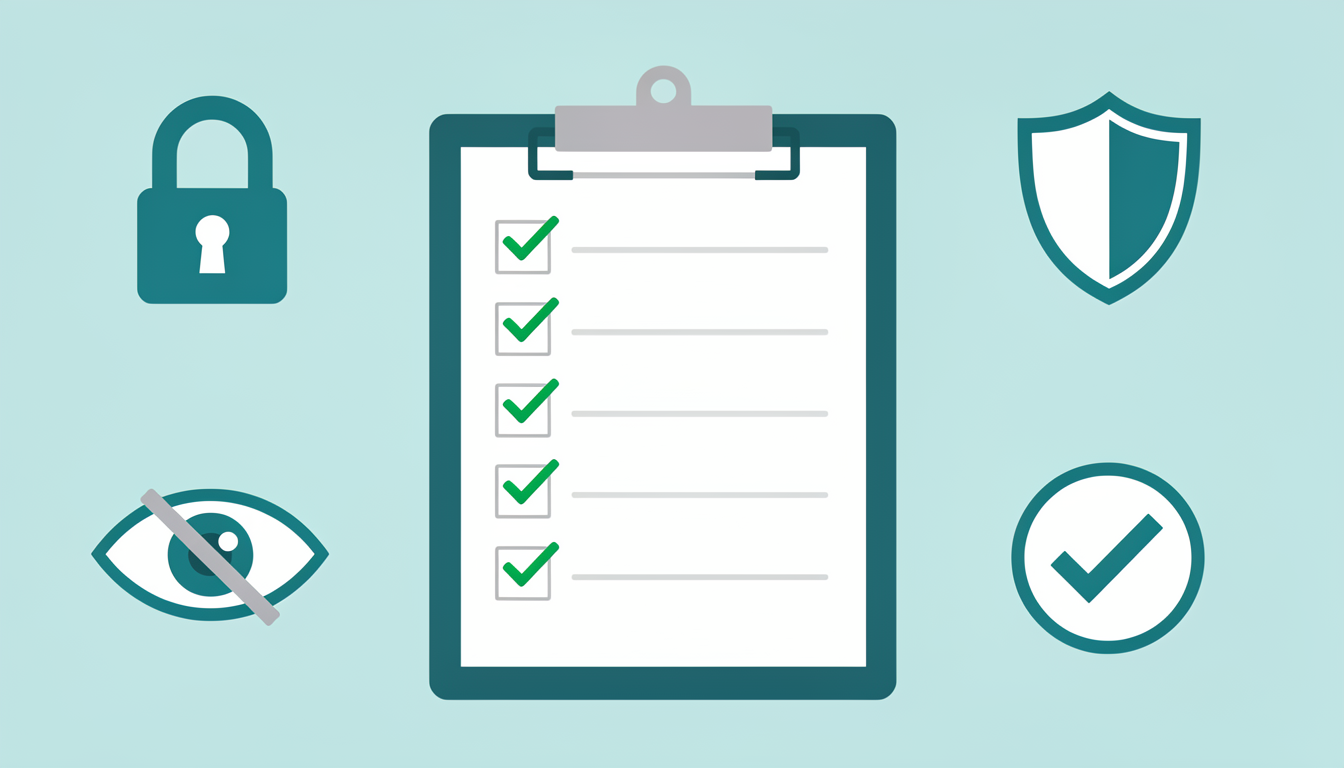
Review every video before it goes live. No exceptions. Here's a simple checklist:
- No personal information visible or mentioned (names, school, address, location)
- No other children appear without their parents' written consent
- No unsafe activities (stunts, dangerous challenges, risky behavior)
- No background details that reveal your home location (house numbers, street signs, school logos)
- Nothing your child would be embarrassed by in 5 years
- Audio doesn't capture private conversations in the background
- The content matches what you've set as the audience (Made for Kids)
Comments and Messages
Since "Made for Kids" disables comments automatically, this is largely handled for you. But if you ever upload content that isn't marked as "Made for Kids":
- Disable comments on any video featuring your child
- Never let your child read comments unsupervised
- Turn off direct messages in channel settings
The "Would I Want This Online Forever?" Test
Before uploading any video, ask yourself: Would my child be comfortable with this video existing on the internet when they're 18? If the answer is no — or even maybe — don't upload it. The internet doesn't forget.
Choosing a Content Niche That Works
Not all kids' content niches are created equal. Some are easier to produce, some get more views, and some monetize better. Here's an honest breakdown.
Best Niches by Age Group
For younger kids (ages 5–8):
| Niche | Why It Works | Example Channels |
|---|---|---|
| Toy reviews & unboxing | Kids love watching other kids play with toys | Ryan's World |
| Arts & crafts | Easy to film, educational, parents approve | Art for Kids Hub |
| Nursery rhymes & songs | Massive demand, high replay value | Cocomelon |
| Science experiments | Educational + entertaining = parent-approved | The Dad Lab |
| Pretend play & skits | Creative, low equipment needs | Kids Diana Show |
For older kids (ages 9–12):
| Niche | Why It Works | Example Channels |
|---|---|---|
| Gaming (kid-friendly) | Huge audience, easy to produce | Stampy, DanTDM |
| DIY & building projects | STEM-focused, parents love it | Mark Rober (style) |
| Cooking for kids | Practical skills + fun content | Tiny Chef Show |
| Sports & challenges | High energy, very shareable | Dude Perfect (style) |
| Educational content | Math, history, science explainers | Kurzgesagt (style) |
Picking Your Niche: Three Questions
-
What does your child genuinely enjoy? Forced content shows. Kids who are enthusiastic on camera create better videos. Don't pick "finance for kids" because it pays well if your child wants to do craft projects.
-
Can you sustain it? A toy review channel requires a constant supply of new toys. A craft channel needs supplies. A cooking channel needs ingredients and kitchen access. Think about the ongoing cost and effort.
-
Is there a unique angle? "Kid reviews toys" has millions of competitors. "Kid reviews toys and builds obstacle courses for them" is more specific and stands out in search.
Equipment: What You Actually Need (And What You Don't)
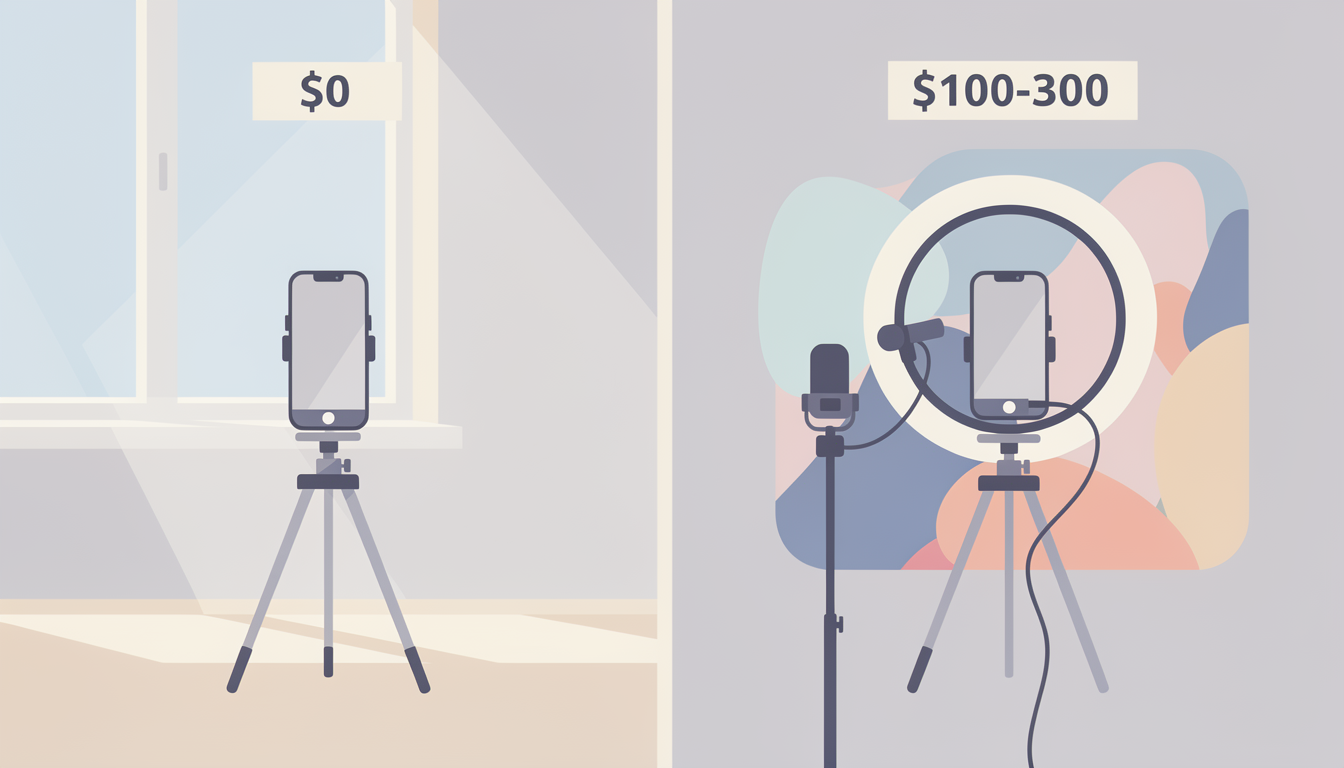
One of the biggest myths about YouTube is that you need expensive equipment. You don't — especially for a kids' channel.
Starter Setup (Total Cost: $0–$50)
| Item | Recommendation | Cost |
|---|---|---|
| Camera | Your smartphone (iPhone or Android from the last 3–4 years) | $0 (you already have it) |
| Editing software | CapCut (free), iMovie (free on Apple), or YouTube's built-in editor | $0 |
| Tripod | Any basic phone tripod from Amazon | $15–$25 |
| Lighting | Film near a window during daytime — natural light is free and looks great | $0 |
| Microphone | Your phone's built-in mic is fine for starting out | $0 |
Upgraded Setup (When You're Ready: $100–$300)
| Item | Recommendation | Cost |
|---|---|---|
| Ring light | 10-inch ring light with phone holder | $25–$40 |
| Lavalier microphone | Clip-on mic for clearer audio | $15–$30 |
| Backdrop | Solid color backdrop or a clean, decorated corner of a room | $20–$40 |
| Webcam / Camera | Logitech C920 or similar HD webcam for desk-based content | $50–$80 |
| Editing software | DaVinci Resolve (free and professional-grade) | $0 |
The honest truth: Audio quality matters more than video quality. Viewers will tolerate slightly grainy video but will click away from bad audio immediately. If you're going to spend money on one thing, make it a decent microphone.
Creating Videos Kids Actually Watch
Video Length by Age Group
| Target Age | Ideal Length | Why |
|---|---|---|
| 3–5 years | 2–5 minutes | Very short attention spans, simple concepts |
| 5–8 years | 5–8 minutes | Can follow a narrative but still need fast pacing |
| 9–12 years | 8–15 minutes | Longer attention spans, can handle more complex content. 8+ minutes also unlocks mid-roll ads. |
The Formula That Works
After studying hundreds of successful kids' channels, the pattern is consistent:
-
Hook in the first 5 seconds. Start with action, a question, or a surprising visual. "Today we're going to..." is boring. "Can we build a tower taller than Dad using only marshmallows?" is a hook.
-
Show, don't tell. Kids are visual learners. Instead of explaining what you're going to do, just start doing it. Narrate while demonstrating.
-
Keep energy high. Kids' content that performs well has enthusiastic, slightly exaggerated energy. This doesn't mean yelling — it means being animated, expressive, and genuinely excited.
-
Use simple language. Match your vocabulary to your target age. A 6-year-old doesn't understand "innovative" but understands "super cool."
-
Include a pattern or recurring element. Successful kids' channels have signature phrases, intros, or segments that kids recognize and look forward to. Think of it like a TV show with familiar structure.
-
End with a clear call to action. "If you liked this video, hit the subscribe button so you don't miss our next adventure!" Keep it simple and direct.
30 Video Ideas to Get You Started
Toy Reviews & Unboxing:
- Unboxing a mystery toy box (blindfolded)
- Comparing the most popular toy of the year vs. last year's
- "Is this toy worth it?" — honest kid review
- Building the biggest LEGO set we've ever tried
- Rating toys from 1–10 and explaining why
Arts & Crafts:
6. Making slime with only 3 ingredients
7. Creating a cardboard spaceship from scratch
8. Painting challenge: recreating a famous painting
9. DIY room decorations for under $5
10. Crafting a gift for Mom/Dad's birthday
Science & Learning:
11. Baking soda volcano (with explanations of why it works)
12. Growing crystals at home over 7 days (time-lapse)
13. "What happens if...?" curiosity experiments
14. Building a simple robot from a kit
15. Testing 5 viral science experiments from the internet
Cooking:
16. Making pizza from scratch (kid-friendly recipe)
17. Taste-testing snacks from another country
18. "Can a kid follow a professional chef's recipe?"
19. Making lunch for the whole family
20. Decorating cookies for a holiday
Challenges & Games:
21. The floor is lava — full house edition
22. Guess the food blindfolded challenge
23. Building the tallest tower with household items
24. 24-hour challenge: only eating one color food
25. Sibling trivia showdown
Day-in-the-Life & Vlogs:
26. A day at the zoo (what we learned)
27. My morning routine for school
28. Behind the scenes of making a YouTube video
29. What I got for my birthday (haul video)
30. First time trying [activity] — reaction video
PostPlanifyAll your social media in one simple dashboard
Schedule posts, track analytics, and reply to comments/DMs without switching tabs.
Engagement
+18%
Views
52.8k
Uploading and Optimizing Videos for Search
Getting your video found on YouTube requires more than just uploading and hoping. YouTube SEO — the process of optimizing titles, descriptions, and viewer experience — is what makes videos discoverable. Here's how to optimize each video for maximum visibility.
Writing Titles That Get Clicks
- Include the main topic in the first few words: "DIY Slime Recipe" not "Our Amazing Weekend Project Slime"
- Add a hook or emotional trigger: "DIY Slime Recipe That Actually Works!" or "Easiest Slime Recipe Ever (Only 3 Ingredients)"
- Keep it under 60 characters so it doesn't get cut off in search results
- Avoid clickbait. Kids and parents both lose trust quickly when the video doesn't match the title
Writing Descriptions That Rank
Your video description helps YouTube understand what your video is about. Structure it like this:
First 2 lines (visible without clicking "Show more"): A short, compelling summary with your main keyword. Example: "In this video, we're making the easiest homemade slime recipe with only 3 ingredients! Perfect for kids ages 5 and up."
Rest of the description:
- A detailed paragraph about what the video covers (150–200 words)
- Timestamps for key moments in the video
- Links to related videos on your channel
- A brief "About this channel" section
Tags and Keywords
While tags matter less than they used to, they still help YouTube categorize your content:
- Use your main keyword as the first tag
- Add 5–10 related variations ("slime recipe for kids," "easy slime," "how to make slime," "3 ingredient slime")
- Include your channel name as a tag
Thumbnails That Stand Out
Your thumbnail is the single biggest factor in whether someone clicks on your video. For kids' content:
- Use bright, saturated colors (red, yellow, blue) — they pop in a sea of thumbnails
- Show a face with an exaggerated expression — surprise, excitement, curiosity
- Add 3–4 words of large, bold text that complements (not repeats) the title
- Keep it simple — it needs to be readable at phone-screen size
- Be consistent — use the same style, font, and layout across all thumbnails so viewers recognize your channel
Growing Your Kids' YouTube Channel
Growth on YouTube is slow at first. Here's what actually works — and what doesn't.
What Works
Consistency beats everything. Pick a schedule you can maintain and stick to it. 1–2 videos per week is the sweet spot for most family channels. YouTube's algorithm rewards channels that upload regularly. A YouTube scheduling tool can help you plan and queue uploads in advance.
YouTube Shorts for discovery. Take the best 30–60 second moments from your long-form videos and post them as Shorts. Our guide on how to clip a YouTube video walks through the process. Shorts get distributed to a much wider audience and can funnel new subscribers to your main content. The ad revenue on Shorts is minimal, but the growth impact is real. See our guide on how to schedule YouTube Shorts to batch and automate your Shorts publishing.
Cross-promote on other platforms. Share clips on Instagram Reels, TikTok (if age-appropriate), and Pinterest. Parents discover kids' content on all these platforms. A social media scheduling tool can help you post consistently across all platforms without spending hours on it each week. For the full strategy, see our guides on content repurposing and social media cross-posting.

Collaborate with similar channels. Find other kids' channels at a similar size and do collaboration videos. Each channel gets exposed to the other's audience. This is one of the fastest organic growth strategies on YouTube.
Optimize for YouTube search. Especially early on, search traffic is your best friend. Target specific, searchable topics ("how to make slime for kids," "easy science experiments at home") rather than broad, competitive ones. Posting at the right time helps too — see our guide on the best time to upload a YouTube video.
What Doesn't Work
- Buying subscribers or views. YouTube's algorithm detects fake engagement and will suppress your content.
- Uploading inconsistently. One video a month with occasional bursts of 5 videos in a week confuses the algorithm and your audience.
- Copying other channels exactly. Inspired by? Great. Shot-for-shot copies? YouTube's audience sees right through it, and it won't rank against the original.
- Obsessing over analytics too early. Your first 20–30 videos are learning. Focus on getting reps in and improving each video, not watching the view counter.
Realistic Growth Timeline
| Milestone | Typical Timeline | What It Means |
|---|---|---|
| First 100 subscribers | 1–3 months | Friends, family, and first organic viewers |
| First 1,000 subscribers | 6–12 months | Eligible for YouTube Partner Program |
| 4,000 watch hours | 6–18 months | Combined with 1K subs, unlocks monetization |
| First 10,000 subscribers | 12–24 months | Sponsors start reaching out |
| First 100,000 subscribers | 2–5 years | Significant audience, real revenue potential |
These are averages. Some channels blow up faster, many take longer. Consistency and quality compound over time. Track your progress with our guide on how to see your YouTube subscribers. For a broader look at how YouTube earnings compare to other platforms, see what social media platform pays the most.
How Much Money Can Kids' YouTube Channels Actually Make?
Let's be honest about the money. Most guides either overhype the earnings potential ("Your kid could be the next Ryan Kaji!") or are vague about the numbers. Here's the reality.
Ad Revenue: Lower Than You Think
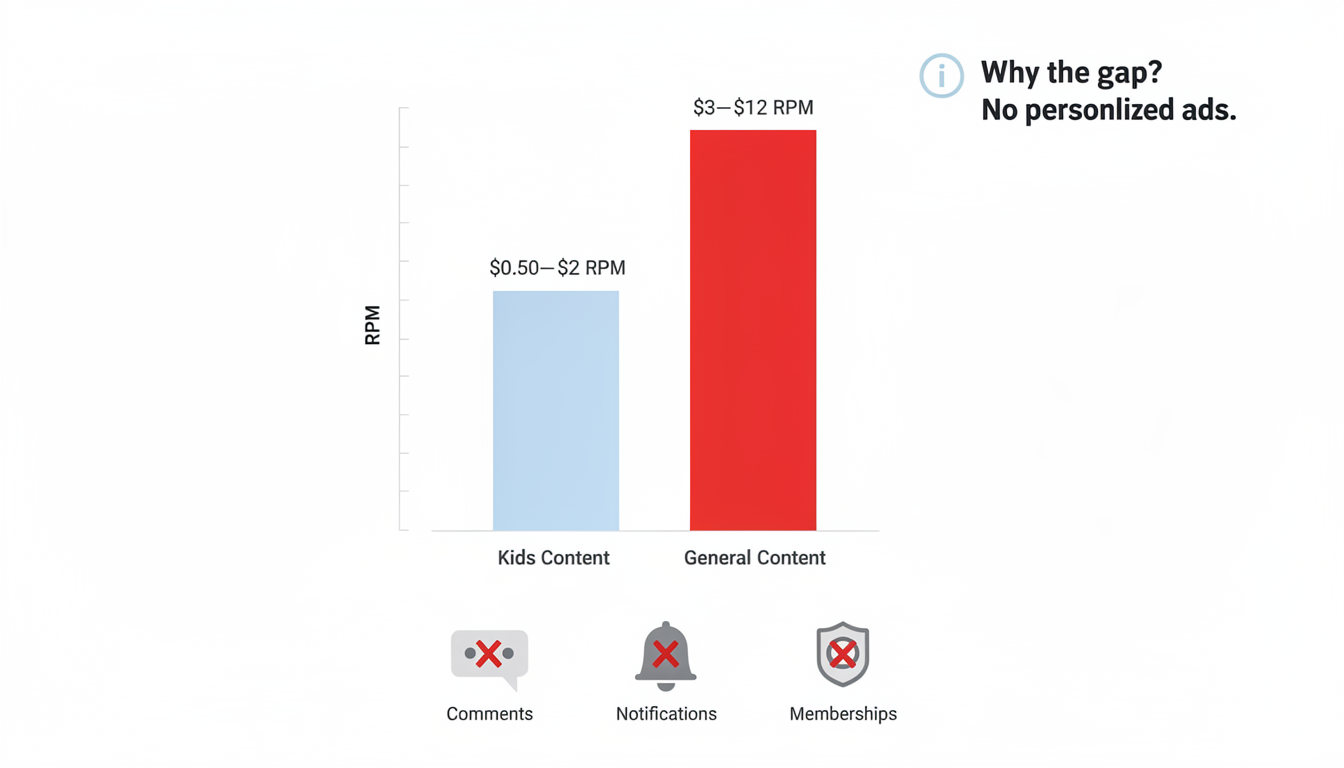
"Made for Kids" content earns significantly less per view than general content because personalized ads are disabled:
| Content Type | CPM Range | RPM (What You Earn per 1K Views) |
|---|---|---|
| General YouTube content | $5–$30 | $3–$12 |
| Made for Kids content | $1–$4 | $0.50–$2.00 |
| Kids' Shorts | $0.10–$0.50 | $0.01–$0.05 |
For a detailed breakdown of YouTube CPM and RPM by niche and country, check out our guide on how much YouTube pays for 1,000 views.
What this means in real money:
| Monthly Views | Estimated Monthly Ad Revenue |
|---|---|
| 10,000 | $5–$20 |
| 50,000 | $25–$100 |
| 100,000 | $50–$200 |
| 500,000 | $250–$1,000 |
| 1,000,000 | $500–$2,000 |
At 100,000 views per month, you're earning $50–$200 from ads. That's not nothing, but it's not life-changing money either.
Where the Real Money Is
The kids' channels earning millions aren't doing it through ads alone. Here's how the top channels actually make money:
| Revenue Stream | Earnings Potential | Requirements |
|---|---|---|
| Brand sponsorships | $500–$50,000+ per deal | 10K+ subscribers, niche audience |
| Merchandise | $5–$30 profit per item | Established brand, loyal audience |
| Licensing deals | $10,000–$1M+ per deal | Major channel with recognizable characters |
| Books & media | Varies widely | Strong brand identity |
| Live appearances | $1,000–$50,000 per event | Celebrity-level recognition |
Ryan Kaji (Ryan's World) earns an estimated $26 million annually — but the vast majority comes from his toy line, licensing deals, and a TV show, not YouTube ads. Vlad and Niki earn $4.9M–$78.5M annually across sponsorships, merchandise, and ad revenue combined.
Setting the Right Expectations
Be honest with your child about money:
- First 6–12 months: Expect to earn essentially nothing. Focus on learning and having fun.
- Year 1–2: If you hit monetization requirements, expect $20–$200/month from ads. See our guide on when YouTube starts paying you for the full timeline.
- Year 2+: If the channel grows steadily, brand deals become the real income driver.
The financial payoff is possible but rare at the top level. The real value of a kids' YouTube channel is in the skills your child develops: creativity, public speaking, editing, project management, and persistence.
2026 Regulatory Updates: What's Changing
The regulatory landscape for kids' content is evolving. Here's what you need to know heading into 2026 and beyond.
AI-Based Age Detection
YouTube launched AI-driven age estimation in August 2025. The system infers viewer age based on behavior patterns — not just stated birthdate. This means:
- Even if a viewer doesn't identify as under 13, YouTube's AI may classify them as a minor
- If your content attracts viewers that the AI flags as children, YouTube may apply "Made for Kids" restrictions automatically — even if you didn't mark it
- Flagged minor accounts may need to verify age via government ID, credit card, or selfie
What to do: Be proactive about labeling your content correctly. Don't try to avoid "Made for Kids" labeling to keep features enabled — YouTube's AI will catch it, and the penalties are worse than the restrictions.
COPPA 2.0 (Proposed)
While COPPA 2.0 hasn't become law yet, YouTube has been implementing changes in anticipation of it. The proposal aims to:
- Extend protections to ages 13–16 (beyond the current under-13 scope)
- Limit targeted advertising for all minors, not just children under 13
- Require stricter verification for youth accounts
GDPR-K (EU)
If you have European viewers (and you likely do), GDPR Article 8 governs data collection from minors. The age threshold varies by EU country (13–16). YouTube applies GDPR-K and COPPA requirements globally, so even if you're not in the EU, these rules affect your channel's features for European viewers.
The bottom line: Regulation is getting stricter, not looser. Build your channel with full compliance from day one so you're never scrambling to adapt to new rules.
Frequently Asked Questions
Can a kid under 13 have their own YouTube channel?
No. YouTube's Terms of Service require users to be at least 13 to create an account. If your child is under 13, a parent must create and manage the channel using their own Google account. The child can appear in videos and help create content, but the account must be in the parent's name.
Is it safe to put my child on YouTube?
It can be, with proper precautions. Never share personal information (full names, school, address, schedule), review every video before publishing, disable comments, use a channel name that doesn't reveal your child's identity, and film in locations that don't reveal where you live. The biggest risk is not YouTube itself — it's inadequate privacy practices.
How much money can a kids' YouTube channel make?
Most small kids' channels earn $5–$200 per month from ad revenue, which is significantly lower than general content because "Made for Kids" restrictions disable personalized ads. The real money comes from brand sponsorships, merchandise, and licensing deals — but those require a substantial audience (typically 10,000+ subscribers).
Do I have to mark my channel as "Made for Kids"?
If your content is directed at children — based on subject matter, the presence of child actors, the use of toys/characters that appeal to kids, or the language level — yes, you are legally required to mark it. Failure to do so can result in FTC fines of up to $42,530 per video.
What's the difference between YouTube Kids and a "Made for Kids" channel?
YouTube Kids is a separate app with a curated library of content for children, with extra parental controls. A "Made for Kids" channel is a regular YouTube channel that has been labeled as child-directed, which triggers feature restrictions (no comments, no personalized ads, etc.). Your "Made for Kids" content can appear on both regular YouTube and the YouTube Kids app.
How often should my child upload videos?
1–2 videos per week is the sweet spot for most kids' channels. Consistency matters more than frequency. It's better to upload one quality video every week than three rushed videos one week and nothing for the next two weeks.
Can my child's YouTube channel get monetized?
Yes, once it meets YouTube Partner Program requirements: 1,000 subscribers and 4,000 watch hours in the past 12 months (or 10 million Shorts views in 90 days). However, "Made for Kids" channels earn less per view than general content due to advertising restrictions.
What happens if I don't mark my videos as "Made for Kids" but they are?
YouTube's AI detection system may automatically flag your content and apply restrictions. Additionally, the FTC can impose fines of up to $42,530 per incorrectly labeled video. It's always safer to over-label than under-label.
The Bottom Line
Starting a YouTube channel for your child is a project you take on together. Done right, it teaches valuable skills and gives your kid a creative outlet. Done wrong, it exposes your family to privacy risks and legal trouble.
Here's the order of priorities:
- Safety first. Protect your child's identity, location, and privacy in every single video. No exceptions. Enable 2-Step Verification on the Google account and know how to recover your YouTube account if something goes wrong.
- Legal compliance second. Mark your content as "Made for Kids," understand COPPA, and stay updated on regulatory changes.
- Fun third. Let your child lead the creative direction. The best kids' content comes from genuine enthusiasm, not manufactured performance.
- Growth and money last. These are nice outcomes but terrible primary goals for a child's YouTube channel.
Start small, stay consistent, and enjoy the process. Your child doesn't need to become the next Ryan Kaji to have a meaningful experience creating content.
If you're managing your child's YouTube channel alongside other social media accounts, PostPlanify helps you schedule and coordinate content across YouTube, Instagram, TikTok, and more — keeping your posting consistent without it becoming a second job. Start your 7-day free trial.
Related: How Much Does YouTube Pay for 1,000 Views? | When Does YouTube Start Paying You? | Best YouTube Scheduling Tools | How to Schedule YouTube Shorts | Best Time to Upload a YouTube Video | How to Clip a YouTube Video | Content Repurposing Strategies | What Social Media Platform Pays the Most?
PostPlanifyAll your social media in one simple dashboard
Schedule posts, track analytics, and reply to comments/DMs without switching tabs.
Engagement
+18%
Views
52.8k
About the Author

Hasan Cagli
Founder of PostPlanify, a content and social media scheduling platform. He focuses on building systems that help businesses, agencies, and teams plan, publish, and manage content and social media more efficiently across platforms.


