


You have a video that's longer than 60 seconds and you want to post it on Instagram. Instagram supports it — but the rules are different depending on which format you use, what device you upload from, and what type of account you have.
Here's the quick answer: Instagram Feed posts support videos up to 60 minutes (desktop, verified/large accounts) or 15 minutes (mobile). Reels go up to 20 minutes. Stories cap at 60 seconds per clip. Carousel posts allow 60 seconds per slide across 20 slides. And Instagram Live runs up to 4 hours.
But "supported" and "recommended" are two different things. A 20-minute Reel is technically possible, but the algorithm won't push it the same way it pushes a 30-second one. And a 60-minute feed video requires a specific account type and upload method.
This guide covers every format — exact limits, step-by-step upload instructions, technical specs, and what actually performs well. No outdated IGTV references, no guessing.
Instagram Video Length Limits: Quick Reference (2026)
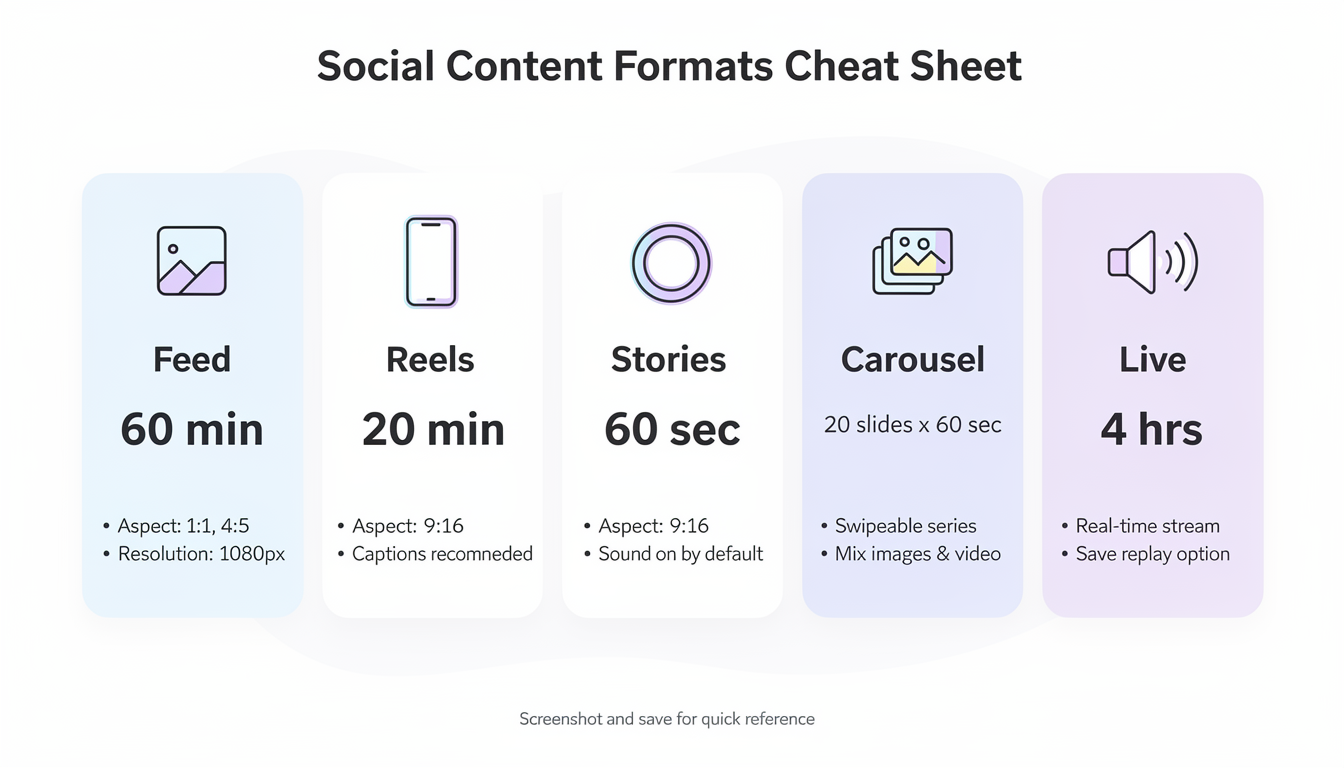
Before diving into how-to instructions, here's the complete picture. This table reflects Instagram's current limits in 2026:
| Format | Maximum Duration | File Size Limit | Best Aspect Ratio | Upload From |
|---|---|---|---|---|
| Feed Post | 60 min (desktop, verified) / 15 min (mobile) | 650 MB (standard) / 3.6 GB (large accounts) | 4:5 portrait (1080 x 1350) | Mobile or Desktop |
| Reels | 20 minutes | 4 GB | 9:16 vertical (1080 x 1920) | Mobile or Desktop |
| Stories | 60 seconds per clip | 100 MB per clip | 9:16 vertical (1080 x 1920) | Mobile or Desktop |
| Carousel | 60 seconds per slide (20 slides max) | 4 GB total / ~30 MB per slide | 4:5 or 1:1 | Mobile or Desktop |
| Live | 4 hours per session | N/A (streaming) | 9:16 vertical | Mobile only |
Key takeaway: If your video is under 15 minutes, you can upload it as a feed post from your phone. If it's 15–60 minutes, you'll need to use desktop upload or post it as a Reel (up to 20 minutes). For anything longer, Instagram Live is your only option.
How to Post a Long Video on Instagram Feed
Feed posts are the most straightforward way to share longer videos. They appear in your followers' main feed, on your profile grid, and in the Explore page.
Video length rules for feed posts
The maximum duration depends on your account type and upload method:
| Account Type | Mobile Upload | Desktop Upload |
|---|---|---|
| Regular personal account | Up to 10 minutes | Up to 15 minutes |
| Creator/business account | Up to 15 minutes | Up to 60 minutes |
| Verified / large following | Up to 15 minutes | Up to 60 minutes |
One thing most guides skip: Instagram shows only a 60-second preview in the feed. After that, viewers see a "Keep watching" prompt. Your full video plays when someone taps into it, but the first 60 seconds are what determines whether anyone actually does. Make them count.
Step-by-step: Upload a long video to feed (mobile)
- Open Instagram and tap the + button at the bottom center
- Select Post from the options
- Choose your video from your camera roll
- If the video is longer than 60 seconds, Instagram shows a trim screen — drag the handles to select your clip, or tap Long to upload the full video
- Apply any filters or edits, then tap Next
- Choose a cover image — pick a frame that works as a thumbnail on your grid layout
- Write your caption (front-load the hook in the first line — this is what shows before "...more")
- Add location, tags, and hashtags
- Tap Share
Step-by-step: Upload a long video to feed (desktop)
Desktop upload supports the longest feed videos (up to 60 minutes for eligible accounts). Use this method when your video exceeds mobile limits.
- Go to instagram.com and log in
- Click the + icon in the top navigation bar
- Click Select from computer and choose your video file
- Instagram processes the video — wait for it to finish (larger files take longer)
- Choose your aspect ratio (Original, 1:1, or 4:5) and set a cover image
- Click Next, write your caption, add hashtags and location
- Click Share
Desktop upload tip: Transfer your video to your computer first if you edited it on your phone. Uploading to Instagram from desktop avoids the mobile app's additional compression layer, which can reduce quality on longer videos.
Technical specs for feed videos
| Spec | Requirement |
|---|---|
| File format | MP4 or MOV |
| Video codec | H.264 |
| Audio codec | AAC |
| Resolution | 1080px minimum width |
| Aspect ratio | 1.91:1 (landscape) to 9:16 (vertical) — 4:5 recommended |
| Frame rate | 30 fps |
| Max file size | 650 MB (standard) / 3.6 GB (verified/large accounts) |
| Bitrate | 3,500–5,000 kbps |
 PostPlanify
All your social media in one simple dashboard
Schedule posts, track analytics, and reply to comments/DMs without switching tabs.

Engagement
+18%
Views
52.8k
How to Post a Long Reel on Instagram
Reels are Instagram's primary short-form video format — except they're not really "short-form" anymore. As of late 2025, Instagram expanded the maximum Reel length to 20 minutes, up from the previous 3-minute limit.
The Reels length timeline
Instagram has expanded Reel duration several times:
| Date | Maximum Reel Length |
|---|---|
| Launch (2020) | 15 seconds |
| Early 2021 | 30 seconds |
| Mid 2021 | 60 seconds |
| 2022 | 90 seconds |
| Early 2025 | 3 minutes |
| Late 2025 | 20 minutes |
Important: Maximum length vs. optimal length
Here's what most guides won't tell you clearly — just because you can post a 20-minute Reel doesn't mean you should. Instagram's algorithm treats Reels of different lengths very differently:
| Reel Length | Algorithm Behavior | Best For |
|---|---|---|
| 7–30 seconds | Highest reach, most likely to hit Explore | Hooks, teasers, quick tips |
| 30–90 seconds | Strong reach, good for engagement | Tutorials, how-tos, storytelling |
| 1–3 minutes | Moderate reach, rewards high retention | In-depth tutorials, reviews |
| 3–20 minutes | Limited discovery, shown mostly to followers | Full tutorials, mini-courses, behind-the-scenes |
Instagram still prioritizes recommending Reels under 3 minutes for discovery. Longer Reels can perform well if retention is high, but they won't get the same algorithmic push to non-followers. Use long Reels for your existing audience, short Reels for growth. For a deeper look at how the algorithm ranks Reels by length, see our Instagram Reels algorithm guide.
Step-by-step: Post a long Reel
- Open Instagram and tap the + button
- Select Reel
- Tap the gallery icon (bottom left) to upload a pre-recorded video
- Select your video — if it's longer than the default, Instagram lets you trim or keep the full length
- Use the editing tools: add text, stickers, audio, or effects
- Tap Next to reach the sharing screen
- Write a caption, add hashtags, and toggle Also share to Feed (recommended for reach)
- Choose a cover image from the video or upload a custom thumbnail
- Tap Share
Who has access to 20-minute Reels?
The 20-minute limit is rolling out globally but not all accounts have it yet. Some users still see the 3-minute cap. If you don't have the option:
- Update your Instagram app to the latest version
- Switch to a Creator or Business account (these tend to get new features first)
- Wait — Instagram rolls features out in waves by region and account type
Technical specs for Reels
| Spec | Requirement |
|---|---|
| File format | MP4 or MOV |
| Video codec | H.264 |
| Audio codec | AAC (48kHz recommended) |
| Resolution | 1080 x 1920 px (9:16) |
| Aspect ratio | 9:16 (full-screen vertical) |
| Frame rate | 30 fps |
| Max file size | 4 GB |
| Bitrate | 3,500–5,000 kbps |
Safe zones matter for Reels. Instagram's UI overlays — your username, caption, like/comment/share buttons — cover parts of the screen. Keep critical content (text, faces, key visuals) in the center of the frame to avoid being hidden. See our social media safe zones guide for exact pixel measurements.
If you're creating Reels on a regular schedule, scheduling them in advance saves significant time. Batch-create a week's worth of Reels and schedule them to post at optimal times instead of manually publishing each one.

How to Post Long Videos to Instagram Stories
Instagram Stories have a strict 60-second limit per clip. But you can post multiple clips in a sequence, effectively creating a longer video experience split into segments.
How Stories handle long videos
When you upload a video longer than 60 seconds to Stories, Instagram automatically splits it into 60-second clips. Each clip posts as a separate Story segment that viewers tap through in order.
| Video Length | Number of Story Clips | Viewer Experience |
|---|---|---|
| 30 seconds | 1 clip | Seamless |
| 90 seconds | 2 clips | 1 tap to continue |
| 3 minutes | 3 clips | 2 taps to continue |
| 5 minutes | 5 clips | 4 taps — drop-off risk increases |
| 10 minutes | 10 clips | Significant drop-off expected |
Step-by-step: Post a long video to Stories
- Open Instagram and swipe right (or tap Your Story at the top)
- Tap the gallery icon to select a pre-recorded video
- If your video is longer than 60 seconds, Instagram auto-splits it — you'll see the segments in the editor
- Review each segment — add text, stickers, polls, or links to individual clips
- Tap Your Story (or Close Friends) to publish all segments at once
Best practices for long Stories
- Keep it under 5 clips (5 minutes) — completion rates drop sharply after 4–5 segments
- Add engagement stickers to early clips — polls, questions, and quizzes keep viewers tapping forward instead of swiping away
- Save long-form Story series to Highlights — Stories disappear after 24 hours, but Highlights stay on your profile permanently
- Add a text label on the first frame — something like "Full tutorial" or "Watch all 4 parts" sets expectations
For consistent Story posting, our guide on how to schedule Instagram Stories walks through batching and scheduling your Story content in advance.
How to Post Long Videos Using Carousel Posts
Carousel posts are an underused workaround for longer video content. Each carousel can hold up to 20 slides, and each slide can be a 60-second video clip. That's a theoretical maximum of 20 minutes of video in a single post. For more on carousel strategy beyond video, see our full Instagram carousel guide and our guide on how to post multiple photos on Instagram.
Why carousel video works
Unlike Stories (which disappear) or Reels (which are algorithmically distributed), carousel posts sit permanently on your profile and get strong engagement. Instagram's algorithm shows carousel posts to non-followers more aggressively than single-image posts because the swipe interaction signals engagement.
| Carousel Feature | Detail |
|---|---|
| Maximum slides | 20 |
| Max video per slide | 60 seconds |
| Max total video | 20 minutes (theoretical) |
| Aspect ratio | 1:1 or 4:5 (must be consistent across slides) |
| File size | 4 GB total, ~30 MB per slide recommended |
| Persistence | Permanent (stays on grid) |
Step-by-step: Create a video carousel
- Split your video into clips of 60 seconds or less using a video editor (CapCut, DaVinci Resolve, or your editing tool of choice)
- Open Instagram and tap the + button
- Select Post
- Tap the multiple selection icon (overlapping squares) to enable carousel mode
- Select your video clips in order (up to 20)
- Adjust each clip as needed, then tap Next
- Write a caption that tells viewers to swipe through all clips
- Tap Share
When carousel video makes sense
- Tutorials and step-by-step guides — each step as its own slide
- Before/after transformations — build anticipation across slides
- Event recaps or vlogs — key moments as separate clips
- Educational content — break a 5-minute explanation into digestible segments
Pro tip: Add a text overlay on the first slide that says "Swipe for the full tutorial" or similar. Carousel completion rates increase significantly when viewers know there's more content to swipe through.
For scheduling carousel posts across Instagram and Facebook simultaneously, see our guide on how to schedule carousel posts.
PostPlanifyAll your social media in one simple dashboard
Schedule posts, track analytics, and reply to comments/DMs without switching tabs.
Engagement
+18%
Views
52.8k
How to Stream Long Videos on Instagram Live
Instagram Live supports the longest video duration of any format on the platform — up to 4 hours per session. There's no follower minimum to go live.
Instagram Live specs
| Spec | Detail |
|---|---|
| Maximum duration | 4 hours |
| Minimum followers | None |
| Aspect ratio | 9:16 vertical |
| Upload from | Mobile only |
| Saved to profile | Optional (up to 30 days) |
| Co-hosts | Up to 3 (Live Rooms) |
Step-by-step: Start an Instagram Live
- Open Instagram and swipe right to open the camera
- Swipe the bottom menu to Live
- Add a title that describes the stream topic (important for discoverability)
- Optionally tap Schedule to promote the Live session in advance
- Tap the Live button to start broadcasting
- To end, tap End in the top right, then choose whether to share the replay to your profile or delete it
When Live makes sense for long content
- Q&A sessions and AMAs — real-time interaction drives engagement
- Workshops and tutorials — teach something complex in one continuous session
- Product launches and events — build hype with live reactions
- Interviews and panels — use Live Rooms to bring in up to 3 co-hosts
After the Live ends, you can save the replay to your profile for up to 30 days. You can also download it and repurpose it — trim highlights into Reels, pull clips for Stories, or upload the full recording as a feed post.
Video Upload Specs: Complete Technical Reference
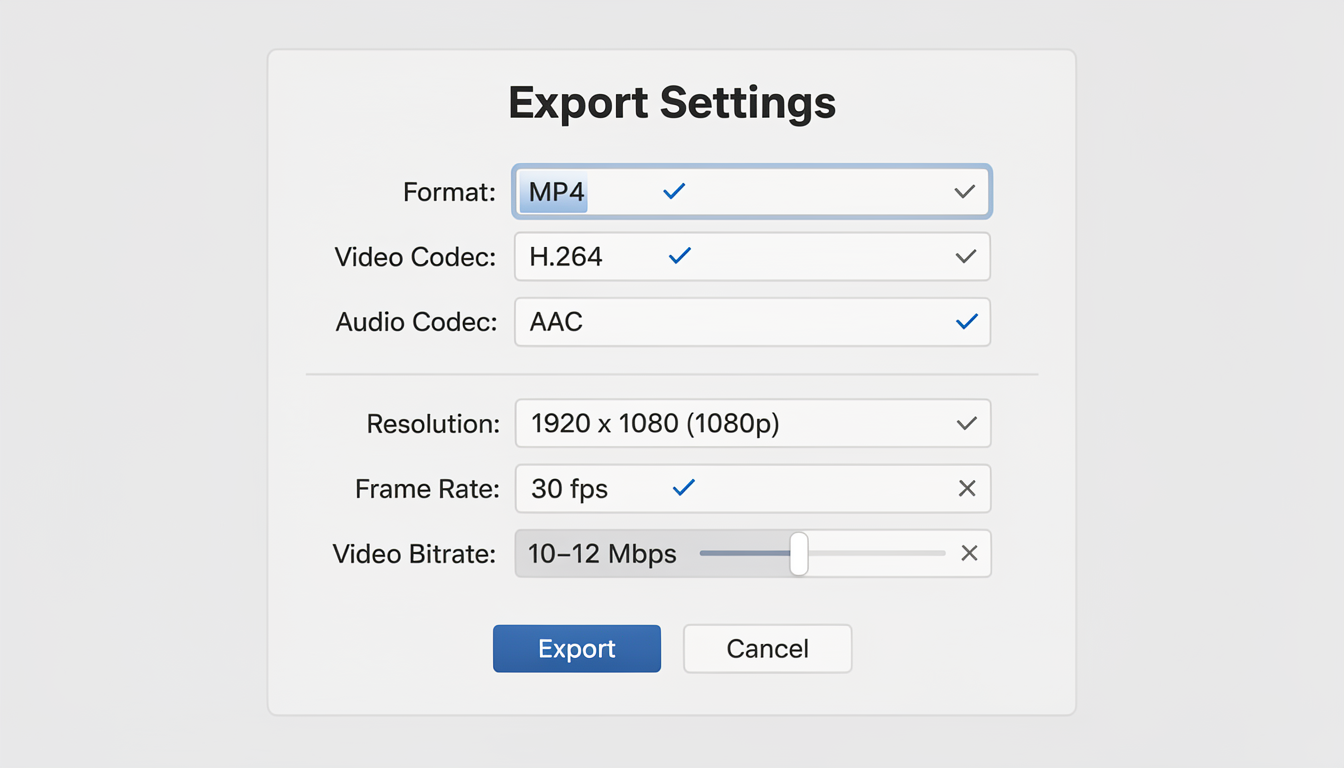
This section is your export settings cheat sheet. Bookmark it for when you're rendering your video and need the exact specs. For image and photo dimensions, see our Instagram image size guide.
Universal specs (apply to all formats)
| Setting | Recommended Value |
|---|---|
| File format | MP4 (preferred) or MOV |
| Video codec | H.264 |
| Audio codec | AAC |
| Sample rate | 48 kHz |
| Frame rate | 30 fps |
| Resolution | 1080px width minimum |
| Bitrate (export) | 10–12 Mbps for best quality |
| Color space | Rec. 709 (standard) |
Format-specific specs
| Format | Resolution | Aspect Ratio | Max File Size | Max Duration |
|---|---|---|---|---|
| Feed (portrait) | 1080 x 1350 px | 4:5 | 650 MB / 3.6 GB | 15 min / 60 min |
| Feed (square) | 1080 x 1080 px | 1:1 | 650 MB / 3.6 GB | 15 min / 60 min |
| Feed (landscape) | 1080 x 566 px | 1.91:1 | 650 MB / 3.6 GB | 15 min / 60 min |
| Reels | 1080 x 1920 px | 9:16 | 4 GB | 20 min |
| Stories | 1080 x 1920 px | 9:16 | 100 MB per clip | 60 sec |
| Carousel (video) | 1080 x 1350 px | 4:5 | ~30 MB per slide | 60 sec per slide |
Why these specs matter
Instagram re-compresses every video you upload. If you upload a poorly compressed file, Instagram compresses it again, and you get blurry, artifact-heavy playback. If you upload a well-optimized file at the specs above, Instagram's compression has less work to do and the final result looks significantly better.
Think of it like this: Instagram will always compress your video. Your job is to give it the best possible starting point.
How to Avoid Quality Loss When Uploading Long Videos
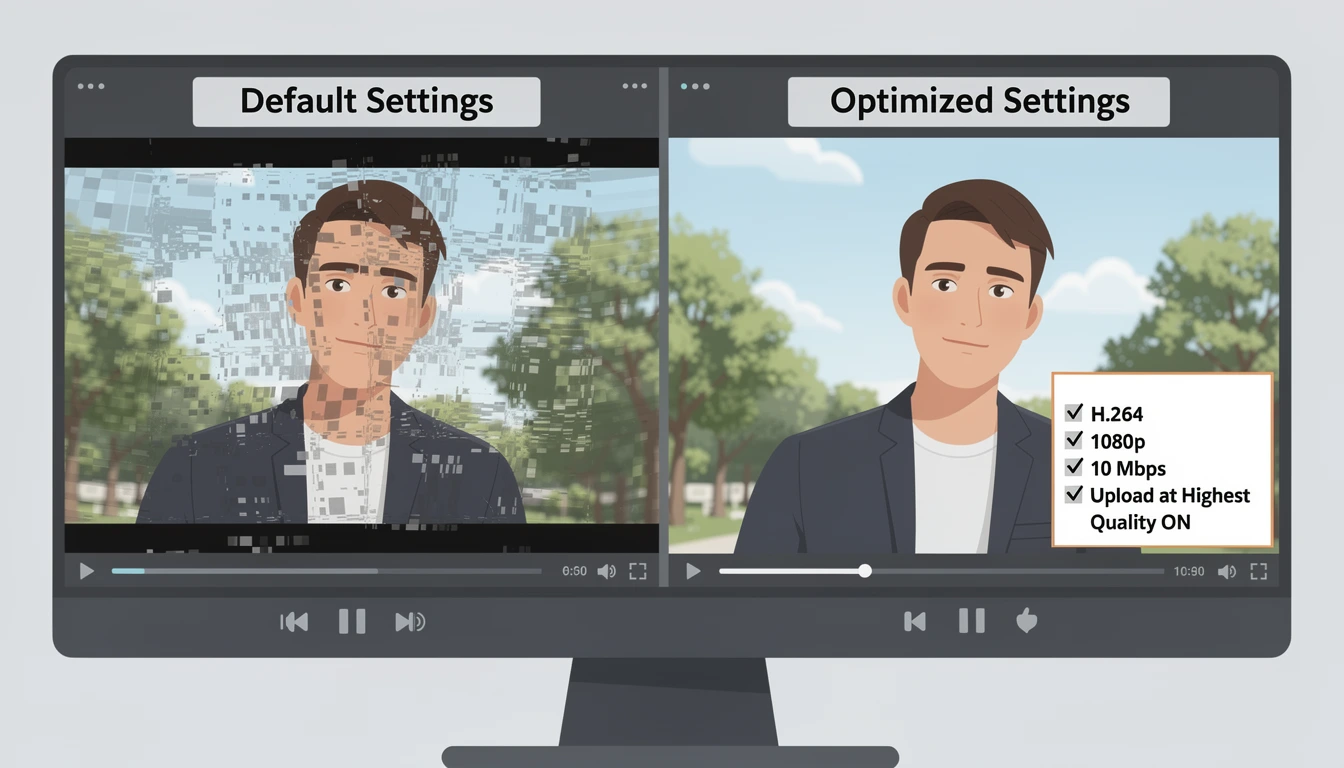
Long videos are especially vulnerable to Instagram's compression. More duration means more data to compress, which means more opportunities for quality degradation. Here's how to minimize it.
Enable "Upload at Highest Quality"
This is the single most impactful setting and most people don't know it exists:
- Open Instagram → tap your profile picture → tap the menu (three lines)
- Go to Settings and privacy → Data usage and media quality
- Toggle on Upload at highest quality
This forces Instagram to use less aggressive compression on your uploads. The tradeoff is slightly longer upload times, but the quality difference is visible — especially on longer videos.
Export settings that minimize compression damage
| Setting | What to Do | Why |
|---|---|---|
| Resolution | Export at exactly 1080p width | Uploading at higher resolution forces Instagram to downscale, adding an extra compression step |
| Bitrate | 10–12 Mbps | High enough for quality, low enough to avoid re-compression triggers |
| Codec | H.264 | Instagram's native codec — uploading H.265/HEVC forces re-encoding |
| Frame rate | 30 fps | Match Instagram's playback standard to avoid frame interpolation |
| Keyframes | Every 2 seconds | Reduces compression artifacts in scenes with lots of motion |
Other quality tips
- Upload over Wi-Fi, not cellular — Instagram applies heavier compression on mobile data connections
- Don't re-export multiple times — each export/re-encode cycle degrades quality. Edit once, export once, upload once
- Upload from mobile for short videos, desktop for long ones — the mobile app actually handles compression slightly better for shorter content, but desktop avoids an extra compression layer for larger files
- Avoid text in small font sizes — fine text becomes unreadable after compression. Use large, bold text overlays
- Burn in subtitles during editing — don't rely on Instagram's auto-captions for important text. Burned-in captions render at full quality before compression
Troubleshooting: Why Your Video Won't Upload
Long videos fail to upload more often than short ones. Here are the most common causes and their fixes.
File size exceeds Instagram's limit
| Format | Max File Size | Typical Culprit |
|---|---|---|
| Feed post | 650 MB (standard) / 3.6 GB (large accounts) | 4K export or high bitrate |
| Reels | 4 GB | Rarely an issue |
| Stories | 100 MB per clip | Long uncompressed clips |
| Carousel | 4 GB total | Too many high-res slides |
Fix: Re-export at 1080p with 10–12 Mbps bitrate. A 15-minute video at these settings is roughly 900 MB — well within limits for Reels but potentially over the feed post cap. If your feed video is over 650 MB, try uploading as a Reel instead.
Unsupported file format
Instagram accepts MP4 and MOV files with H.264 video codec. If your video is in MKV, AVI, WebM, or uses H.265/HEVC codec, it will either fail to upload or get aggressively re-encoded (destroying quality).
Fix: Re-export from your editing software as MP4 with H.264. If you don't have editing software, free tools like HandBrake can convert any video format to Instagram-compatible MP4.
Video is too long for your account type
If you're trying to upload a 30-minute feed post from a regular personal account, it will fail silently or get trimmed. Regular accounts are limited to 10–15 minutes for feed posts.
Fix: Switch to a Creator or Business account (free, takes 30 seconds in Settings → Account → Switch to professional account). Or upload as a Reel instead, which supports up to 20 minutes regardless of account type.
Upload gets stuck or fails partway
This is almost always a network issue. Long videos take longer to upload, and any interruption during that time causes a failure.
Fix:
- Switch to a strong, stable Wi-Fi connection
- Close other apps that might be using bandwidth
- Don't lock your phone or switch apps during upload — Instagram pauses uploads when backgrounded
- If it keeps failing, try uploading from desktop at instagram.com, which handles large files more reliably
Video appears blurry after posting
If your video looks fine on your phone but blurry on Instagram, the platform's compression is to blame.
Fix: Follow the quality optimization steps in the section above — enable "Upload at highest quality," export at 1080p with H.264, 30fps, and 10–12 Mbps bitrate. Also check that your source footage is at least 1080p — Instagram can't improve low-resolution originals.
Which Format Should You Use? Decision Guide
With five different video formats, choosing the right one for your content matters. Here's a decision framework:
| Your Goal | Best Format | Why |
|---|---|---|
| Maximum reach to new audiences | Reels (under 90 seconds) | Algorithm pushes short Reels to Explore and non-followers (see format comparison) |
| In-depth tutorial (under 20 min) | Reels (1–20 min) | Stays on your grid, appears in Reels tab, searchable |
| Permanent long-form content | Feed post | Profile grid placement, no algorithmic discovery bias against length |
| Episodic or step-by-step content | Carousel | High engagement from swipes, permanent, great for saves |
| Real-time interaction | Live | Only format with live engagement, up to 4 hours |
| Temporary behind-the-scenes | Stories | Casual, disappears in 24 hours, low production expectation |
| Video over 60 minutes | Live (then save replay) | Only format that supports 60+ minutes |
The repurposing strategy
The most efficient approach isn't choosing one format — it's using all of them from a single piece of long-form content:
- Record a 15-minute tutorial as your primary content
- Post the full version as a Reel on your profile
- Cut 3–4 short clips (15–30 seconds each) and post them as separate Reels for discovery
- Split key sections into a carousel post for the save-and-share audience
- Post behind-the-scenes clips to Stories to drive traffic to the full video
This way, one recording session produces 6–8 pieces of content across multiple formats — each optimized for its format's strengths. For the full system, see our content repurposing strategies and content batching guides.
Managing this kind of multi-format strategy manually gets unsustainable fast. A social media scheduling tool lets you plan all these posts in a visual calendar, schedule them across Instagram and other platforms simultaneously, and post at the best time for your audience without being glued to your phone.
Frequently Asked Questions
How long can Instagram videos be in 2026?
It depends on the format. Feed posts support up to 60 minutes (desktop upload, verified/large accounts) or 15 minutes (mobile). Reels support up to 20 minutes. Stories are limited to 60 seconds per clip but can be chained together. Carousel posts allow 60 seconds per slide across up to 20 slides. Instagram Live supports up to 4 hours.
Can I post a 10-minute video on Instagram?
Yes. A 10-minute video fits within the limits for feed posts (all account types), Reels, and carousel posts (split across slides). The easiest method is uploading it as a Reel — no account restrictions, and it gets placed in the Reels tab for additional discoverability.
Why is Instagram cutting my video short?
Instagram trims videos that exceed the format's length limit. If you're uploading a feed post from mobile and the video gets trimmed, your video likely exceeds the 15-minute mobile limit. Try uploading from desktop instead, or post it as a Reel which supports up to 20 minutes. Also check that you're tapping "Long" (not "Short") when the trim screen appears.
How do I post a video longer than 60 minutes on Instagram?
The only option for videos over 60 minutes is Instagram Live, which supports up to 4 hours. Alternatively, split your video into two or more parts and upload them as separate feed posts or Reels with "Part 1" and "Part 2" titles.
Does posting long videos hurt my Instagram reach?
Not necessarily — but format choice matters. Short Reels (under 90 seconds) get the most algorithmic push to new audiences. Long Reels (over 3 minutes) are shown primarily to existing followers. Feed posts and carousel posts aren't penalized for length but also don't get the same discovery boost as short Reels. The key factor is retention rate, not length — a 10-minute video where everyone watches to the end outperforms a 30-second video where everyone swipes away.
What's the best video format for Instagram in 2026?
MP4 with H.264 video codec and AAC audio codec, exported at 1080p resolution, 30fps frame rate, and 10–12 Mbps bitrate. This format is Instagram's native standard and receives the least aggressive compression during upload. Avoid H.265/HEVC, MKV, or AVI formats — they force Instagram to re-encode your video, which degrades quality.
Can I schedule long videos on Instagram?
Yes. Instagram's native scheduler (in Creator/Business accounts) supports scheduling feed posts and Reels up to 75 days in advance. Third-party tools like PostPlanify extend this with bulk scheduling, cross-platform posting, and visual calendar planning. See our complete guide on scheduling Instagram posts for all available methods.
Why does my Instagram video look blurry after uploading?
Instagram compresses all uploaded videos to save bandwidth. Long videos are compressed more aggressively. To minimize quality loss: enable Upload at highest quality in Instagram settings, export at exactly 1080p with H.264 codec and 10–12 Mbps bitrate, upload over Wi-Fi (not cellular), and avoid re-exporting your video multiple times before uploading.
Is IGTV still a thing?
No. Instagram retired IGTV in 2021 and merged long-form video into standard feed posts. Any guide that still references IGTV is outdated. Today, long videos are posted as feed posts, Reels, or carousel content — all covered in this guide.
How do I upload a video to Instagram from my computer?
Go to instagram.com, log in, click the + icon in the top navigation, and select your video file. Desktop upload supports the longest feed videos (up to 60 minutes for eligible accounts) and often results in better quality since it avoids the mobile app's additional compression. You can also upload Reels from desktop.
Can I post a 20-minute Reel on Instagram?
Yes — Instagram expanded the maximum Reel length to 20 minutes in late 2025. However, not all accounts have access yet; the feature is rolling out in waves by region and account type. If you don't see the option, update your app to the latest version and make sure you're on a Creator or Business account. Keep in mind that Reels over 3 minutes get significantly less algorithmic push to non-followers, so 20-minute Reels work best for your existing audience.
What is the maximum video file size for Instagram?
It depends on the format. Reels accept up to 4 GB. Feed posts allow up to 650 MB for standard accounts and up to 3.6 GB for verified or large accounts. Stories are limited to 100 MB per clip. Carousel posts allow up to 4 GB total across all slides. If your file exceeds the limit, re-export at 1080p resolution with 10–12 Mbps bitrate — this typically brings a 15-minute video down to around 900 MB.
How do I post a video longer than 15 minutes on Instagram?
You have two options. Option 1: Upload as a Reel, which supports up to 20 minutes regardless of account type — this is the simplest method. Option 2: Upload as a feed post from desktop (instagram.com), which supports up to 60 minutes for Creator/Business accounts and verified accounts. The mobile app caps feed posts at 15 minutes, so desktop is required for longer feed videos.
The Bottom Line
Instagram supports long-form video across every format — you just need to know which format matches your content length and goals.
Here's the framework:
- Check your video length against the limits table at the top of this guide
- Choose the right format — Reels for discoverability, feed posts for permanence, carousel for engagement, Live for anything over 60 minutes
- Export with the right specs — MP4, H.264, 1080p, 30fps, 10–12 Mbps
- Enable "Upload at highest quality" in your Instagram settings
- Upload over Wi-Fi to minimize compression
- Repurpose one long video into multiple formats to maximize the content's value
The platform keeps expanding its video capabilities — from 15-second Reels in 2020 to 20-minute Reels in 2026. The trend is clear: Instagram wants long-form video. Creators who master it now will have an advantage as these limits continue to grow.
If you're managing Instagram alongside other platforms, PostPlanify helps you schedule and publish content across Instagram, TikTok, YouTube, LinkedIn, X, and more — all from a single dashboard. Start your 7-day free trial and spend your time creating content instead of manually posting it.
Related: Instagram Post vs Story vs Reel | Instagram Reels Algorithm Guide | Instagram Carousel Guide | Instagram Image Size Guide | How to Schedule Instagram Reels | How to Schedule Instagram Stories | Social Media Safe Zones Guide | Content Repurposing Strategies
PostPlanifyAll your social media in one simple dashboard
Schedule posts, track analytics, and reply to comments/DMs without switching tabs.
Engagement
+18%
Views
52.8k
About the Author

Hasan Cagli
Founder of PostPlanify, a content and social media scheduling platform. He focuses on building systems that help businesses, agencies, and teams plan, publish, and manage content and social media more efficiently across platforms.


