


You tap "Post" on Facebook and nothing happens. Or worse — you get a vague error message that tells you absolutely nothing useful.
No confirmation. No post on your timeline. Just silence, or a generic "something went wrong" that could mean a hundred different things.
If you're wondering why you can't post on Facebook, you're dealing with one of the most common frustrations on the platform. And the reason it's so frustrating is that Facebook almost never tells you exactly what's wrong. You're left guessing whether it's your account, your content, the app, your internet, or something entirely on Facebook's end.
This guide covers every real reason Facebook blocks posts — not the recycled "restart your router" advice you've already tried. We'll walk through each cause with the actual fix, so you can identify your specific issue and resolve it in minutes instead of hours.
Whether you're posting from a personal profile, a Facebook Page, or a Group — and whether you're using the app, browser, or a scheduling tool like PostPlanify — we've got you covered.
Quick Diagnosis: Why Can't You Post on Facebook?
Before diving deep, use this table to quickly identify your issue based on what's happening:
| What you're experiencing | Most likely cause | Jump to fix |
|---|---|---|
| Can't post anything, anywhere | Account restriction or Facebook outage | Check account status or Check if Facebook is down |
| Post button is grayed out or unresponsive | App glitch, outdated version, or cache issue | Clear cache & update |
| Post disappears immediately after publishing | Spam filter or content policy violation | Review content policies |
| Can't post in a specific Group | Group permissions or admin approval required | Check Group permissions |
| Can't post on your Page | Role permissions or Page restriction | Check Page permissions |
| Scheduled post didn't publish | Token expired or tool disconnected | Fix scheduling issues |
| Post fails with "something went wrong" | Multiple possible causes | Troubleshoot generic errors |
| Can't post from a third-party app | API permissions or connection issue | Fix third-party connections |
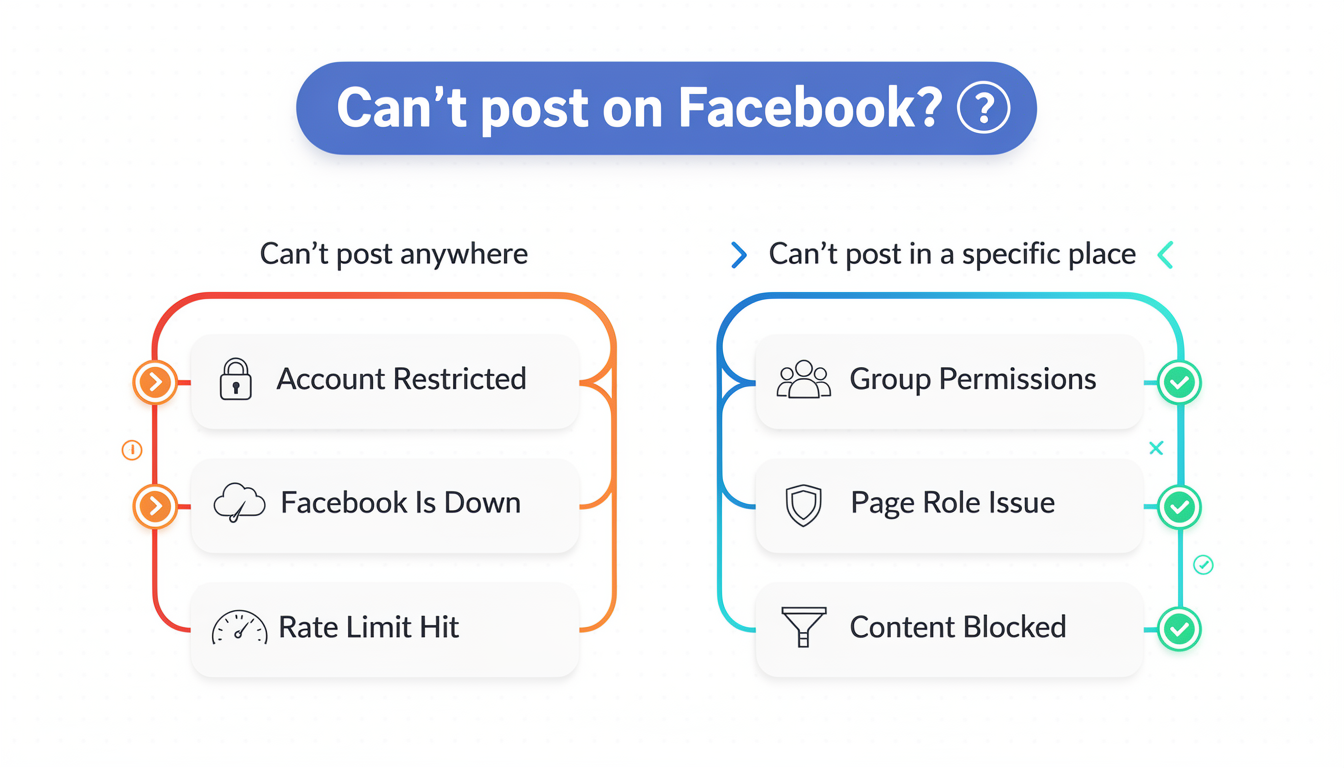
1. Your Account Is Restricted ("Facebook Jail")
This is the most common reason people suddenly can't post on Facebook. Facebook restricts accounts that it believes violated its Community Standards — and in most cases, the restriction is applied automatically by AI, not by a human reviewer.
How to check if you're restricted:
- Go to Settings & Privacy → Settings → Account Status (or visit facebook.com/accountquality)
- Look for any active restrictions, warnings, or content violations
- Check your Support Inbox for messages from Facebook about removed content
What "Facebook Jail" actually means:
Facebook doesn't use the term "jail" officially. What people call Facebook Jail is actually a set of tiered restrictions that Facebook applies based on the severity and frequency of violations:
| Restriction level | What happens | Typical duration | Can you appeal? |
|---|---|---|---|
| Warning | Content removed, no posting restriction | N/A — informational only | No (no restriction to appeal) |
| Temporary posting block | Can't post, comment, or share | 24 hours to 3 days | Yes, but usually faster to wait |
| Feature restriction | Specific actions blocked (e.g., can't go Live, can't post in Groups) | 7 to 30 days | Yes |
| Reduced distribution | Posts are published but shown to fewer people | 30 to 90 days | No — not visible to you |
| Account suspension | Full account access removed | 30 days (with appeal window) | Yes — and you should immediately |
| Permanent disable | Account permanently removed | Permanent | Yes, but low success rate |
How restrictions escalate: Facebook uses a strike system. Your first violation typically results in a warning or 24-hour block. Each subsequent violation within a rolling window (usually 12 months) increases the penalty. After multiple strikes, even minor infractions can trigger multi-week restrictions.
How to fix it:
- If it's temporary (24 hours to 3 days): Wait it out. Attempting to circumvent the restriction (creating alt accounts, posting through third-party tools) can result in a permanent ban.
- If you believe it's a mistake: Go to your Account Status page and select "Disagree with Decision" on the specific violation. Write a clear, specific explanation of why the content doesn't violate Community Standards.
- While waiting: Do NOT repeatedly try to post, comment, or react. Facebook monitors restricted accounts for additional violations, and any activity that looks like circumvention extends the restriction.
Pro tip: Review your Account Status page regularly, even when things seem fine. Facebook sometimes removes content and issues warnings without sending you a notification. These silent warnings still count toward your strike total.
2. Facebook Is Down or Experiencing an Outage
Before troubleshooting your account, rule out the obvious: Facebook might simply be down.
Facebook experiences partial outages more often than most people realize. These don't always make the news — sometimes only specific features break (like posting, commenting, or uploading media) while the rest of the platform works normally.
How to check:
- Visit Downdetector's Facebook page — if you see a spike in reports within the last hour, it's likely an outage
- Search "Facebook down" on X (Twitter) — real-time user reports are often the fastest indicator
- Try accessing Facebook from a different device or network — if it fails everywhere, it's not you
What to do during an outage:
- Don't keep retrying. Repeated failed requests during an outage can trigger Facebook's rate-limiting system, which may temporarily restrict your account even after the outage resolves.
- Wait 15-30 minutes and try again. Most Facebook outages resolve within an hour. Major outages (like the October 2021 six-hour blackout or the March 2024 partial outage) are rare.
- If you have scheduled posts through a tool like PostPlanify, most schedulers automatically retry failed posts once the API comes back online. Check your scheduler's queue to confirm.
👉 Related: How to Schedule Facebook Posts in 2026 — scheduling ensures your posts go out even if you're not available to manually retry during outages.
3. Facebook's Spam Filter Flagged Your Content
Facebook's automated spam detection is aggressive — and it doesn't just catch actual spam. Legitimate posts get flagged constantly, especially if they contain certain patterns that the system associates with spammy behavior.
Your post is more likely to be flagged if it contains:
- External links — especially to domains Facebook hasn't seen before, URL shorteners (bit.ly, tinyurl), or affiliate links
- Repetitive text — posting the same or very similar content multiple times
- Excessive hashtags — unlike Instagram, Facebook penalizes heavy hashtag use (more than 3-5 per post)
- Certain keywords — phrases commonly associated with scams, MLM, cryptocurrency promotions, or health misinformation
- Rapid posting — publishing multiple posts within a short window (more on this in section 10)
Signs your post was caught by the spam filter:
- The post appears to publish but nobody can see it (including you, when logged out)
- You get a notification that your post "goes against Community Standards" even though the content seems fine
- The post is automatically removed within seconds of publishing
- You receive a "Your post couldn't be shared" error
How to fix it:
- Remove the link temporarily and post the text only. If that works, the link itself is the problem — Facebook may have blacklisted the domain.
- Rewrite the post. Don't just copy-paste and retry. Change the wording, structure, and any hashtags. Identical retries are flagged even faster.
- Post the link in a comment instead of the main post body. This isn't ideal, but it bypasses the link-scanning filter in many cases.
- Request a review. If the post was removed, go to your Support Inbox and select "Request Review." Facebook will have a human reviewer re-examine the content within 24-48 hours.
For Page owners and businesses: If your domain is consistently getting flagged, you can verify it through Meta Business Suite under Brand Safety → Domains. Verified domains are significantly less likely to trigger spam filters.
👉 Related: Facebook Caption Generator — generate caption variations so you're never reposting identical text.
4. Outdated App or Corrupted Cache
If the post button is unresponsive, the app freezes when you try to publish, or you get a blank error screen, the problem is usually the app itself — not your account or content.
This is especially common after Facebook rolls out updates. Sometimes the app's local cache conflicts with new server-side changes, causing posting to break while everything else (browsing, messaging) still works fine.
How to fix on mobile (Android):
- Go to Settings → Apps → Facebook → Storage
- Tap Clear Cache (not "Clear Data" — that logs you out)
- Check for app updates in the Play Store
- Restart the app and try posting again
How to fix on mobile (iOS):
- Delete the Facebook app
- Reinstall it from the App Store (iOS doesn't allow manual cache clearing for apps)
- Log back in and try posting
How to fix on desktop (browser):
- Clear your browser cache and cookies for facebook.com
- Disable browser extensions — ad blockers and privacy extensions frequently interfere with Facebook's posting functionality
- Try an incognito/private window — if posting works in incognito, a browser extension is the culprit
- Try a different browser entirely
| Platform | Quick fix | If that doesn't work |
|---|---|---|
| Android | Clear cache → Update app → Restart | Reinstall the app |
| iOS | Delete & reinstall the app | Reset network settings |
| Chrome | Clear cookies → Try incognito | Disable all extensions |
| Firefox | Clear cookies → Try private window | Try Chrome instead |
| Safari | Clear website data → Try private window | Try Chrome instead |
Important: If you're using Facebook Lite (common on older Android devices), be aware that it has significantly more posting bugs than the standard app. If you're consistently having issues with Lite, switch to the full Facebook app or use the mobile browser version (m.facebook.com).
5. You Don't Have Permission to Post in That Group
If you can post on your personal timeline but can't post in a specific Facebook Group, the problem is almost always related to Group-level permissions — not your account.
Common reasons you can't post in a Group:
| Situation | What's happening | How to fix |
|---|---|---|
| You just joined | Many Groups require admin approval before new members can post | Wait for admin approval, or message an admin directly |
| Post approval is enabled | Your post is waiting in the admin's review queue | Wait — it hasn't been rejected, just not approved yet |
| You're muted | An admin temporarily muted you (you won't be notified) | Contact the admin or wait for the mute to expire |
| Group is in "paused" mode | Admins disabled all posting temporarily | Nothing you can do — wait for the admin to re-enable posting |
| Group posting is restricted to admins only | Only admins and moderators can create posts | You can only comment, not create new posts |
| You've been removed | You were kicked from the Group | You'll need to request to join again (if you can find it) |
How to check your Group membership status:
- Go to the Group page
- Look for the "Write something..." post composer at the top. If it's missing, you likely can't post.
- Click the three-dot menu (⋯) next to the Group name and check your membership status
- Check the Group's "About" section for posting rules
If you manage multiple Groups or Pages, a social media management tool can help you track which accounts have posting access and schedule content only to authorized destinations.
6. Your Facebook Page Has a Restriction or Role Issue
Posting issues on Facebook Pages work differently from personal profiles. Pages have their own set of restrictions, role-based permissions, and policy enforcement — and problems here often affect your entire team, not just one person.
Check 1: Is the Page itself restricted?
Go to Meta Business Suite → Your Page → Page Quality (or visit facebook.com/accountquality and select the Page). Look for:
- Content violations or removed posts
- Distribution reductions (your Page's posts reach fewer people)
- Advertising restrictions (can't run ads)
- Feature limitations (can't go Live, can't use Stories)
Check 2: Do you have the right role?
Not all Page roles can publish content. Here's the breakdown:
| Page role | Can create posts? | Can publish posts? | Can schedule posts? | Can delete posts? |
|---|---|---|---|---|
| Admin | Yes | Yes | Yes | Yes |
| Editor | Yes | Yes | Yes | Yes |
| Moderator | No | No | No | Yes (others' posts) |
| Advertiser | No | No | No | No |
| Analyst | No | No | No | No |
If you're a Moderator, Advertiser, or Analyst, you simply can't post. Ask a Page Admin to upgrade your role to Editor.
Check 3: Is the Page unpublished?
Pages can be "unpublished" (hidden from the public) intentionally or by Facebook. If your Page is unpublished, posts won't be visible to anyone. Go to Page Settings → General → Page Visibility to check and re-publish if needed.
Check 4: New Page restrictions (2025-2026)
Facebook rolled out stricter verification requirements for new Pages in late 2025. If your Page was recently created, you may need to:
- Verify your identity (government ID)
- Confirm your business details
- Wait for a review period (typically 1-7 days) before all features become available
👉 Related: How to Schedule Facebook Posts — make sure your Page role and permissions are set up correctly for scheduling.
7. Facebook Is Blocking a Specific Link or Media File
Sometimes the problem isn't your account — it's the specific content you're trying to post. Facebook maintains an internal blacklist of URLs, domains, and media patterns, and posts containing blocked content will fail or be removed instantly.
How to tell if a link is blocked:
- Try posting the same text without the link. If it works, the link is the problem.
- Try posting the link on its own (no other text). You might get a more specific error message.
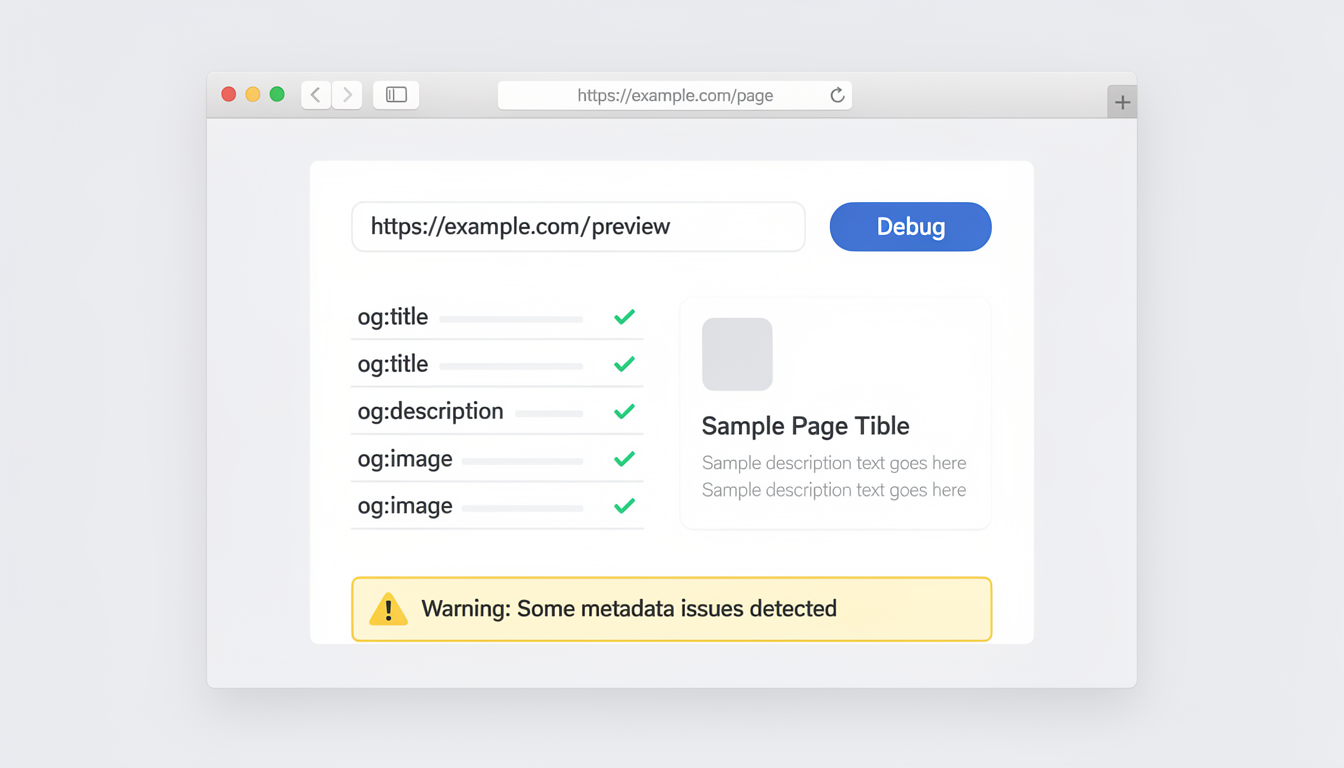
- Check Facebook's Sharing Debugger — paste your URL and see if Facebook can scrape it. If it shows errors, the URL may be flagged.
Common reasons links get blocked:
- The domain was previously reported for spam or malware
- The URL uses a shortener (bit.ly, tinyurl) that Facebook has restricted
- The link redirects multiple times (common with affiliate links)
- The website has no SSL certificate (http:// instead of https://)
- The domain is brand new (less than a few weeks old) and has no trust history
How to fix a blocked link:
- Use the Sharing Debugger to clear Facebook's cache of your URL: go to developers.facebook.com/tools/debug, paste the URL, and click "Scrape Again"
- Verify your domain in Meta Business Suite (Brand Safety → Domains) if you own the website
- Use the full URL instead of a shortener
- Contact Facebook through the Business Help Center if your domain was incorrectly flagged
For media files: Facebook can also reject specific images or videos. Common reasons:
- Image contains too much text (Facebook's old "20% text rule" is relaxed but still affects distribution)
- Video exceeds 10GB or 240 minutes — see our guide on how to post Reels on Facebook for Reels-specific specs
- File format isn't supported (use MP4 for video, JPG/PNG for images)
- The image or video was previously flagged or removed from the platform
8. Your Scheduled Post Failed to Publish
If you scheduled a post using Meta Business Suite, Creator Studio, or a third-party tool like PostPlanify, Buffer, or Hootsuite, and it didn't go live — the scheduling itself probably worked fine. The issue is almost always with the connection between the tool and Facebook's API.
Why scheduled posts fail:
| Cause | How to identify | Fix |
|---|---|---|
| Access token expired | Scheduler shows "disconnected" or "reconnect" warning | Disconnect and reconnect your Facebook account in the tool |
| Page permissions changed | You recently updated roles or removed team members | Re-authorize the scheduler with admin or editor access |
| Password changed | You changed your Facebook password recently | All third-party connections break — reconnect everything |
| Two-factor authentication added | New 2FA setup can invalidate existing sessions | Re-login to the scheduler and complete 2FA |
| API rate limit hit | You scheduled too many posts in rapid succession | Spread scheduled posts at least 10-15 minutes apart |
| Facebook API outage | Other users reporting issues at the same time | Wait and the scheduler will auto-retry |
| Content violated policies | Post contained flagged link or text | Edit the content and reschedule |
How to fix it (step-by-step):
- Check the scheduler's dashboard for error messages. Most tools will tell you exactly why a post failed.
- Go to your connected accounts in the scheduler and look for warning icons or "Reconnect" buttons.
- Disconnect your Facebook account from the scheduler completely.
- Reconnect it: Log back into Facebook through the scheduler, accept all permissions, and make sure you select the correct Page.
- Reschedule the failed post — don't assume the scheduler will auto-retry. Not sure where to find your queued posts? See how to see scheduled posts on Facebook.
Prevention: Use a scheduler that notifies you when connections break. PostPlanify sends email alerts when your Facebook account needs reconnecting, so you can fix it before posts fail.
👉 Related: How to Automate Social Media Posts — set up reliable automation that prevents missed posts.
If your scheduled posts are failing repeatedly rather than a one-off issue, see our dedicated guide on Facebook scheduled posts not working for 12 specific causes and fixes.
 PostPlanify
All your social media in one simple dashboard
Schedule posts, track analytics, and reply to comments/DMs without switching tabs.

Engagement
+18%
Views
52.8k
9. Third-Party App Lost Connection to Facebook
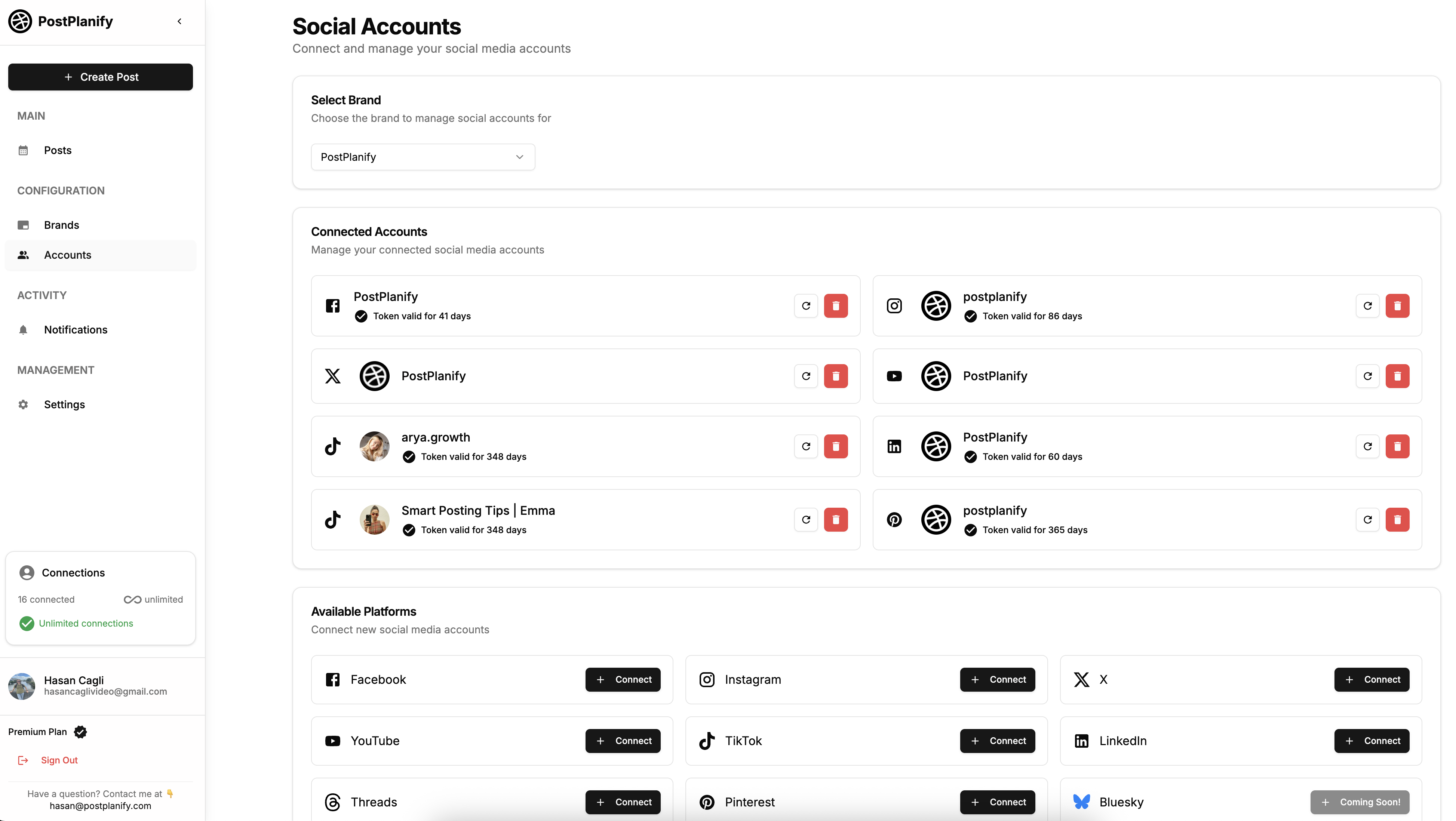
If you're using a scheduling tool, social media management platform, or any third-party app to post to Facebook, connection issues are the single most common cause of posting failures. This is different from scheduled posts failing (covered above) — this is about the connection itself being broken.
Why connections break:
Facebook's API tokens expire on a rolling basis. When you connect a third-party app to your Facebook account, the app receives an access token that allows it to post on your behalf. These tokens can expire or get invalidated by:
- Facebook's automatic token rotation (every 60 days for long-lived tokens)
- Password changes on your Facebook account
- Security events (logging in from a new location, Facebook detecting unusual activity)
- Permission revocation — you or a Page admin removed the app's access
- Facebook policy changes — Meta periodically updates API requirements, and apps that don't comply get disconnected
How to fix it:
- In your scheduling tool: Go to connected accounts and look for error states. Disconnect and reconnect Facebook.
- In Facebook: Go to Settings → Security and Login → Apps and Websites (or facebook.com/settings?tab=business_tools). Find the app, remove it, then reconnect from the scheduling tool.
- In Meta Business Suite: Go to Business Settings → Accounts → Pages and verify that the app has access to your Page.
If you manage multiple Pages: Make sure you grant access to ALL Pages you want to post to during the reconnection process. A common mistake is reconnecting but only selecting one Page, then wondering why other Pages stopped working.
👉 Related: Social Media Scheduling Tools Compared — find a tool that handles reconnection gracefully.
10. You're Hitting Facebook's Rate Limit
Facebook limits how frequently you can perform actions — including posting. If you publish too many posts in a short time, Facebook will temporarily block you from posting more, even if your content is perfectly fine.
Facebook's posting limits (2026):
| Account type | Estimated posting limit | Cooldown period |
|---|---|---|
| Personal profile | ~5-10 posts per hour, ~25-30 per day | 1-24 hours |
| Facebook Page | ~25 published posts per hour (API), ~50 per day | 1-4 hours |
| In Groups (as member) | ~3-5 posts per Group per day | Varies by Group |
| Stories | ~25-30 per day | Automatic |
| Comments | ~50-100 per hour | 1-12 hours |
These are approximate limits based on community observations. Facebook doesn't publicly document exact thresholds, and limits may vary based on account age, history, and trust level.
Signs you've hit a rate limit:
- "You're posting too fast. Slow down." error message
- Posts fail without a clear error
- You can browse and react but can't create new posts
- The restriction lifts on its own after a few hours
How to avoid rate limits:
- Space out your posts. If you need to post frequently, use a scheduler to distribute posts throughout the day. PostPlanify's scheduling feature lets you queue posts with custom intervals.
- Don't rapid-fire identical or similar content across multiple Groups — Facebook's anti-spam system will flag this immediately
- Batch schedule instead of batch publish. Schedule 10 posts over the next week rather than publishing 10 posts right now.
👉 Related: Best Time to Post on Facebook — learn when to post for maximum reach, so you can post less frequently but more effectively.
Facebook Posting Limits: The Complete Reference (2026)
Facebook limits nearly every action on the platform to prevent spam and abuse. Hitting any of these limits blocks your ability to post, comment, or interact — often without a clear error message. Here's the most comprehensive reference available:
| Action | Estimated Limit | Cooldown If Exceeded | Notes |
|---|---|---|---|
| Posts (personal profile) | ~25-30 per day | 1-24 hours | Includes timeline posts, shared posts, and check-ins |
| Posts (Facebook Page) | ~25 published per hour via API, ~50 per day | 1-4 hours | Scheduled posts count toward the daily total |
| Posts in Groups | ~3-5 per Group per day | Varies by Group | Posting the same content to multiple Groups triggers spam detection faster |
| Comments | ~50-100 per hour | 1-12 hours | Identical comments across posts are flagged as spam immediately |
| Likes/Reactions | ~500-1,000 per day | 1-24 hours | Rapid liking (>100 in a few minutes) triggers temporary blocks |
| Friend requests | ~20-50 per day | 1-7 days | New accounts have lower limits; rejected requests count against you |
| Messages | ~50-100 new conversations per day | 1-24 hours | Messaging people who aren't friends has stricter limits |
| Stories | ~25-30 per day | Automatic | Rarely an issue in practice |
| Marketplace listings | ~10-20 new listings per day | 1-3 days | Duplicate or similar listings are flagged faster |
| Event invites | ~500 per event | Per-event cap | Can't be reset |
| Page invites | ~500-1,000 per day | 1-3 days | Varies by account age and trust |
| Scheduled posts in queue | 350 maximum | N/A — hard cap | Across all scheduling methods (native + third-party) |
| API calls (third-party tools) | 10,000 units per day per app | Rolling 24-hour window | Each post publish costs ~200-400 units |
These are approximate limits based on community observations and developer documentation. Facebook doesn't publish exact thresholds, and limits vary by account age, history, and trust level. Newer accounts and accounts with recent violations have lower limits.
How to Check If You've Hit a Limit
- Clear error message: "You're posting too fast" or "Try again later" — this is a confirmed rate limit
- Vague error: "Something went wrong" — could be a rate limit, content issue, or server problem
- No error, no post: Your post may have been caught by the spam filter (see section 3) rather than a rate limit
- Feature-specific block: You can browse and react but can't create new posts — classic rate limit behavior
The Safest Approach
Space your activity throughout the day. If you need to publish multiple posts, schedule them with at least 30-60 minute gaps between each. For Group posting, limit to 1-2 posts per Group per day and vary the content — never cross-post identical text to multiple Groups in quick succession.
Why Facebook Removes Posts Without Warning (Silent Removals)
One of the most frustrating experiences on Facebook is having a post disappear without any notification or explanation. You publish it, it seems to work, and then it's gone — no error, no warning, no notification in your Support Inbox. This happens more often than most people realize, and understanding why helps you prevent it.
How Facebook's Automated Moderation Works
Facebook uses a multi-layered AI moderation system that reviews content before, during, and after publishing:
| Stage | What Happens | Typical Timing |
|---|---|---|
| Pre-publish scan | AI checks text, links, and media against known violation patterns before the post goes live | Instant (milliseconds) |
| Post-publish review | A deeper AI analysis runs on published content, checking context, image recognition, and user reports | 1-60 minutes after posting |
| Batch review | Periodic sweeps of recently published content across the platform | Hours to days after posting |
| User-triggered review | Someone reports your post, which sends it to both AI and (sometimes) human review | Depends on report volume |
Why Posts Disappear Without Notification
- The AI auto-removed it. Facebook's system can remove posts instantly if they match known violation patterns with high confidence. Low-confidence matches may be flagged for human review first.
- The notification was buried. Facebook does send notifications for some removals, but they often go to your Support Inbox (Settings → Support Inbox) rather than your main notification feed. Many users never check this.
- It was a "soft removal." Facebook sometimes reduces a post's distribution to zero instead of deleting it. The post still exists on your profile, but nobody else can see it. You won't get a notification because technically, the post wasn't "removed."
- A link triggered the block. If your post contains a URL that Facebook has flagged, the entire post may be silently blocked — even if the rest of the content is fine.
How to Check for Silent Removals
- Support Inbox: Go to Settings → Support Inbox to see all content decisions Facebook has made about your account. This includes removed posts, warnings, and pending reviews.
- Account Quality: Visit facebook.com/accountquality for a dashboard of all violations and restrictions across your profile and Pages.
- Test visibility: Ask a friend (or use a different account) to check if your post is visible. If you can see it but they can't, it's been shadow-removed.
- Page Quality tab: For Page owners, go to Meta Business Suite → Page Quality for a detailed breakdown of content actions taken by Facebook.
How to Prevent Silent Removals
- Avoid link shorteners. Use full URLs instead of bit.ly, tinyurl, or other shorteners — they're flagged more often.
- Don't repost removed content. If Facebook removed a post, reposting identical or near-identical content will be caught faster and may escalate your strike count.
- Verify your domain. Page owners should verify their website domain in Meta Business Suite (Brand Safety → Domains) to reduce link-related flags.
- Watch for pattern triggers. Posting the same text to multiple Groups, rapid-fire publishing, and excessive use of "spammy" language (urgency words, all-caps, excessive emojis) all raise the AI's suspicion level.
- Check Support Inbox weekly. Make it a habit to check for silent warnings — they count toward your strike total even if you never saw them.
Additional Troubleshooting: When Nothing Else Works
If you've gone through all 10 causes above and still can't post, try these:
Check your internet connection
This sounds basic, but Facebook requires a stable connection to upload posts — especially posts with images or video. The app sometimes fails silently on poor connections instead of showing an error.
- Switch between WiFi and mobile data to test
- Try loading a different website to confirm internet works
- If you're on public WiFi, some networks block social media platforms
Try posting from a different platform
Test whether the issue is device-specific:
- If you're on the app, try facebook.com in a browser
- If you're on desktop, try the mobile app
- If neither works, the issue is account-level (go back to section 1)
Check your VPN
VPNs can trigger Facebook's security systems, especially if you're connected to a server in a different country than where you usually log in. Try disconnecting your VPN and posting without it.
Contact Facebook Support
If nothing resolves the issue:
- Go to facebook.com/help
- Use the "Something Went Wrong" reporting tool
- If you have a Business account, access Meta Business Help Center at facebook.com/business/help — business accounts get priority support with live chat options
How to Prevent Facebook Posting Issues in the Future
Once you've fixed the immediate problem, set yourself up so it doesn't happen again:
1. Use a scheduling tool. Instead of posting manually (and risking rate limits, timing issues, or forgotten posts), schedule content in advance. PostPlanify lets you schedule Facebook posts, track connection status, and get alerts when something needs attention. For tool comparisons, see our best Facebook scheduling tools guide.
2. Keep your connections fresh. If you use third-party tools, reconnect your Facebook account every 60 days proactively — don't wait for the token to expire and a post to fail.
3. Stay within posting limits. Space your posts throughout the day. Batch scheduling through a tool is always safer than rapid manual posting.
4. Monitor your Account Status page. Check facebook.com/accountquality monthly to catch silent warnings before they escalate to restrictions.
5. Verify your domain. If you regularly share links to your own website, verify the domain in Meta Business Suite to avoid spam filter issues.
6. Keep your app updated. Enable auto-updates for the Facebook app to avoid cache and compatibility bugs.
👉 Start scheduling your Facebook posts today: PostPlanify Facebook Scheduler — 7-day free trial.
FAQ: Common Questions About Facebook Posting Issues
Why does Facebook say "something went wrong" when I try to post?
This generic error can mean several things: a temporary server issue, a content policy violation, an expired session, or a corrupted app cache. Start by refreshing the page or restarting the app. If that doesn't work, try posting without any links or media to narrow down the cause. Check your Account Status to rule out restrictions.
How long does Facebook Jail last?
It depends on the violation. A first-time minor violation typically results in a 24-hour restriction. Repeated violations escalate to 3-day, 7-day, and 30-day blocks. In severe cases (hate speech, harassment, impersonation), the restriction can be permanent. Each violation within a 12-month window increases the penalty.
Can I still post in Groups if my personal account is restricted?
Usually no. When Facebook restricts your account, the restriction applies to all posting activity — your personal timeline, Groups, Pages you manage, and comments. Some restrictions are feature-specific (e.g., you can post but can't go Live), but posting restrictions are almost always universal.
Why can't I post on Facebook Marketplace?
Marketplace has its own eligibility requirements: your account must be at least 30 days old, you must be located in a supported region, and your account must be in good standing with no recent Community Standards violations. If you meet all these criteria and still can't post, try clearing your app cache and updating to the latest version.
Why do my Facebook posts keep getting removed?
Repeated removals usually mean your content is triggering Facebook's automated moderation system. Review the specific violation listed in your Support Inbox (Settings → Support Inbox). Common triggers include sharing links to blacklisted domains, posting copyrighted content, or using language that matches known spam or misinformation patterns. If you believe the removals are errors, request a review for each one.
Does using a VPN prevent me from posting on Facebook?
A VPN won't directly prevent you from posting, but it can trigger Facebook's security system. If you log in from a different country than usual, Facebook may temporarily lock your account for "suspicious activity." If you regularly use a VPN, try disconnecting it when posting, or use a VPN server in your actual country.
Why can't I post photos or videos on Facebook?
Media upload failures are usually caused by file size (images must be under 10MB, videos under 10GB), unsupported formats (stick to JPG/PNG for images, MP4 for video), or a poor internet connection. Large video uploads are especially prone to failing on unstable connections. Try compressing the file or uploading from a different device.
How do I know if Facebook banned my link?
Use Facebook's Sharing Debugger to check. Paste your URL and see if Facebook can scrape it. If the tool shows errors or if the link preview doesn't load, your URL may be flagged. You can try clicking "Scrape Again" to clear Facebook's cache, or verify your domain through Meta Business Suite.
Final Thoughts
Not being able to post on Facebook is frustrating, but in almost every case, it's fixable. The key is diagnosing the actual cause instead of randomly trying fixes.
Here's the quickest path to resolving it:
- Check if Facebook is down (takes 10 seconds)
- Check your Account Status for restrictions (takes 30 seconds)
- Try posting plain text with no links or media (takes 30 seconds)
- Clear cache / update app / try a different device (takes 2 minutes)
- If using a third-party tool, reconnect your account (takes 2 minutes)
If your issue is recurring — posts getting flagged, connections breaking, or rate limits hitting — the best long-term fix is to schedule your content through a reliable tool. Scheduled posting spaces out your content naturally, keeps your connections monitored, and avoids the manual patterns that trigger spam filters.
👉 Need help with Facebook scheduling? Check out our complete guide to scheduling Facebook posts or start your 7-day free trial with PostPlanify.
Related: How to Schedule Facebook Posts | Facebook Scheduled Posts Not Working | Best Facebook Scheduling Tools | How to See Scheduled Posts on Facebook | Best Time to Post on Facebook | How to Post Reels on Facebook | How to Post a Story on Facebook | How to Link Facebook and Instagram | Social Media Scheduling Tools
PostPlanifyAll your social media in one simple dashboard
Schedule posts, track analytics, and reply to comments/DMs without switching tabs.
Engagement
+18%
Views
52.8k
About the Author

Hasan Cagli
Founder of PostPlanify, a content and social media scheduling platform. He focuses on building systems that help businesses, agencies, and teams plan, publish, and manage content and social media more efficiently across platforms.


