


You just hit a new subscriber milestone, but you have no idea who these people actually are. Are they other creators in your niche? Loyal fans who watch every upload? Random accounts that will never engage? Without knowing who your subscribers are, you're flying blind when it comes to content strategy, collaboration opportunities, and audience growth.
YouTube doesn't make this obvious. The subscriber list is buried inside YouTube Studio, capped at 100 names, and limited by privacy settings most users never change. This guide walks you through every method to see your YouTube subscribers in 2026—desktop, mobile, and third-party tools—plus how to actually use that data to grow your channel.
Quick Answer: How to See Your YouTube Subscribers
If you're in a hurry, here's the short version for each method:
| Method | Where | What You'll See | Subscriber Minimum |
|---|---|---|---|
| YouTube Studio (Desktop) | studio.youtube.com > Dashboard > Recent subscribers | Up to 100 most recent public subscribers | 0 |
| YouTube Studio (Mobile App) | Studio App > Dashboard > Recent subscribers | Subscriber count only (no list) | 0 |
| YouTube Analytics | Studio > Analytics > Audience | Subscriber growth trends over time | 0 |
| Mobile Browser Workaround | Open studio.youtube.com in Chrome/Safari | Full subscriber list (same as desktop) | 0 |
| Third-Party Tools | Social Blade, VidIQ, TubeBuddy | Public subscriber count + growth history | 0 |
Now let's walk through each method in detail.
How to See Your Subscribers on YouTube Studio (Desktop)
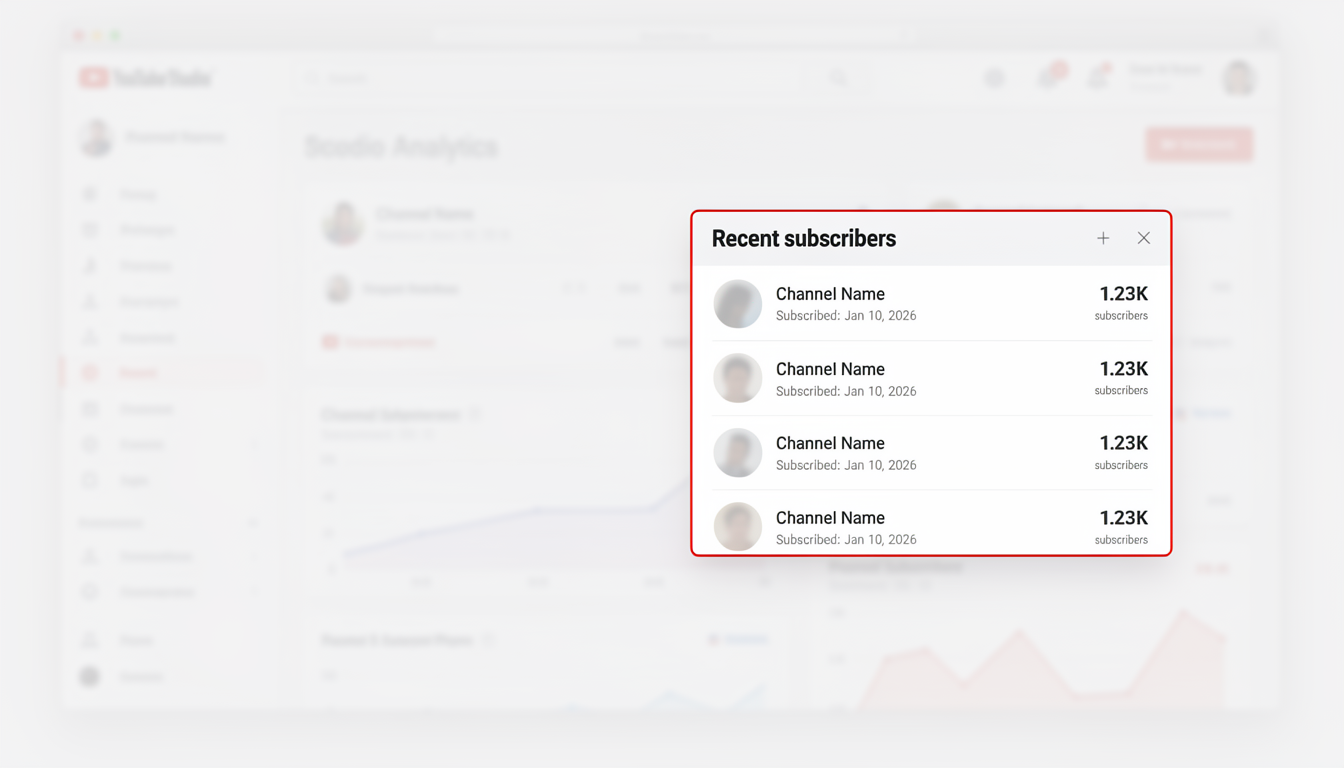
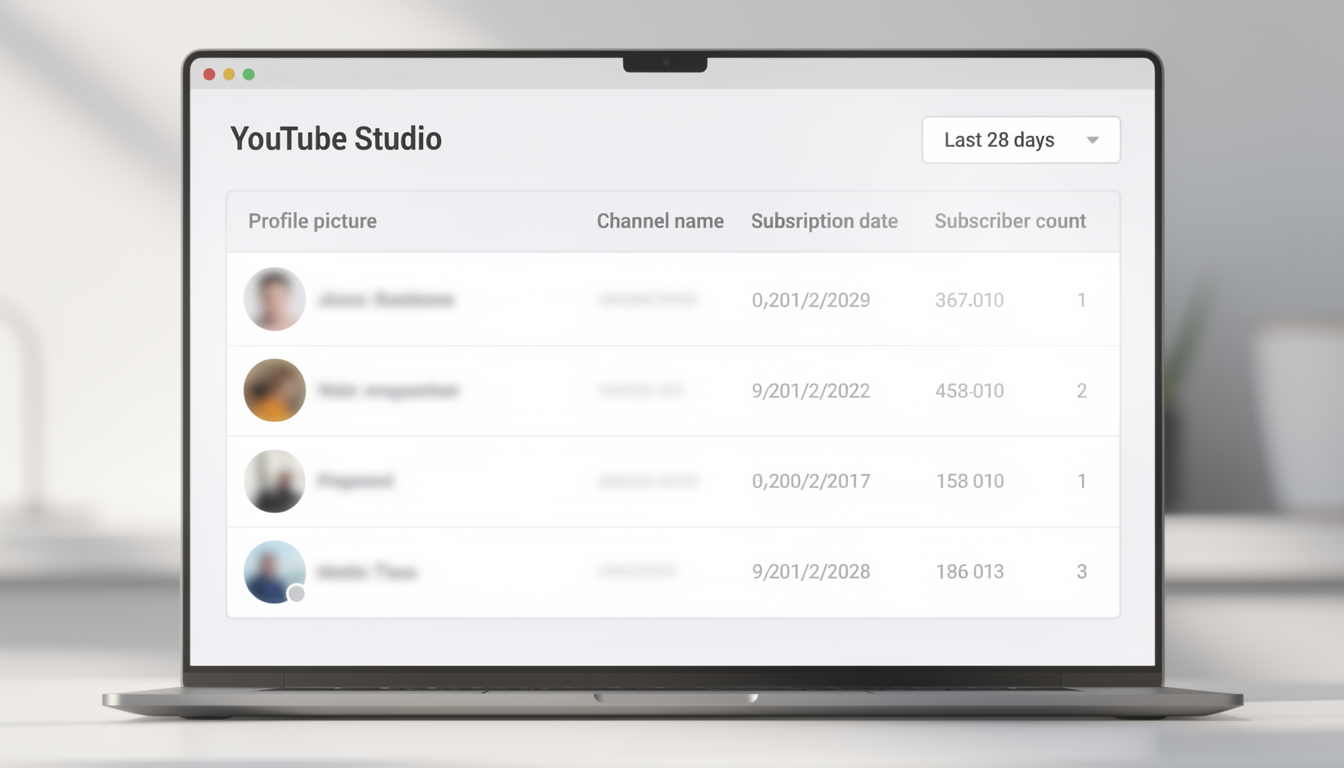
This is the most complete method. YouTube Studio gives you a list of your most recent subscribers with their channel names, profile pictures, subscription dates, and their own subscriber counts.
Step-by-Step Instructions
-
Go to YouTube Studio. Open studio.youtube.com in your browser and sign in with the Google account connected to your channel.
-
Find the "Recent subscribers" card. On the Dashboard (the default landing page), scroll down until you see a card labeled "Recent subscribers." It shows a preview of your latest subscribers.
-
Click "See all" to expand. This opens a popup window with your full subscriber table—up to 100 of your most recent public subscribers.
-
Choose a time range. Use the dropdown at the top of the popup to filter by:
- Last 7 days
- Last 28 days
- Last 90 days
- Last 365 days
- Lifetime
-
Sort the list. Click the column headers to sort by:
- Subscription date (newest or oldest first)
- Subscriber count (find your most influential subscribers)
What Each Column Tells You
| Column | What It Shows | Why It Matters |
|---|---|---|
| Profile picture & name | The subscriber's YouTube channel name and avatar | Identify real fans vs. inactive accounts |
| Subscription date | When they subscribed to your channel | Correlate with specific videos that drove sign-ups |
| Subscriber count | How many subscribers they have | Spot potential collaboration partners |
The 100-Subscriber Cap
YouTube only shows your 100 most recent public subscribers, regardless of your total subscriber count. A channel with 500 subscribers and a channel with 5 million subscribers both see the same maximum of 100 names.
This is a hard platform limit. There is no paid tier, API workaround, or hidden setting that increases it.
 PostPlanify
All your social media in one simple dashboard
Schedule posts, track analytics, and reply to comments/DMs without switching tabs.

Engagement
+18%
Views
52.8k
How to See Your Subscribers on Mobile
The YouTube Studio mobile app is limited when it comes to viewing your subscriber list. Here's what you can and can't do.
What the Studio App Shows
The YouTube Studio app (iOS and Android) displays your total subscriber count on the dashboard and in the Analytics section. However, it does not show the detailed subscriber list with individual names, profile pictures, or subscription dates.
You can see:
- Your current total subscriber count
- Subscriber count changes (gained/lost) over time periods
- Subscriber growth charts in the Analytics tab
You cannot see:
- Individual subscriber names
- Who specifically subscribed or unsubscribed
- The full subscriber list table
The Mobile Browser Workaround
If you need the full subscriber list from your phone, skip the app entirely:
- Open Chrome (Android) or Safari (iOS) on your phone.
- Go to studio.youtube.com.
- Your browser will load the full desktop version of YouTube Studio.
- Find the "Recent subscribers" card on the Dashboard.
- Tap "See all" to open the subscriber list.
The interface will be small on a phone screen, but it's fully functional. You can pinch to zoom if needed. This gives you the exact same subscriber table as the desktop version—names, dates, subscriber counts, and sorting options.
Tip: On Chrome for Android, tap the three-dot menu and check "Desktop site" if the mobile version loads instead. On Safari for iOS, tap the "aA" icon in the address bar and select "Request Desktop Website."
Why Some Subscribers Don't Appear in Your List
If your subscriber count says 500 but your list only shows 40 names, you're not missing data. The gap comes down to YouTube's privacy settings.
How YouTube's Subscription Privacy Works
Every YouTube user has a setting that controls whether their subscriptions are public or private. Here's the key detail most guides miss: subscriptions are set to private by default for all new YouTube accounts created after 2019.
This means the majority of your subscribers—often 70-90%—will never appear in your subscriber list because they haven't manually changed their privacy settings.
| Subscriber's Privacy Setting | Visible in Your List? | Can You See Their Name? |
|---|---|---|
| Public subscriptions | Yes | Yes — full profile info |
| Private subscriptions (default) | No | No — completely hidden |
What This Means for Your Subscriber List
- A channel with 1,000 subscribers might only see 100-300 names (the public ones), and of those, only the 100 most recent appear.
- You cannot see which specific users have private subscriptions.
- There is no way to request or force subscribers to make their subscriptions public.
- The total subscriber count on your dashboard is still accurate—it counts both public and private subscribers.
How to Track Subscriber Growth Over Time
Seeing your current subscribers is useful, but tracking how your subscriber count changes over time is where the real insights live. YouTube Analytics gives you this data for free.
Accessing the Subscriber Growth Report
- Open YouTube Studio.
- Click "Analytics" in the left sidebar.
- Select the "Audience" tab.
- Scroll to the "Subscribers" section.
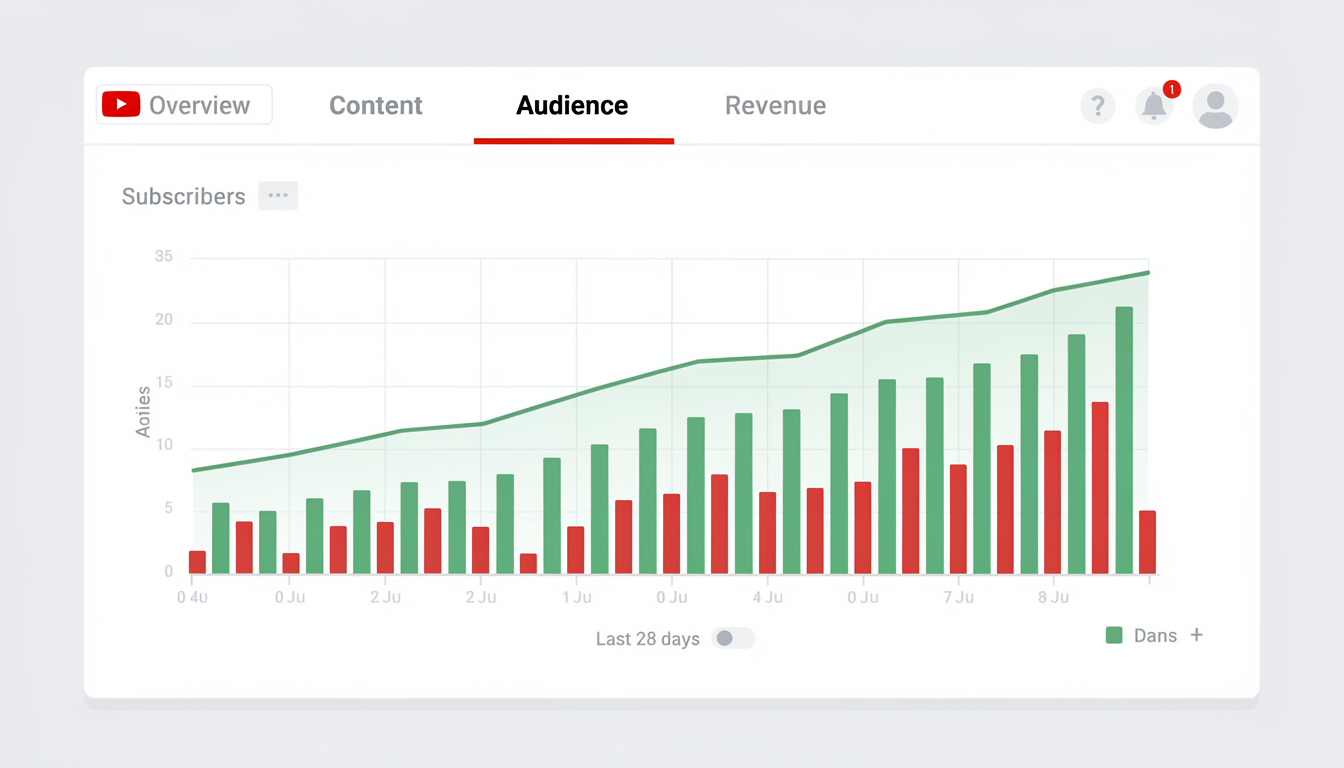
Here you'll find:
- Total subscribers gained and lost over your selected time period
- A daily breakdown chart showing gains vs. losses
- Subscriber sources — which videos, search queries, or external sources drove the most subscriptions
Finding Which Videos Drive the Most Subscribers
This is one of the most underused features in YouTube Analytics:
- In the Analytics section, go to Content tab.
- Click on any individual video.
- Scroll to "Subscribers" to see how many subscribers that specific video gained (and lost).
This tells you exactly which content resonates enough to make viewers hit Subscribe. Double down on those topics and formats.
Pro tip: Cross-reference your top subscriber-driving videos with the best time to upload a YouTube video to maximize their reach. A great video published at the wrong time still underperforms.
Subscriber Growth Benchmarks
Wondering if your growth rate is healthy? Here are rough benchmarks based on channel size:
| Channel Size | Healthy Monthly Growth Rate | What It Means |
|---|---|---|
| 0–1,000 subs | 5-15% | Building momentum, focus on consistency |
| 1,000–10,000 subs | 3-8% | Established niche, algorithm starting to help |
| 10,000–100,000 subs | 2-5% | Strong growth, diversify content types |
| 100,000+ subs | 1-3% | Mature channel, growth comes from virality |
Use a YouTube engagement calculator to benchmark your interaction rates alongside subscriber growth.
How to Track Who Unsubscribed
YouTube does not tell you which specific users unsubscribed from your channel. This is a firm privacy policy—you will never see a list of names who left.
However, you can still track unsubscribe patterns:
What YouTube Analytics Shows About Unsubscribes
- Go to YouTube Studio > Analytics > Audience.
- The subscriber chart shows both gained and lost subscribers per day.
- Click on any date to see the exact numbers.
What to Do With Unsubscribe Data
While you can't see individual names, the timing of unsubscribes tells you a lot:
- Spike in unsubscribes after a specific video? That content didn't match your audience's expectations. Review the video's topic, style, or length compared to your usual content.
- Gradual decline over weeks? Your posting frequency may have dropped, or your content is drifting from your niche. A content calendar can help you maintain consistency.
- Unsubscribes coinciding with a schedule change? Your audience may have formed habits around your posting times. Check our guide on best time to upload a YouTube video to realign with viewer expectations.
Can You Export Your YouTube Subscriber List?
YouTube does not offer a built-in export or download feature for your subscriber list. There is no CSV download, no API endpoint for individual subscriber data, and no way to extract email addresses from subscribers.
What You Can Export
| Data | Exportable? | How |
|---|---|---|
| Subscriber list (names) | No | Not available through any official method |
| Total subscriber count history | Yes | YouTube Studio > Analytics > Export (top-right icon) |
| Subscriber sources | Yes | YouTube Studio > Analytics > Audience > Export |
| Revenue reports | Yes | YouTube Studio > Analytics > Revenue > Export |
The YouTube API Limitation
The YouTube Data API allows you to retrieve a channel's public subscriber count but does not provide access to individual subscriber identities. This applies to both your own channel and others. Any third-party tool claiming to export your full subscriber list is either misrepresenting its capabilities or violating YouTube's Terms of Service.
Third-Party Tools for Public Subscriber Data
While you can't export individual subscriber names, several tools track public subscriber count history and growth patterns:
| Tool | What It Tracks | Cost |
|---|---|---|
| Social Blade | Daily subscriber count, growth projections, channel grades | Free (basic), $3.99/mo (Pro) |
| VidIQ | Subscriber trends, keyword tracking, competitor analysis | Free (basic), $7.50/mo (Pro) |
| TubeBuddy | Subscriber milestones, A/B testing, SEO tools | Free (basic), $3.99/mo (Pro) |
These tools pull from publicly available YouTube data and provide historical tracking that YouTube Studio doesn't offer natively.
How to Use Subscriber Data to Grow Your Channel
Knowing who your subscribers are is only valuable if you act on it. Here are four concrete strategies.
1. Identify Collaboration Opportunities
Sort your subscriber list by subscriber count (highest first). Subscribers who are also YouTubers with sizable audiences are potential collaboration partners. They already watch your content, which means they're familiar with your style and likely to be open to working together.
What to look for:
- Subscribers with 1,000+ subscribers of their own
- Channels in a similar or complementary niche
- Active channels (recent uploads within the last 30 days)
2. Spot Content Trends
When you notice a cluster of new subscribers after publishing a specific video, that's a direct signal. The topic, format, or angle of that video resonated strongly enough to convert viewers into subscribers.
Cross-reference subscriber spikes with your video publish dates:
- Which video formats drive the most subscriptions? (tutorials, vlogs, Shorts, reviews)
- Which topics consistently attract new subscribers?
- Do YouTube Shorts drive more subscriptions per view than long-form content?
3. Track Progress Toward Monetization
YouTube's Partner Program has two tiers with specific subscriber requirements:
| Milestone | Subscribers Needed | What You Unlock |
|---|---|---|
| Tier 1 (Fan Funding) | 500 | Super Chat, channel memberships, Super Thanks |
| Tier 2 (Full Monetization) | 1,000 | Ad revenue, YouTube Premium revenue, all Tier 1 features |
| Mobile Livestreaming | 50 | Go live from the YouTube mobile app |
If you're working toward these milestones, checking your subscriber count regularly helps you gauge how close you are. For a full timeline of what happens after you hit these thresholds — including how long approval takes and when your first payment arrives — see our guide on when YouTube starts paying you. Starting a brand-new channel and not sure where to begin? Our guide on how to start a YouTube channel for kids walks through the entire process for one of YouTube's fastest-growing niches. Learn more about YouTube earnings in our guide on how much YouTube pays for 1,000 views.
4. Promote Your Channel Across Platforms
Once you understand what drives subscriptions, amplify that content across every platform. A video that converts viewers into subscribers on YouTube will likely perform well as a teaser on Instagram, TikTok, or X.
A social media scheduler like PostPlanify lets you schedule promotional posts across YouTube, Instagram, TikTok, X, Facebook, LinkedIn, Threads, Pinterest, and Bluesky—all from one dashboard. Instead of manually posting to each platform, queue up teasers for your best-performing content and let them publish at the optimal time for each platform.

How to See Another Channel's Subscribers
You cannot see another channel's subscriber list. YouTube does not expose this information to anyone other than the channel owner.
What you can see about another channel:
- Public subscriber count (unless the channel has hidden it)
- Public video metrics (views, likes, comments)
- Upload frequency and publishing schedule
Tools like Social Blade let you track another channel's subscriber count history and growth trends over time—useful for competitor analysis and benchmarking your own growth.
Frequently Asked Questions
How do I see my YouTube subscribers on my phone?
The YouTube Studio mobile app shows your total subscriber count but not the detailed subscriber list. To see individual subscriber names, open studio.youtube.com in your phone's browser (Chrome or Safari) and request the desktop version. This gives you the full subscriber table with names, dates, and subscriber counts.
Why does my subscriber list show fewer people than my total count?
YouTube only displays subscribers who have set their subscriptions to public. Since subscriptions are private by default, most of your subscribers won't appear in the list. Additionally, YouTube caps the list at your 100 most recent public subscribers.
Can I see who unsubscribed from my YouTube channel?
No. YouTube does not reveal which specific users unsubscribed. You can only see the total number of subscribers lost per day in YouTube Studio > Analytics > Audience. Use the timing of unsubscribe spikes to identify which content may have caused viewers to leave.
How often does the YouTube subscriber list update?
The subscriber list in YouTube Studio updates in near real-time. New public subscribers typically appear within minutes of subscribing. However, the subscriber count displayed publicly on your channel page may have a slight delay of up to 48 hours during periods of rapid growth.
Can I download or export my YouTube subscriber list?
No. YouTube does not provide any export feature for subscriber names. You can export aggregate subscriber data (total counts, growth trends, sources) from YouTube Studio > Analytics using the export icon in the top-right corner. This generates a CSV or Google Sheets file with numerical data only.
Why can't I see the "Recent subscribers" card on my dashboard?
The "Recent subscribers" card only appears if your channel has received at least one public subscriber. If all of your subscribers have private subscriptions, the card may not display. Make sure you're logged into the correct Google account and that you're viewing the YouTube Studio Dashboard (not the regular YouTube homepage).
Can I message my YouTube subscribers directly?
No. YouTube removed the direct messaging feature in 2019. The only ways to communicate with subscribers are through video content, Community posts (available to channels with 500+ subscribers), live chat during streams, and comment replies. For more on engaging your audience through live content, see our guide on how to livestream on YouTube without 1,000 subscribers.
How do I hide my subscriber count from the public?
Go to YouTube Studio > Settings > Channel > Advanced settings. Toggle off "Display the number of people subscribed to my channel." This hides your subscriber count from your public channel page. You can still see your own count in YouTube Studio.
Do YouTube Shorts subscribers count the same as regular subscribers?
Yes. A subscriber gained from a Short counts exactly the same as one gained from a long-form video. They contribute equally toward monetization milestones and appear in the same subscriber list. Many creators find that Shorts drive subscriptions faster per view than long-form content. Learn how to schedule YouTube Shorts for consistent growth.
Your Subscriber Growth Checklist
- Check your subscriber list weekly. Open YouTube Studio > Dashboard > Recent subscribers to spot new fans and potential collaborators.
- Track growth trends monthly. Use YouTube Studio > Analytics > Audience to monitor gains, losses, and subscriber sources.
- Identify your best content. Cross-reference subscriber spikes with specific video uploads to find what drives sign-ups.
- Benchmark your progress. Use a YouTube engagement calculator to measure interaction rates alongside subscriber growth.
- Promote across platforms. Share your top-performing content everywhere. A YouTube description generator can help optimize each video's metadata for search.
- Post consistently. Irregular uploads are the number one cause of subscriber decline. Use a content calendar to stay on schedule.
Your subscriber list is more than a vanity metric—it's a direct window into who your audience is and what content made them commit to your channel. Check it regularly, act on the patterns you find, and let the data guide your next upload.
Ready to turn subscriber insights into a growth strategy? PostPlanify lets you schedule content across YouTube and 9 other platforms from one dashboard—so the videos that drive subscriptions reach the widest possible audience. Start your free 7-day trial today.
Related: When Does YouTube Start Paying You? | How Much Does YouTube Pay for 1,000 Views? | Best YouTube Scheduling Tools | How to Schedule YouTube Shorts | Best Time to Upload a YouTube Video | How to Start a YouTube Channel for Kids | Does YouTube Automation Work? | How to Livestream on YouTube Without 1,000 Subscribers | How to Clip a YouTube Video | Best YouTube Analytics Tools
PostPlanifyAll your social media in one simple dashboard
Schedule posts, track analytics, and reply to comments/DMs without switching tabs.
Engagement
+18%
Views
52.8k
About the Author

Hasan Cagli
Founder of PostPlanify, a content and social media scheduling platform. He focuses on building systems that help businesses, agencies, and teams plan, publish, and manage content and social media more efficiently across platforms.


