


The simplest way to do a voiceover on TikTok is to record your video, navigate to the editing screen, tap the 'Voiceover' button in the right-side panel, and press the red record button to add your narration. While the process is straightforward, mastering this feature can transform a simple clip into a compelling story, adding a layer of personality that static text or trending sounds can't match.
Why TikTok Voiceovers Are a Powerful Engagement Tool

Before diving into the technical steps, it's crucial to understand why this skill is so valuable. In a fast-scrolling feed, a human voice cuts through the noise. It acts as a pattern interrupt, grabbing attention far more effectively than a catchy song or a text overlay.
A well-executed voiceover changes the viewing experience from passive to active. Instead of just showing your audience something, you are guiding them, providing context, and injecting your unique personality directly into the content. This is the difference between someone merely watching your video and someone truly hearing your message.
Building a Deeper Audience Connection
The TikToks that stick with you are often the ones where the creator speaks directly to the camera or narrates a story. This is because voiceovers create an intimacy and authenticity that fosters a loyal community, not just a high view count.
This direct communication helps you:
- Explain Complex Topics: A "how-to" guide for a recipe or a DIY project becomes instantly clearer when narrated. You eliminate confusion caused by quick cuts and ambiguous visuals.
- Add Humorous Commentary: Turn mundane clips into entertaining content by adding witty observations and personal commentary.
- Share Personal Stories: Relatability drives follower growth. Your own voice is the most authentic medium for sharing personal experiences and connecting with viewers on a deeper level.
Boosting Watch Time and Algorithm Performance
The TikTok algorithm rewards content that keeps users on the platform longer. Voiceovers are an effective way to increase watch time because they provide a narrative that hooks viewers from the start and keeps them engaged until the end.
A human voice provides narrative clarity that visuals alone often lack. This clarity leads to higher comprehension and, in turn, higher engagement as viewers feel more connected to the content and are more likely to comment or share.
Additionally, a call-to-action delivered in your own voice—such as, "Let me know what you think in the comments"—feels more personal and is significantly more effective than a simple text overlay. For creators enrolled in the Creator Rewards Program, stronger engagement signals from voiceover-driven content can translate to higher qualified views and better payouts — learn more about how much TikTok pays for 1 million views.
To see how small shifts in interaction can impact your overall reach, you can use a TikTok engagement calculator to analyze your metrics. Mastering voiceovers isn't just about adding audio; it's about adding value that resonates with both your audience and the algorithm.
How to Use TikTok's Built-In Voiceover Tool
For quick, on-the-fly narration, TikTok’s built-in voiceover feature is the most efficient option. It’s ideal for reaction videos, simple tutorials, or adding a personal touch without leaving the app.
First, you need to get your video into the editor. You can either record a new clip directly within TikTok or upload an existing one from your device's gallery. Once your video is loaded on the editing screen, tap the checkmark to proceed. You will see a panel of editing icons on the right side of the screen. The one you need is Voiceover, which is represented by a microphone icon.
Step-by-Step Guide to Recording a Voiceover
Tapping the microphone icon opens the recording interface. Here's a step-by-step breakdown of the process:
- Set Your Starting Point: Before you record, drag the white marker along the video timeline at the bottom of the screen. This allows you to position the start of your voiceover precisely where you need it.
- Record Your Audio: Press and hold the red Record button to begin recording. The video will play in real-time as you speak, helping you time your narration to the on-screen action. You can record your entire voiceover in one take or in multiple shorter segments by stopping and starting the recording.
- Manage the Original Audio: Look for a checkbox at the bottom labeled "Keep original sound." This is a critical setting.
- Uncheck this box if you want your voiceover to be the only audio.
- Leave it checked if you want to speak over the original video's ambient noise or music. You can adjust the volume mix later.
The interface is designed to be intuitive, making it easy for creators to add narration quickly.
This clean design is why so many creators find it easy to jump in and start making content immediately.
How to Adjust Your Audio Mix
After recording your voiceover, you will return to the main editing screen. To perfect the audio mix, tap the "Sounds" icon in the bottom-left corner, then select "Volume" from the right-side panel.
Here, you will find two sliders:
- Original sound: Controls the volume of the audio from your original video clip.
- Added sound: Controls the volume of the voiceover you just recorded.
For clear narration, slide the "Original sound" slider down and the "Added sound" slider up. This simple adjustment ensures your voice is prominent and easy to understand, giving your video a more polished, professional feel.
Research suggests that narrated TikToks can receive up to 32% more comments because a clear voice captures viewer attention within the first 1.2 seconds. To maximize impact, keep your sentences short and direct—around 6-12 words is ideal for TikTok's fast-paced format. You can learn more about how different audio styles impact viewers with insights from Narration Box.
A common frustration for creators is when TikTok's UI elements (like buttons and usernames) cover up important text or captions. To prevent this, use a TikTok safe zone checker to ensure all critical elements of your video remain visible.
Level Up Your Audio with External Editing Tools
While the in-app tool is convenient, there are times when it falls short. If you encounter glitches, struggle to get a clean take, or simply want professional-grade audio, it's time to move your workflow to an external editor. This approach is favored by creators who prioritize audio quality and precise control.
The workflow is simple: record your video and voiceover separately, then combine them using a video editing application. This gives you far more control and helps you avoid many common in-app frustrations.
The External Recording and Editing Workflow
Instead of being locked into a single, perfect take inside TikTok, you can record your narration using dedicated audio software. For desktop users, Audacity is a powerful and free option. For mobile recording, your phone's built-in voice memo app works well in a quiet environment.
Recording separately allows for multiple takes, easy removal of mistakes or pauses, and audio cleanup before combining it with your video. For an even greater improvement in quality, a basic USB microphone can capture rich, clear audio that a phone microphone cannot, instantly elevating the production value of your content.
This simple three-stage process is the key to better audio control.
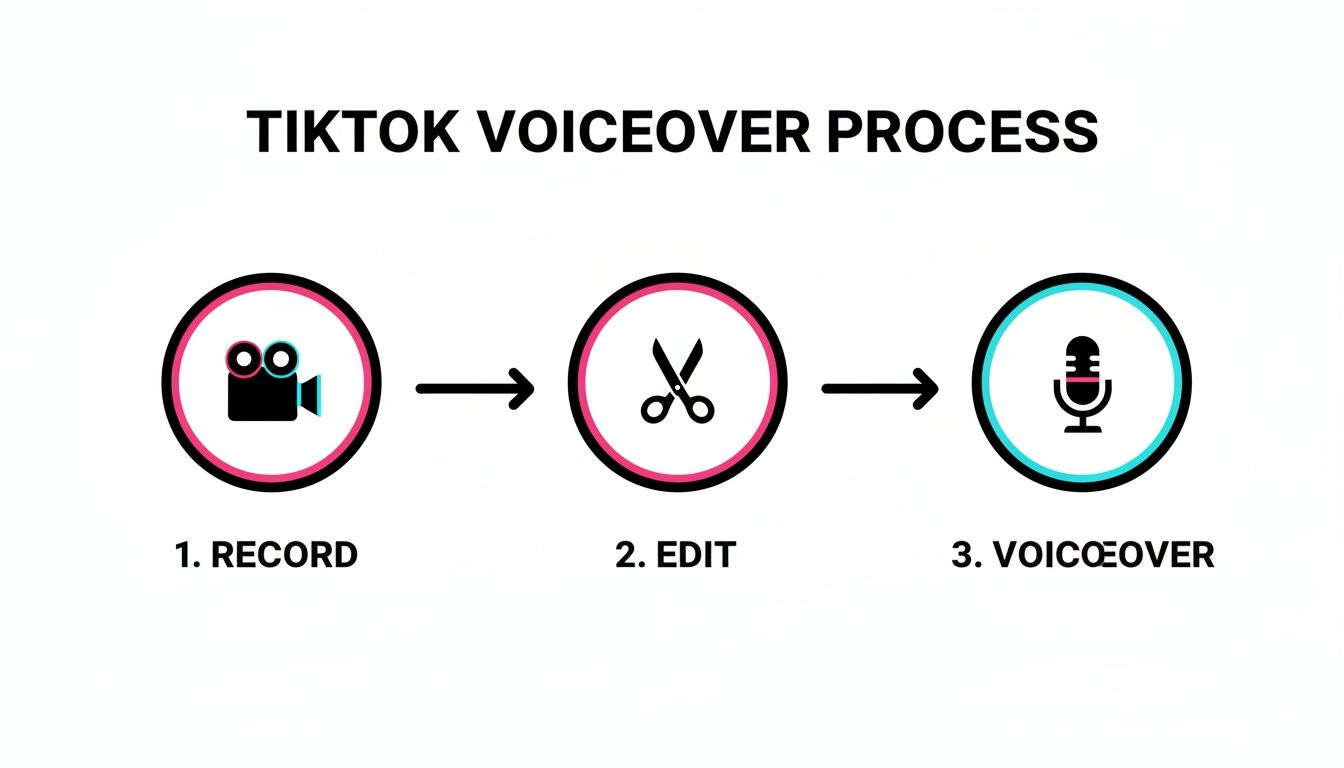
As the infographic shows, breaking the process down into distinct recording, editing, and voiceover steps is what gives you creative freedom at each stage.
Assembling Your Video in an Editor
Once you have your video clips and your polished audio file, it's time to merge them. A user-friendly editor like CapCut (owned by TikTok's parent company, ByteDance) is an excellent choice.
The process is straightforward:
- Import Your Files: Start a new project and import both your video clip and your clean voiceover file.
- Layer and Synchronize: Place the video clip on the main timeline. Then, drag your voiceover track onto a separate audio layer beneath it. Slide the audio track left or right to align your narration perfectly with the on-screen action.
- Make Precision Edits: Use the editor's tools to trim dead air, remove filler words like "um" and "uh," and even cut your video to match the pacing of your narration. This level of control is not possible with TikTok's native tool.
- Export and Upload: Once everything is synchronized, export the final video. This creates a single, high-quality file with professional-grade audio ready for a seamless upload to TikTok.
Pro Tip: This method is the best way to avoid in-app audio bugs. By finalizing your video before uploading it to TikTok, you bypass many of the glitches related to the platform's audio processing and synchronization. The video you export from your editor is exactly what your audience will see.
As you produce more content, especially across multiple platforms, organization becomes key. Batch-producing videos this way is the first step toward a more professional workflow. From there, using a suite of creator tools to streamline your workflow can help you manage planning, scheduling, and publishing without the chaos.
Pro Tips for a Voiceover That Truly Connects
Having the right tools is only part of the equation. A great TikTok voiceover is about performance—it’s what makes your audience feel like you are speaking directly to them, not at them. This is where you move beyond simple narration and start building a real connection.
The foundation of a good voiceover is a well-written script, but it should never sound like you're reading. The key is to write for the ear, not the eye.
Use simple, conversational language and keep your sentences short. A strong opening hook is non-negotiable; you have about one second to convince a viewer not to swipe away.
Scripting for a Natural Sound
Before you start recording, outline your key points. Your script should be a guide, not a word-for-word document.
- Write Like You Talk: Avoid formal language. If you wouldn't say it in a conversation, don't put it in your script.
- Focus on One Idea Per Sentence: This keeps your narration clear and easy for viewers to follow at TikTok's fast pace.
- Read It Aloud: Practice your script a few times. This helps you identify awkward phrasing and find a natural rhythm before you record.
This preparation helps you avoid a robotic, monotone delivery, which is a common engagement killer. Your personality is your greatest asset, and a loose script allows it to shine through.
Mastering Your Delivery
How you speak is as important as what you say. Your voice is an instrument, and learning to use it effectively can dramatically change how your video is received.
Vary your pace. Slow down to build suspense or emphasize a key point, and speed up to convey excitement. This dynamic delivery keeps your audience engaged.
Use inflection to add emotion to your voice. Let your pitch rise and fall naturally. A flat delivery signals boredom, but a voice filled with energy and personality draws people in. Speak with clarity and confidence, even if you have to fake it at first.
The most successful voiceovers feel like a genuine conversation. Viewers don't just want information; they want to feel a connection with the creator. When your personality comes through in your voice, you're not just making a video—you're building a community.
Creating the Right Recording Environment
You don't need a professional studio to get clean audio. Your environment plays a significant role in sound quality, and you can create a good setup with items you already have.
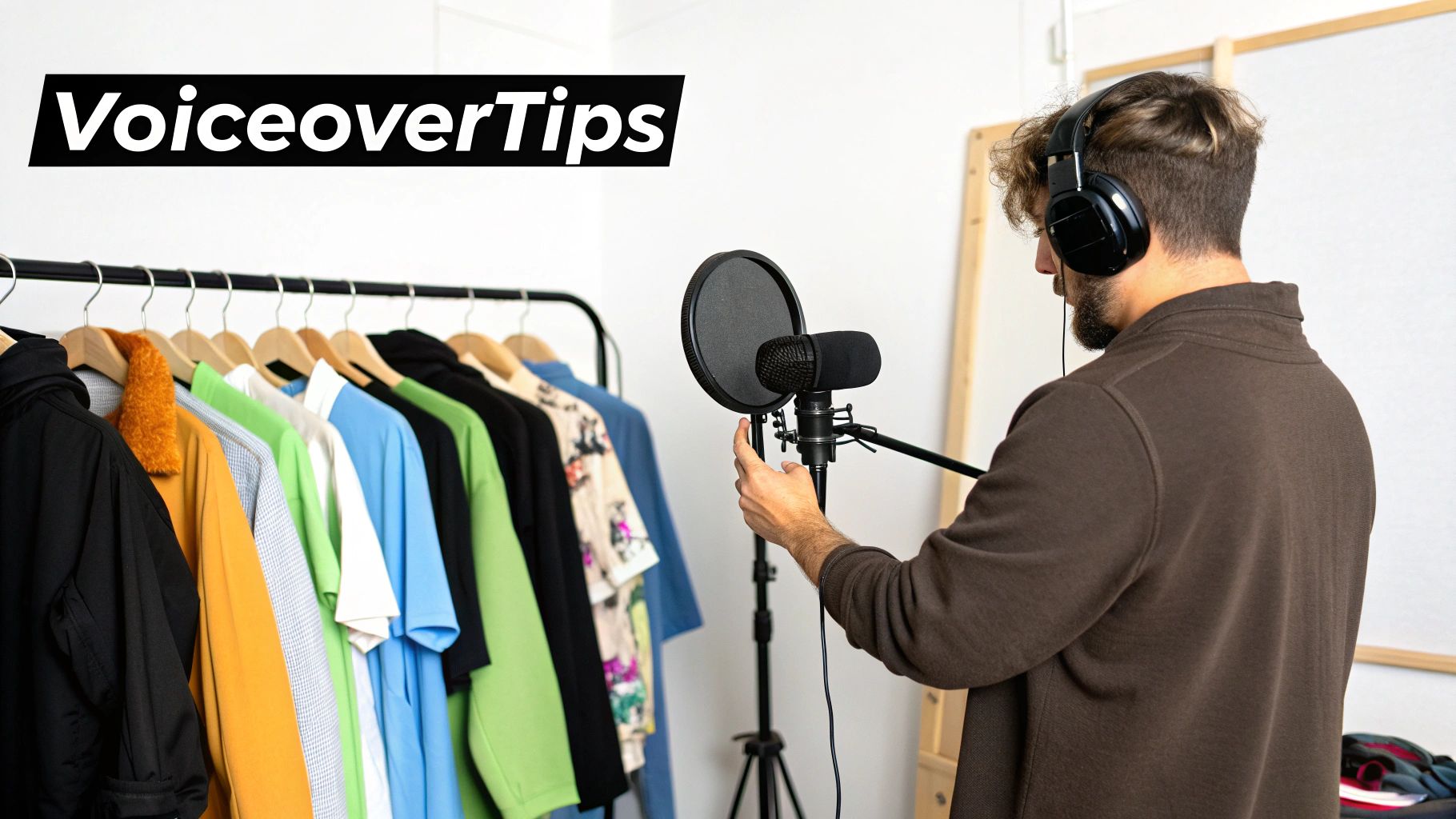
The primary enemy of a clean recording is echo, which occurs when sound waves bounce off hard surfaces like walls and floors. To fix this, find a space with soft materials that absorb sound.
A walk-in closet filled with clothes is a popular creator hack because it acts as a makeshift sound booth. Alternatively, a room with a thick rug, heavy curtains, and a sofa can also work well. You can even build a "fort" with pillows and blankets around your microphone to further deaden the sound.
Finally, use proper microphone etiquette. Position the microphone about 6-8 inches from your mouth and slightly off to the side. This helps prevent "plosives"—the harsh popping sounds from words with "p" and "b"—and ensures your audio remains clean and professional.
How to Fix Common TikTok Voiceover Issues
Even with a solid plan, you will likely encounter technical issues. TikTok's voiceover feature can be finicky, but most problems have simple solutions. This section covers troubleshooting for the most common creator headaches.
Don't panic if a feature disappears or your audio is out of sync. More often than not, the problem is a temporary app glitch, not a mistake in your technique.
Problem: The Voiceover Button is Missing
This is one of the most common and frustrating bugs. You've prepared your video and are ready to narrate, but the microphone icon for the voiceover tool is gone from the editing screen.
Common Causes:
- Temporary App Glitch: The app may have encountered a minor, temporary error.
- Feature Conflict: Applying certain video effects or, more commonly, adding a sound from TikTok's library before recording your voiceover can sometimes disable the feature.
Actionable Fixes:
- Force Quit and Relaunch: This is the equivalent of "turning it off and on again." Close the TikTok app completely, then reopen it. This simple action often resolves minor bugs and restores the missing button.
- Clear Your Cache: Go to your TikTok profile > Settings and privacy > Free up space > Clear Cache. This will not delete your drafts but can fix many performance-related issues.
- Check for App Updates: Ensure your TikTok app is updated to the latest version from your device's app store. Developers frequently release patches to fix bugs like this.
Problem: Audio is Out of Sync
You record a perfect voiceover, but during playback, your words are slightly ahead of or behind the on-screen action. Sync issues can be caused by your device struggling to process the video and audio simultaneously or by a bug within the app.
Actionable Fixes:
- Restart and Clear Cache: First, try the basic troubleshooting steps of restarting the app and clearing the cache.
- Use an External Editor: If the problem persists, the most reliable solution is to switch to an external editing workflow. Recording your voiceover separately and syncing it in an app like CapCut gives you frame-by-frame control that TikTok's tool lacks, eliminating sync issues entirely.
By rendering your audio and video together into a final file before you upload it to TikTok, you bypass the platform's real-time processing glitches entirely. What you export from your editor is exactly what will appear on the feed.
Problem: Original Video Sound Won't Go Away
You uncheck the "Keep original sound" box, but you can still hear the video's original audio mixed with your voiceover. This is almost always an in-app glitch.
Actionable Fixes:
- Manually Adjust Volume: After recording your voiceover, return to the main editing screen and tap the Volume settings.
- Mute the Original Sound: Drag the slider for "Original sound" all the way down to 0. This forces the original audio to be muted, ensuring your voiceover is the only sound your audience hears.
Once your video is edited and the voiceover is perfect, a few final steps can make the difference between a video that performs well and one that gets lost in the feed.
One of the most critical final touches is adding captions. This is not just for accessibility; a large percentage of TikTok users watch videos with the sound off. Without captions, your message is lost. TikTok's auto-caption feature is effective and easy to use, so there's no reason to skip this step. It can significantly boost your watch time.
Streamlining Your Publishing Workflow
After your video is captioned and ready, the next challenge is posting consistently. For creators and social media managers handling multiple accounts, this can become chaotic. Consistency is a key signal to the TikTok algorithm that you are a serious creator.
A scheduling tool can be invaluable here. Instead of being tied to your phone, you can batch-produce your content, finalize it, and schedule it to be posted at optimal times.
Scheduling your content isn't about being lazy; it's about being strategic. You get to reclaim your time and ensure your videos always go live during peak audience hours, even when you're busy with something else. That consistency is what builds momentum and grows your account.
For those managing multiple TikTok profiles, a dedicated TikTok scheduler like PostPlanify allows you to upload and plan all your videos from a central dashboard. This streamlines your content strategy, eliminates last-minute scrambling, and ensures every account remains active and growing.
Frequently Asked Questions About TikTok Voiceovers
Here are answers to some of the most common questions creators have about TikTok voiceovers.
Can I add a voiceover after posting a TikTok?
No. Once a video is published on TikTok, you cannot go back to add or edit a voiceover. All editing, including narration, must be completed in the draft stage before posting. If you discover a mistake after publishing, your only option is to delete the video and re-upload the corrected version. This is why it's essential to review your video carefully before it goes live.
Why does my voiceover sound muffled or quiet?
Muffled or quiet audio is typically caused by two things: your recording environment or your microphone placement. Recording in a large, empty room with hard surfaces creates echo, which makes your voice sound unclear. If you are too far from your phone's microphone, your voice will sound distant.
Quick Fix: Record in a smaller room with soft furnishings like a closet, bedroom, or a room with a carpet and curtains. Hold your phone approximately 6-8 inches from your mouth and speak clearly. This simple adjustment can significantly improve your audio quality. If muffled audio is a recurring issue, consider investing in an affordable external microphone.
How long can a TikTok voiceover be?
A TikTok voiceover can be as long as the video itself. If your video is 3 minutes long, you have up to 3 minutes for your narration. The length of the voiceover is directly tied to the duration of the video clip you are editing. This means you need to plan your visuals and script together to ensure they align. To maximize visibility, it's also helpful to know the best time to post on TikTok so your well-narrated video reaches the largest possible audience.
Final Checklist for Perfect TikTok Voiceovers
- Plan Your Narrative: Write a simple script or outline to guide your recording.
- Find a Quiet Space: Record in a room with soft surfaces to absorb echo.
- Use the Right Tool: Start with the in-app tool for speed, or use an external editor like CapCut for more control and higher quality.
- Record and Sync: Press and hold to record in-app, or sync your pre-recorded audio file in an external editor.
- Adjust the Volume: Mute the original sound and boost your voiceover volume for clarity.
- Troubleshoot Issues: If the voiceover button is missing or audio is out of sync, restart the app, clear the cache, or switch to an external editor.
- Add Captions: Make your video accessible and engaging for viewers watching without sound.
- Schedule for Peak Times: Use a tool like PostPlanify to publish your finished video when your audience is most active.
- Nail Your Username: Before publishing, make sure your profile is discoverable — check your TikTok username availability to secure a handle that matches your brand.
 PostPlanify
All your social media in one simple dashboard
Schedule posts, track analytics, and reply to comments/DMs without switching tabs.

Engagement
+18%
Views
52.8k
About the Author

Hasan Cagli
Founder of PostPlanify, a content and social media scheduling platform. He focuses on building systems that help businesses, agencies, and teams plan, publish, and manage content and social media more efficiently across platforms.


