


Struggling to figure out exactly how to create and schedule a post on LinkedIn? Whether you're trying to share an update from your phone or schedule a whole month of content from your desktop, the process can feel confusing if you don't know where to click. This guide provides a direct, step-by-step walkthrough for every type of LinkedIn post.
We'll cover the exact mechanics of posting, from creating simple text updates to building complex carousels and scheduling them for the perfect time. No theory, just actionable instructions.
Quick Answer: How to Post on LinkedIn
Here's the high-level process — we'll break each step down in detail below:
- Open the composer — Click "Start a post" on desktop or tap the "Post" button on mobile.
- Choose your format — Text, image, video, PDF carousel, or poll.
- Write your caption — Lead with a strong hook, keep paragraphs short, and add a clear call-to-action.
- Add 3-5 hashtags — Mix broad and niche tags for discovery.
- Publish or schedule — Post immediately or use a LinkedIn scheduler to queue it for the optimal time.
The rest of this guide walks through every post type, optimization tips, scheduling workflows, and troubleshooting.
The Basic Workflow: How to Create a LinkedIn Post
Posting on LinkedIn is designed to be straightforward once you know the interface. The core steps are nearly identical whether you're using the desktop website or the mobile app.
Where is the Post Composer?
- On Desktop: The "Start a post" box is located at the very top of your homepage feed. You can't miss it. Clicking it opens the post composer.
- On Mobile: Look for the "Post" button with a plus icon, located in the center of the bottom navigation bar. Tapping it brings up the mobile post composer.
This composer is your starting point for sharing any type of content with your network.
Step-by-Step Guide to Posting
- Open the Composer: Click "Start a post" on desktop or tap the "Post" button on mobile.
- Select Your Audience: At the top of the composer, you'll see a button with your name and a visibility setting (e.g., "Anyone"). Click this to choose who can see your post. For maximum reach, "Anyone" is almost always the best option. You can also share to a specific LinkedIn Group you're a member of.
- Write Your Text: Type or paste your caption into the main text area. We'll cover how to write effective captions later.
- Add Media (Optional but Recommended): Below the text area, you'll find icons to add different media types:
- Add media: For uploading photos or videos.
- Create an event: For promoting a webinar or live stream.
- Celebrate an occasion: For work anniversaries or new roles.
- Add a document: For creating a PDF carousel.
- Create a poll: For asking a question with multiple-choice answers.
- Offer help: For posting about services you provide.
- Add Hashtags: Include 3-5 relevant hashtags to help LinkedIn categorize your content and show it to a wider audience. Use our free LinkedIn hashtag generator if you need help finding the right tags.
- Tag People or Pages (Optional): Type the "@" symbol followed by a name to tag a person or company page. Only tag relevant entities.
- Proofread and Publish: Review your post for typos and formatting. Once you're ready, click the "Post" button.
Understanding this basic workflow is the foundation for everything else. For example, once you know how to attach an image, you're halfway to learning how to post video on LinkedIn, as the core steps are almost identical.
Creating Every Type of LinkedIn Post (With Examples)
If you've only been posting simple text updates, you're missing out on massive engagement opportunities. Different messages require different formats. A behind-the-scenes look works best as a video, while a detailed report is perfect for a document carousel.
Here's a practical guide on how to create each format and, more importantly, when to use it.

LinkedIn Post Type Comparison
Not sure which format to use? This table breaks down the key differences between each LinkedIn post type.
| Post Type | Best For | Engagement Level | Effort Level |
|---|---|---|---|
| Text-only | Hot takes, questions, personal stories | Medium | Low |
| Image | Team wins, announcements, product showcases | High | Low |
| Native video | Demos, tutorials, testimonials | Highest | High |
| Document/Carousel | Guides, case studies, slide decks | Highest | Medium |
| Poll | Quick feedback, debates, audience research | High | Low |
1. Text-Only Posts
The simplest format can often be the most effective for starting a conversation.
- Why it works: Text posts feel raw and authentic. They are perfect for sharing a quick insight, asking a provocative question, or telling a short personal story.
- How to create:
- Open the post composer.
- Write your text directly in the box.
- Add relevant hashtags.
- Click "Post".
- Real-world scenario: A project manager posts, "Just finished a brutal 3-month project. My biggest takeaway: over-communication is impossible. What's one lesson you learned the hard way this quarter? #ProjectManagement #LessonsLearned". This invites immediate, personal responses.
- Limitation: Without visuals, your first line must be incredibly strong to stop users from scrolling. Use short paragraphs (1-2 sentences) and a tool like the free LinkedIn text formatter to improve readability.
2. Image Posts
Images grab attention far more effectively than text alone. Posts with images get significantly more views.
- Why it works: Visuals make your content instantly more appealing and digestible. They are ideal for celebrating team wins, showcasing a product, or giving a face to a personal story.
- How to create:
- In the post composer, click the "Add media" icon (looks like a picture).
- Select one or more images from your computer or phone.
- Write your caption, add hashtags, and tag relevant accounts.
- Click "Post".
- Real-world scenario: A marketing agency posts a photo of their team at an offsite event with the caption, "Soaking up some sun and strategy with the best team in the business! Great ideas happen when you step away from the desk. #TeamCulture #MarketingAgency".
- Limitation: Use authentic photos, not generic stock images. Poor-quality or irrelevant images can hurt your credibility. Make sure your images are sized correctly using a LinkedIn image dimensions guide.
3. Native Video Posts
Native video (uploaded directly to LinkedIn) is the king of engagement. It builds a stronger, more personal connection with your audience.
- Why it works: Video is perfect for product demos, tutorials, client testimonials, or personal messages. It allows you to convey emotion and complex information more effectively than text.
- How to create:
- Click the "Add media" icon in the composer.
- Select a video file from your device. LinkedIn supports common formats like MP4 and MOV.
- While the video uploads, add a title and write your post caption.
- You can also upload a separate SRT file for captions, which is highly recommended for accessibility.
- Click "Post".
- Real-world scenario: A software developer posts a 90-second screen recording with a voiceover, walking through a new feature. The post explains how it solves a common user problem, providing direct value.
- Limitation: The LinkedIn API has limitations for third-party schedulers. For example, while you can schedule videos through tools like PostPlanify, features like native captioning or thumbnail selection might only be available when posting directly on LinkedIn.
4. Document Posts (Carousels)
Document posts, or carousels, are one of the best formats for sharing in-depth information. You upload a PDF, and LinkedIn turns it into an interactive, swipeable presentation.
- Why it works: Carousels hold user attention longer, which signals to the LinkedIn algorithm that your content is valuable. This often results in greater reach. They are perfect for repurposing slide decks, sharing case studies, or creating visual guides.
- How to create:
- In the post composer, click the "Add a document" icon (looks like a piece of paper).
- Select a PDF file from your computer.
- Give your document a descriptive title. This will appear at the top of the post.
- Write your caption, explaining what viewers will learn from the carousel.
- Click "Post".
- Real-world scenario: A consultant uploads a 10-slide PDF titled "5 Mistakes to Avoid in Your First 90 Days as a Manager." The cover slide is bold and attention-grabbing, encouraging users to swipe through.
- Limitation: Once posted, you cannot edit the document file itself. If you find a typo in the PDF, you must delete the entire post and re-upload it.
5. Polls
Polls are a low-effort way to generate high engagement. They invite your audience to participate with a single click.
- Why it works: Polls provide quick feedback, spark debates, and boost your post's visibility because engagement is easy for your followers.
- How to create:
- In the composer, click the "Create a poll" icon (looks like a bar chart).
- Type your question.
- Add up to four options for the answers.
- Select the poll's duration (1 day, 3 days, 1 week, or 2 weeks).
- Write your caption, add hashtags, and click "Post".
- Real-world scenario: A tech recruiter posts a poll asking, "What's more important in a tech role for 2026? 1) Fully remote work, 2) High salary, 3) Cutting-edge projects, 4) Work-life balance." This generates data and discussion.
- Limitation: Polls are simple and can't capture nuanced opinions. Always follow up with a post discussing the results to continue the conversation.
LinkedIn Media Specifications
To avoid upload errors and ensure your content looks its best, follow these technical specifications.
| Format | Recommended Dimensions | File Type | Max File Size |
|---|---|---|---|
| Image (single) | 1200 x 1200 (square) or 1200 x 627 (landscape) | JPG, PNG, GIF | 10 MB |
| Image (multi) | 1200 x 1200 per image (up to 9 images) | JPG, PNG | 10 MB per image |
| Native video | 1920 x 1080 (landscape) or 1080 x 1920 (portrait) | MP4 | 5 GB (10 min max) |
| Document/Carousel | Any standard PDF page size | 300 MB (300 pages max) |
Related: How to Create Engaging Social Media Content | Content Repurposing Strategies | Social Media Post Ideas
 PostPlanify
All your social media in one simple dashboard
Schedule posts, track analytics, and reply to comments/DMs without switching tabs.

Engagement
+18%
Views
52.8k
Optimizing Your Posts for Maximum Reach and Engagement
Here's a walkthrough of key LinkedIn posting strategies and optimization tips:
Hitting "Post" is just the start. To ensure your content gets seen and sparks conversation, you need to apply a few strategic optimizations. These small adjustments separate posts that disappear from those that gain real traction.
1. Craft an Irresistible Opening Line
Your first sentence has one job: stop the scroll. In a fast-moving feed, you have a split second to grab someone's attention. If that first line is generic, they're gone.
A great hook usually does one of these things:
- Asks a provocative question: "Is the 9-to-5 workday officially dead?"
- Makes a bold statement: "Most content marketing fails. Here's why."
- Starts with a personal story: "I completely bombed my first sales call. It taught me everything."
The goal is to create curiosity and make someone feel they'll miss out if they don't keep reading. Need help crafting captions? Try our free LinkedIn caption generator.
2. Structure Your Post for Skimming
No one wants to read a wall of text on social media. People scan. Your job is to make your post easy on the eyes.
Follow these simple formatting rules:
- Use extremely short paragraphs: Aim for 1-2 sentences each.
- Embrace white space: The empty space between lines gives your content room to breathe and makes it feel less intimidating.
- Use emojis and bullet points: These details break up the monotony of text and guide the reader's eye.
A well-structured post invites people in. A dense block of text pushes them away. Use our free LinkedIn line break generator to format your posts perfectly. Before you post, ensure your profile is ready for visitors. Learn how to optimize your LinkedIn profile for maximum impact.
3. Use Hashtags and Tags Strategically
Hashtags are your post's discovery engine. They help LinkedIn categorize your content and show it to users interested in those topics.
- Common Cause of Poor Reach: Using too many, too few, or irrelevant hashtags.
- Actionable Fix: Use 3-5 highly relevant hashtags per post.
- Real-World Scenario: A post about B2B marketing strategy should use a mix of tags:
- Broad:
#Marketing - Niche:
#B2BContentStrategy,#LeadGeneration - Community/Branded:
#MarketingTwitteror a custom tag like#PostPlanifyTips.
- Broad:
Tagging relevant people or Company Pages can also boost initial visibility. When you tag someone, they get a notification, which often encourages them to engage. Only tag people who are genuinely mentioned or relevant to the post to avoid looking spammy. You can measure the impact of these strategies with a free LinkedIn engagement calculator.
4. Post at the Right Time
Timing matters on LinkedIn. Posting when your audience is online means more early engagement, which signals the algorithm to push your content further.
| Day | Peak Windows | Notes |
|---|---|---|
| Monday | 8–10 AM | Professionals catching up on industry news |
| Tuesday | 8–10 AM, 12–1 PM | Consistently high engagement across studies |
| Wednesday | 8–10 AM, 12–1 PM | Top-performing day for most B2B audiences |
| Thursday | 8–10 AM, 1–2 PM | Strong all day; second-best day overall |
| Friday | 8–10 AM | Engagement drops after lunch as the week winds down |
| Saturday | Avoid | Lowest engagement day |
| Sunday | Avoid | Very low engagement |
These are broad patterns — your audience may behave differently. Use your LinkedIn Page analytics or a tool like PostPlanify (which includes best time to post suggestions based on your audience data) to find your specific sweet spot. For more data on timing across all platforms, see our guide on the best time to post on social media.
Related: How to Improve Social Media Engagement | Social Media Best Practices | How to Build Social Media Presence
PostPlanifyAll your social media in one simple dashboard
Schedule posts, track analytics, and reply to comments/DMs without switching tabs.
Engagement
+18%
Views
52.8k
How to Schedule LinkedIn Posts for Consistency
Posting on LinkedIn consistently is critical for growth, but doing it manually every day is a recipe for burnout. The solution is to schedule your content in advance. This shifts posting from a reactive daily chore to a proactive, strategic system. For a complete walkthrough, see our dedicated guide on how to schedule LinkedIn posts.

Why You Can't Schedule Posts (And How to Fix It)
- Problem: LinkedIn's native platform does not have a built-in post scheduling feature for personal profiles. While Company Pages have a basic scheduling option, it's limited and lacks advanced features.
- Common Causes: This is an intentional platform limitation. LinkedIn wants users to engage on the platform directly. However, they provide an API that allows approved third-party tools to offer this functionality.
- Actionable Fix: Use a dedicated social media scheduling tool like PostPlanify to schedule posts for both your personal profile and Company Page. For more options, see our roundup of the best LinkedIn schedulers.
Step-by-Step: Scheduling a LinkedIn Post with PostPlanify
- Connect Your Account: In your PostPlanify dashboard, connect your LinkedIn Personal Profile or Company Page. You'll authorize the tool to post on your behalf.
- Go to "Create Post": Open the post composer, which works for all connected social platforms.
- Upload Your Media: Add your image, video, or the PDF for your carousel.
- Select Your Account: Check the box for the LinkedIn profile or page you want to post to. You can also select other accounts (like Facebook or X) to cross-post across platforms.
- Write Your Post: Craft your caption, add hashtags, and tag users. Use the AI Assistant to refine your copy or generate new ideas. Check the accurate preview to see exactly how it will look in the LinkedIn feed.
- Schedule or Save: Choose your action: "Publish Now," "Save as Draft," or "Schedule." When scheduling, pick a specific date and time from the calendar.
This workflow allows you to batch-create a week or month of content in a single session, ensuring you maintain a consistent presence without the daily pressure. For more on content batching, see our guide on content batching strategies.
Advanced Scheduling Features You Should Use
Top-tier scheduling tools offer features that solve specific, high-value problems for users.
- Bulk Scheduling: A game-changer for agencies and busy marketers. You can plan dozens of posts in a CSV spreadsheet and upload it to populate your entire content calendar in minutes. This is what most power users leverage to manage multiple accounts efficiently.
- Social Inbox: For Company Pages, a unified social inbox is essential. It lets you manage and reply to all comments on your LinkedIn posts from one central dashboard, so no conversation gets missed.
- Analytics: Advanced analytics tools show you the best times to post based on your audience's activity, track historical performance, and identify your top content. This is crucial for optimizing your strategy over time. See these insightful LinkedIn statistics from ConnectSafely.ai for more on what works.
- AI Assistant: PostPlanify's AI assistant can generate LinkedIn-optimized captions, suggest hashtags, and help you repurpose content for different platforms — all from the same composer.
Scheduling frees you up to focus on what really matters: creating high-quality content and engaging with your community. If your scheduled posts ever fail to publish, check our troubleshooting guide on LinkedIn scheduled posts not working.
Related: How to Schedule Social Media Posts | How to Plan Social Media Content | Social Media Content Calendar Examples
Analyzing Your LinkedIn Performance to Improve

Posting without checking your results is like shouting into the void. Analytics provide the feedback loop that tells you what's working, what's not, and why.
Where to Find Your Analytics
- Problem: Users often don't know where to find performance data or which metrics actually matter.
- Actionable Fix:
- For Personal Profiles: Go to any post you've shared. Below the post, you'll see a view count (impressions). Click it to see more detailed stats, including the job titles and companies of your viewers.
- For Company Pages: Navigate to your page and click the Analytics tab. Here you'll find a comprehensive dashboard covering impressions, engagement, follower demographics, and more.
- Using a Tool: A scheduler like PostPlanify offers its own analytics dashboard, often presenting data more clearly and tracking historical trends for both profiles and pages. For agencies, PostPlanify also offers white-label reports you can brand and share with clients.
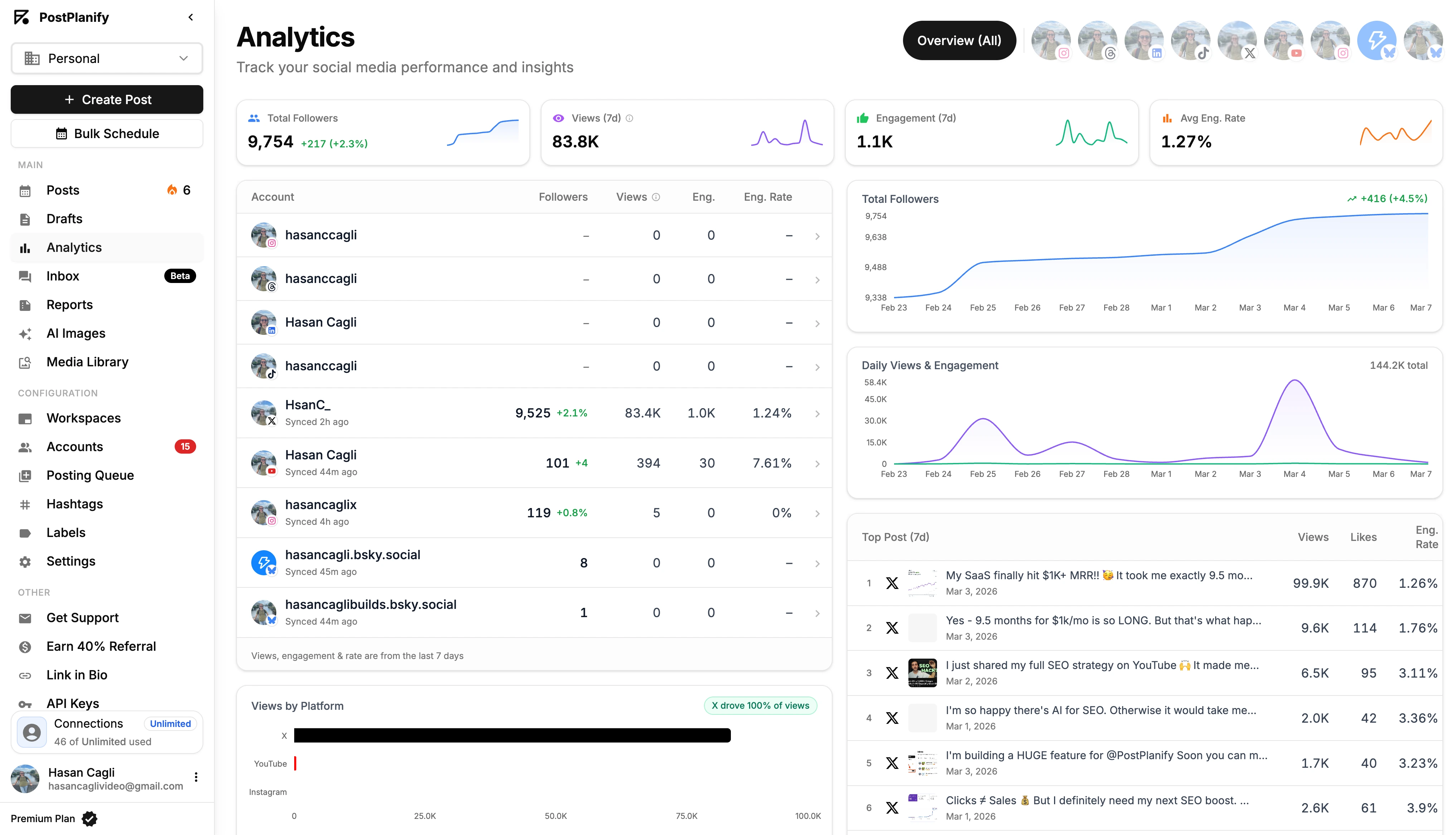
Key Metrics and What They Mean
Don't get lost in vanity metrics. Focus on the numbers that signal genuine interest and business value.
| Metric | What It Measures | Why It Matters |
|---|---|---|
| Impressions | Total times your post was displayed | Gauges overall reach and content visibility |
| Engagement Rate | (Likes + Comments + Shares + Clicks) / Impressions | The single most important metric for content quality |
| Click-Through Rate (CTR) | Percentage of viewers who clicked your link | Measures how compelling your call-to-action is |
| Follower Growth | Net new followers over a period | Shows whether your content attracts new audiences |
| Follower Demographics | Job title, industry, location breakdown | Confirms you're reaching your target audience |
If you notice that document carousels consistently get a 3% engagement rate while text posts only get 1%, that's a clear signal to create more carousels. Use this data to refine your strategy. For a complete overview, see our guide on social media analytics and reporting. To calculate your own rates, use our free social media engagement rate calculator guide.
Related: Social Media Analytics for Business | How to Create a Social Media Report | How to Measure Social Media ROI
PostPlanifyAll your social media in one simple dashboard
Schedule posts, track analytics, and reply to comments/DMs without switching tabs.
Engagement
+18%
Views
52.8k
LinkedIn Posting FAQ
Here are direct answers to the most common questions about posting on LinkedIn.
What is the best time to post on LinkedIn?
The best time is when your audience is most active. As a general starting point, Tuesdays through Thursdays from 8 AM to 10 AM and 12 PM to 1 PM in your target time zone consistently show the highest engagement across studies. Use your LinkedIn Page analytics or PostPlanify's best time to post feature to find your unique sweet spot. For a full breakdown, see our best time to post on social media guide.
Should I edit a post or delete and re-upload it?
- For minor typos spotted within minutes: Edit the post. It's quick and won't impact performance.
- For major errors (wrong image, broken link) or a post with zero engagement after an hour: Delete and re-upload. The LinkedIn algorithm gives a post its biggest visibility boost in the first hour. A heavily edited post or a "dead" post rarely gets a second chance. Starting fresh is your best bet for maximum reach.
How many hashtags should I use on a LinkedIn post?
LinkedIn's official recommendation is 3-5 relevant hashtags. For a post on leadership, use #Leadership, #ManagementTips, and #TeamBuilding. This mix of broad and niche tags is more effective than a dozen generic ones like #work or #business. Quality over quantity is key. Use our free LinkedIn hashtag generator for suggestions.
How often should I post on LinkedIn?
For most professionals, 3-5 posts per week is the sweet spot. Posting daily can work if your content quality stays high, but one great post is worth more than five mediocre ones. Consistency matters more than frequency — pick a cadence you can maintain and stick with it. A content calendar helps you plan ahead and avoid burnout.
What is the character limit for LinkedIn posts?
LinkedIn allows up to 3,000 characters per post (approximately 500 words). However, LinkedIn truncates posts after the first 2-3 lines with a "...see more" button. This means your opening line is critical — if it doesn't hook the reader, they'll never tap to see the rest.
Can I schedule LinkedIn posts for free?
LinkedIn Company Pages have a basic built-in scheduling feature, but personal profiles do not. For personal profiles, you need a third-party tool. PostPlanify offers a free trial that includes full LinkedIn scheduling for both profiles and pages. See our how to schedule LinkedIn posts guide for a complete walkthrough.
Can I post on LinkedIn from a third-party tool?
Yes. LinkedIn provides an official API that approved third-party tools can use to publish on your behalf. Tools like PostPlanify let you create, schedule, and publish LinkedIn posts — including text, images, videos, and document carousels — from a single dashboard alongside your other social platforms.
Do LinkedIn carousels get more engagement than other post types?
Yes. Document posts (carousels) consistently outperform other formats on LinkedIn because they keep users swiping, which increases dwell time. The algorithm interprets this extended interaction as a strong signal that the content is valuable, resulting in wider distribution. They are especially effective for step-by-step guides, frameworks, and case studies.
Why is my LinkedIn post not getting views?
The most common reasons are: posting at off-peak times, using a weak opening line that doesn't encourage "see more" clicks, including an external link in the post body (LinkedIn deprioritizes posts with outbound links), or having a small network. Try moving links to the first comment, improving your hook, and posting during peak hours. If your scheduled posts aren't publishing at all, see our guide on LinkedIn scheduled posts not working.
Can I edit a LinkedIn post after publishing?
Yes. Click the three dots (···) in the top-right corner of any post you've published and select "Edit post." You can change the text, hashtags, and tags. However, you cannot swap out images, videos, or document files after publishing — for those, you must delete the post and re-upload.
How do I find my scheduled LinkedIn posts?
If you used a third-party tool, your scheduled posts are only visible inside that tool's dashboard or content calendar. LinkedIn's native scheduler for Company Pages shows scheduled content in the "Activity" section of your page. For a complete guide across all methods, see how to see scheduled posts on LinkedIn.
Can I cross-post my LinkedIn content to other platforms?
Yes. Using a tool like PostPlanify, you can write one post and schedule it to LinkedIn, Facebook, Instagram, X, TikTok, and more simultaneously. The tool lets you customize each platform's version from the same composer, so you can adjust formatting, hashtags, and media for each network. Learn more in our social media cross-posting guide.
Quick-Start Checklist for Posting on LinkedIn:
- [ ] Choose the Right Format: Match your message to the best post type (text, image, video, carousel, poll).
- [ ] Write a Strong Hook: Your first sentence must stop the scroll.
- [ ] Structure for Readability: Use short paragraphs, white space, and bullet points.
- [ ] Use 3-5 Relevant Hashtags: Mix broad, niche, and branded tags.
- [ ] Tag Relevant People/Pages: Notify others to encourage engagement, but don't be spammy.
- [ ] Check Media Specs: Ensure images and videos meet LinkedIn's dimension and file size requirements.
- [ ] Schedule for Consistency: Use a tool like PostPlanify to plan content in advance and avoid burnout.
- [ ] Post at Peak Times: Aim for Tuesday-Thursday, 8-10 AM or 12-1 PM in your audience's time zone.
- [ ] Analyze and Adapt: Check your analytics weekly to see what's working and do more of it.
Ready to stop the daily grind of manual posting and build a consistent presence on LinkedIn? PostPlanify gives you the tools to plan, schedule, and analyze your content from a single dashboard. Save hours every week with bulk scheduling, AI-powered captions, and a unified social inbox.
Try it free today and see the difference.
Also read: How to Schedule LinkedIn Posts | How to See Scheduled Posts on LinkedIn | LinkedIn Scheduled Posts Not Working | Best LinkedIn Scheduler | Save Time on Social Media Management
PostPlanifyAll your social media in one simple dashboard
Schedule posts, track analytics, and reply to comments/DMs without switching tabs.
Engagement
+18%
Views
52.8k
About the Author

Hasan Cagli
Founder of PostPlanify, a content and social media scheduling platform. He focuses on building systems that help businesses, agencies, and teams plan, publish, and manage content and social media more efficiently across platforms.


