


Automating social media posts means using a tool to schedule and publish content across platforms like Instagram, X, and Facebook without being there in real-time. It turns a repetitive, time-sucking task into a hands-off process that runs in the background.
This guide is for anyone who is tired of the manual posting grind and is actively looking for a practical solution. We'll skip the theory and get straight to the step-by-step fixes for common social media workflow problems.
Why Manual Social Media Is Draining Your Resources
If you're juggling multiple social platforms, you know the drill. Manually uploading a Reel to Instagram, tweaking the caption for X, then formatting a different version for LinkedIn eats up hours that should be spent on big-picture strategy. It’s a frustrating cycle of tasks that feel urgent but are ultimately unproductive.
This isn't just an annoyance; it's a massive drain on your most valuable assets: time, creativity, and energy.
Common Scenarios and Their Root Causes
The problem of manual posting isn't just about being busy; it’s about a broken workflow that directly impacts your results.
- For the Solo Creator: You spend Sunday night manually scheduling posts just to keep your feeds active. By Wednesday, you're out of ideas, miss a post, and your engagement dips. The root cause is a lack of a content system, forcing you to be reactive.
- For the Marketing Team: Your team spends more time uploading assets and copy-pasting text than analyzing what actually works. The root cause is an inefficient workflow that creates bottlenecks and prevents strategic thinking.
- For the Agency: You're managing ten different client accounts, each with its own brand voice and schedule. One wrong post to the wrong account can damage client trust. The root cause is a lack of a centralized command center, increasing the risk of human error. We dive deeper into these specific challenges in our guide on how to manage multiple social media accounts.
Actionable Fix: Build a Scalable Automation Foundation
The core issue with manual posting is that it forces you to operate at the task level, not the strategic level. You spend your energy on the act of posting rather than the why behind the post. The fix is to build a foundation that separates content creation from content publishing.
- Choose a Central Hub: Select a scheduling tool that acts as your command center. For agencies, features like client workspaces are non-negotiable. For creators, a simple visual calendar might be enough. Tools like PostPlanify are designed to handle both.
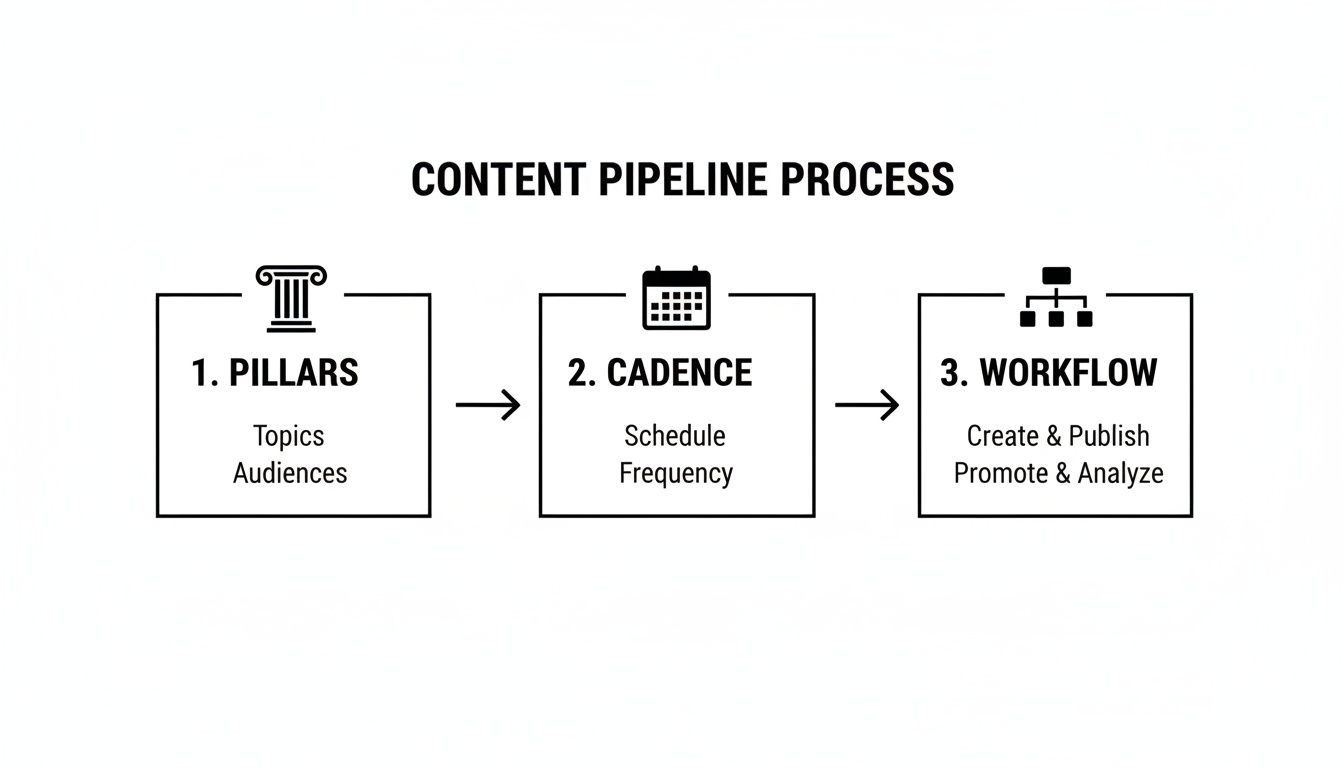
- Establish a Content Pipeline: Instead of creating posts on the fly, build a system where content is planned, created, and approved weeks in advance. This ensures a steady flow of high-quality material ready for scheduling.
- Implement Batching: Group similar tasks together. Dedicate one block of time for writing captions, another for designing graphics, and a final one for bulk scheduling. This is far more efficient than context-switching all day.
 PostPlanify
All your social media in one simple dashboard
Schedule posts, track analytics, and reply to comments/DMs without switching tabs.

Engagement
+18%
Views
52.8k
Implementing this system can slash the time spent on manual posting by up to 70%, reclaiming dozens of hours each month for work that actually moves the needle.
Step 1: Set Up Your Automation Command Center
Before you can automate anything, you have to lay the groundwork. This initial setup is the most important step; getting it right now will save you from countless headaches and posting errors down the road. It all starts with picking a tool that fits your workflow and connecting your accounts correctly.
Think of your scheduling tool as your central command center. To see how different platforms stack up, check out our guide to the best social media scheduling tools.
How to Securely Connect Your Social Accounts
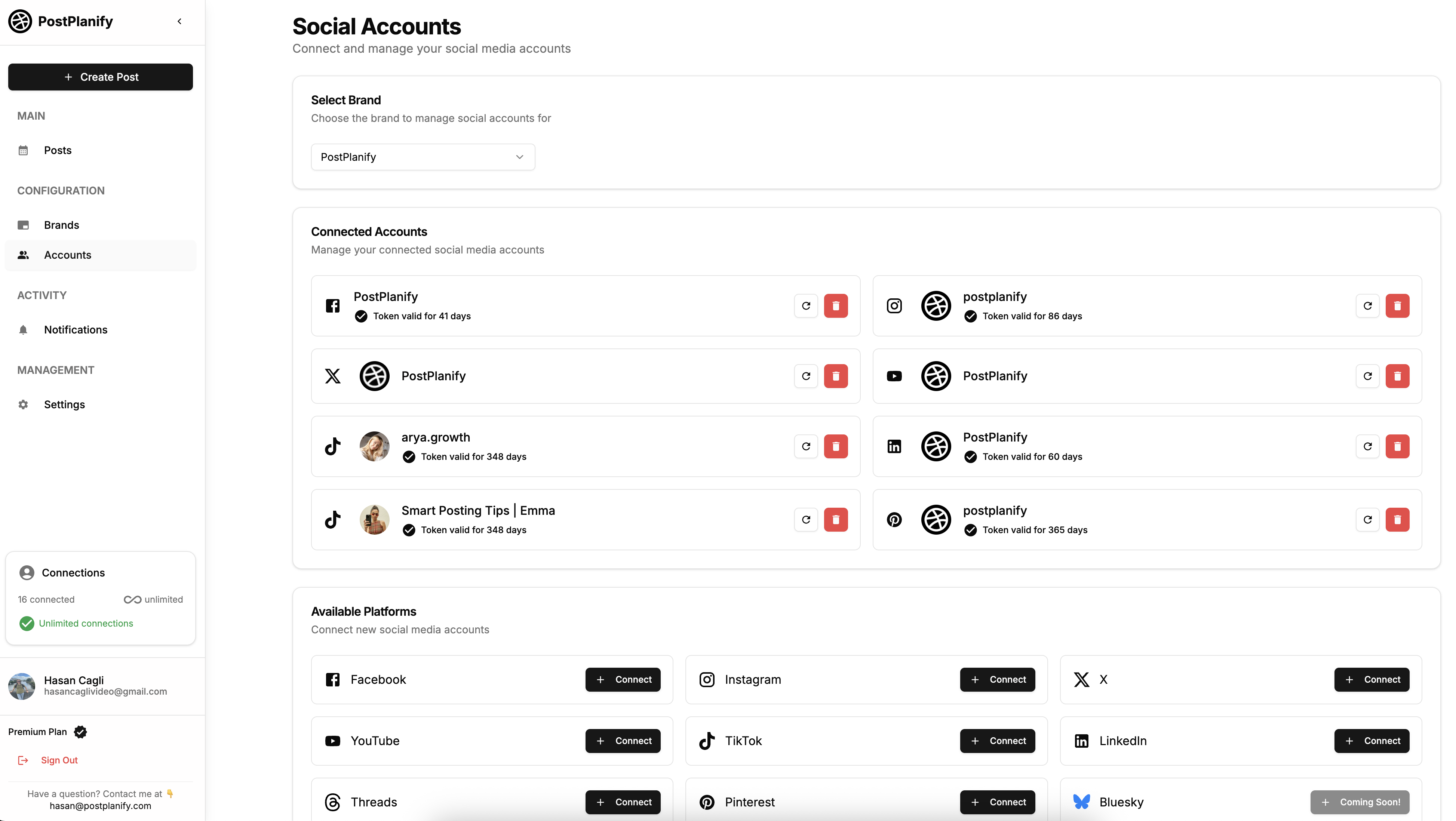
When you connect a social media profile, you’re granting specific permissions through each platform's API (Application Programming Interface), which is what gives your scheduler the authorization to publish content for you.
Here’s a step-by-step breakdown of how to connect the major platforms and avoid common pitfalls:
-
For Facebook & Instagram:
- Action: Log into the Facebook profile that has Admin access to the Facebook Business Page you want to connect. Your Instagram account must be a Professional account (Creator or Business) and linked to that Facebook Page.
- Why: Meta's API requires this connection. You are authorizing access to the Page, not your personal profile.
- Common Pitfall: Users often try to connect a personal Instagram account or a Facebook profile instead of a Business Page. This will always fail.
- Pro Tip: During the authorization process, approve all requested permissions. Declining even one can cause random posting failures later on, as the tool won't have the full access it needs.
-
For TikTok:
- Action: Log into your TikTok for Business account when prompted. You cannot connect a personal TikTok account.
- Why: TikTok's API is only available for business profiles.
- Limitation: Be aware of token expiration. For security reasons, TikTok’s API often requires you to re-authenticate your account every 60 days.
-
For X (formerly Twitter) & LinkedIn:
- Action: You will be redirected to their sites to authorize the application. For LinkedIn, ensure you are a Super admin of the Company Page you wish to connect.
- Why: Admin permissions are required to grant API access to third-party tools. An "Editor" or "Moderator" role is not sufficient.
Troubleshooting Common Connection Problems
Even with a perfect setup, API connections can be finicky. Platforms frequently update their security protocols, which can cause temporary disconnects.
Here are the most common connection issues and their solutions:
| Problem | Why It Happens | Actionable Fix |
|---|---|---|
| Expired Permissions / Token | A password change, a platform security update, or simply time (e.g., TikTok's 60-day rule) can invalidate your connection token. | 1. Disconnect the account from your automation tool. 2. Log into the social platform's settings and remove the tool from your list of authorized apps. 3. Go back to your tool and reconnect the account from scratch. This creates a fresh, valid token. |
| Incorrect Account Type | You're trying to connect a personal Instagram account, a personal TikTok profile, or a Facebook personal profile. | 1. For Instagram, go into the app's settings and switch to a Creator or Business account. 2. For TikTok, switch to a Business Account in the settings. 3. For Facebook, ensure you are connecting a Business Page, not your personal timeline. |
| Insufficient Admin Rights | You are not a full Admin of the Facebook Page or LinkedIn Company Page you're trying to connect. | You must contact the Page owner or another Admin and ask them to upgrade your role to Admin (for Facebook) or Super admin (for LinkedIn). |
How to Integrate Your Content Hubs
The final piece of your foundation is bridging the gap between where your content lives (e.g., Google Drive, Canva) and where it gets scheduled. Manually downloading and re-uploading assets defeats the purpose of automation.
Actionable Fix:
- Choose an automation tool, like PostPlanify, that offers direct integrations with your cloud storage.
- Connect your Google Drive, Dropbox, or Canva account within the tool.
- When scheduling, you can now browse and import your approved creative assets directly into your content calendar, creating a seamless workflow from creation to publishing.

Step 2: Build a Sustainable Content Pipeline
An automation tool is only as smart as the content you feed it (we compare 14 Best Social Media Automation Tools by the automation type each one leads on). If your content strategy is a mess, automation will just be a faster way to publish that mess. Before scheduling a single post, you need to build a sustainable content pipeline.
This pipeline is the system that ensures you always have high-quality, relevant posts ready to go, completely killing that last-minute panic of "what do I post today?"
Problem: You Don't Know What to Post
Staring at a blank content calendar is paralyzing. This happens when your content strategy lacks focus, leading to scattered messaging and inconsistent posting.
Actionable Fix: Define Your Content Pillars
Content pillars are the 3-5 core themes your brand consistently talks about. They ensure every post reinforces your expertise and what your audience can expect from you.
- Identify Your Themes: Ask yourself: What problems do we solve for our customers? What are we genuine experts in? What topics does our audience care about?
- Assign Pillars: For example, a financial advisor’s pillars might be "Retirement Planning," "Investing for Beginners," and "Debt Management."
- Brainstorm Under Each Pillar: Now, instead of staring at a blank page, you can brainstorm specific post ideas for each bucket (e.g., a carousel explaining Roth IRAs for "Retirement Planning").
Problem: Your Posting is Haphazard and Inconsistent
Posting "whenever you have time" is a recipe for failure. Social media algorithms reward consistency, so a sporadic schedule can destroy your reach.
Actionable Fix: Map Out a Posting Cadence
A posting cadence is a consistent, manageable schedule that hits the times your audience is most active.
- Use a Visual Calendar: Ditch the spreadsheet. Use a tool with a visual calendar, like in PostPlanify, to see your entire month at a glance.
- Assign Pillars to Days: Map your content pillars to specific days to create a balanced content mix. For example:
- Mondays: Mindset Motivation
- Wednesdays: Workout Tips
- Fridays: Healthy Recipes
- Determine Best Times: Use your platform analytics to identify when your followers are most active and schedule your posts for those peak times.
Problem: Your Content Underperforms on Certain Platforms
Posting the same exact content to Instagram, LinkedIn, and X is a common mistake. Each platform has its own audience expectations, formats, and algorithm quirks.
Actionable Fix: Plan for Each Platform Individually
Your pipeline must account for platform-specific nuances.
- Instagram: Plan for a mix of Reels, Carousels, and Stories.
- X (formerly Twitter): Focus on short-form text, quick video clips, and multi-post threads.
- LinkedIn: Prioritize professional value with in-depth text posts, industry insights, and PDF carousels.
- TikTok: Your pipeline should be a steady stream of short, engaging, trend-aware videos.
A little inspiration helps. Look at powerful social media post examples to see how others tailor content for different platforms.
Platform-Specific Automation Capabilities and Limitations
Understanding API limitations is key to building a realistic pipeline.
| Platform | What You Can Automate | Common Limitations & Edge Cases | Best Practice Tip |
|---|---|---|---|
| Feed posts (image, video, carousel), Reels, Stories, first comments. | Music in Reels can be tricky due to licensing; most interactive Story stickers (polls, quizzes) aren't supported via API. | Schedule Reels without trending audio directly. For trending sounds, use a push notification reminder to finish and post manually in the app. | |
| X (Twitter) | Single posts (text, image, video, poll), threads. | Live video (Spaces) cannot be scheduled. API rules are strict about posting duplicate content in a short period. | Schedule foundational threads and evergreen content, but leave room in your calendar for real-time replies and engagement. |
| Personal profile posts, Company Page posts (text, image, video, PDF carousels). | Cannot schedule LinkedIn Articles or Events. API has stricter posting frequency limits than other platforms. | Use the "first comment" scheduling feature in your tool to add links. This keeps your main post clean and can improve reach in the algorithm. | |
| TikTok | Direct video publishing. | Most trending sounds and advanced editing effects must be added in the TikTok app, not through a third-party tool. | Schedule the raw video file and use a push notification to add trending audio and effects right before posting. |
| Page posts (all formats), Group posts, Reels, Stories. | The API connection can be finicky and often requires re-authentication, especially after password changes or security updates. | Proactively refresh your account connection in your scheduling tool every 90 days to prevent unexpected "post failed" errors. |
Knowing these rules ahead of time helps you build a workflow that actually works, avoiding those frustrating "post failed" notifications.
Step 3: Streamline Your Execution with Batching and AI
This is where all that planning pays off. By combining AI-powered writing with smart bulk scheduling, you can turn what used to be a week of tedious work into a single, focused session. The goal is to shift from reactive posting to proactive publishing.
Problem: Scheduling One Post at a Time is Inefficient
The process of uploading media, writing a caption, selecting a time, and repeating for every single post is a massive time-drain.
Actionable Fix: Use Bulk Scheduling
Bulk scheduling is the process of uploading and scheduling a large number of posts at once. This is the heart of how you truly automate social media posts.
- Gather Your Assets: Collect all approved images and videos for the upcoming week or month.
- Upload in a Batch: Use a tool that lets you drag and drop an entire folder of assets into a media library. If you've connected your cloud storage, you can import them directly.
- Fill Your Calendar: Drag each asset to its assigned day and time on your content calendar. Customize the post for each network (e.g., set up a carousel for Instagram while scheduling the first image as a single post for X).
Problem: Writing Captions is a Major Bottleneck
Staring at a cursor, trying to write an engaging, on-brand caption for the fifth time in a day, leads to creative burnout.
Actionable Fix: Use AI as a Creative Partner
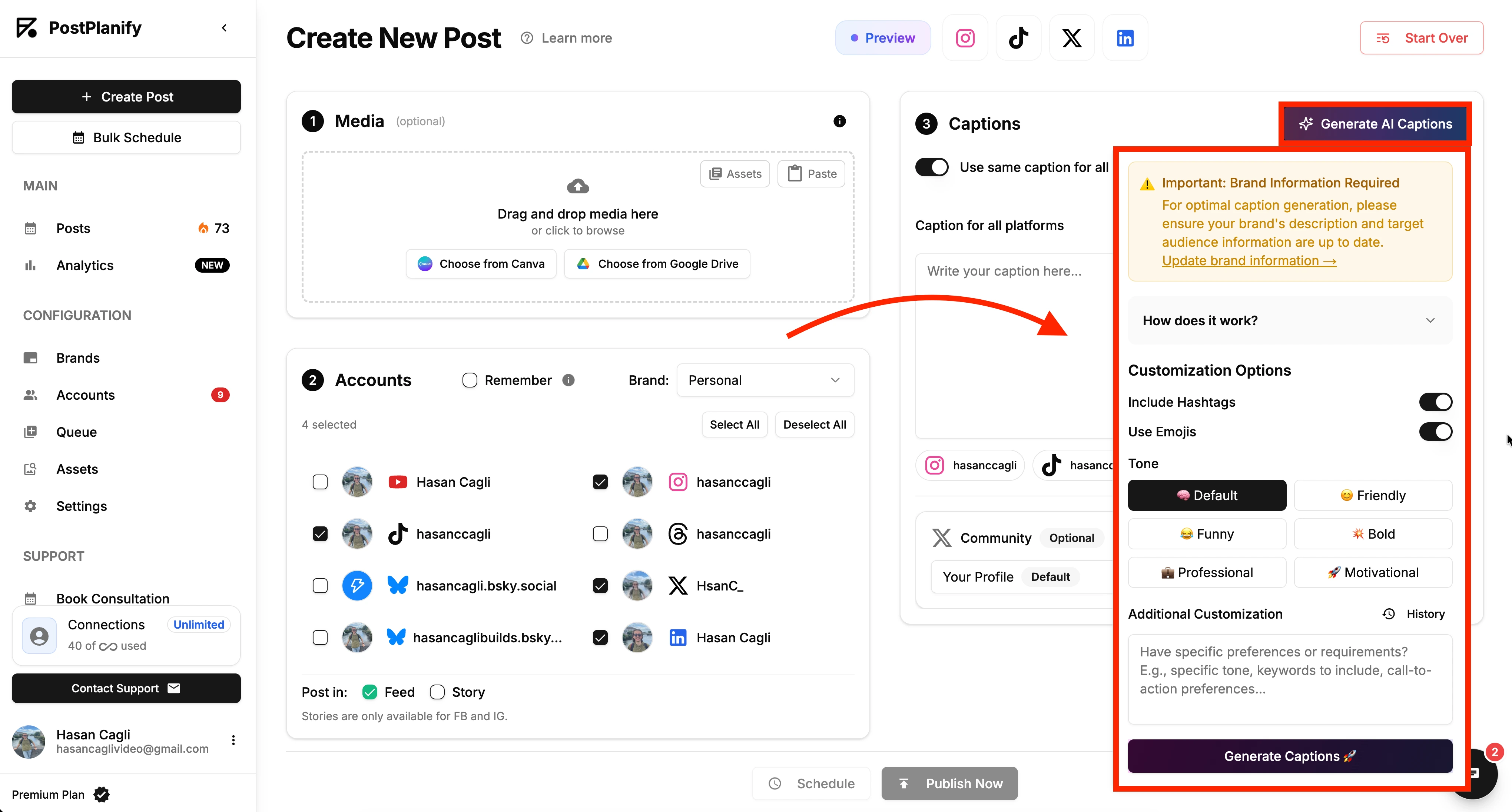
Modern scheduling tools, including PostPlanify, have AI caption generators baked into the workflow. Use them to supercharge your writing, not replace it.
- Generate Initial Drafts: After uploading an image, ask the AI to generate 3-5 caption ideas.
- Adapt the Tone: Ask the AI to rewrite a caption to be more professional for LinkedIn or more casual with emojis for Instagram.
- Get Hashtag Suggestions: AI can analyze your image and text to suggest a mix of relevant popular and niche hashtags, saving you from manual research. We dive deeper into this in our guide on the AI caption generator for Instagram.
Pro Tip: Never just copy-paste the AI's output. Use its suggestions as a starting point. Pick the best one and polish it with your unique brand voice. The combination of AI speed and human touch produces the best results.
Problem: Small Formatting Errors Damage Brand Credibility
A post with awkward image cropping, a broken link preview, or text that gets cut off looks unprofessional and hurts engagement.
Actionable Fix: Use the Preview Function Religiously
The preview feature is your final quality control check. It shows you exactly how your post will look on each platform’s feed before you hit schedule.
Use it to check for:
- Awkward Cropping: Is your main subject centered in Instagram's 1:1 or 4:5 format?
- Broken Links: Is the link preview pulling the correct image and headline?
- Cut-off Text: Where does the "See More" break happen on longer captions for Instagram and Facebook?
- Carousel Flow: Are the images in your Instagram carousel in the correct order to tell a cohesive story?
When you're ready to scale, AI content repurposing tools like Munch can turn long-form videos into dozens of short-form clips, making this entire process even faster.
Step 4: Use Analytics to Refine Your Automation Strategy
Automating your social media posts saves time, but its real power is unlocked when you use that reclaimed time to analyze performance. "Set it and forget it" is a failing strategy. You need a feedback loop to understand what your audience loves so you can create more of it.
Problem: Your Data is Scattered Across Multiple Platforms
Logging into Instagram, then TikTok, then X, then LinkedIn to manually pull numbers is tedious and makes it impossible to see the big picture.
Actionable Fix: Unify Your Data in One Dashboard
Use a tool with a unified analytics dashboard, like the one in PostPlanify, to pull all key metrics from your connected accounts into one clean view. This allows you to instantly see which channels, content pillars, and post formats are performing best without manual data entry.
Problem: You're Tracking Vanity Metrics
Focusing on metrics that don't align with your business goals (like impressions without engagement) leads to a flawed strategy.
Actionable Fix: Identify and Track Key Performance Indicators (KPIs)
Focus on the handful of KPIs that truly measure success for your brand:
- Engagement Rate (likes + comments + shares / followers): The best measure of content quality and audience connection.
- Reach/Impressions: How many unique people saw your post. A key indicator of algorithmic performance.
- Follower Growth: Is your content attracting and retaining new followers?
- Website Clicks: How effectively are you driving traffic from social media to your website?
For a deeper dive, check out our full guide on social media analytics and reporting.
Problem: You Look at Data But Don't Act on It
Data is useless without a process for turning insights into action.
Actionable Fix: Implement a Simple Review Framework
Use this simple weekly or monthly check-in to make smart, data-driven decisions:
- Spot Your Winners: Identify the top 2-3 performing posts. What did they have in common? (e.g., Format? Topic? Time of day?)
- Analyze the Duds: Find the posts that fell flat. Why? (e.g., Boring visual? Confusing call to action?)
- Form a Hypothesis: Based on your findings, create a simple "if-then" hypothesis. For example: "If we post an educational carousel on LinkedIn on Tuesday morning, then it will get a higher engagement rate than a simple text post."
- Adjust Your Content Plan: Make small, informed tweaks to your upcoming content schedule based on your hypothesis.
This Analyze > Hypothesize > Adjust loop transforms your automation from a static schedule into a dynamic strategy that constantly improves.
Advanced Automation: Beyond Simple Scheduling
Once batch scheduling is second nature, you can layer on trigger-based automations that run in the background — workflows that create and queue posts based on actions in your other tools.
Auto-Share New Content with RSS Feeds
Problem: You publish a new blog post but forget to promote it, or do it days late and miss the initial traffic window.
Fix: Point your scheduler at your blog's RSS feed. When a new post is detected, the tool pulls the title, link, and featured image into a pre-formatted post and adds it to your queue — so every new article gets promoted automatically.
Connect Your Stack with Zapier or IFTTT
Bridge your scheduler to the rest of your tools with Zapier or IFTTT "if this, then that" recipes:
- E-commerce: If a new product is added in Shopify, then draft an announcement post with the product image and link.
- Events: If an event is added to Google Calendar, then schedule a reminder post 24 hours before it starts.
- Testimonials: If you get a 5-star review, then draft a post with the review text to turn into a testimonial graphic.
For developers who'd rather build directly on the platforms, see our roundup of the best social media APIs for developers.
Know the Limits of Over-Automation
- API rate limits: Aggressive automations (e.g., posting every RSS item instantly) can hit platform rate limits and cause posts to fail.
- Lack of context: A cheerful scheduled post published during a crisis reads as tone-deaf. Always have a plan to pause the queue during sensitive moments.
- Robotic engagement: If 100% of your presence is automated, it feels sterile. Reinvest the time you save into real replies and DMs.
Troubleshooting Common Automation Hurdles
Even the best setup can hit a snag. A "post failed" notification is frustrating, but it’s almost always a simple permission hiccup or a platform-specific quirk you can fix in minutes.
Problem: "My Post Failed to Publish"
This error almost always falls into one of two categories: an issue with the content itself or a problem with permissions.
| Common Cause | Why It Happens | Actionable Fix |
|---|---|---|
| Incorrect Media Specs | Instagram is strict. A Reel scheduled with the wrong aspect ratio (it must be 9:16) or a video file that's too large will be instantly rejected by their API. | Before scheduling, double-check that your media files meet the exact specifications for each platform. Most scheduling tools will list these requirements in their help docs. |
| Unsupported Features | You're trying to automate something the platform's API doesn't allow, like an Instagram Story with an interactive poll sticker or a Reel with trending audio. | For features that require manual intervention, use a push notification reminder. The tool will send the media to your phone at the scheduled time so you can add the final touches in-app before publishing. |
| Duplicate Content Flags | Platforms like X (formerly Twitter) and LinkedIn have spam filters. Posting the exact same text and image multiple times in a short period can trigger these filters and block the post. | When reposting content, slightly alter the text or image to avoid being flagged as spam. |
Problem: My Social Account Randomly Disconnected
This isn't a bug; it's a security feature. Platforms like Meta (Facebook and Instagram) and TikTok intentionally expire access tokens to protect your account. An "expired token" is just their way of asking you to confirm the tool still has permission.
Actionable Fix: The Full Reconnection Process
- Disconnect from Your Tool: Go into your scheduling tool (like PostPlanify) and remove the social account that’s causing the issue.
- Disconnect from the Platform: Log into the social platform's settings (e.g., Facebook Business Integrations) and remove the scheduling tool from your list of authorized apps. This is the crucial step most people miss.
- Perform a Fresh Connection: Go back to your scheduling tool and add the account from scratch. This forces a brand new, valid access token to be created and solves 99% of connection issues.
Next level: if you'd rather have an AI agent handle scheduling, analytics, and replies conversationally, see our roundup of the best MCP servers for social media management.
Frequently Asked Questions
Is automating social media posts worth it for small businesses?
Yes — especially when time and staff are limited. Scheduling tools save an average of 6-10 hours per week, and that time can be reinvested into community engagement and strategy. Even small business owners managing accounts solo benefit significantly from batch scheduling.
Will automated posting hurt my engagement or reach?
No. Platforms like Instagram have confirmed that posting through official API-partnered tools does not reduce reach. Automation often improves engagement because it keeps you posting consistently at optimal times. The key is to balance scheduled publishing with genuine, real-time interaction.
Can automating social media posting get my account banned?
Not with a legitimate, API-approved scheduler — those are official platform partners built for compliant publishing. The real risk comes from sketchy bots that auto-follow or bulk-comment. If you work with a team, set up roles and approval workflows so nothing risky slips through.
How far in advance should I schedule posts?
Most professionals schedule 1-2 weeks ahead for regular content and up to a month for campaigns. Scheduling too far out risks posts becoming stale or tone-deaf during unexpected events, so review your queue weekly and leave room for timely, reactive posts.
How do I measure the ROI of my automation strategy?
Track both efficiency (hours saved × your hourly rate) and performance (engagement rate, referral traffic via UTM-tagged links, and conversions). Our guide on how to measure social media ROI walks through the templates.
How do I automate without losing authenticity?
Automate the logistics, not the relationships. Schedule your curated content in batches, then spend 15-20 minutes a day replying to comments and DMs personally. Mix in real-time posts alongside your scheduled content, and pause the queue during sensitive moments.
Summary: Your Automation Checklist
This guide covered a lot of ground. Here’s a quick checklist to ensure your automation strategy is built for success:
- Choose a Central Hub: Select a scheduling tool that fits your workflow.
- Connect Accounts Correctly: Use business/creator accounts and grant all necessary permissions.
- Define Content Pillars: Establish 3-5 core themes to guide your content creation.
- Map Your Cadence: Create a consistent, platform-specific posting schedule.
- Batch Your Workflow: Schedule content in bulk and use AI as a writing assistant.
- Always Preview: Use the preview function to catch errors before you publish.
- Review Analytics Weekly: Follow the Analyze > Hypothesize > Adjust framework.
- Know How to Troubleshoot: Understand how to fix common issues like failed posts and expired tokens.
PostPlanifyAll your social media in one simple dashboard
Schedule posts, track analytics, and reply to comments/DMs without switching tabs.
Engagement
+18%
Views
52.8k
About the Author

Hasan Cagli
Founder of PostPlanify, a content and social media scheduling platform. He focuses on building systems that help businesses, agencies, and teams plan, publish, and manage content and social media more efficiently across platforms.


