


You spent hours crafting that Instagram post—nailing the caption, picking the right filter, timing it perfectly. It performed well at the time. But now your brand has evolved, your grid looks inconsistent, and that old post sticks out. Deleting it means losing every like, comment, and share it earned. That engagement is gone forever.
Archiving solves this. It hides the post from your public profile while preserving all of its data—likes, comments, shares, saves, and even its original position in your grid. When you're ready, you can restore it with a single tap and everything comes back exactly as it was.
This guide covers every archiving method available in 2026: single posts, bulk archive, Reels, Stories, desktop, and the exact impact archiving has on your analytics, reach, and Instagram grid layout.
Quick Reference: What Archiving Does and Doesn't Do
Before diving into the steps, here's what you need to know at a glance:
| Archive | Delete | |
|---|---|---|
| Visible on your profile? | No | No |
| Likes & comments preserved? | Yes | No — gone permanently |
| Can be restored? | Yes — one tap | No |
| Affects follower count? | No | No |
| Affects total post count? | Yes — decreases while archived | Yes — permanently decreases |
| Visible to followers in their feed? | No | No |
| Notifications sent? | No | No |
| Original grid position kept? | Yes — restores to exact spot | N/A |
| Analytics data preserved? | Yes — frozen while archived | No — erased |
The bottom line: Archive when you might want the post back. Delete only when you're certain you won't.
How to Archive a Single Instagram Post
This is the most common method. It takes about 3 seconds.
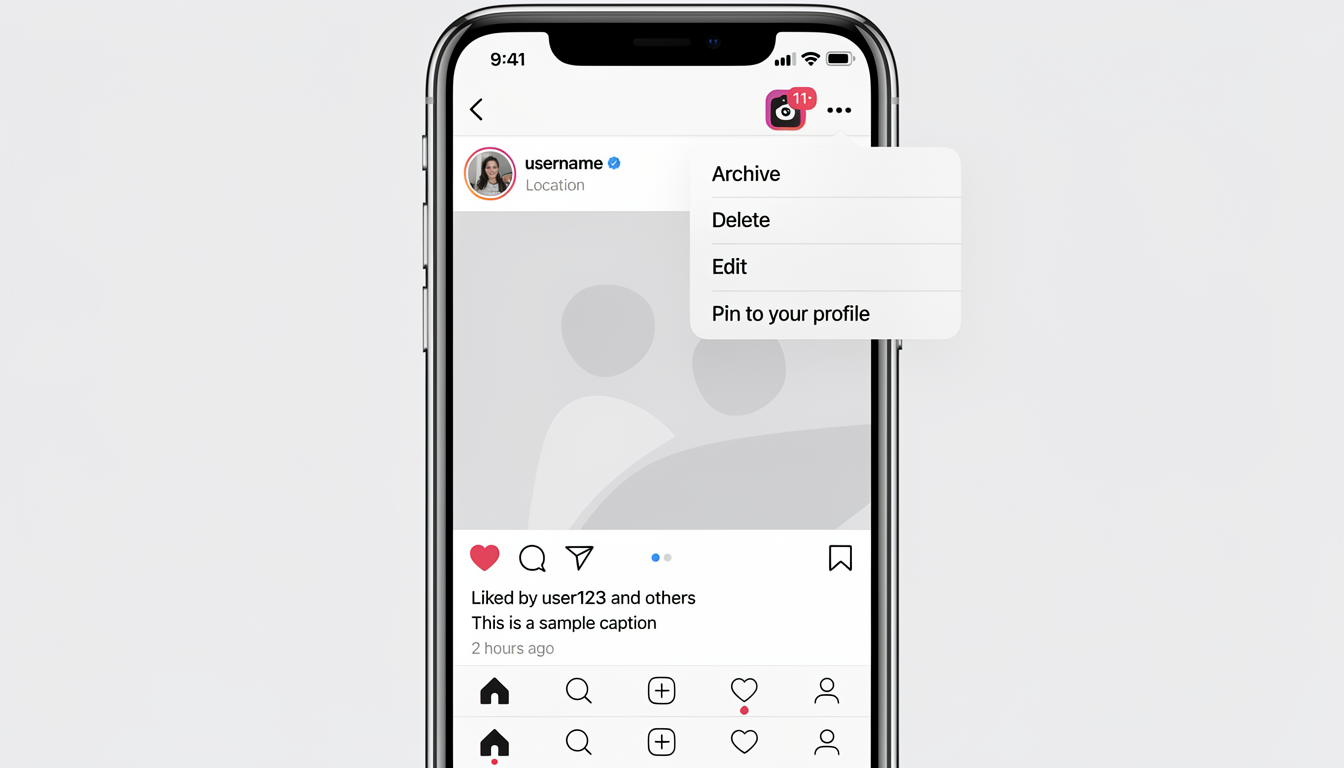
On Mobile (iOS & Android)
- Go to your profile. Tap your profile picture in the bottom-right corner.
- Open the post. Scroll through your grid and tap the post you want to archive.
- Tap the three-dot menu (⋯). It's in the top-right corner of the post.
- Tap "Archive." The post disappears from your grid immediately.
That's it. No confirmation dialog, no waiting period. The post is archived instantly.
What Happens Behind the Scenes
When you archive a post:
- It vanishes from your public profile grid.
- It disappears from your followers' feeds (if it was still circulating).
- It no longer appears in search results, hashtag pages, or the Explore page.
- All engagement data (likes, comments, shares, saves) is preserved — frozen in time.
- Your total post count on your profile decreases by one.
- No notification is sent to anyone. Followers will not know you archived anything.
The post moves to a private Archive section that only you can access. Nobody else — not even accounts you've tagged or collaborators — can see it while it's archived.
How to Archive Instagram Reels
Reels follow the same archiving process as regular posts, with one important difference.
Steps to Archive a Reel
- Go to your profile and tap the Reels tab (the play button icon).
- Open the Reel you want to archive.
- Tap the three-dot menu (⋯) in the bottom-right corner.
- Tap "Archive."
The Key Difference: Reels and the Algorithm
When you archive a regular photo post, its distribution was likely already finished. But Reels have a longer discovery lifecycle — the Instagram Reels algorithm can resurface Reels weeks or even months after publishing. Archiving a Reel that's still gaining traction immediately stops its algorithmic distribution.
Before archiving a Reel, check its analytics:
- Open the Reel and tap "View Insights."
- Look at the Reach graph. Is it still climbing or has it plateaued?
- If reach is flat for 7+ days, it's safe to archive without losing potential views.
- If it's still climbing, consider waiting — archiving kills the momentum permanently.
This doesn't apply to regular photo posts, which typically stop receiving algorithmic distribution within 24-48 hours of publishing.
 PostPlanify
All your social media in one simple dashboard
Schedule posts, track analytics, and reply to comments/DMs without switching tabs.

Engagement
+18%
Views
52.8k
How to Bulk Archive Instagram Posts
Instagram added native bulk archiving in 2023, so you no longer need to archive posts one by one. This is essential for rebrands, seasonal cleanups, or anyone managing a profile with hundreds of posts.
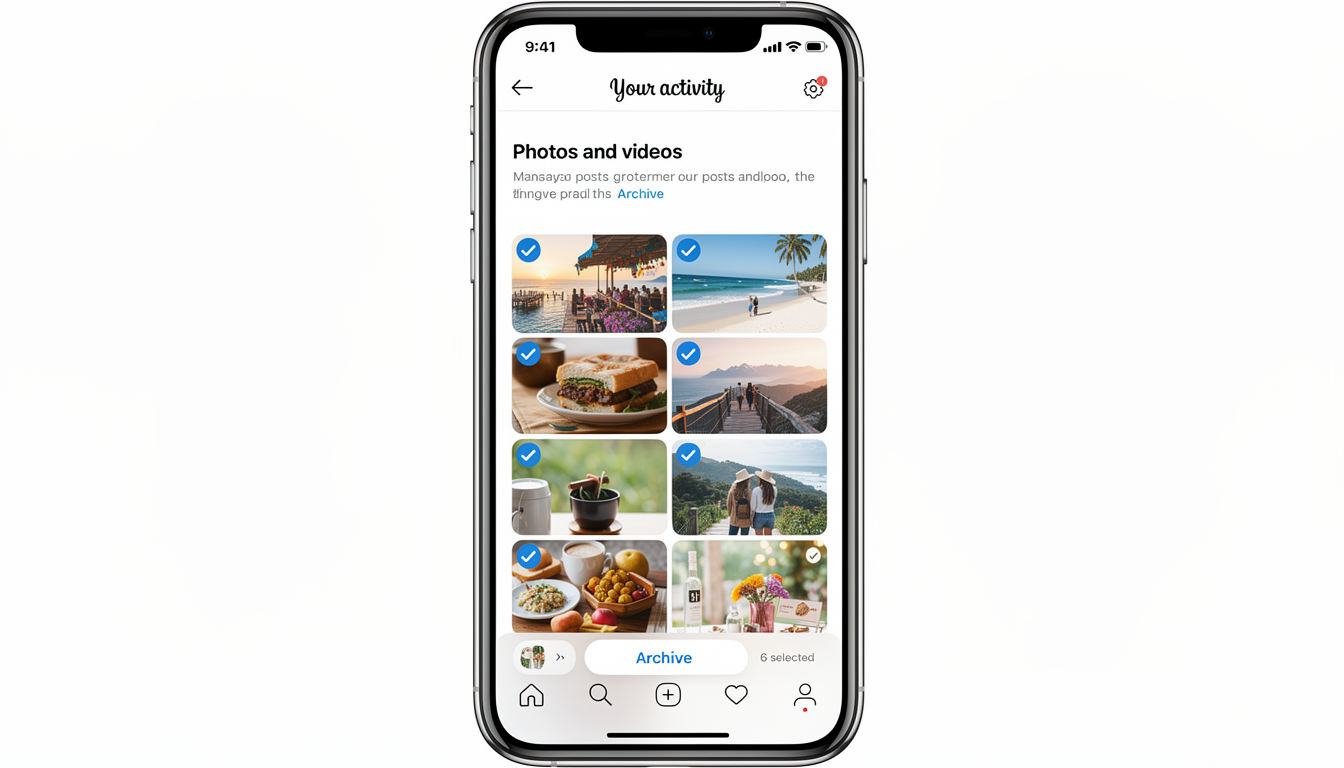
Steps to Bulk Archive
- Go to your profile.
- Tap the hamburger menu (☰) in the top-right corner.
- Tap "Your activity."
- Tap "Photos and videos" then "Posts."
- Tap "Select" in the top-right corner.
- Tap every post you want to archive. A blue checkmark appears on each selected post.
- Tap "Archive" at the bottom of the screen.
All selected posts are archived simultaneously. There's no upper limit published by Instagram, but users report being able to select and archive 50+ posts in a single batch without issues.
Bulk Archive Tips
- Sort strategically. The "Your activity" section lets you sort posts by date. Start from the oldest content if you're cleaning up for a rebrand.
- Screenshot your grid first. Before a major archive session, take a screenshot of your current grid layout. This helps you remember the arrangement if you want to restore specific posts later. Our Instagram grid layout guide covers how to plan a cohesive feed.
- Work in batches. If you're archiving 100+ posts, do it in groups of 30-50 to avoid app freezes or accidental selections.
- Check carousel posts carefully. When you archive a carousel post, the entire carousel is archived — you cannot archive individual slides.
How to Archive All Instagram Posts at Once
Instagram's native bulk archive doesn't have a "select all" button — you have to tap each post individually. If you have hundreds or thousands of posts and want to archive everything, here are your options:
- Instagram's "Your Activity" method (manual). Use the bulk archive steps above, but sort by "Oldest to Newest" and select posts in large batches. With 500+ posts, expect to spend 15-30 minutes tapping through multiple batches.
- Third-party tools. Apps like Block Party offer one-click "archive all" functionality that automates the process. These tools use Instagram's API to archive your entire feed in minutes instead of manually tapping each post.
- The workaround for speed. If you're doing a full rebrand and want a completely clean slate, the fastest native method is: sort by oldest first → select 50 posts → archive → repeat. Most users can clear 500 posts in under 10 minutes this way.
Important: Third-party archive tools require you to grant access to your Instagram account. Only use well-known, reputable tools and revoke access when you're done. Check Instagram's current list of authorized apps periodically to remove any you no longer use.
How to Archive From Desktop (Instagram Web)
Instagram's desktop experience has historically lagged behind mobile, but as of 2026, you can archive posts from the web browser version.
Steps to Archive on Desktop
- Go to instagram.com and log in.
- Click your profile picture in the bottom-left sidebar to open your profile.
- Click on the post you want to archive.
- Click the three-dot menu (⋯) above the post.
- Click "Archive."
Desktop Limitations
| Feature | Mobile | Desktop |
|---|---|---|
| Archive single posts | Yes | Yes |
| Bulk archive | Yes (via Your Activity) | No |
| View archived posts | Yes | No |
| Unarchive posts | Yes | No |
The desktop version lets you archive individual posts, but you cannot view your archive folder or unarchive posts from the web. For those actions, you still need the mobile app.
Where to Find Your Archived Posts
Your archived content lives in a dedicated, private section of your profile.
How to Access the Archive
- Go to your profile.
- Tap the hamburger menu (☰) in the top-right corner.
- Tap "Archive."
You'll see three tabs at the top:
| Tab | What It Contains |
|---|---|
| Posts archive | Every post you've manually archived |
| Stories archive | Stories that expired and were auto-saved (if enabled) |
| Live archive | Live videos that were auto-saved (if enabled) |
Posts are displayed in reverse chronological order (newest first). You can scroll through them just like your regular grid.
Do Stories and Lives Archive Automatically?
Yes — but only if you've enabled it. This is different from manually archiving posts.
Instagram Stories
By default, Instagram auto-archives expired Stories (stories that have passed the 24-hour window). This has been the default behavior since 2017. To check or change this setting:
- Go to Settings and Privacy > Archiving and Downloading.
- Toggle "Save story to archive" on or off.
Archived Stories are also the source for your Story Highlights. If you disable auto-archiving, you won't be able to add expired Stories to Highlights. For more on how Stories work, see our guide on views on Instagram Stories.
Instagram Live
Live videos can also auto-archive after the broadcast ends. Check the same settings screen:
- Go to Settings and Privacy > Archiving and Downloading.
- Toggle "Save live to archive" on or off.
Archived Lives are stored for 30 days by default. After that, they're permanently deleted unless you share them as a post or Reel beforehand.
How to Unarchive (Restore) an Instagram Post
Restoring an archived post returns it to your profile grid in its original chronological position — not at the top of your feed. This means it slots back between the posts that were published before and after it.
Steps to Unarchive
- Go to your Archive (Profile > ☰ > Archive).
- Open the post you want to restore.
- Tap the three-dot menu (⋯).
- Tap "Show on Profile."
The post reappears on your grid instantly. All likes, comments, and shares come back exactly as they were.
What to Know About Unarchiving
- Your followers are NOT notified. The post won't appear in their feed again — it simply returns to your grid.
- Engagement is fully restored. The like count, comments, and share count are unchanged.
- Grid position is preserved. It returns to its original spot based on the original publish date. This is why archiving is far better than deleting for grid layout planning.
- Insights are restored. All analytics data (reach, impressions, profile visits from that post) become visible again.
How Archiving Affects Your Instagram Analytics
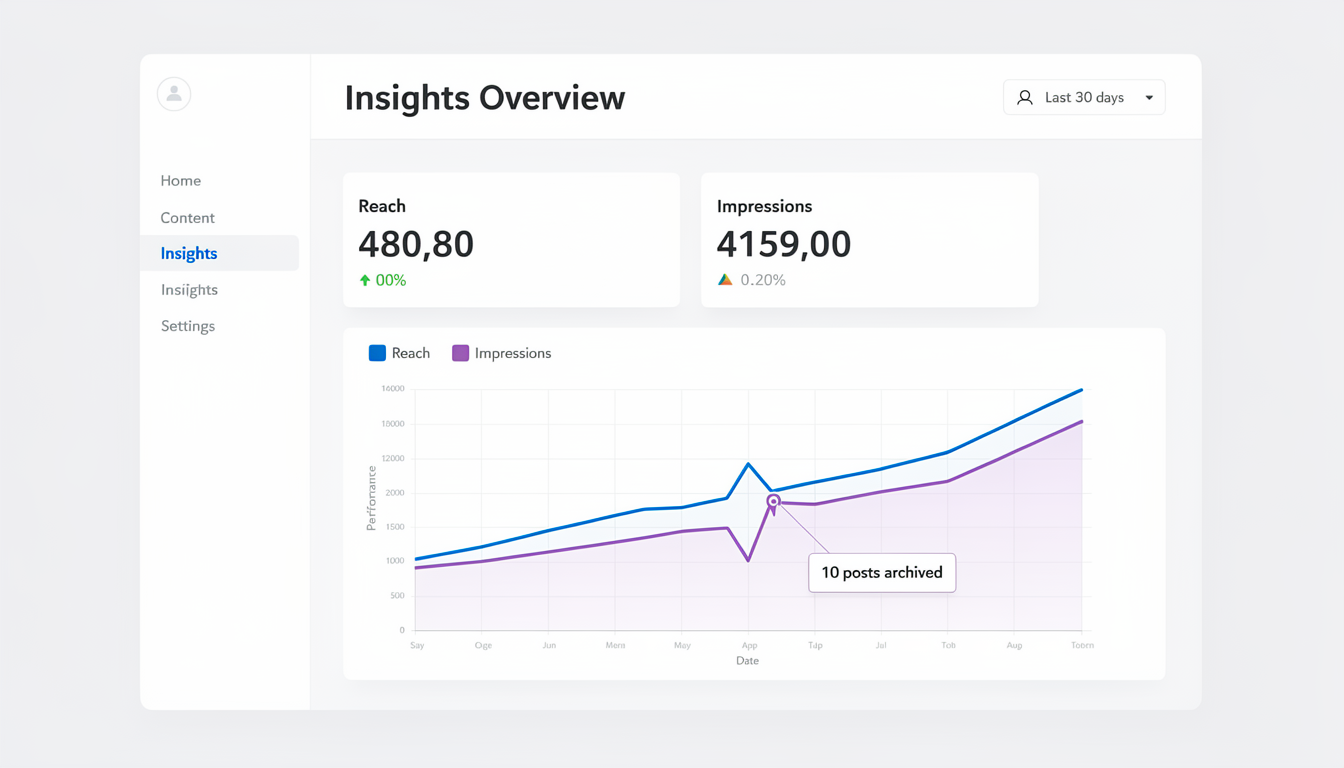
This is where most guides fall short. Archiving doesn't just hide a post from your grid — it has specific effects on your overall account metrics.
What Changes When You Archive
| Metric | Effect While Archived |
|---|---|
| Post-level insights | Frozen — not visible in your archive view |
| Account-level reach | Past reach from that post is excluded from your totals |
| Account impressions | Past impressions from that post are excluded |
| Engagement rate | Changes — total engagements decrease, which may shift your rate up or down |
| Follower growth | No impact |
| Profile visits | Visits driven by that specific post stop |
| Hashtag reach | That post's hashtag contributions are removed |
What This Means for Professionals
If you're tracking Instagram impressions or engagement rates for brand reports, be aware that archiving posts retroactively changes your historical metrics. An archived post's reach is subtracted from your account totals for the period it was originally active.
Practical example: If you archive 20 posts from last quarter that collectively earned 50,000 impressions, your account-level impressions for that quarter will drop by 50,000 in your Insights dashboard.
Workaround: Before bulk archiving, export your current analytics data. Take screenshots or download reports from your scheduling tool so you have a baseline for comparison.
Use an Instagram engagement calculator to benchmark your rates before and after a major archive session.
Archiving by Account Type: Business vs Creator vs Personal
Archiving works the same way across all three Instagram account types, but the analytics impact differs:
| Feature | Personal Account | Creator Account | Business Account |
|---|---|---|---|
| Can archive posts? | Yes | Yes | Yes |
| Can bulk archive? | Yes | Yes | Yes |
| Post-level insights available? | No (limited analytics) | Yes | Yes |
| Archiving affects account insights? | N/A | Yes — removes post data from totals | Yes — removes post data from totals |
| Can export insights before archiving? | No | Yes (manual screenshots) | Yes (manual screenshots or via API) |
| Archive affects ad performance? | N/A | N/A | Yes — archiving a post used in an ad stops the ad |
The Key Difference for Business Accounts
If you're running a Business account and have promoted a post as an ad, archiving that post immediately stops the ad campaign associated with it. The ad will no longer deliver, and you'll need to create a new ad if you want to resume promotion. Always check your active ads in Meta Ads Manager before bulk archiving.
Creator and Personal accounts don't have this concern since they don't run ads directly from posts (Creator accounts use branded content tools instead).
PostPlanifyAll your social media in one simple dashboard
Schedule posts, track analytics, and reply to comments/DMs without switching tabs.
Engagement
+18%
Views
52.8k
Strategic Uses for Instagram Archive
Archiving isn't just for hiding embarrassing old posts. Here's how professionals use it.
1. Grid Curation and Aesthetic Overhauls
When you're planning a new Instagram grid layout — whether it's a checkerboard pattern, row-by-row theme, or color palette shift — archiving lets you remove posts that break the pattern without losing their data.
The workflow:
- Plan your new grid layout.
- Archive posts that don't fit.
- Publish new content that matches the aesthetic.
- Unarchive old posts strategically if they fit later.
2. Seasonal Content Rotation
Brands running seasonal campaigns (holiday promotions, summer collections, back-to-school sales) can archive seasonal posts once the campaign ends, then unarchive them when the season returns. The engagement from last year's campaign is still there — giving the post social proof when it reappears.
Example cycle:
- December: Unarchive holiday posts from last year → schedule new holiday content alongside them
- January: Archive all holiday content → replace with New Year posts
- Use a social media scheduler to plan and schedule the replacement content in advance
3. A/B Testing Your Profile
Archive half your posts for a week and track how your profile metrics change. Then unarchive and archive a different set. This gives you data on which content themes drive the most profile visits, follows, and engagement.
4. Brand Safety and Crisis Management
If a post becomes controversial or a product gets recalled, archiving is the fastest way to remove it from public view without permanently losing the data. Once the situation resolves, you can restore it or decide to delete it based on the outcome.
5. Portfolio Cleanup for Creators
Creators pitching to brands can archive content that doesn't align with a specific brand partnership. Show only your best work in the niche that brand cares about, land the deal, then unarchive your other content afterward.
Archive Workflow for Content Managers
If you manage Instagram for clients or multiple brands, archiving is part of a broader content lifecycle. Here's how it fits into a professional workflow:
| Phase | Action | Tool |
|---|---|---|
| Plan | Map out content calendar and grid layout | PostPlanify calendar |
| Create | Design posts, write captions, select hashtags | AI caption generator, hashtag guide |
| Schedule | Queue posts at optimal times | Instagram scheduler |
| Publish | Posts go live automatically | PostPlanify |
| Monitor | Track performance and engagement | Instagram engagement calculator |
| Archive | Rotate out underperforming or off-season content | Instagram app |
| Restore | Unarchive seasonally relevant or high-performing posts | Instagram app |
This cycle keeps your profile fresh and on-brand while ensuring no engagement data is ever lost. Learn more about building a system like this in our guide on automating Instagram posts.

Frequently Asked Questions
Can my followers tell when I archive a post?
No. Instagram sends no notification when you archive or unarchive a post. The post simply disappears from (or reappears on) your grid. However, if someone had the direct link to that post saved, they'll get a "Content not available" message while it's archived.
Does archiving a post affect the Instagram algorithm?
Archiving a post stops its algorithmic distribution immediately. It will no longer appear in Explore, hashtag pages, or followers' feeds. For regular photo posts this rarely matters (distribution typically ends within 48 hours). For Reels, which can gain traction weeks later, archiving too early can cut off significant reach. Check the Reel's insights before archiving.
Do archived posts still count toward my post total?
No. Your public post count decreases when you archive a post and increases when you unarchive it. If you have 200 posts and archive 10, your profile will show 190.
Can I archive Instagram Stories before they expire?
No. You cannot manually archive an active Story (one that's still within its 24-hour window). You can only delete an active Story. Once a Story expires naturally, it moves to your Stories Archive automatically (if auto-archiving is enabled in settings).
Is there a limit to how many posts I can archive?
Instagram has not published an official limit. Users have reported archiving hundreds of posts without issues. However, if you're bulk archiving, work in batches of 30-50 to avoid app slowdowns.
Does archiving affect my engagement rate?
Yes. Since the archived post's engagement is removed from your account-level totals, your overall engagement rate can shift. If you archive a low-performing post, your average engagement rate may actually increase. If you archive a high-performing post, it may decrease.
Can I archive someone else's post that I'm tagged in?
No. You can only archive posts on your own profile. If you want to remove a tag from someone else's post, tap the post, tap your username tag, and select "Remove me from post." This won't archive it — it just removes the tag.
What happens to comments on archived posts?
All comments are preserved exactly as they were. When you unarchive, every comment reappears. This includes replies, likes on comments, and pinned comments. Nothing is lost.
Can I archive a collaborative post (collab post)?
Yes, but with a caveat. If you archive a collab post, it disappears from your profile only. It remains visible on the other collaborator's profile. If the other collaborator archives it, it disappears from theirs but stays on yours. Both collaborators must archive it for it to be fully hidden.
Does unarchiving a post send it back to my followers' feeds?
No. Unarchiving places the post back on your grid at its original chronological position, but it does not reappear in your followers' feeds or get redistributed by the algorithm. It's as if it was always there — no one gets a notification or sees it in their feed again.
How do I archive posts for grid planning without losing analytics?
Archive the posts, take your grid screenshots for planning, then unarchive them. Since analytics are fully restored on unarchive, you lose nothing. For long-term grid planning, use our Instagram grid layout guide alongside a visual planner to map your feed before making changes.
Can I archive Instagram Highlights?
You cannot archive Highlights directly. You can remove individual Stories from a Highlight (tap and hold the Story in the Highlight, then tap "Remove from Highlight"), or delete the entire Highlight. Removed Stories go back to your Stories Archive if auto-archiving is enabled.
Your Instagram Archive Checklist
- Before archiving: Screenshot your current grid layout and export analytics data for any posts you're about to archive.
- For Reels: Check the reach graph in Insights — only archive Reels whose reach has plateaued for 7+ days.
- For bulk archiving: Use Instagram's "Your Activity" > "Photos and videos" > "Posts" and work in batches of 30-50.
- For seasonal content: Archive off-season posts and set a reminder to unarchive them when the season returns.
- For grid redesigns: Archive posts that break your new aesthetic, then schedule replacement content to fill the gaps.
- After archiving: Re-check your engagement rate and account metrics to ensure your analytics baseline is still accurate.
Archiving is one of the most underused content management tools on Instagram. It gives you full control over your public profile without the permanence of deletion. Use it to keep your grid sharp, your brand consistent, and your engagement data intact.
Ready to build a content strategy that goes beyond archiving? PostPlanify lets you plan, schedule, and auto-publish across Instagram and 9 other platforms — so every post that replaces an archived one is timed perfectly. Start your free 7-day trial today.
Related Reading
- Instagram Grid Layout Guide: Plan a Cohesive Feed
- Instagram Post vs Story vs Reel: Which Format to Use
- How to Schedule Instagram Posts in 2025
- Instagram Reels Algorithm: How It Works
- Views on Instagram Stories: Everything You Need to Know
- What Are Impressions on Instagram?
- Instagram Carousel Guide: Create Engaging Multi-Slide Posts
- How to Go Viral on Instagram
- Best Time to Post on Instagram
- Instagram Image Size Guide
PostPlanifyAll your social media in one simple dashboard
Schedule posts, track analytics, and reply to comments/DMs without switching tabs.
Engagement
+18%
Views
52.8k
About the Author

Hasan Cagli
Founder of PostPlanify, a content and social media scheduling platform. He focuses on building systems that help businesses, agencies, and teams plan, publish, and manage content and social media more efficiently across platforms.


