


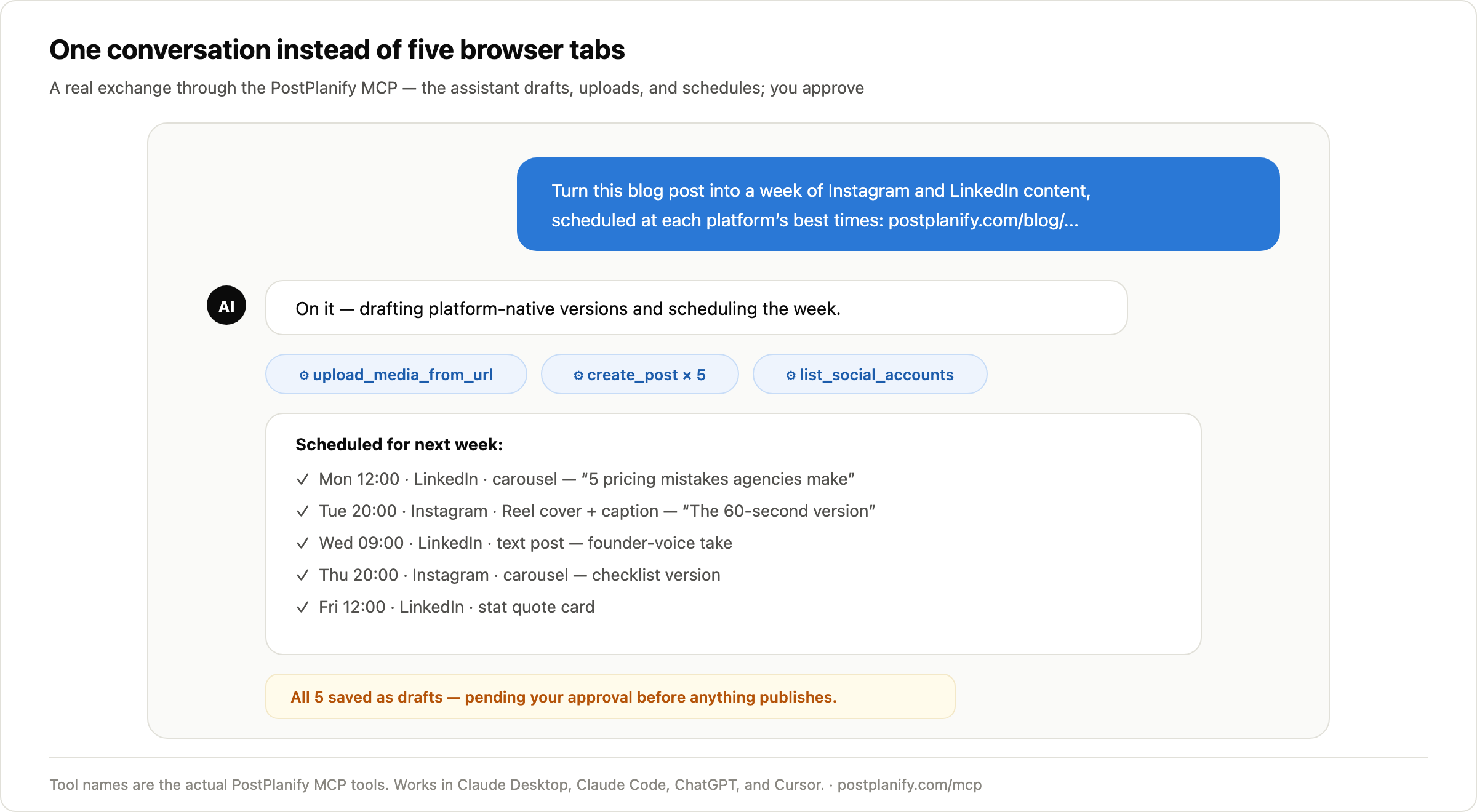
You can now type "turn this blog post into a week of Instagram and LinkedIn content, scheduled at each platform's best times" into Claude or ChatGPT, and it actually happens. Drafts written, media uploaded, posts scheduled, sitting in your approval queue.
This isn't a browser-automation hack or a Zapier chain. It's how you schedule social media posts with ChatGPT or Claude properly, through MCP.
What is MCP? The Model Context Protocol is an open standard (introduced by Anthropic, now supported by ChatGPT and Cursor too) that lets AI assistants securely use real software tools instead of just writing text for you to copy-paste. Connect your scheduler once, and your assistant can draft, schedule, analyze, and even reply to comments across your social accounts, from a chat window, with permissions you control.
This guide is the hands-on version: setup in about five minutes, a library of 20 copy-paste prompts, three complete workflows and, because this question matters more than any of that, how to keep a human between the AI and the publish button. (If you're still choosing which MCP server to connect, that's a different article: the best MCP servers for social media. This one is about what to do after you've picked.)
What an AI assistant can actually do with your social media
Connected through the PostPlanify MCP, your assistant gets 22 tools across five jobs. If you would rather the AI live inside the scheduler than the other way round, compare the best AI social media management tools:
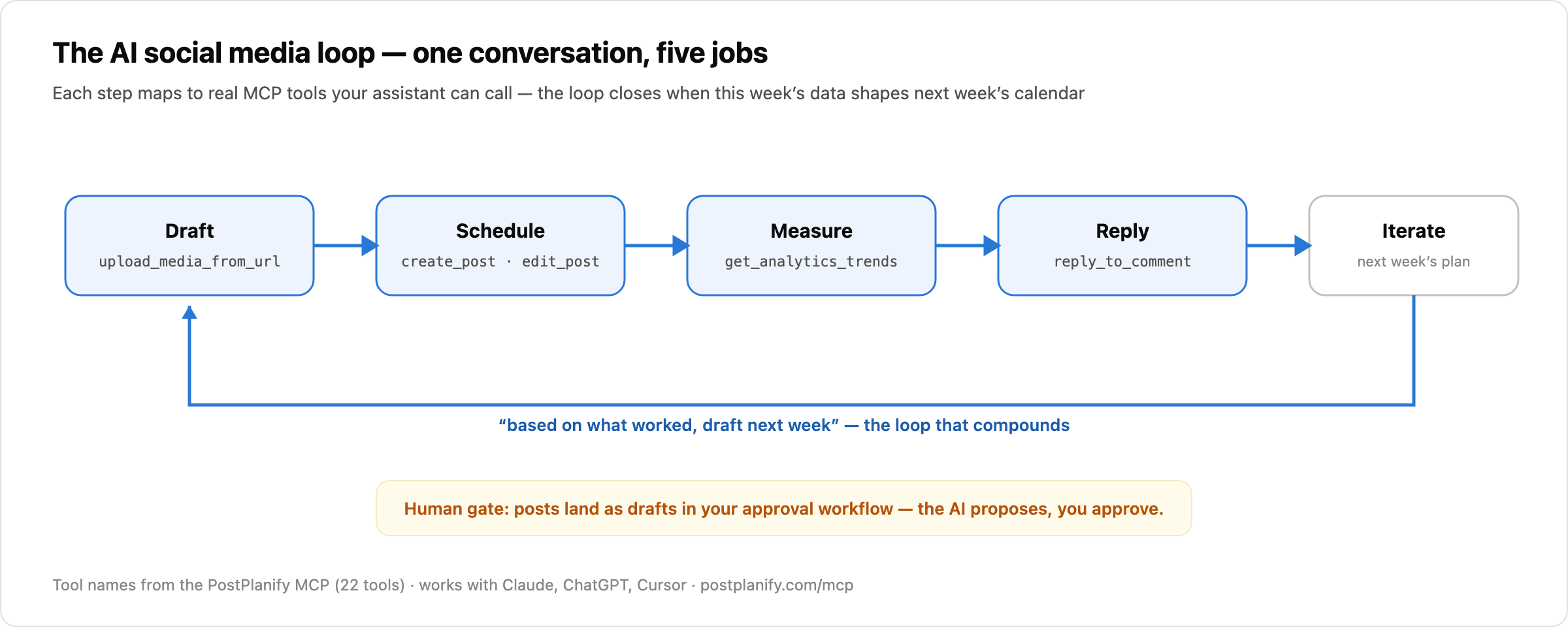
- Draft & schedule: create posts with captions and media, per platform, at specific times; edit or cancel anything scheduled
- Manage media: upload images and video from URLs or local files into your media library
- Pull analytics: account metrics, historical follower/engagement trends, and a whole-brand overview across every connected platform
- Work the inbox: list synced comments from Instagram, Facebook, LinkedIn, and Google Business, and post replies
- Navigate your setup: list workspaces, connected accounts, Pinterest boards
Just as important, here's what it shouldn't do: publish unsupervised. Every workflow in this guide ends with a human approving, and more on that below.
Here's the whole idea in one exchange:
Prefer to watch it live? Here's the demo:
How to connect Claude or ChatGPT to your social media scheduler
You need a PostPlanify account and one of the AI clients below. ChatGPT needs nothing else, because PostPlanify is listed in its plugin directory, so you install and authorize it. The other clients take an API key (Settings → API Keys, included on every plan). No code, no server to host, because the MCP runs on our side. Setup takes about five minutes; here's which client fits which person:
| AI client | Setup | Best for |
|---|---|---|
| Claude Desktop | Paste config in Settings → Developer | Most people, the smoothest MCP experience |
| Claude Code | One block in ~/.claude/settings.json | Developer-marketers; longest multi-step workflows |
| ChatGPT | Install from chatgpt.com/plugins, no key needed | The fastest setup of the four |
| Cursor | Same HTTP config in .cursor/mcp.json | Builders who live in their editor |
Claude Desktop
Add this to your Claude Desktop config file (Settings → Developer → Edit Config):
{
  "mcpServers": {
    "postplanify": {
      "command": "npx",
      "args": [
        "mcp-remote",
        "https://api.postplanify.com/api/mcp",
        "--header",
        "Authorization: Bearer sk_live_your_api_key_here"
      ]
    }
  }
}
Restart Claude Desktop, and you'll see PostPlanify's tools in the connectors list.
Claude Code
Add to ~/.claude/settings.json:
{
  "mcpServers": {
    "postplanify": {
      "type": "http",
      "url": "https://api.postplanify.com/api/mcp",
      "headers": {
        "Authorization": "Bearer sk_live_your_api_key_here"
      }
    }
  }
}
ChatGPT and Cursor
ChatGPT is the simplest of the four, because there is nothing to install by hand and no API key to copy. Go to chatgpt.com/plugins, search for PostPlanify and click install. You are sent to PostPlanify to sign in, shown exactly what ChatGPT is asking for, and returned to ChatGPT connected. If you are already signed in to PostPlanify in the same browser it is two clicks, and you can revoke access any time from Connected apps in your dashboard.
Cursor uses the same HTTP config as Claude Code in .cursor/mcp.json. Full walkthroughs for all four clients live in the MCP docs.
Here is the ChatGPT setup end to end, including the first automated posts:
PostPlanify is listed in ChatGPT's Plugin Directory, which is where that install link goes. If the naming confuses you, see the note below.
One setup tip that pays off immediately: start your first conversation with "list my workspaces and social accounts." The assistant learns your setup once, then every later prompt can just say "my client's Instagram" instead of IDs.
Plugins, connectors, apps: what OpenAI calls this now
PostPlanify installs from ChatGPT's plugin directory today, but if you have been hunting through settings labelled "connectors" or "apps," that is because the name has changed four times:
- 2023: plugins, a directory of third-party extensions inside ChatGPT
- April 2024: plugins shut down, replaced by GPTs
- 2025: connectors, the settings where you attach external data and tools, and where OpenAI adopted MCP
- December 2025: connectors renamed to apps
- July 2026: the App Directory became the Plugin Directory, so "plugin" is current vocabulary again for a more capable system
The mechanism underneath all of it today is MCP, the open standard Anthropic published in November 2024 and OpenAI adopted in March 2025. That is why one integration works in both ChatGPT and Claude instead of you needing a separate build for each. Whatever the settings screen calls it this quarter, you are adding a remote MCP server, and the URL and key are the same.
What actually changes: the workflow, collapsed
The value isn't mystique, it's step-collapse. The same job, both ways:
| Task | In the dashboard | Through the assistant |
|---|---|---|
| Schedule a week from one article | Read article → draft 5 captions → adapt per platform → upload media → pick 5 time slots → schedule each | One prompt (approve the drafts at the end) |
| Monthly analytics check | Open each account → note metrics → compare by hand → write summary | "Pull 30-day trends and tell me what changed" |
| Comment cleanup | Open inbox → read all → type each reply | "Triage unread comments, draft replies, show me first" |
| Reschedule around a conflict | Find each post → edit each date individually | "Move Thursday's posts to Friday, same times" |
Six manual steps become one sentence. That's the productivity claim, and it's also why the human-approval gate matters more, not less: the volume of AI-produced drafts goes up, so the review step is where quality lives.
The prompt library: 20 prompts that actually work
Copy, adjust, use. Grouped by job, and each maps to real tools, so they work rather than hallucinate.
Scheduling & calendar
- "Draft 5 posts from this article for Instagram and LinkedIn, platform-native rather than copy-paste, and schedule them across next week at good times for each platform: [link]"
- "List everything scheduled for next week across all my accounts. Where are the gaps?"
- "Move all my unpublished posts from Thursday to Friday same times, we have a launch conflict."
- "Take my last 3 best-performing LinkedIn posts and draft fresh variations on the same themes for next month."
- "Schedule this image as an Instagram post Tuesday 8pm with a caption in my usual voice, and add a first-comment with hashtags."
- "What did I post about in the last 30 days? Give me a topic breakdown so I can see what I'm neglecting."
Analytics & reporting
- "Pull 30-day trends for my Instagram: followers and engagement. What changed vs the previous month, and what likely drove it?"
- "Give me a brand overview across all connected accounts and flag anything unusual."
- "Which of my posts from the last 2 weeks performed best? Any pattern in format, topic, or posting time?"
- "Prep talking points for my Friday client call from this month's analytics: three wins, one concern, one recommendation."
- "Compare my TikTok and Instagram growth over 90 days. Where should next month's extra effort go?"
Inbox & engagement
- "List unread comments across my accounts. Which ones actually need a reply from me?"
- "Draft replies to these comments in my brand voice (friendly, short, no emojis) and show me each before sending."
- "Any negative comments in the last week I should see? Summarize them and suggest how to respond."
- "Reply to the pricing question on my latest Facebook post with a link to the pricing page, once I approve the wording."
Content repurposing
- "Turn this YouTube script into: a LinkedIn carousel outline, 3 tweets, and an Instagram caption. Schedule the best one, save the rest as drafts."
- "Upload the 4 images from this folder and build a carousel post for Thursday."
- "Rewrite this promo post 3 ways (playful, professional, urgent) and schedule the professional one for LinkedIn."
Maintenance
- "Cancel everything scheduled for the holiday week and redistribute those posts across the following two weeks."
- "Audit my scheduled posts: any missing media, empty captions, or two posts scheduled too close together?"
Three complete workflows
Workflow 1: The analytics → calendar loop
This one comes straight from a PostPlanify customer, a verified G2 review titled "Seamless Claude Code Integration — A Real Game Changer" describes their process as "pulling ongoing performance insights via Claude Code and iterating quickly on them, then pushing updated content calendars based on those insights."
The loop, weekly: (1) "Pull last week's analytics across accounts, what worked?" → (2) "Based on that, draft next week's posts leaning into the winners" → (3) "Schedule them at each platform's best times, as drafts" → (4) approve in the dashboard. Fifteen minutes, and each week's data compounds into the next week's plan, the consistency the algorithm rewards, maintained by a conversation.
Workflow 2: The Monday batch, a week in 20 minutes
Feed the assistant one content pillar (a blog post, a podcast episode, a product update). Prompt: "Turn this into a full week for Instagram, LinkedIn, and Facebook in platform-native formats, spread across [your cadence], all as drafts." Review the batch, fix the two captions that need a human touch, approve. This is batching with the production cost removed, so the sweet-spot cadence stops being a time problem.
Workflow 3: The comment triage session
The one no other tool's tutorial can teach, because their MCPs don't reach the inbox. Twice a week: "List unread comments. Sort into: needs-me, AI-can-draft, ignore." Then: "Draft the replies for the middle group, show me all of them, send only what I approve." You handle the three comments that need judgment; the assistant handles the fifteen that need politeness.
The part everyone skips: keep a human at the publish button
An AI assistant with scheduling access raises the obvious question: what if it posts something wrong? The answer isn't "trust the model." It's structural:
- Route agent-created posts through your approval workflow. In PostPlanify, posts created via MCP can require approval like any team member's drafts. The AI proposes, a human approves, the post publishes. Your assistant is effectively a very fast junior creator, and the same approval process that protects you from junior-creator mistakes protects you from AI mistakes.
- Keep replies on a show-me-first rule. Prompts 13 and 15 above end with "show me before sending". Make that your default for anything client-facing.
- Use a scoped API key. Your key operates within your workspaces and limits; revoke it in one click if anything feels off.
This is also why "AI agent + approval workflow" beats "AI agent alone": adoption stops being a leap of faith and becomes a staffing decision.
Where the chat loses to the dashboard (honest limits)
- Visual planning. Rearranging a month's content grid is a calendar job, and dragging beats describing.
- Heavy media work. Cropping, cover frames, carousel ordering: do it in the editor, then let the assistant schedule the result.
- Anything emotionally loaded. A complaint thread or a crisis is human work; the assistant can summarize, but shouldn't speak.
- Platform-specific fine-tuning like Instagram collaborator tags or YouTube end screens are supported via params, but faster to click than to describe.
The pattern: the assistant is best at bulk, repetitive, and data-shaped work; the dashboard is best at visual and judgment work. Use both.
Troubleshooting: the 5 issues that cover 95% of setups
- Tools don't appear after adding the config. Fully quit and restart the AI client (Claude Desktop especially, since closing the window isn't quitting). Then check the connectors/tools list again.
- 401 / unauthorized errors. The API key is missing, mistyped, or the
Bearerprefix got dropped from the Authorization header. Regenerate the key in Settings → API Keys and paste the whole config fresh. - Claude Desktop says
npxnot found. The Desktop config usesmcp-remotevia npx, which needs Node.js installed, so install Node (nodejs.org), restart, done. Claude Code and Cursor connect over HTTP directly and skip this entirely. - The assistant says it can't find a workspace or account. Run the orientation prompt, "list my workspaces and social accounts", once per conversation; the assistant needs to discover IDs before it can act on names.
- You cannot find PostPlanify in ChatGPT. Search the plugin directory at chatgpt.com/plugins rather than ChatGPT's settings screens. Our roundup of the best ChatGPT plugins for social media lists every social tool currently in the directory. If the install does not finish, check that you authorized the connection on the PostPlanify sign-in page it redirects you to. The MCP docs keep the current click-path for each client.
Still stuck? The full setup docs cover every client with copyable configs, or ask the assistant itself: "debug my PostPlanify MCP connection" is a surprisingly effective prompt.
 PostPlanify
All your social media in one simple dashboard
Schedule posts, track analytics, and reply to comments/DMs without switching tabs.

Engagement
+18%
Views
52.8k
FAQ
Can Claude or ChatGPT schedule social media posts?
Yes, you can schedule social media posts with ChatGPT or Claude through an MCP (Model Context Protocol) connection to a scheduler. Connect PostPlanify once, by installing its app in ChatGPT or pasting an API key in the other clients, and Claude, ChatGPT, or Cursor can create and schedule posts, upload media, pull analytics, and reply to comments across 10 platforms, all from a chat conversation. Posts can be routed through an approval workflow so nothing publishes without human sign-off.
Do I need to know how to code to use social media MCP tools?
No. Setup is pasting a small config snippet (with your API key) into your AI client's settings: about five minutes, no server to run, no code to write. The technical work happens on the scheduler's side.
Is it safe to let AI post to my social media accounts?
It's safe when it's structured: keep AI-created posts on requires approval so a human reviews everything before it publishes, use show-me-first rules for comment replies, and use a revocable API key. Treat the assistant like a fast junior team member inside your normal approval workflow, not an autonomous publisher.
Which is better for social media management, Claude or ChatGPT?
Both work with the same MCP connection, so the honest answer is: whichever you already use. ChatGPT has the easiest setup, since PostPlanify installs from its plugin directory with no key to copy. Claude (Desktop and Code) needs a config file but handles long multi-step workflows best. Cursor works too, which suits developer-marketers who live in their editor.
What is an MCP server for social media?
A bridge that gives AI assistants structured, permissioned access to a social media tool's real capabilities (creating posts, reading analytics, replying to comments) instead of the assistant just writing text for you to copy-paste. We compare the options in the best MCP servers for social media management.
What can't AI assistants do well in social media management?
Visual calendar planning, heavy media editing, emotionally sensitive replies, and judgment calls on brand risk. The winning split: assistants handle bulk drafting, scheduling, analytics pulls, and routine replies; humans handle approval, crisis, and creative direction.
Does PostPlanify's MCP work on every plan?
Yes, API and MCP access is included on all plans, not gated to enterprise tiers. Generate an API key in settings, paste the config, and the same 22 tools are available whether you're on Growth or Scale.
Can the AI reply to comments and DMs?
Comments, yes: the PostPlanify MCP can list synced comments from Instagram, Facebook, LinkedIn, and Google Business and post replies (best used with a show-me-first prompt). DMs currently stay in the dashboard's social inbox, where conversation context is visible.
The bottom line
The interesting shift isn't that AI writes captions, it's that your assistant can now operate the whole loop: draft, schedule, measure, reply, iterate, in one conversation, with your approval workflow as the safety rail. The teams getting value from this aren't the ones automating the most; they're the ones who put the AI on the bulk work and kept humans on the judgment calls.
Connect it once and try workflow 2 on Monday: postplanify.com/mcp, five minutes of setup, and your next content week starts with a prompt instead of a blank calendar.
PostPlanifyAll your social media in one simple dashboard
Schedule posts, track analytics, and reply to comments/DMs without switching tabs.
Engagement
+18%
Views
52.8k
About the Author

Hasan Cagli
Founder of PostPlanify, a content and social media scheduling platform. He focuses on building systems that help businesses, agencies, and teams plan, publish, and manage content and social media more efficiently across platforms.


