


You're probably staring at a folder of photos right now and asking a simple question that Facebook makes oddly hard to answer: how do you turn these into a collage and post it without wasting time?
The confusion comes from the fact that Facebook doesn't give everyone one clean “Make Collage” button across every surface. The app can auto-arrange multiple photos. Stories behave differently. Desktop can show a multi-photo layout, but it doesn't give you a real collage editor. And if you want something branded, polished, or sized correctly for a cover image, you'll usually need a separate design tool before you upload.
If your last attempt got cropped badly, looked random, or worked on mobile but not on desktop, that's normal. Facebook's collage workflow depends on where you're posting from, what kind of post you're making, and how much control you need.
Quick Answer: How to Make a Facebook Photo Collage
To make a Facebook photo collage, pick the method that matches your post:
- Design tool (Canva, Adobe Express, Pic Collage) — Build the collage on a fixed canvas (1200×1200 for feed, 820×312 for cover, 1080×1920 for Story), export as one image, then upload or schedule it. Best for branded, polished posts.
- Facebook mobile app — Tap Create Post → Photo/Video, select multiple images, and Facebook auto-arranges them. Fastest for casual feed posts and event recaps.
- Facebook desktop — Upload several photos to a single post and Facebook displays them in a grouped layout. There's no real desktop collage editor.
| Method | Speed | Design Control | Best For |
|---|---|---|---|
| Canva / Adobe Express / Pic Collage | Moderate | Full | Branded campaigns, cover photos, Stories |
| Facebook mobile (auto-layout) | Fast | Light | Casual feed posts, event recaps |
| Facebook desktop (multi-photo) | Fast | Minimal | Quick multi-photo posts from a laptop |
For Facebook collages that need consistent sizing, brand colors, or text overlays, design the image externally and upload one finished asset. Facebook's native methods cannot give you reliable layout control. Once your collage is exported, schedule, publish, and track it through a social media management tool like PostPlanify so you're not posting manually one Page at a time.
 PostPlanify
All your social media in one simple dashboard
Schedule posts, track analytics, and reply to comments/DMs without switching tabs.

Engagement
+18%
Views
52.8k
Why Making a Facebook Collage Can Be Confusing
You can select the same set of photos on your phone and on your laptop, then get two different posting experiences. That is the part Facebook rarely makes clear.
The confusion starts with terminology. Facebook users often say “collage” to mean any post that shows several photos together, but Facebook handles that in a few different ways. A feed post can auto-arrange multiple images. Stories use a separate creation flow with different tools. Desktop can display several uploaded photos in a grouped layout, but it does not offer a true collage editor with reliable control over spacing, cropping, or text.
The core problem is that Facebook treats each surface differently.
On mobile, Facebook is usually the fastest option if the goal is a simple multi-photo post. Select several images, and the app builds a collage-style layout for you automatically. On desktop, you can still upload multiple photos, but the experience feels stripped down. You get a display, not much design control. That gap is why users often assume the desktop feature is broken when it is really just limited by design.
There is also a second layer of confusion. Facebook mixes together automatic feed layouts, Story tools, and manually designed image uploads, and those are not interchangeable. A quick event recap, a branded promo graphic, and a cover-style collage may all be called “Facebook collages,” but they require different workflows if you want predictable results.
If Facebook is also failing at the posting stage, check the common causes before troubleshooting the collage itself. This guide on why you can't post on Facebook covers the usual blockers.
Facebook collage behavior feels inconsistent because you are not using one feature. You are choosing between mobile auto-layouts, Story-specific tools, desktop photo grouping, and outside design apps.
The three practical ways people make Facebook collages
Use the mobile app when speed matters and Facebook's automatic arrangement is good enough.
Use desktop multi-photo posting when you are already working from a computer and only need a basic grouped photo display.
Use a third-party design tool when you need brand control, cleaner composition, text overlays, product framing, or a finished graphic that looks the same before and after upload.
That last option adds a step, but it is usually the safer choice for business pages, campaign creative, product collections, and any post where layout quality matters.
Creating a Collage with the Facebook Mobile App
You are on your phone, need a post up in a few minutes, and do not want to open a design app. That is the best case for Facebook's mobile collage workflow.

The mobile app is the quickest native option because Facebook builds the layout for you as soon as you select multiple photos. It works well for fast recaps, casual product highlights, and posts where speed matters more than layout control. It works poorly if you need fixed spacing, text placement, or a specific visual hierarchy.
Feed posts on mobile are auto-arranged, not truly designed
Open a new post, tap Photo/Video, and choose several images from your camera roll. Facebook will group them into a collage-style preview automatically.
That preview is doing most of the creative work. Your real job is choosing images that crop well together and deciding which photo deserves the most attention.
Use this workflow when you need the fastest reliable result:
- Open the Facebook mobile app.
- Tap Create Post.
- Tap Photo/Video.
- Select multiple images.
- Check the auto-generated preview.
- Reorder the images if the wrong photo is leading.
- Add your caption and publish.
For quick mobile posting, this is usually faster than building a collage manually in another app. The trade-off is obvious. Facebook decides a lot of the final composition.
What the mobile method is good at
Native mobile collage posting works best for:
- Event recaps with several moments from the same day
- Product roundups where you want a main photo plus a few detail shots
- Behind-the-scenes updates that do not need strict branding
- Personal or community posts where speed matters more than polish
It is a weak fit for:
- Brand campaigns that need consistent spacing and framing
- Text overlays that can get cropped or hidden
- Sales graphics with offers, dates, or pricing
- Any image set that needs exact positioning
If you manage the same photo set across channels, the planning process is similar to building a carousel. This guide on posting multiple photos on Instagram is useful if you want one batch of images prepared cleanly for both platforms.
Photo order changes the result more than people expect
The first image often gets the most visual weight, so lead with the strongest shot. I usually choose that image before writing the caption, because the whole post feels weaker if Facebook gives prominence to a throwaway setup photo or an awkward crop.
Do not upload images in the order you took them unless that order is intentional.
A better approach is simple:
- Pick the strongest image first
- Use supporting photos that vary in distance or angle
- Avoid mixing dark, vertical shots with bright, wide shots unless you have checked the preview
- Remove duplicates before posting
This matters most for product posts and event recaps. One strong lead image can make an auto-layout feel intentional. A weak first image makes the same layout look random.
Practical rule: Choose the lead photo first. Then build the rest of the set around it.
If you want to see a visual walkthrough before trying it, this short demo helps:
Stories use a different toolset
Stories are better treated as a separate method, not a variation of the feed workflow. On mobile, Stories let you combine photos with stickers, text, and backgrounds in a more playful way, but they still do not give the control you would get from a dedicated design app.
Use Stories for:
- Quick, temporary updates
- Casual scrapbook-style collages
- Posts that benefit from stickers, GIFs, or light text
- Time-sensitive content you are publishing from your phone
Use a third-party tool instead if the collage needs to look polished, stay on-brand, or be reused later in a campaign.
That distinction clears up a lot of the confusion. On mobile, Facebook gives you two different collage paths. Feed posts are fast and automatic. Stories are more flexible, but still limited.
Making Collages on Facebook Desktop The Real Story
Desktop is where a lot of bad advice starts.
People open Facebook on a computer, assume the collage tool from mobile must exist somewhere, and spend too long hunting for an edit button that isn't there. The issue isn't that you're missing a setting. The desktop site just doesn't give you a real native collage editor.
What desktop can do
Desktop can still display a multi-photo post in a grouped layout. If you upload several photos into one post, Facebook will arrange them for display.
That's useful for a quick post from a laptop. It's not useful if you want meaningful control over composition, spacing, branding, or image prominence.
Some tutorials call this a desktop collage feature. That wording causes most of the confusion.
What desktop cannot do
Facebook desktop lacks a native collage editor, which is why users who want control over the layout often end up relying on outside tools before uploading, as explained in this breakdown of how Facebook collage creation works on desktop and mobile.
Here's the practical limit on desktop:
- No dedicated collage builder
- No real template choice
- No proper spacing control
- No branded text placement tools
- No clean way to lock a custom arrangement
You're mostly getting whatever Facebook decides to show.
If you only need “several photos in one post,” desktop is fine. If you need “a designed collage,” desktop is the wrong tool.
When desktop is still acceptable
Desktop works when you already know you don't need customization.
For example, if a team member is posting a simple office update, a quick event recap, or a casual product set with no text overlays, a basic multi-photo upload from desktop can be good enough. It saves time and avoids unnecessary app switching.
It falls apart when the post has any design stakes. The moment someone says “make the middle image bigger,” “add the logo,” “match brand colors,” or “keep this headline from being cropped,” you've outgrown Facebook desktop.
At that point, the best workflow is simple: create the collage elsewhere, export the final image, then upload it as one finished asset.
PostPlanifyAll your social media in one simple dashboard
Schedule posts, track analytics, and reply to comments/DMs without switching tabs.
Engagement
+18%
Views
52.8k
Using Third-Party Tools for Polished Collages
Third-party tools are the right choice when the collage has a job beyond "show several photos." If the post needs brand colors, readable text, balanced spacing, or a layout you can approve before publishing, build it outside Facebook and upload one finished image.
That approach is faster than it sounds. It also avoids the usual back-and-forth that happens when someone notices a bad crop after the post is already live.
How the workflow actually works
The polished workflow is simple:
- Pick the post format first, such as feed post, cover image, or Story
- Choose a canvas size that matches that format
- Drop in the images and set a clear focal point
- Adjust crop, margins, and image order
- Add text, logo, or color blocks if the post needs branding
- Export the final design as one image
- Upload that finished asset to Facebook
The trade-off is control versus speed. Native Facebook posting is quicker for casual updates. A design tool gives you repeatable results, which matters more for campaigns, launches, retail promos, and client work.
How third-party tools compare to Facebook options
This is the point where the mobile versus desktop confusion usually clears up. Facebook can display multiple photos. It does not give you dependable design control across every workflow. Third-party tools do.
| Feature | Facebook Native (Mobile) | Facebook Desktop Auto-Layout | Third-Party Tool |
|---|---|---|---|
| Layout control | Light | Minimal | Full |
| Text overlays | Limited | None in collage workflow | Full |
| Brand consistency | Weak | Weak | Strong |
| Crop precision | Basic | Unpredictable | Precise |
| Reusable templates | No | No | Yes |
| Best use case | Fast casual posts | Simple multi-photo uploads | Polished branded content |
If a local shop is posting candid event photos from a phone, mobile is often enough. If a marketing team needs the same visual style across weekly promotions, desktop and native posting both become inefficient because every post starts from scratch.
Which tools are actually worth using
Canva is the fastest option for non-designers. It works well for template-based posting, team handoff, and quick resizing.
Adobe Express is a good fit when you want cleaner typography controls and easier asset swaps without opening a full design program.
CapCut can work if your team already uses it for short-form content, especially for Story graphics and motion-first posts, but it is less efficient than Canva for static feed collages.
Teams that already reuse vertical layouts across channels can save time by building from a library of Instagram Story templates and adapting the same structure for Facebook Stories and promo posts.
For product-led brands, inspiration from outside social media can help too. The principles behind crafting photo collages for custom blankets translate well to Facebook because both formats depend on image selection, spacing, and one clear focal arrangement.
When a third-party tool is the better choice
Use an external tool when the post includes any of the following:
- Promotional text that must stay readable
- A logo or branded color treatment
- A fixed layout that needs approval before posting
- A cover image or Story where cropping mistakes are obvious
- Client deliverables or campaign assets that need consistency across multiple posts
I usually recommend a third-party workflow any time someone cares where each photo sits. That is the simplest dividing line. Once placement matters, Facebook's native options stop being reliable enough.
One more practical point. Creating the collage as a single exported image also makes scheduling easier, because you are posting one approved asset instead of hoping Facebook arranges a photo set the same way on every device.
Design Tips for Eye-Catching Facebook Collages
A Facebook collage usually fails before it gets uploaded. The problem is rarely the app or the template. It is usually too many similar photos, no clear focal point, or a layout that fights the way people scan the feed.
Start by deciding what the collage needs to do. A sales post needs a clear product lead. An event recap needs one scene that sets context. A before-and-after post needs obvious progression. If the purpose is fuzzy, the collage will look cluttered on mobile, even if it looked fine while you were building it.

Facebook Photo Collage Sizes (2026)
Build to the right canvas before you start. Cropping after upload is where most native collages lose visual quality.
| Placement | Recommended Size | Aspect Ratio | Notes |
|---|---|---|---|
| Square feed collage | 1200 × 1200 px | 1:1 | Safest format — renders cleanly on mobile and desktop |
| Portrait feed collage | 1080 × 1350 px | 4:5 | Takes more vertical space in feed; tends to drive higher engagement |
| Landscape feed collage | 1200 × 630 px | 1.91:1 | Good for wide, panoramic photo sets |
| Cover photo collage | 820 × 312 px (desktop) | ~2.63:1 | Mobile crops to 640 × 360 px — keep faces and text centered |
| Story collage | 1080 × 1920 px | 9:16 | Full-screen vertical — keep key elements in the center 80% of the canvas |
| Event cover collage | 1920 × 1005 px | ~1.91:1 | Crops differently across devices, so design conservatively |
If your team reuses vertical layouts across Facebook, Instagram, and TikTok, design once at 1080 × 1920 and adapt for each placement — the content calendar inside PostPlanify makes the repurposing flow obvious.
Start with the crop in mind
Design for the placement, not just the canvas.
Square layouts are the safest choice for feed posts because they hold up well on both desktop and mobile. Cover-style collages are less forgiving. Wide formats leave less room for extra photos, and text or faces near the edges are more likely to get cropped awkwardly. Adobe Express's Facebook collage creation guidance is a useful reference if you are building specifically for cover use.
This is one place where the creation method matters. A collage made in a third-party tool gives you control over spacing and cropping. A collage assembled natively in Facebook may shift based on the image mix you upload. If exact placement matters, design more conservatively.
Five design choices that improve almost every collage
- Lead with one strong image. Give the eye a starting point.
- Use photos that belong together. Similar lighting, editing style, or subject matter makes the collage feel intentional.
- Reduce the number of images when the shots are busy. Detailed photos need space.
- Leave margin around text or logos. Facebook previews and device crops can make tight layouts feel cramped fast.
- Arrange images in a reading order. Put the most important visual first, then use supporting images to add proof, detail, or context.
A good collage reads in seconds.
Match the layout to the job
Different posts need different structures; that is why people often get tripped up between mobile, desktop, Stories, and outside tools.
For a product post, use one hero shot and two to four support images. For an event recap, pick one wide image, one people shot, and a small number of detail moments. For a Story collage, keep each panel simpler than you would in the feed because vertical viewing gives every element more visual weight. For a desktop auto-layout post, assume Facebook may prioritize image orientation over your preferred order.
That trade-off matters. Native Facebook methods are fast, but they are not good at presenting a very specific sequence. If story order matters, build the arrangement yourself first.
If you want inspiration from outside social media, the principles behind crafting photo collages for custom blankets transfer well here. The format is different, but the same rules apply. Choose photos with a shared theme, vary close-ups and wider shots, and avoid giving every image equal visual weight.
Brand it lightly
The strongest Facebook collages usually feel like photos first and branded assets second.
A small logo in one corner can work. A thin brand-color frame can work. A short headline can work if it stays readable on a phone. Heavy overlays usually hurt more than they help, especially in smaller multi-photo layouts where every inch counts.
If your team builds these regularly, it helps to standardize a few repeatable rules for visual content creation across social channels. Keep the same font treatment, logo placement, and export style, then let the photo set do the rest.
That approach is faster, cleaner, and easier to reuse.
How to Schedule and Post Your Collage Efficiently
Creating the collage is only half the job. The second half is getting it published without last-minute scrambling, wrong-image uploads, or someone forgetting to post it at all.
That matters more when you're working across a Page, a Group, and other platforms at the same time. The cleaner your publishing workflow, the less likely you are to redo captions, lose version control, or post the wrong file.
A reliable posting workflow
Once your collage is finished, use a repeatable process:
- Export the final image with the correct dimensions.
- Save the approved version in a clearly named folder.
- Write the caption separately before upload.
- Check whether the destination is a Page, Group, or personal profile.
- Upload and preview the post.
- Schedule it if timing matters.
If you're publishing to business assets and want a platform-specific reference, this guide on how tools publish to Facebook Pages is useful for understanding the Page-focused workflow.

Common publishing issues after the collage is ready
A lot of posting problems happen after design is done:
- Wrong account selected when managing several Pages
- Low-quality export because the wrong file was uploaded
- Caption and image mismatch after multiple revisions
- Cropped preview surprises that weren't caught before scheduling
- Permission issues when someone can design but not publish
These are workflow problems, not design problems. The fix is a simple review step before anything goes live.
Check the final preview on the exact destination. A collage that looks fine in a design tool can still feel off once Facebook renders it in the post composer.
When scheduling is the better choice
Scheduling helps most when the collage is part of a campaign, product launch, recurring content series, or client approval workflow. You don't want the final asset sitting in a downloads folder waiting for someone to remember it later.
It also helps when you're batching content. If you're already making several visual posts at once, it's faster to prepare the files, write the captions, and queue them in one session.
For a practical walkthrough, this guide on how to schedule Facebook posts in 2025 covers the scheduling side in more detail.
Quick checklist before you publish
- Need speed? Use the Facebook mobile app and let it auto-arrange your photos.
- Posting from desktop with no design needs? A simple multi-photo post is fine.
- Need branding or exact layout control? Build the collage in Canva or Adobe Express first.
- Making a feed graphic? Design for 1200 x 1200 pixels.
- Making a cover collage? Design for 820 x 312 pixels.
- Using text? Preview carefully for cropping.
- Managing multiple posts? Schedule instead of posting manually one by one.
Common Facebook Collage Problems (and Fixes)
Most collage frustrations come down to a small handful of repeat issues. Match the symptom and apply the fix:
| Problem | Cause | Fix |
|---|---|---|
| Photos crop weirdly in the preview | Mixed aspect ratios in the same set | Crop all photos to the same ratio (1:1 or 4:5) before uploading |
| Wrong photo is featured | First image in the set carries the most visual weight | Reorder the set so your strongest image leads |
| Text or logo gets cut off | Native auto-layouts don't preserve text positioning | Design the collage as a single image in Canva or Adobe Express and upload that finished file |
| Collage looks different on desktop vs. mobile | Facebook re-arranges multi-photo posts per device | Upload one exported image instead of letting Facebook auto-arrange |
| Cover photo collage looks awkward on phones | Mobile crops 820 × 312 to ~640 × 360 | Keep faces and text inside the center 640 × 312 safe zone |
| Story collage cropped at top/bottom | UI elements cover the top and bottom ~250 px | Keep important content in the center 80% of the 1080 × 1920 canvas |
| Photos look blurry after upload | Facebook compresses oversized images | Export at the recommended dimensions, not 4K or larger |
| Can't post multiple photos at all | Account restriction, app cache, or temporary outage | See why you can't post on Facebook for the full fix list |
| Collage published at the wrong time | Timezone mismatch in your scheduler or Facebook Page | Verify your scheduling tool's timezone matches your audience's |
| Caption looks fine, image got swapped | Multiple file revisions saved to the same folder | Always re-check the final preview before scheduling |
Schedule and Manage Facebook Collages with PostPlanify
Once your collage is designed and exported, the next half of the job begins: posting it on time, tracking how it performed, and getting team sign-off before it goes live. That's where most workflows fall apart — especially if you're managing multiple Pages or running campaigns across more than one channel.
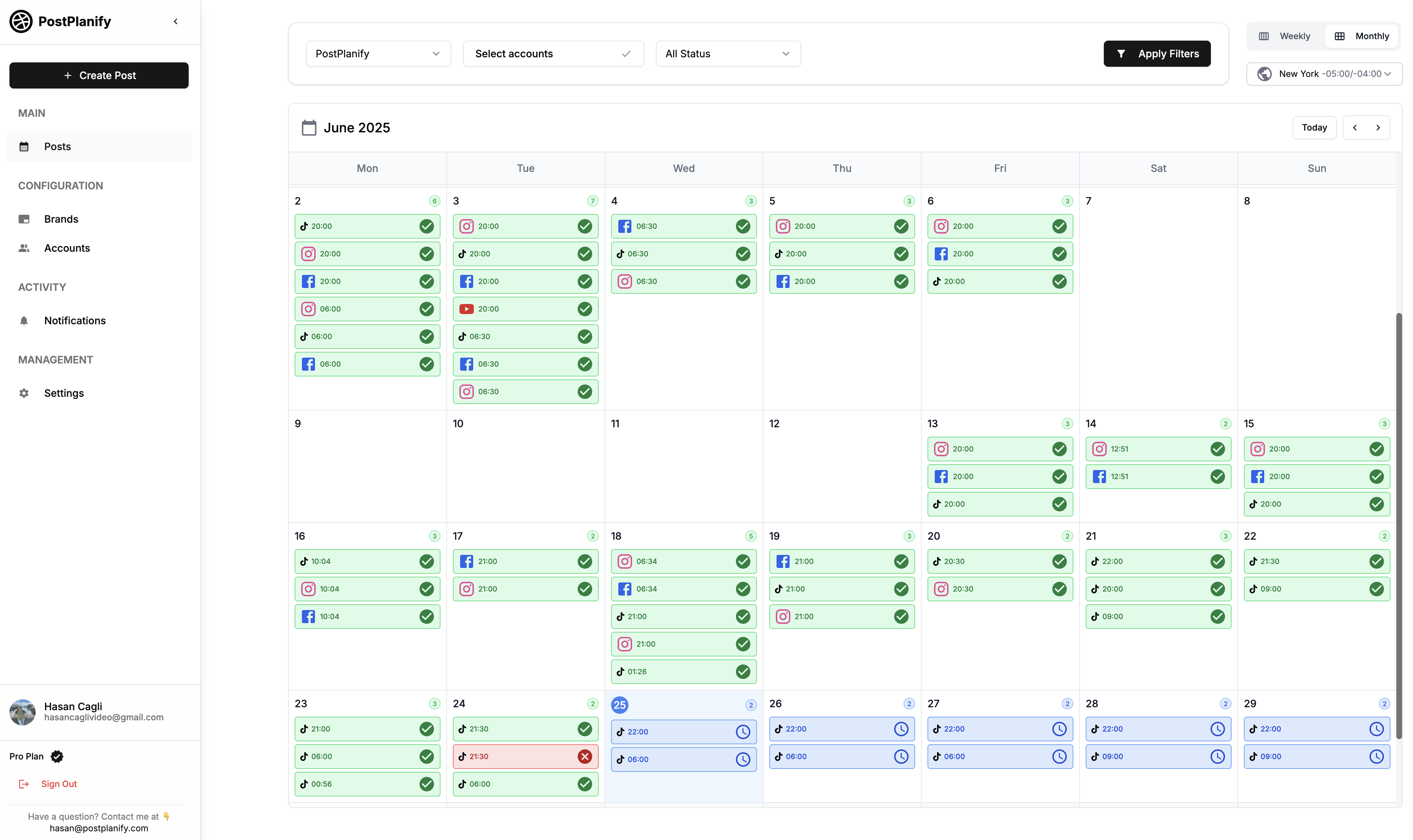
PostPlanify is a social media management tool — not a design app — so it picks up exactly where Canva or Adobe Express leave off:
- Content calendar and bulk scheduling — Queue weeks of finished Facebook collages from one calendar view alongside Instagram, LinkedIn, TikTok, Threads, and 5 other platforms. Spot gaps and overlaps at a glance with the content calendar.
- AI assistant (vision-powered) — Upload the finished collage and the AI assistant generates captions that reference what's actually in the photos — not generic boilerplate.
- Analytics across all 10 platforms — See which collage formats actually drive reach, clicks, and engagement on your Facebook Page, with best-time-to-post suggestions per account. Explore analytics.
- Social inbox — Reply to comments on your scheduled Facebook collages from the same dashboard. Inbox also covers Instagram, LinkedIn, Google Business, YouTube, Threads, and Bluesky.
- Team collaboration and approvals — Copywriters, account managers, and approvers all work in one workspace with role-based permissions. Every collage can route through a designated reviewer before it publishes.
- White-label PDF reports — Hand off branded analytics reports for client work without copying screenshots into a slide deck.
Pricing: PostPlanify plans start at $99/mo (Growth — 15 social accounts, 3 team members). Premium adds 30 accounts and 6 team members. Scale supports 100 accounts and 12 team members.
Best for: Teams and agencies managing Facebook alongside multiple social channels.
Typical workflow: Design the collage in Canva or Adobe Express → export → drop the finished image into PostPlanify → schedule, publish, and track.
PostPlanifyAll your social media in one simple dashboard
Schedule posts, track analytics, and reply to comments/DMs without switching tabs.
Engagement
+18%
Views
52.8k
Facebook Photo Collage FAQ
Does Facebook have a built-in collage maker?
Yes, but only on mobile. When you select multiple photos for a feed post in the Facebook mobile app, Facebook automatically arranges them into a collage-style layout. The desktop site does not have a true collage editor — it just groups multiple photos into a single post. For real design control over spacing, text, and branding, use a design tool like Canva, Adobe Express, or Pic Collage.
How do I make a photo collage on Facebook from my phone?
Open the Facebook mobile app, tap Create Post, then tap Photo/Video. Select two or more images from your camera roll and Facebook will auto-arrange them into a collage. You can reorder photos, add a caption, and publish. The first photo carries the most visual weight, so lead with your strongest image.
Can I make a Facebook collage on a computer?
Sort of. Facebook's desktop site lets you upload multiple photos to one post and will display them in a grouped layout — but there's no dedicated collage editor with control over spacing, cropping, or text. For desktop collage design, use Canva, Adobe Express, or a scheduling tool with a built-in editor, then upload the finished image to Facebook.
What size should a Facebook photo collage be?
It depends on the placement: 1200 × 1200 px for square feed posts, 1080 × 1350 px for portrait feed posts, 820 × 312 px for cover photos (with key elements centered for mobile cropping), and 1080 × 1920 px for Stories. Designing at the correct canvas size prevents the awkward cropping that breaks most native collages.
What's the best free app to make a Facebook collage?
Canva is the fastest for non-designers thanks to drag-and-drop templates. Adobe Express has cleaner typography controls. Pic Collage and PhotoGrid are popular mobile-only options. Once the collage is designed and exported, a social media management tool like PostPlanify handles the scheduling, analytics, and team approvals from there.
How many photos can I put in a Facebook collage?
The Facebook mobile app supports up to 10 photos in a single auto-arranged post. When using a third-party design tool, you can fit as many photos as you want in one canvas — but practical limits apply: 3–5 photos in a feed collage and 2–3 in a cover collage usually look cleanest. Crowded collages lose impact on mobile screens.
Can I add text or my logo to a Facebook collage?
Not reliably with Facebook's native auto-layout — text added in the post composer sits separately from the photos and overlay text gets cropped unpredictably. To add text or branding consistently, build the collage as a single image in Canva or Adobe Express, then upload that finished asset to Facebook (or schedule it through a tool like PostPlanify).
Why does my Facebook collage look different on mobile vs. desktop?
Facebook auto-arranges multi-photo posts based on the viewing device, so the same set of photos can render differently across phones, tablets, and desktops. The only way to guarantee identical appearance everywhere is to export your collage as a single image and upload that — what you upload is exactly what every viewer sees.
Can I schedule a Facebook photo collage in advance?
Yes. Meta Business Suite lets you schedule feed posts (including multi-photo posts) up to 75 days ahead. For longer scheduling windows, multi-platform calendar views, and team approval workflows, third-party tools like PostPlanify connect via Meta's official API. See the full walkthrough in our how to schedule Facebook posts guide.
What's the difference between a Facebook collage and a carousel?
A collage is a single post that displays multiple photos in one combined image or grouped layout — viewers see everything at once. A carousel is a swipeable series of separate images or cards where viewers tap or swipe to see each one. Facebook supports both; carousels are more common for ads, while collages are more common for organic feed posts.
Can I make a Facebook cover photo as a collage?
Yes. Design the cover collage at 820 × 312 pixels in Canva, Adobe Express, or a similar tool, keeping faces, text, and key visuals centered (mobile crops the cover to roughly 640 × 360 px). Save as a single JPG or PNG, then upload it as your Page's cover photo through Facebook's normal cover-photo flow.
Why won't Facebook let me post a collage?
The most common causes are photos that don't meet Facebook's size requirements, an account restriction, a cached app glitch, or a temporary outage. Try clearing the Facebook app cache, updating to the latest version, and checking the photo dimensions. For a full troubleshooting checklist, see why can't I post on Facebook.
Can I schedule a Facebook collage from Meta Business Suite?
Yes. Meta Business Suite supports scheduling multi-photo feed posts up to 75 days in advance. The limitation: MBS has a documented bug where scheduled multi-photo posts sometimes get fewer views than the same content posted natively. For consistent delivery and longer scheduling windows, use a third-party scheduler that connects via Meta's Graph API.
Key Takeaways
- Three methods, three different jobs: Facebook mobile auto-layout is fastest, desktop multi-photo posts are basic, and third-party tools give you full design control.
- Mobile is great for casual posts, but Facebook does the creative work for you — fine for event recaps, weak for branded campaigns.
- Desktop has no native collage editor. What looks like a collage feature is just Facebook grouping uploaded photos. Don't waste time hunting for hidden settings.
- For polished collages, design the image externally (Canva, Adobe Express, Pic Collage), export as one finished file, and upload that single asset — then schedule it through a tool like PostPlanify.
- Build to the right canvas size: 1200 × 1200 for feed, 820 × 312 for cover, 1080 × 1920 for Story. Cropping after upload is where collages lose quality.
- Lead with your strongest image. The first photo in any multi-photo set carries the most visual weight — never upload in the order you took the photos unless that order is intentional.
- Scheduling beats manual posting for campaigns, recurring content, and any post where timing matters. PostPlanify schedules Facebook collages alongside Instagram, LinkedIn, TikTok, and 6 other platforms from one calendar.
If you want a simpler way to organize finished collages, write captions, and schedule Facebook posts without bouncing between files and tabs, PostPlanify keeps the whole workflow in one place. It's especially useful when you're managing multiple Pages, content batches, or client approvals and need publishing to stay orderly.
Try PostPlanify free for 7 days →
Related Reading
- How to Schedule Facebook Posts in 2026
- Why Can't I Post on Facebook? 15 Fixes
- How to See Scheduled Posts on Facebook
- Facebook Scheduled Posts Not Working? Quick Fixes
- How to Link Facebook and Instagram
- How to Post Multiple Photos on Instagram
- Instagram Carousel Guide
- Instagram Story Templates
- How to Schedule Carousel Posts on Instagram and Facebook
- Visual Content Creation Guide
- Best Time to Post on Facebook
- Best Social Media Scheduling Tools
- Facebook Scheduler — PostPlanify
PostPlanifyAll your social media in one simple dashboard
Schedule posts, track analytics, and reply to comments/DMs without switching tabs.
Engagement
+18%
Views
52.8k
About the Author

Hasan Cagli
Founder of PostPlanify, a content and social media scheduling platform. He focuses on building systems that help businesses, agencies, and teams plan, publish, and manage content and social media more efficiently across platforms.


