


If you've been searching for why your Facebook scheduled posts are not working, you're definitely not the only one.
Quick fix: In most cases, reconnect your Facebook Page in your scheduling tool (expired tokens are the #1 cause), verify you have Admin/Editor/Moderator access on the Page, and confirm you're scheduling to a Page — not a personal profile. See the full diagnosis table below to match your exact symptom to the right fix.
Every day, thousands of businesses and creators run into the same problem — posts that were scheduled to go live at a specific time simply don't publish. No notification. No error. Just a missed post and a confused social media manager.
You set everything up, picked the perfect time, wrote the caption, attached the image… and then nothing happens.
If you're wondering why won't my Facebook post publish on schedule, the issue is almost always related to Page permissions, expired access tokens, or Meta Business Suite bugs.
Whether you're using Meta Business Suite directly, Facebook's native scheduling, or a third-party tool like PostPlanify, Buffer, or Hootsuite — these problems can still happen. And when you're running a business, managing clients, or trying to stay consistent, a single missed post can break your entire content strategy.
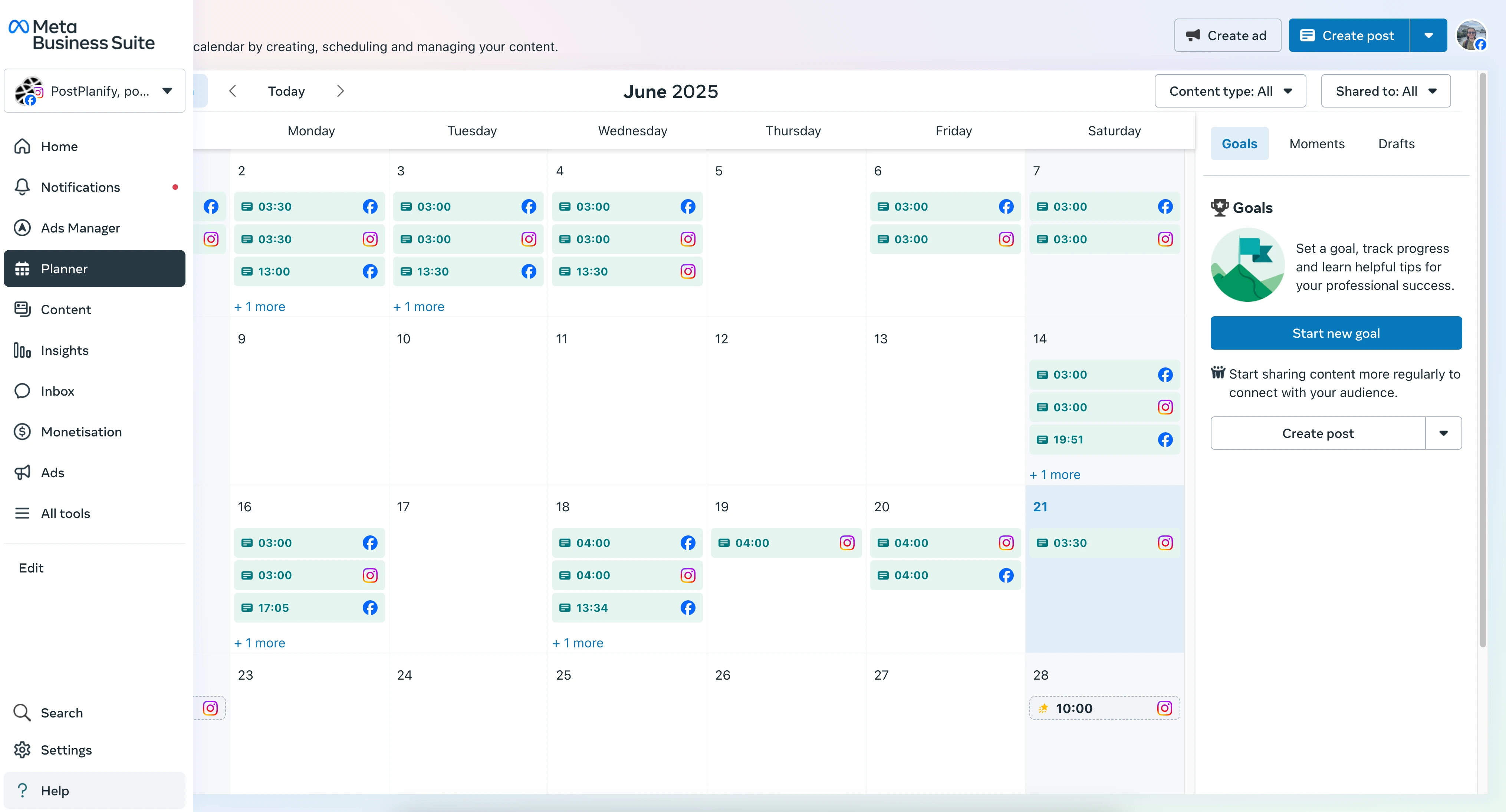
So what actually goes wrong behind the scenes?
In this post, we'll break down the most common reasons Facebook scheduled posts don't go live and exactly how to fix each one. Whether you're dealing with a Page role issue, expired tokens, media format errors, or Meta Business Suite glitches, you'll find clear, step-by-step solutions below.
You'll also learn:
- What Facebook's API allows (and doesn't) for scheduled posts in 2026
- Why some posts fail silently with no warning
- What to do when Facebook scheduling is not working at all
- What to do when the schedule button doesn't show up at all
- How to fix Meta Business Suite scheduling issues specifically
- The difference between scheduling to a Page vs. a Group vs. a Profile
- How to prevent these issues going forward
At PostPlanify, we've handled thousands of Facebook scheduled posts — here are the patterns we see most often.
We're keeping everything simple — no jargon, no fluff, just straight answers to help you get back on track. Because missing a post shouldn't be part of the plan.
Let's fix it.
TL;DR — Why Facebook Scheduled Posts Don't Publish
Most failed scheduled posts happen because of:
- ❌ You don't have the right Page role (need Admin, Editor, or Moderator)
- ❌ Expired Facebook access token or permissions
- ❌ Scheduling to a personal profile instead of a Facebook Page
- ❌ Media file too large, wrong format, or violating Facebook's specs
- ❌ Meta Business Suite bug or glitch
- ❌ Facebook API outage or rate limiting
- ❌ Third-party scheduler lost connection after a password change
Quick Diagnosis: Find Your Fix Fast
Not sure where to start? Match your symptom to the most likely cause and jump straight to the right fix:
| Symptom | Most Likely Cause | Fix |
|---|---|---|
| Post shows "Scheduled" but never publishes | Expired access token or permissions | Reconnect your account |
| "You don't have permission" error | Wrong Page role or missing permissions | Check Page roles |
| Post fails on third-party tool but works in MBS | Scheduler permissions revoked | Refresh scheduler permissions |
| Video post fails but image posts work | Video too large or wrong format | Check your media files |
| All posts failing across every tool | Facebook API outage | Check for outages |
| Post fails silently with no error | Media format issue or API rate limit | Check media files + Rate limits |
| Meta Business Suite won't schedule | MBS bug or account disconnection | Fix Meta Business Suite issues |
| Can schedule to one Page but not another | Missing role on the second Page | Check Page roles |
| Scheduled post published at the wrong time | Timezone mismatch | Fix timezone settings |
| Schedule button missing or greyed out | Personal account, or need to use Meta Business Suite | Page vs Profile vs Group |
Facebook Page vs. Profile vs. Group: What Can You Schedule?
Before troubleshooting failed posts, let's address a different (but equally common) problem: you can't even find the schedule option in the first place. Facebook treats Pages, Profiles, and Groups very differently when it comes to scheduling. This is one of the most common sources of confusion:
| Feature | Facebook Page | Personal Profile | Facebook Group |
|---|---|---|---|
| Native scheduling (MBS) | ✅ Yes | ❌ No | ✅ Yes (admin only) |
| Third-party scheduler support | ✅ Yes (via API) | ❌ No | ❌ No (API not supported) |
| Multi-user publishing | ✅ Yes (role-based) | ❌ No | Limited (admin/moderator) |
| Analytics available | ✅ Full insights | ❌ No | Basic stats only |
| API publishing | ✅ Supported | ❌ Not supported | ❌ Not supported |
Requirements for Facebook Scheduling to Work
| Requirement | How to Check | How to Fix |
|---|---|---|
| Must be a Facebook Page (not a profile) | Check if your account has "Page" label in your scheduler | Create a Page at facebook.com/pages/create |
| Admin, Editor, or Moderator role | Settings → Page Roles / Page Access | Ask the Page owner to update your role |
| Page is published (not unpublished) | Settings → General → Page Visibility | Set visibility to "Page Published" |
| No active Community Standards restrictions | Settings → Page Quality | Resolve any outstanding violations before scheduling |
| Scheduling tool has valid permissions | Check connected accounts in your scheduler | Reconnect and grant all requested permissions |
| Not exceeding 25 posts/day limit | Count your published + scheduled posts for the day | Wait until the next day or remove some scheduled posts |
| Not exceeding 350-post queue limit | Check your total scheduled posts across all tools | Publish or delete queued posts to free up slots |
| Using Meta Business Suite for native scheduling | The old Page composer no longer has scheduling | Switch to business.facebook.com |
If your schedule button still doesn't appear after checking all of the above, try clearing your browser cache or using a different browser. Sometimes the feature needs a fresh session to appear.
Why Can't I Schedule Posts on Facebook?
If you can't find the scheduling option or your posts fail silently, you're not doing anything wrong. Facebook scheduling only works under specific conditions, and missing just one requirement will block it completely.
Below are the exact reasons why you can't schedule posts on Facebook — and how to fix each one 👇
Why Your Facebook Scheduled Posts Might Not Be Working
Before we jump into solutions, it's important to understand why Facebook scheduled posts fail in the first place. There isn't just one reason — there are multiple points where things can go wrong, depending on the tool you use, your Page settings, and the type of content you're posting.
Here are the most common reasons your scheduled posts might not be publishing:
1. You Don't Have the Right Page Role
Facebook Pages have role-based access. If you don't have the right role, you may be able to draft content but not schedule or publish it. This is especially common for team accounts and agency setups.
➡️ Fix: Check your Page role in Settings → Page Roles. You need Admin, Editor, or Moderator access to schedule posts.
2. Your Access Token or Permissions Have Expired
If you're using a third-party scheduler, it relies on access tokens to publish on your behalf. These tokens expire when you change your password, revoke app permissions, or haven't re-authenticated in a while.
➡️ Fix: Go to your scheduler's settings and reconnect your Facebook Page. Most tools will prompt you to log back in and grant new permissions.
3. You're Scheduling to a Profile Instead of a Page
Facebook's API does not support scheduling to personal profiles or Groups. If your scheduler can't find your account or posts keep failing, you might be targeting the wrong destination.
➡️ Fix: Make sure you're scheduling to a Facebook Page, not your personal profile or a Group.
4. Media Format or File Size Issues
Facebook has specific requirements for images and videos. If your media doesn't meet these specs, the post may fail silently — no error message, just a stuck "Scheduled" status.
➡️ Fix: Check image dimensions, video format (MP4), file size limits, and aspect ratios before scheduling.
5. Meta Business Suite Bug or Glitch
MBS is notorious for intermittent issues — posts getting stuck, the UI not loading, or scheduled posts disappearing from the queue entirely.
➡️ Fix: Try a different browser, clear your cache, or use a third-party scheduler as a workaround.
6. Facebook API Outage or Rate Limiting
Even when everything is set up correctly, Facebook's servers can experience downtime or rate-limit your API calls if you're scheduling too many posts at once.
➡️ Fix: Check Downdetector and wait if there's an outage. Spread out bulk scheduling to avoid rate limits.
7. Content Policy Violation
Facebook may silently block a scheduled post if it detects content that violates Community Standards. This includes flagged URLs, certain keywords, or content that triggers automated review.
➡️ Fix: Check your Page's Quality tab (Settings → Page Quality) for any active restrictions. Try scheduling a simple text-only post first to rule out content-related blocks.
Once you know what's causing the problem, it becomes much easier to fix — and even easier to prevent in the future. In the next section, we'll walk through practical fixes you can apply right now to get your scheduler working again.
Having the same issue on other platforms? See our troubleshooting guides for Instagram scheduled posts not working, LinkedIn scheduled posts not working, and TikTok scheduled posts not working.
👉 Best Facebook Scheduling Tools 2026
How to Tell If Your Access Token Has Expired
Before diving into fixes, here's how to know if expired permissions are your actual problem:
Signs your token expired:
- Posts show as "Scheduled" but never publish
- You see "Authentication Error" or "Session Expired" messages
- Your scheduler shows Facebook as "disconnected" or has a warning icon
- You recently changed your Facebook password
Quick check:
- Go to your scheduling tool's connected accounts page
- Look for any warning icons or "Reconnect" buttons next to your Facebook Page
- If you see these, your token likely expired
What causes tokens to expire:
- Changing your Facebook password
- Revoking app permissions manually in Facebook Settings → Apps and Websites
- Token expiration (typically 60 days of inactivity)
- Removing your scheduler from Meta Business Integrations
- Facebook security checkpoints (suspicious login, 2FA changes)
- Changing your linked Instagram password (can also invalidate Facebook tokens since they share Meta's auth system)
👉 If you see any of these signs, skip to Fix #2 below.
Common Facebook Scheduling Error Messages (And What They Mean)
If Facebook or your scheduling tool shows a specific error message, use this table to quickly identify the cause and jump to the right fix:
| Error Message | What It Means | Likely Fix |
|---|---|---|
| "You don't have permission to do this" | Your Page role doesn't allow publishing | Check Page roles |
| "Session expired" or "Authentication Error" | Access token expired or revoked | Reconnect your account + Refresh permissions |
| "Post failed to publish" | Generic failure — usually media or API issue | Check media files, then check for outages |
| "Rate limit exceeded" or "Too many calls" | Too many API requests in a short period | Check rate limits. Wait 1 hour and retry. |
| "Media upload failed" | Image/video doesn't meet Facebook's specs | Check media files |
| "Page not found" or "Invalid Page ID" | Facebook Page was unpublished, deleted, or disconnected | Verify your Page is published and reconnect it |
| "Duplicate post detected" | Facebook blocked a near-identical post | Change the caption text or image before rescheduling |
| "Unsupported post type" | Your scheduler doesn't support this format | Switch to a full-featured scheduler |
| No error shown (silent failure) | Post quietly failed — most frustrating scenario | Check media format, then token status, then Facebook's server status |
 PostPlanify
All your social media in one simple dashboard
Schedule posts, track analytics, and reply to comments/DMs without switching tabs.

Engagement
+18%
Views
52.8k
How to Fix Facebook Scheduled Posts Not Working
Now that you know the main reasons Facebook scheduled posts might not be publishing, let's walk through exactly how to fix each one. These are simple, actionable steps you can try right now — most take less than 5 minutes.
1. Check Your Facebook Page Role and Permissions
The first thing to verify is that you actually have the right access level on the Facebook Page. Without the correct role, scheduling and publishing will fail even if everything else is set up correctly.
What to do:
- Go to your Facebook Page
- Click Settings (gear icon or left sidebar)
- Click Page Roles (classic Pages) or Page Access (New Pages Experience)
- Find your name and check your role
Roles that can schedule posts:
| Role | Can Schedule Posts | Can Publish Posts | Can Manage Page |
|---|---|---|---|
| Admin | ✅ Yes | ✅ Yes | ✅ Yes |
| Editor | ✅ Yes | ✅ Yes | ❌ No |
| Moderator | ✅ Yes | ✅ Yes | ❌ No |
| Advertiser | ❌ No | ❌ No | ❌ No |
| Analyst | ❌ No | ❌ No | ❌ No |
If you don't see yourself as Admin, Editor, or Moderator, ask the Page owner to update your role.
⚠️ New Pages Experience note: Facebook has been migrating Pages to the "New Pages Experience," which changes how roles work. In the new system, you manage access through Facebook Settings → New Pages Experience → Page Access rather than the old "Page Roles" section. See Meta's official help article on Page roles for the latest details.
2. Reconnect Your Facebook Page in Your Scheduler
The most common fix is also the easiest. Whether your token expired or your connection broke behind the scenes, re-authenticating your Facebook Page can often solve everything.
What to do:
- Log in to your scheduler (e.g., PostPlanify, Buffer, Hootsuite)
- Go to "Accounts" or "Connected Platforms"
- Remove your Facebook Page
- Reconnect by logging in with Facebook and granting all requested permissions
- Make sure you select the correct Page during the reconnection flow
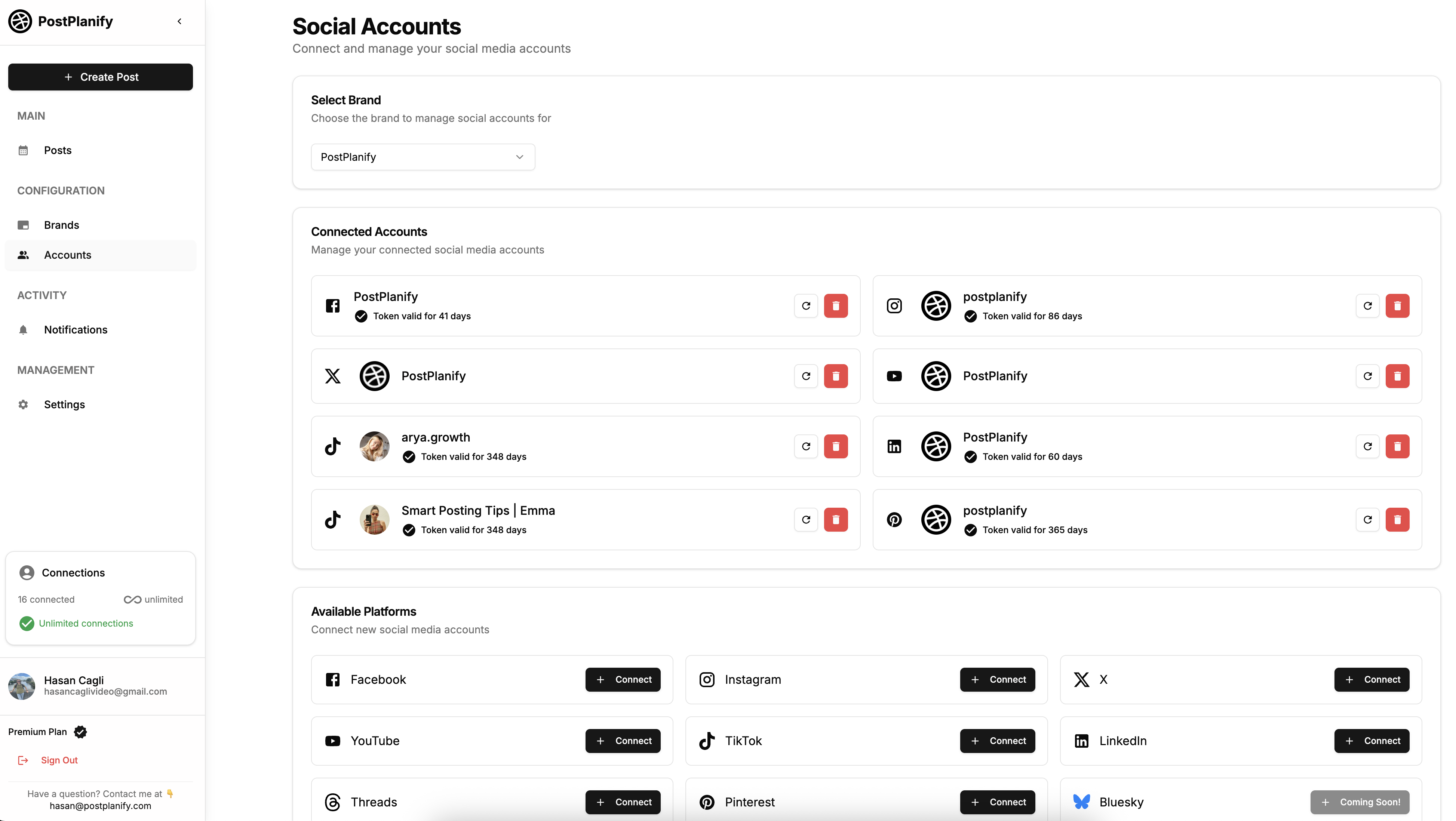
⚠️ Important: When Facebook asks which Pages to grant access to, select all Pages you want to schedule to — not just your primary one. A common mistake is accidentally deselecting Pages during reconnection.
3. Verify Your Media Meets Facebook's Requirements
Sometimes the post fails because of image or video formatting issues, not your account. Facebook has very specific rules for what dimensions, formats, and file sizes are allowed.
What to check:
| Media Type | Requirement | What Happens If Wrong |
|---|---|---|
| Image format | JPG or PNG | Other formats (HEIC, WebP, BMP) may fail |
| Image file size | Under 30MB (15MB for link share images) | Large images fail to upload |
| Image dimensions | Minimum 600x315px for link shares; 1200x630px recommended | Low-res images may be rejected or look blurry |
| Video format | MP4 (H.264 codec) recommended | MOV works too, but AVI and other formats may not process |
| Video file size | Under 4GB | Very large files will time out |
| Video length | Up to 240 minutes | Longer videos are rejected |
| Reels format | 9:16 vertical, 3 seconds to 3 minutes | Non-vertical or too-long videos won't publish as Reels |
| Text length | Up to 63,206 characters | Extremely long posts may be truncated or cause errors |
| Link previews | Target page must include og:image meta tag | Missing og:image means no preview thumbnail |
If you're unsure, try posting the same content manually on Facebook. If it fails there too, the issue is with the media file itself.
For Reels specifically, see our guide on how to post Reels on Facebook. For carousels, see how to schedule carousel posts on Facebook.
4. Refresh Your Scheduler's Permissions
If you recently changed your Facebook password or updated your privacy settings, your scheduler might have lost the ability to post.
How to fix:
- Go to facebook.com/settings → Apps and Websites (or Business Integrations)
- Find your scheduler (e.g., PostPlanify)
- Click Remove to revoke its access
- Go back to your scheduler and reconnect your Facebook Page from scratch
This forces Facebook to generate a fresh access token with all required permissions. For details on which permissions are needed, see Meta's developer documentation on Page publishing.
5. Make Sure You're Scheduling to a Page, Not a Profile
This catches more people than you'd expect. Facebook's Graph API does not support publishing to personal profiles. If your third-party scheduler can't find your "account" or keeps failing, you may be targeting your personal timeline instead of a Page.
How to verify:
- In your scheduler, check the account type next to your connected Facebook account
- It should say "Page" — not "Profile" or "Personal"
- If it shows a profile, disconnect it and reconnect by selecting a Facebook Page during the auth flow
Don't have a Facebook Page? You'll need to create one. Go to facebook.com/pages/create to set one up in under 2 minutes. See our full guide on how to schedule Facebook posts once your Page is ready.
6. Clear Browser Cache and Try a Different Browser
If you're scheduling through Meta Business Suite in your browser and posts are getting stuck, a corrupted cache or browser extension could be interfering.
What to do:
- Clear your browser cache and cookies for
facebook.comandbusiness.facebook.com - Disable all browser extensions temporarily
- Try scheduling in an incognito/private window
- If that works, the issue is a browser extension or cached data
- Alternatively, try a completely different browser (e.g., switch from Chrome to Firefox)
This is one of the most commonly reported fixes on Meta's own support forums.
7. Update the Facebook App (Mobile Scheduling)
If you're scheduling through the Facebook app on your phone and posts aren't going through, an outdated app version could be the culprit. Facebook frequently pushes updates that change how scheduling works internally, and old versions can break silently.
On Android:
- Open the Google Play Store
- Search for "Facebook"
- Tap Update if available
- Reopen the app and try scheduling again
On iPhone:
- Open the App Store
- Tap your profile icon in the top right
- Scroll down and tap Update next to Facebook if available
After updating, try scheduling a test post to confirm the issue is resolved.
8. Check If Facebook Is Down
If nothing else seems wrong, the problem might be on Facebook's end. API outages, server maintenance, or infrastructure issues can prevent scheduled posts from publishing.
What to do:
- Check https://downdetector.com/status/facebook/
- Look at the Meta Platform Status page
- Wait 1-2 hours and try again
- Keep a manual backup of important posts in case you need to publish them manually
9. Check for Content Policy Violations
Facebook may silently block a scheduled post if it detects a potential policy violation. This includes posts with flagged URLs, certain keywords, or content that triggers Facebook's automated review system.
Signs your post was policy-blocked:
- Post disappears from the scheduled queue without an error
- Post shows as "Error" with no specific message
- You received a recent Community Standards violation on your Page
What to do:
- Check your Page's Quality tab (Settings → Page Quality) for any active restrictions
- Review your post for content that might trigger automated filters — certain shortened URLs, affiliate links, or flagged domains
- Try scheduling a simple text-only post. If that works, the issue is with the content itself.
- If your Page has restrictions, address the violation first, then try rescheduling
Also see: Why Can't I Post on Facebook? 10 Reasons & Fixes — covers posting issues beyond just scheduling.
10. Remove and Re-add Your Facebook Page in Meta Business Suite
If Meta Business Suite itself is the problem — posts getting stuck, the scheduler not loading, or error messages appearing — a clean reconnection within MBS can resolve it.
What to do:
- Go to business.facebook.com/settings
- Click Accounts → Pages
- Find the affected Page and click Remove
- Click Add → Add a Page and reconnect it
- Verify all permissions and team member access are correctly assigned
- Return to Meta Business Suite and try scheduling again
11. Check Your Timezone Settings
If your post published at the wrong time (or appears "missed" because it fired at an unexpected hour), the issue is likely a timezone mismatch between your scheduler and your Facebook Page.
Where to check:
| Tool | Where to Find Timezone Setting |
|---|---|
| Meta Business Suite | Settings → Page → General → Timezone |
| PostPlanify | Dashboard → Brand Settings → Timezone |
| Buffer | Settings → Posting Schedule → Timezone |
| Hootsuite | Settings → Time Zone |
Make sure your scheduler's timezone matches the timezone where you expect the post to go live. A common mistake is having your Page set to UTC while your scheduler is set to your local timezone. For guidance on optimal posting windows, see our guide on the best time to post on Facebook.
12. Check API Rate Limits
If you're scheduling many posts at once — especially through a third-party tool — you may hit Facebook's API rate limits. When this happens, posts stop being accepted or silently fail.
Facebook's rate limits:
| Limit | Details |
|---|---|
| Page publishing limit | ~25 posts per Page per day (soft limit) |
| Queue limit | Maximum 350 scheduled posts in queue at once |
| API call limit | Varies by app tier; see Meta's rate limiting docs |
| Bulk scheduling | Scheduling 10+ posts in rapid succession may trigger throttling |
| Duplicate content | Posting identical content multiple times can trigger spam detection |
What to do:
- Space out your scheduled posts — don't schedule more than 5-10 at a time
- Wait at least 60 seconds between scheduling actions
- If you need to bulk-schedule, use a tool like PostPlanify that handles rate limiting automatically
- Avoid posting identical content across multiple Pages simultaneously
By applying these fixes, you should be able to resolve most scheduling issues and prevent them from happening again. But if you're still running into problems, the next sections cover Meta Business Suite-specific fixes and extra tips to make your Facebook scheduling bulletproof.
Related: How to Schedule Facebook Posts | Best Facebook Scheduling Tools 2026 | How to Schedule Carousel Posts on Facebook | How to See Scheduled Posts on Facebook | Best Time to Post on Facebook | Why Can't I Post on Facebook? | How to Link Facebook and Instagram
PostPlanifyAll your social media in one simple dashboard
Schedule posts, track analytics, and reply to comments/DMs without switching tabs.
Engagement
+18%
Views
52.8k
Fixing Meta Business Suite Scheduling Issues
Many people schedule Facebook posts through Meta Business Suite rather than a third-party tool. MBS has its own set of common issues that are different from general scheduling problems. Since Meta Business Suite also handles Instagram scheduling, some of these issues overlap — if you're also having trouble with Instagram, see our Instagram scheduling troubleshooting guide. If your Instagram and Facebook accounts aren't properly linked, that can cause MBS failures too — see how to link Facebook and Instagram.
If you're using MBS and your scheduled Facebook posts aren't going through, try these fixes:
Facebook Page Not Showing as a Publishing Option in MBS
Why it happens: Your Facebook Page isn't properly connected to your Business Portfolio in Meta Business Suite.
How to fix:
- Go to business.facebook.com/settings
- Click Accounts → Pages
- Click Add and follow the prompts to connect your Facebook Page
- Make sure you grant all requested permissions
- Return to Meta Business Suite — your Page should now appear as a publishing destination
MBS Scheduled Posts Stuck in Queue
Why it happens: A permissions mismatch, browser caching issue, or a known Meta bug where the scheduling engine fails to trigger publishing.
How to fix:
- Check your role on the Facebook Page — you need at least Editor or Admin access
- Try a different browser or incognito mode
- Clear your browser cache for
business.facebook.com - Try publishing a test post manually through MBS first. If manual posting works but scheduling doesn't, it's likely a Meta-side bug.
- As a workaround, use a third-party scheduler like PostPlanify which connects via the same Meta API but with more reliable publishing infrastructure
MBS Interface Not Loading or Showing Errors
Why it happens: Meta Business Suite occasionally has frontend bugs where the planner page won't load, shows a blank screen, or displays "Something went wrong."
How to fix:
- Hard refresh the page (Ctrl+Shift+R on Windows, Cmd+Shift+R on Mac)
- Clear your browser cookies for
business.facebook.com - Try accessing MBS from a different browser
- Check Meta Platform Status for any reported issues
- If the issue persists for more than 24 hours, switch to a third-party scheduling tool temporarily
For more MBS troubleshooting, see Meta's official guide on fixing post errors in Business Suite.
MBS Reels Publishing Issues
There's a known issue with scheduling and publishing Facebook Reels through Meta Business Suite. Some users report that Reels published via MBS get lower reach compared to natively posted content.
Current workarounds:
- Post Reels natively through the Facebook mobile app for best reach
- Use a third-party scheduler that connects directly to Facebook's API
- Monitor your Reels analytics for delivery issues after publishing via MBS
For a full walkthrough, see our guide on how to post Reels on Facebook.
Facebook Scheduling Limits You Should Know
Facebook and Meta impose several limits on scheduled content that can cause unexpected failures:
| Limit | Details |
|---|---|
| ~25 published posts per day | Exceeding this soft limit can trigger throttling or silent failures |
| 350 scheduled posts in queue | Maximum number of posts that can be queued across all scheduling methods |
| 75-day scheduling window (MBS) | Meta Business Suite allows scheduling up to 75 days ahead (some accounts up to 90 days) |
| Video length | Maximum 240 minutes for regular videos, 3 minutes for Reels |
| API rate limits | Bulk-scheduling too many posts in a short time triggers temporary blocks |
| Duplicate content detection | Posting identical content back-to-back can trigger spam filters |
| Restricted Page actions | Pages with active Community Standards violations may have publishing limited |
Pro Tips to Prevent Facebook Scheduling Issues in the Future
Once you've fixed the problem, the next step is to make sure it doesn't happen again. If you're managing client accounts, running time-sensitive campaigns, or just trying to stay consistent, even one failed post can throw everything off. Here are some simple, effective ways to keep your scheduling workflow smooth and reliable.
1. Use a Reliable Scheduling Tool That Works with Facebook's API
Not all schedulers are created equal. Some still rely on unofficial or outdated methods that break easily. To avoid issues, use a tool that's fully integrated with Meta's official Graph API — this ensures better reliability, faster error recovery, and full support for post types like Reels and Carousels.
✅ Tools like PostPlanify are built specifically to handle all major post formats using Meta's official API, so they're much more stable and up to date. For a step-by-step walkthrough, see our guide on how to schedule social media posts across all platforms. For a full tool comparison, see our social media scheduling tools guide.
2. Reconnect Your Facebook Page Every Few Months
Even if nothing breaks, Facebook tokens naturally expire over time, especially if you haven't used your connected app in a while. To prevent surprise failures, get into the habit of reauthorizing your Page every few months.
🛠 Tip: Set a reminder to refresh your Facebook Page connection quarterly. It takes 2 minutes and can save you from future headaches.
3. Double-Check Media Specs Before You Schedule
Invalid media dimensions are one of the most common reasons a post won't publish. Always check your images and videos before uploading them.
🖼 Images: JPG or PNG, under 30MB, minimum 600x315px (1200x630px recommended)
🎥 Videos: MP4 (H.264), under 4GB, max 240 minutes
📱 Reels: 9:16 vertical, 3 seconds to 3 minutes, MP4
If your media doesn't match, resize it before scheduling — it'll save you from silent failures.
4. Monitor Your Posts After Scheduling
Even if everything looks fine, it's a good habit to check the post status once it's scheduled. Our guide on how to see scheduled posts on Facebook shows where to find your queue in every tool. Some tools (like PostPlanify) let you see a post preview and its current status — scheduled, failed, published, or draft.
🔍 After scheduling:
- Make sure the post appears in your calendar or queue
- Enable failure notifications if the tool supports it
- Check your Page 15 minutes after the scheduled time
A quick follow-up can help you catch issues before they hurt your engagement or campaign results.
5. Keep Your Page in Good Standing
Facebook Pages with Community Standards violations may have publishing restrictions applied silently. Regularly check your Page Quality tab (Settings → Page Quality) and resolve any flagged issues promptly.
6. Use Consistent Timezones
Set your scheduler and your Facebook Page to the same timezone. A timezone mismatch is one of the most common causes of "my post didn't go live" complaints — when in reality, it published at the right UTC time but the wrong local time.
👉 Learn more about PostPlanify Facebook Scheduler
FAQ: Facebook Scheduled Posts Not Working (2026 Update)
Why did my scheduled Facebook post fail to publish?
Most failures come from expired permissions, incorrect Page roles, or media format issues. Start by reconnecting your Facebook Page in your scheduling tool, then verify your Page role and media specs. If the issue affects all your tools at once, check Downdetector for a Facebook outage.
Why is my Facebook schedule button missing or greyed out?
Facebook's scheduling feature is only available for Pages, not personal profiles. If you don't see the schedule button, you may be posting from your personal account. You also need to schedule through Meta Business Suite — the option was removed from the classic Page composer. Make sure the Facebook or Meta Business Suite app is updated to the latest version.
Why are my Facebook scheduled posts stuck on "Scheduled" and not posting?
This almost always means your access token expired or the connection between your scheduler and Facebook broke. Go to your scheduler's connected accounts page and look for warning icons. Reconnect your Page, and if the post has been stuck for more than an hour past its scheduled time, delete and reschedule it. If you're not sure where to find your queued posts in the first place, see how to see scheduled posts on Facebook.
Why can't I schedule posts on my Facebook Page?
Check three things: (1) You have Admin, Editor, or Moderator access on the Page, (2) your Page is published and not restricted by Community Standards violations, and (3) your scheduling tool has active permissions to post on your behalf. Also confirm you haven't hit the 25 posts/day limit or the 350-post queue cap.
Why doesn't Meta Business Suite publish my scheduled posts?
Common causes include browser caching, browser extension conflicts, or a Meta-side bug. Try clearing your cache, scheduling in incognito mode, or switching browsers. If the issue persists, verify your Page is still connected at business.facebook.com/settings and that your role hasn't changed.
Can I schedule Facebook posts to a personal profile?
No. Facebook's Graph API only supports scheduling to Pages. Neither third-party tools nor Meta Business Suite can schedule posts to personal profiles. If you want to schedule content, you'll need to create a Facebook Page.
Can I schedule Facebook posts to a Group?
Only through Meta Business Suite, and only if you're an admin of the Group. Third-party scheduling tools cannot publish to Groups because Facebook's API does not support it. If Group scheduling is critical for you, use MBS directly.
How do I know if my Facebook access token expired?
Look for warning icons, "Reconnect" buttons, or "Session expired" messages in your scheduler's connected accounts section. Tokens commonly expire after password changes, security checkpoints (like enabling 2FA), or 60+ days of inactivity. If you're unsure, reconnecting your Page is a safe fix regardless.
Why do my Facebook video posts fail but image posts work?
Videos have stricter requirements: MP4 format with H.264 codec, under 4GB, and max 240 minutes. Facebook Reels need 9:16 vertical format between 3 seconds and 3 minutes. Try compressing your video or converting it to MP4. Also check your internet connection — large video uploads can fail on unstable connections, even when image uploads succeed.
Does Facebook limit how many posts I can schedule?
Yes, in multiple ways. There's a soft limit of ~25 posts per Page per day, a maximum of 350 posts in the scheduled queue, and Meta Business Suite limits scheduling to 75 days ahead (some accounts 90 days). The API also has call rate limits that can throttle bulk scheduling.
Why did my Facebook post publish at the wrong time?
Timezone mismatch. Check that your scheduler's timezone matches your Facebook Page's timezone in Settings → Page → General. Meta Business Suite may also use your browser's timezone rather than the Page's — verify both match the timezone you expect.
Can Facebook silently reject a scheduled post because of content policy?
Yes. Facebook's automated systems can flag and silently block posts containing certain shortened URLs, affiliate links, flagged domains, or language that triggers Community Standards review. If posts disappear from your queue without error, try a simple text-only post to rule out content-related blocks. Check Settings → Page Quality for any active violations.
What's the fastest way to fix a stuck Facebook scheduled post?
Delete the stuck post, reconnect your Facebook Page in your scheduler (this generates a fresh token), re-upload the media, and reschedule. If this keeps happening, the issue is usually with how your scheduler manages tokens. Consider switching to a tool like PostPlanify that refreshes tokens automatically.
Why can I schedule to one Facebook Page but not another?
During the Facebook authorization flow, you choose which Pages to grant access to. If you skipped or deselected a Page during that step, your scheduler won't have permission to post to it. Disconnect and reconnect your account, making sure to check every Page you want to schedule to during the permissions prompt.
Can I schedule Facebook Reels?
Yes. Facebook Reels must be 9:16 vertical, between 3 seconds and 3 minutes, in MP4 format. Meta Business Suite supports Reels scheduling, and tools like PostPlanify support Facebook Reels publishing through the official API.
How far in advance can I schedule Facebook posts?
Meta Business Suite allows scheduling up to 75 days ahead (some accounts up to 90 days). Third-party schedulers like PostPlanify allow you to schedule months in advance with no platform-imposed restriction, as long as your access token remains valid.
PostPlanifyAll your social media in one simple dashboard
Schedule posts, track analytics, and reply to comments/DMs without switching tabs.
Engagement
+18%
Views
52.8k
Scheduled Posts Not Working on Other Platforms?
If you're also having scheduling issues on Instagram or TikTok, the root causes are often similar (expired tokens, media format errors, API outages) — but each platform has its own quirks:
- Instagram Scheduled Posts Not Working? 10 Quick Fixes — covers Instagram-specific issues like Business account requirements, Facebook Page linking, and the MBS Reels bug
- LinkedIn Scheduled Posts Not Working? 10 Quick Fixes — covers LinkedIn-specific issues like 60-day token expiry, Company Page permissions, and the 700-character limit
- TikTok Scheduled Posts Not Working? 5 Quick Fixes — covers TikTok-specific issues like video duration limits, account type requirements, and TikTok's API restrictions
- How to Schedule Social Media Posts (All Platforms) — a complete guide to scheduling across Facebook, Instagram, TikTok, LinkedIn, X, YouTube, and more
Final Thoughts + Quick Checklist
Scheduling posts on Facebook should save you time and keep your content consistent — not create more problems. But when posts fail without warning, it wastes your effort and can hurt your engagement, especially if you're running time-sensitive campaigns or managing client accounts.
The good news? Most of these issues are preventable once you know what to look for.
Use this quick checklist before scheduling your next post to avoid common issues:
- ✅ Do you have Admin, Editor, or Moderator access on the Facebook Page?
- ✅ Is your Facebook Page published and not restricted?
- ✅ Have you recently reconnected your Page in your scheduler (especially after password changes)?
- ✅ Are you scheduling to a Facebook Page (not a personal profile or Group)?
- ✅ Do your media files meet Facebook's specs (JPG/PNG under 30MB, MP4 under 4GB)?
- ✅ Is your scheduler's timezone set correctly to match your Page?
- ✅ Have you checked your scheduler's dashboard for any error alerts or failed statuses?
- ✅ Are you within Facebook's ~25 posts/day and 350-post queue limits?
- ✅ Is your Page free of Community Standards violations?
- ✅ Have you checked Downdetector to rule out Facebook outages?
- ✅ Are you using a tool that works with Facebook's official API and keeps up with updates?
If you follow the steps in this guide and stick to the checklist above, you should be able to resolve most Facebook scheduling issues and prevent them from happening again.
Try PostPlanify free for 7 days — schedule to Facebook, Instagram, TikTok, X, LinkedIn, YouTube, and more from one dashboard.
PostPlanifyAll your social media in one simple dashboard
Schedule posts, track analytics, and reply to comments/DMs without switching tabs.
Engagement
+18%
Views
52.8k
About the Author

Hasan Cagli
Founder of PostPlanify, a content and social media scheduling platform. He focuses on building systems that help businesses, agencies, and teams plan, publish, and manage content and social media more efficiently across platforms.


