


You scheduled a week of Facebook content. Captions written, images attached, times picked. But now you can't find any of it.
Where did your scheduled posts go? Are they queued up, saved as drafts, or lost entirely?
This is one of the most common frustrations with Facebook scheduling, and the reason is straightforward: your scheduled posts only exist in the tool you used to schedule them. There's no single view that shows everything.
Think of it like four separate filing cabinets:
- A post scheduled in the Facebook app is only visible in the app's post management section.
- A post scheduled in Meta Business Suite is only visible in the Planner or Content tab.
- A post scheduled via Publishing Tools is only visible in the Publishing Tools dashboard.
- A post scheduled in a third-party tool (like PostPlanify) is only visible in that tool.
They don't sync with each other. The key is going back to whichever tool you originally used to schedule.
Quick Answer: How to View Scheduled Facebook Posts
To see scheduled posts on Facebook, follow the method that matches the tool you used:
- Facebook App (Mobile) — Go to your Page → Manage Posts → tap the filter icon → select Scheduled.
- Meta Business Suite — Go to business.facebook.com → click Planner for calendar view, or Content → Posts & Reels → filter by Scheduled.
- Publishing Tools — Go to your Facebook Page → click Publishing Tools in the left menu → click the Scheduled tab.
- Third-party tool — Log in to your scheduling tool (e.g., PostPlanify) → open the content calendar.
Scheduled posts only appear in the tool that created them. They do not sync across platforms.
Where Your Scheduled Posts Live: A Quick Breakdown
| Scheduling Method | Where to Find Your Scheduled Posts | Required Account Type |
|---|---|---|
| Facebook App | Page → Manage Posts → Filter → Scheduled | Facebook Page (not personal profile) |
| Meta Business Suite | Planner tab (calendar) or Content → Posts & Reels → Scheduled filter | Facebook Page linked to Business Suite |
| Publishing Tools | Page → Publishing Tools → Scheduled tab | Facebook Page with admin/editor access |
| Third-Party Tool | Tool's content calendar or dashboard | Facebook Page + tool-specific permissions |
Important: Personal Facebook profiles cannot schedule posts natively. Facebook's scheduling features are only available for Pages. If you don't see a scheduling option, that's likely why.
Facebook Scheduling Capabilities by Tool
| Feature | Facebook App | Meta Business Suite | Publishing Tools | PostPlanify |
|---|---|---|---|---|
| Cost | Free | Free | Free | Paid (free trial) |
| Calendar view | No | Weekly / monthly | List only | Daily / weekly / monthly |
| Schedule window | Limited | Up to 6 months | Up to 6 months | Unlimited |
| Feed posts | Yes | Yes | Yes | Yes |
| Reels | Yes | Yes | Limited | Yes |
| Stories | No | Yes | No | Yes |
| Multi-platform | No | Facebook + Instagram only | Facebook only | 10 platforms |
| Bulk scheduling | No | No | No | Yes |
| Team collaboration | No | Basic | Basic | Full (approval workflows) |
| Edit after scheduling | Limited | Yes | Yes | Yes |
| Drag-and-drop reschedule | No | No | No | Yes |
 PostPlanify
All your social media in one simple dashboard
Schedule posts, track analytics, and reply to comments/DMs without switching tabs.

Engagement
+18%
Views
52.8k
Why Can't I Find My Scheduled Posts? Common Causes
If you've looked everywhere and still can't find your scheduled content, it's almost always one of these:
- You're looking in the wrong tool. A post scheduled in Meta Business Suite will not appear in Publishing Tools, and vice versa. Go back to the exact tool you used.
- You're checking a personal profile, not a Page. Facebook only supports scheduling for Pages, not personal profiles. If you scheduled to your profile using a workaround, the post may not appear in any standard scheduling view.
- It's a draft, not a scheduled post. Drafts are saved without a publish date. Scheduled posts have a specific time attached. Make sure you completed the final "Schedule" step — check the Drafts section if your post is missing from Scheduled.
- You don't have the right permissions. Team members with limited access may not see scheduled posts. You need at least Editor or Content Creator access on the Page.
- Browser cache is stale. Meta Business Suite sometimes doesn't load the latest data. A hard refresh (Ctrl+F5 on Windows, Cmd+Shift+R on Mac) often fixes this.
Facebook Page vs Personal Profile vs Group
This is the most important distinction for Facebook scheduling. Unlike Instagram where Professional accounts can schedule directly in the app, Facebook's scheduling rules are stricter:
| Capability | Facebook Page | Personal Profile | Facebook Group |
|---|---|---|---|
| Native scheduling | ✅ Yes (MBS, Publishing Tools) | ❌ No | ✅ Admin/moderator only |
| Third-party scheduling | ✅ Yes | ❌ No | ❌ No (API deprecated April 2024) |
| View scheduled posts | ✅ Multiple methods | ❌ Not applicable | ✅ Admin Tools → Scheduled Posts |
| Edit scheduled posts | ✅ Yes | ❌ Not applicable | ✅ Admin/moderator only |
| Professional Mode | N/A | Limited scheduling features | N/A |
Key takeaways:
- Personal profiles cannot schedule posts through any native Facebook tool. Some third-party tools offer notification-based workarounds (they remind you to post manually), but there is no true auto-publish for personal profiles.
- Facebook Groups can only be scheduled by admins and moderators through Meta Business Suite. Since April 2024, Meta deprecated the Groups API — no third-party tool can auto-publish to Groups anymore.
- Pages have full scheduling support across all methods.
Finding Scheduled Posts in Facebook Groups
If you're a Group admin or moderator:
- Go to your Facebook Group
- Click Admin Tools in the left menu
- Click Scheduled Posts
Regular Group members cannot see or create scheduled posts. Other admins can see scheduled posts in the Admin Tools section but are not notified when someone schedules a new post.
Method 1: Finding Scheduled Posts in the Facebook App (Mobile)
The Facebook mobile app can show your scheduled Page posts, but the feature is somewhat buried.
Steps:
- Open the Facebook app on your phone
- Navigate to your Facebook Page
- Tap Manage Posts (you may need to scroll down or check under Page settings)
- Tap the filter icon at the top
- Select Post Status → choose Scheduled
All your upcoming scheduled posts will appear in this filtered view.
Pro tip: For a better mobile experience, use the dedicated Meta Business Suite app instead of the standard Facebook app. The MBS app is designed for business content management and makes finding scheduled posts much easier.
Related: How to Schedule Facebook Posts | Best Time to Post on Facebook
Method 2: Finding Scheduled Posts in Meta Business Suite
Meta Business Suite is Facebook's primary business management tool and the most feature-rich way to view your scheduled content.
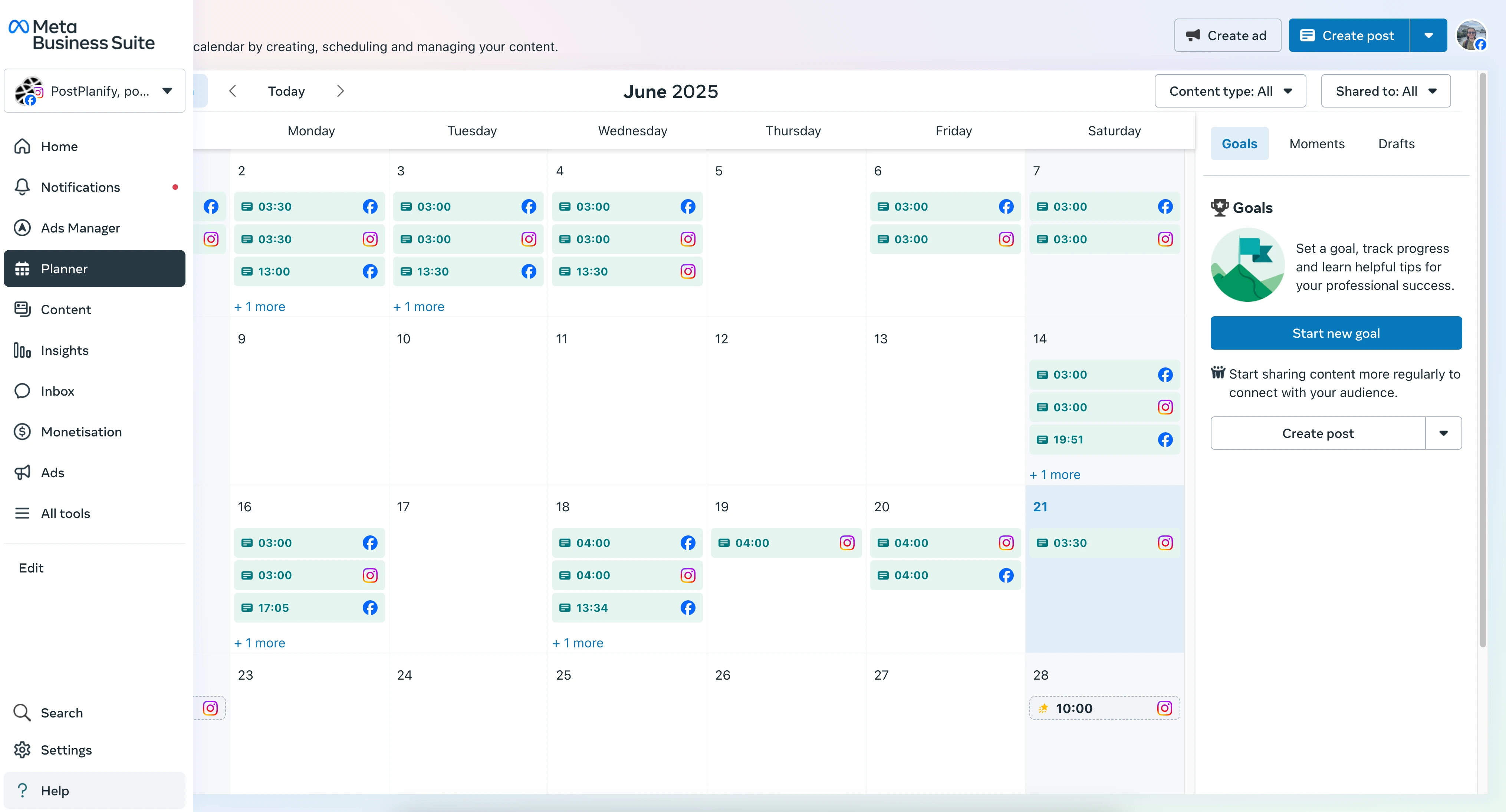
Desktop
Option A — Calendar View (Planner):
- Go to business.facebook.com
- Click Planner in the left menu
- Switch between Week and Month views to see your scheduled posts on a calendar
- Click any scheduled post to edit, reschedule, or delete it
Option B — List View (Content):
- Go to Content → Posts & Reels in the left menu
- Click the filter dropdown and select Scheduled
- All queued posts appear in a sortable list with publish dates
Pro tip: If you manage both Facebook and Instagram, use the platform filter at the top of the Planner to show only Facebook content. Otherwise, your Instagram scheduled posts will be mixed in.
Mobile (Meta Business Suite App)
- Open the Meta Business Suite app
- Tap Posts & Stories or Planner
- Scheduled posts appear alongside published and draft content
- Tap any post to edit or reschedule
Common Issues in Meta Business Suite
- Posts not showing up? Wait a minute and refresh. MBS occasionally has sync delays when a post is newly scheduled.
- Can't see a teammate's scheduled posts? Ask a Page admin to check your access level. You need Content Creator or Admin access to view and manage scheduled posts.
- Filters hiding your posts? If you have Content filtered to show only feed posts, scheduled Reels or Stories won't appear. Clear all filters to see everything.
Related: How to Post Reels on Facebook | Best Facebook Scheduling Tools
Method 3: Finding Scheduled Posts via Publishing Tools
Publishing Tools is the older, simpler interface that's still available directly on your Facebook Page. It's faster to access than Meta Business Suite if you just need to quickly check what's scheduled.
Steps:
- Go to your Facebook Page on desktop
- Click Publishing Tools in the left-hand menu
- Click the Scheduled tab at the top
This shows a straightforward list of all posts queued to publish, with dates and times. You can click any post to edit, reschedule, or delete it.
Note: Publishing Tools only shows posts scheduled through Facebook's native tools (Meta Business Suite, the Facebook app, or Publishing Tools itself). Posts scheduled through third-party tools won't appear here.
Is Publishing Tools being replaced? Meta has been gradually migrating features to Meta Business Suite, and Creator Studio tools have already moved there. Publishing Tools still works in 2026, but Meta Business Suite is the recommended long-term option.
PostPlanifyAll your social media in one simple dashboard
Schedule posts, track analytics, and reply to comments/DMs without switching tabs.
Engagement
+18%
Views
52.8k
Method 4: Using a Third-Party Tool for a Unified View
The methods above work, but they all share the same limitation: they only show Facebook content. If you manage multiple platforms, you're switching between tabs to see your full schedule.
Problem: You have no single place to see your entire content plan across Facebook, Instagram, TikTok, LinkedIn, and other platforms.
Fix: Use a third-party scheduling tool with a unified content calendar.

Why a Unified Calendar Matters
- See everything at once — All scheduled posts for Facebook, Instagram, TikTok, LinkedIn, YouTube, and more in one calendar
- Drag-and-drop rescheduling — Move posts to different dates and times without recreating them
- Visual content mix — Spot gaps in your schedule and ensure a balanced posting frequency
- Team workflows — Approval processes, role-based access, and collaboration tools that Meta Business Suite doesn't offer
- Bulk scheduling — Upload and schedule dozens of posts at once via CSV import
For a comparison of the best tools, see our best Facebook scheduling tools guide.
Related: Social Media Cross-Posting Guide | Best Apps to Post to All Social Media at Once
Can You Edit or Reschedule a Facebook Post After Scheduling?
Yes — and this is one area where Facebook is more flexible than some other platforms.
In Meta Business Suite:
- Go to Content → Posts & Reels → filter by Scheduled
- Click the three-dot icon on the post
- Select Edit Post (change caption, media, tags) or Reschedule (change date/time)
- Click Save
In Publishing Tools:
- Go to Publishing Tools → Scheduled
- Click the post you want to modify
- Edit the content or click Reschedule to change the time
- Save your changes
In third-party tools: Most tools let you edit any aspect of a scheduled post (caption, media, hashtags, time) up until the moment it publishes.
Limitation: You can only edit posts before they publish. Once a post is live, you'll need to edit the published post directly on Facebook.
Troubleshooting: Why Did My Scheduled Posts Disappear?
You're sure you scheduled a post, but now it's gone. Before panicking, check these common causes:
Expired API Connection
If you used a third-party tool, the connection between the tool and Facebook may have expired. Meta requires periodic re-authentication for security. Go to your tool's settings, disconnect your Facebook Page, and reconnect it.
Permission Changes
If a Page admin changed your role or removed your access, your scheduled posts may still exist — but you can no longer see them. Ask the current admin to verify your access level.
The Post Already Published
This sounds obvious, but it catches people: Facebook deletes the scheduled placeholder when a post goes live and creates a new published post with a different ID. Check your Published posts instead of Scheduled.
Browser Cache Issues
Meta Business Suite sometimes shows stale data. Hard refresh your browser (Ctrl+F5 or Cmd+Shift+R), or try opening Business Suite in an incognito/private window.
Content Policy Violation
If Facebook detected a policy violation at the time of publishing, the post may have been silently removed from the queue. Check your Activity Log or Support Inbox for any notifications from Facebook.
The Post Was a Draft
Double-check the Drafts section. If you didn't complete the final scheduling step, the post may have been saved as a draft instead.
For more detailed troubleshooting when posts fail to publish entirely, see our guide on Facebook scheduled posts not working. If the issue goes beyond scheduling and you're unable to post on Facebook at all, our guide on why you can't post on Facebook covers every common cause and fix.
Best Times to Schedule Facebook Posts
Scheduling is half the equation — timing determines how many people actually see your content.
| Day | Peak Windows | Notes |
|---|---|---|
| Monday | 9-11 AM | Steady engagement as the work week starts |
| Tuesday | 9 AM - 12 PM | Consistently strong across industries |
| Wednesday | 9 AM - 1 PM | Mid-week peak — often the highest engagement day |
| Thursday | 9 AM - 12 PM, 1-3 PM | Strong all day; good for longer content |
| Friday | 9-11 AM | Morning engagement drops off after lunch |
| Saturday | 10 AM - 12 PM | Lower overall but good for B2C and lifestyle content |
| Sunday | 10 AM - 12 PM | Similar to Saturday — lower volume, less competition |
These are general patterns. Your audience may differ — check your Facebook Page Insights (Insights → Posts → When Your Fans Are Online) for your specific data.
For a full breakdown by day, industry, and content type, read our best time to post on Facebook guide.
PostPlanifyAll your social media in one simple dashboard
Schedule posts, track analytics, and reply to comments/DMs without switching tabs.
Engagement
+18%
Views
52.8k
Facebook Scheduling FAQ
Can I schedule posts on a personal Facebook profile?
No. Facebook's scheduling features only work for Pages, not personal profiles. If you want to schedule content from your personal account, some third-party tools offer notification-based workarounds — they send you a reminder at the scheduled time with your caption copied to clipboard, but you still have to post manually. Profiles with Professional Mode enabled have limited scheduling features.
Can I see scheduled posts on a Facebook Group?
Only if you're an admin or moderator of that Group. Go to the Group → Admin Tools → Scheduled Posts. Regular members cannot view or create scheduled posts. Since April 2024, third-party tools can no longer auto-publish to Groups — only Meta Business Suite supports Group scheduling.
How far in advance can I schedule Facebook posts?
With Meta Business Suite and Publishing Tools, you can schedule up to 6 months ahead. Third-party tools like PostPlanify typically have no limit — you can schedule a year or more in advance.
Can I schedule Facebook Reels and Stories?
Reels: Yes, through Meta Business Suite and most third-party tools. Publishing Tools has limited Reels support. Stories: Only through Meta Business Suite and third-party tools — the Facebook app doesn't support Story scheduling.
Why can't I find the schedule button on Facebook?
You're likely looking at a personal profile instead of a Page. The schedule option only appears for Pages. To schedule, go to your Facebook Page → Create Post → instead of clicking "Post," look for the dropdown arrow next to the button and select "Schedule." In Meta Business Suite, the schedule option is in the post composer.
Do scheduled Facebook posts get less reach than manual posts?
No. Facebook's algorithm treats scheduled posts identically to manually published posts. Reach depends on content quality, timing, and audience engagement — not how the post was created. Scheduling can actually improve reach by ensuring consistent posting at optimal times.
Can other team members see my scheduled posts?
Yes, if they have the right permissions. In Meta Business Suite, users with Content Creator, Editor, or Admin access can view and manage all scheduled posts for the Page. Users with Analyst or limited roles may not see scheduled content. In third-party tools, visibility depends on the team member's role within the tool.
What happens to scheduled posts during a Facebook outage?
If Facebook's API is down when your post is set to publish, the behavior depends on your scheduling method. Meta Business Suite and Publishing Tools will attempt to publish the post once the outage resolves. Third-party tools typically retry automatically within a few hours. If a post fails entirely, you'll usually see it marked as "Failed" in your tool's dashboard and can reschedule it manually.
Can I bulk schedule Facebook posts?
Not through Facebook's native tools — Meta Business Suite and Publishing Tools only support scheduling one post at a time. Third-party tools are where bulk scheduling works: PostPlanify and similar platforms let you upload and schedule multiple posts via CSV import or batch upload, saving significant time for teams and agencies.
Why did my scheduled Facebook post fail to publish?
The most common reasons are: expired API connection between your scheduling tool and Facebook, missing Page permissions, content that violates Facebook's Community Standards, or media files that exceed Facebook's size limits. For a complete troubleshooting guide with 12 specific fixes, see Facebook scheduled posts not working.
Is Facebook Creator Studio still available for scheduling?
Creator Studio is still accessible but is being phased out. Meta has officially moved Creator Studio tools to Meta Business Suite. You can still view scheduled posts in Creator Studio via Content Library → Posts → Scheduled tab, but Meta Business Suite is the recommended tool going forward.
Can I schedule the same post to Facebook and Instagram at the same time?
Yes — Meta Business Suite lets you create one post and schedule it to both your Facebook Page and linked Instagram account simultaneously. You can customize the caption per platform before scheduling. Third-party tools like PostPlanify extend this to 10 platforms, letting you customize each version from a single composer.
Checklist: How to Find Your Scheduled Facebook Posts
- ✅ Step 1: Identify which tool you used to schedule (Facebook app, MBS, Publishing Tools, or third-party)
- ✅ Step 2: Check the Facebook app — Page → Manage Posts → Filter → Scheduled
- ✅ Step 3: Check Meta Business Suite — Planner (calendar) or Content → Posts & Reels → Scheduled filter
- ✅ Step 4: Check Publishing Tools — Page → Publishing Tools → Scheduled tab
- ✅ Step 5: Check your third-party tool — log in and open the content calendar
- ✅ Step 6: If a post is missing, check Drafts, verify your permissions, and reconnect your account if needed
Ready to see all your scheduled content — Facebook, Instagram, TikTok, LinkedIn, and more — in one unified calendar? PostPlanify's Facebook scheduler gives you the cross-platform visibility that native tools can't.
Related Reading
- How to See Scheduled Posts on Instagram — Same guide for Instagram
- How to See Scheduled Posts on TikTok — Same guide for TikTok
- How to See Scheduled Posts on LinkedIn — Same guide for LinkedIn
- How to Schedule Facebook Posts — Step-by-step scheduling guide
- Best Facebook Scheduling Tools — Top Facebook tools compared
- Facebook Scheduled Posts Not Working — Troubleshooting when posts fail
- Why Can't I Post on Facebook? — Diagnose and fix Facebook posting issues
- Best Time to Post on Facebook — Optimal posting times
- How to Post Reels on Facebook — Reels scheduling and posting
- How to Post a Story on Facebook — Post Stories from phone, desktop, or a Page
- How to Schedule Carousel Posts on Instagram and Facebook — Carousel guide
- Social Media Cross-Posting Guide — Multi-platform posting strategy
- Best Apps to Post to All Social Media at Once — Tool comparison
- Facebook Line Break Generator — Format posts with line breaks that don't disappear
PostPlanifyAll your social media in one simple dashboard
Schedule posts, track analytics, and reply to comments/DMs without switching tabs.
Engagement
+18%
Views
52.8k
About the Author

Hasan Cagli
Founder of PostPlanify, a content and social media scheduling platform. He focuses on building systems that help businesses, agencies, and teams plan, publish, and manage content and social media more efficiently across platforms.


