


Struggling to keep up with the flood of comments on your Facebook Page? You're not just managing notifications; you're on the front line of your brand's reputation. Failing to handle comments on Facebook effectively means lost customers, a damaged reputation, and telling the algorithm your content isn't worth showing. This guide provides the step-by-step solutions you need to turn your comment section from a chaotic mess into a powerful asset.
Why You Can't Afford to Ignore Your Facebook Comments
Think of your comment section as your brand's public-facing front desk. How you manage those conversations—the good, the bad, and the spammy—is a live performance for your entire audience. It's where potential customers decide if they trust you, and where the Facebook algorithm decides if your content is valuable.

The Problem: Unmanaged Comments Kill Your Reach and Reputation
Ignoring comments isn't a passive act; it's an active mistake. Here's exactly why it's so damaging:
- It Tells the Algorithm You're Boring: Comments are a primary engagement signal for Facebook. A post with a lively, two-way conversation tells the algorithm, "This is valuable content, show it to more people." A post with unanswered questions or zero discussion gets demoted in the news feed, killing your organic reach.
- It Screams "We Don't Care": A potential customer asks a question about your product in the comments. You ignore it. To them, and everyone else watching, you've just publicly demonstrated poor customer service. They'll buy from a competitor who bothered to reply.
- It Creates a Haven for Spam and Trolls: An unmanaged comment section is an open invitation for spammers, scammers, and trolls. When your audience sees more phishing links than real conversation, they lose trust in your brand and your page becomes a no-go zone.
They're Powerful Social Proof
Your comment section is basically a real-time focus group. When potential customers see positive comments, genuine questions, and praise, it acts as powerful social proof. It shows them that real people are engaging with and trusting your brand.
That kind of public validation is often far more convincing than even the most polished ad.
They Fuel the Facebook Algorithm
Comments aren't just for people; they're direct signals to Facebook's algorithm. With over 3 billion monthly active users, Facebook's algorithm relies heavily on engagement to decide what content is worth showing to more people.
Research suggests that mid-length comments, somewhere between 50-99 characters, tend to earn much higher engagement for brands. When you reply, that engagement gets another powerful boost.
A lively, conversation-filled comment section tells the algorithm your content is hitting the mark. In return, Facebook shows it to a wider audience. More meaningful comments literally equal more organic reach.
It's Your Customer Service Frontline
Your comment section is an unfiltered, public customer service channel. A quick, helpful reply to a question can turn a confused user into a happy customer. Likewise, a thoughtful response to a complaint can transform a frustrated person into a loyal brand advocate.
On the flip side, ignoring negative feedback or letting spam take over can tank your brand's reputation in a hurry. This is where solid social media community management becomes critical. And knowing the best time to post on Facebook ensures your content hits when your audience is most likely to comment.
Comment Triage Quick-Reference Guide
To handle comments effectively, you first need to know what you're looking at. Not all comments are created equal, and they don't all require the same response. Use this table to categorize comments and act fast.
| Comment Type | What It Looks Like | Recommended Immediate Action |
|---|---|---|
| Positive Feedback & Praise | "I love this product!" or "Great tip, thanks for sharing!" | Reply publicly to thank the user. Like the comment. |
| Customer Service Question | "What time do you open?" or "Does this come in blue?" | Provide a direct, helpful answer publicly. |
| Technical Support Issue | "My app is crashing." or "I can't log in." | Acknowledge publicly and ask the user to send a DM for help. |
| Negative Feedback/Complaint | "The shipping was so slow!" or "I'm not happy with my purchase." | Respond empathetically in public and offer to resolve via DM. |
| Spam or Phishing Links | Irrelevant links, "work from home" scams, or fake promos. | Immediately hide or delete the comment and ban the user. |
| User-Generated Content (UGC) | A user shares a photo of them using your product. | Reply with enthusiasm and ask for permission to re-share. |
| Trolling or Hate Speech | Abusive, irrelevant, or inflammatory remarks. | Hide or delete the comment, report the user, and then ban them. |
Having a simple triage system like this ensures your team can act fast and stay consistent, turning your comment section from a chaotic chore into a strategic asset.
 PostPlanify
All your social media in one simple dashboard
Schedule posts, track analytics, and reply to comments/DMs without switching tabs.

Engagement
+18%
Views
52.8k
How to Configure Your Page for Commenting Success
If your Facebook comments feel like a constant battle against spam and trolls, the solution isn't just moderating faster. The real win comes from setting up your Page correctly from the start. By using Facebook's native settings, you can build an automated first line of defense that filters out the noise before it becomes a public problem.

Actionable Fix: Setting Up Your Automated Defenses
Follow these steps to create a cleaner, more constructive space for your real audience and save your team hours of manual work.
1. Activate the Profanity Filter
This is your first, easiest line of defense. It uses Facebook's own massive list of offensive terms to automatically hide comments containing them.
- Step 1: Go to your Page's Professional Dashboard.
- Step 2: Under "Your Tools," click on Moderation Assist.
- Step 3: You'll see the option for "Hide comments with profanity." Click Add.
- Step 4: Choose your filter strength:
- Medium: A good starting point. It catches common slurs and obvious offensive language.
- Strong: Use this for family-friendly brands or if you want to filter out even moderately aggressive language.
Limitation: This filter is a great baseline, but it won't catch creative misspellings, new slang, or general negativity that doesn't use specific curse words.
2. Build a Custom Blocklist with Moderation Assist
This is where you gain surgical control. You can create a custom blocklist of specific words, phrases, and even emojis that will instantly hide a comment.
- Step 1: In Moderation Assist, find the section for "Hide comments with certain keywords."
- Step 2: Click Add and start entering the words or phrases you want to block. You can add up to 1000 entries.
Real-World Scenarios:
- Running a Giveaway? Block terms like "scam," "fake," "I never won," and common spam link shorteners (e.g., bit.ly, tinyurl) to stop hijackers from derailing your campaign.
- Competitor Poaching? Add your competitors' brand names to the list. This stops them from dropping links to their own products in your comment threads.
- Tired of Repetitive Arguments? Block keywords related to off-topic political issues or personal attacks you don't want on your professional Page.
Pro-Tip: Hiding a comment is almost always better than deleting it. The original commenter and their friends can still see it, but it's invisible to everyone else. This prevents them from knowing they've been censored, which avoids escalating a conflict.
3. Set Up Rules to Automatically Hide Spam & Trolls
Moderation Assist gets even smarter. You can create rules that hide comments based on the commenter's profile, not just their words. This is a huge help for tackling bots and throwaway troll accounts.
In Moderation Assist, you can add criteria to automatically hide comments that come from:
- Accounts with no profile picture: A classic red flag for a bot or a new spam account.
- New accounts: Hiding comments from profiles created in the last week can stop a coordinated attack from a wave of new troll accounts.
- Accounts with no friends or followers: Another strong indicator of a fake account.
- Comments with links: This is a powerful option for stopping spam. Be cautious: if you ever ask your audience to share links, this rule will hide those genuine comments too.
Limitation: Automation isn't always instant. A problematic comment might be live for a few seconds before the system catches and hides it. True community management still requires a human eye.
4. Know When to Turn Comments Off (and When Not To)
Most of the time, you want comments on. But for rare, extremely sensitive posts—like a major company crisis announcement—you can turn them off entirely.
- Step 1: When creating a new post, click the three-dot menu in the post composer.
- Step 2: Select "Who can comment on your post?"
- Step 3: Choose from options like "Public," "Profiles and Pages you follow," or turn them off completely by restricting them.
Warning: Use this feature sparingly. Turning off comments signals you aren't open to feedback, which can damage trust and hurt your long-term engagement.
Even with the best automated filters, some comments will slip through. This is where a unified dashboard can be a lifesaver. We compared 11 social inbox tools on exactly this. Tools like PostPlanify's social inbox pull all your interactions from Facebook, Instagram, LinkedIn, and more into one feed, so your team can quickly manage the conversations your automated rules don't catch.
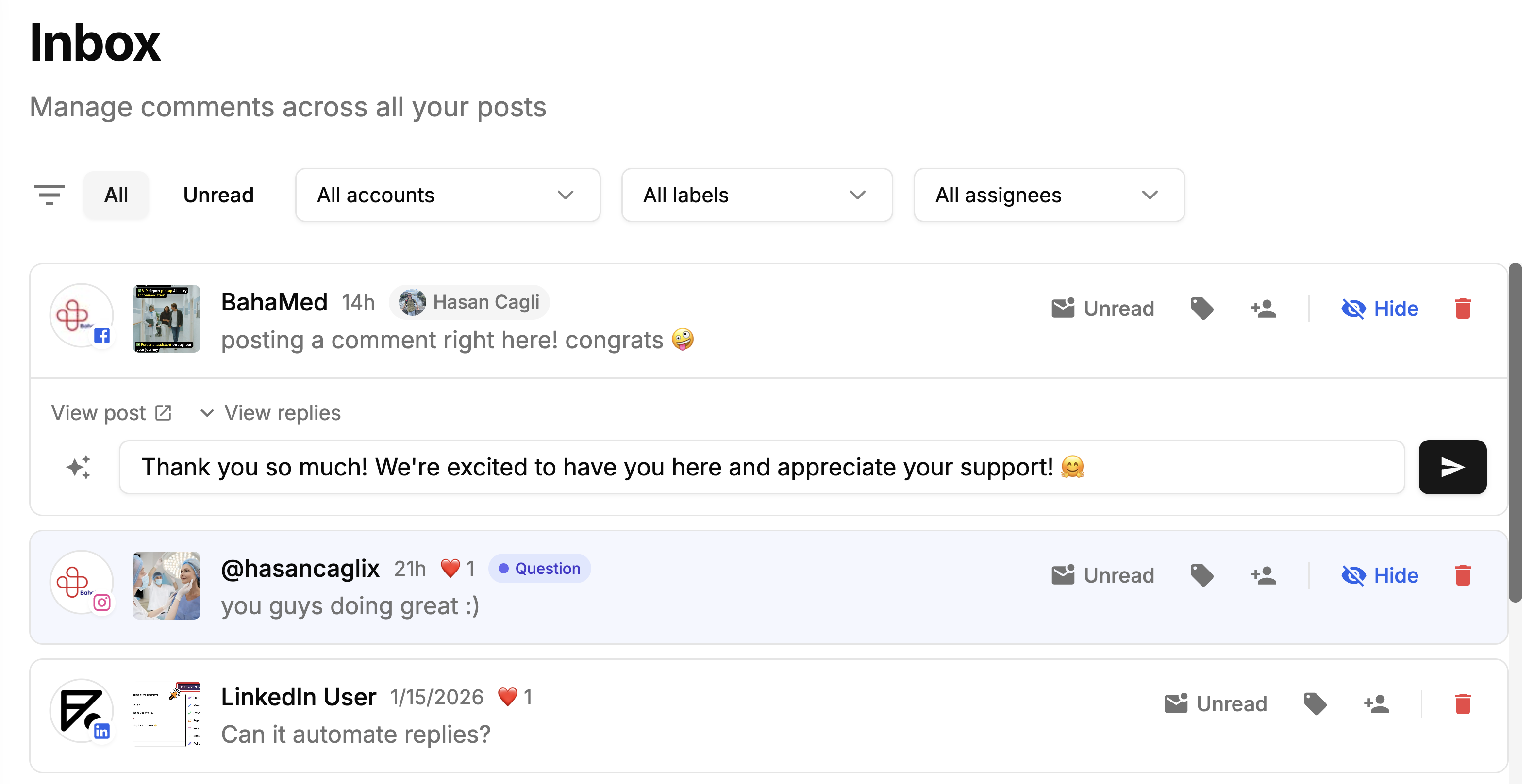
With a unified inbox, you can filter comments by platform, label them (e.g., "Question," "Complaint," "Sales Lead"), mark them as read/unread, and assign them to specific teammates — all without leaving one screen. It's the difference between managing comments reactively across five browser tabs and handling everything proactively from a single command center.
How to Pin, Rank, and Control Comment Visibility
Beyond filtering out bad comments, you can actively shape what your audience sees first. Facebook gives you tools to highlight valuable conversations and control the order comments appear in.
Pinning a Comment to the Top
Pinning is one of the most underused features on Facebook Pages. When you pin a comment, it stays at the top of the thread regardless of other activity. This is powerful for several reasons:
- Highlight an FAQ answer: If people keep asking the same question, pin your answer so it's the first thing everyone sees.
- Showcase social proof: Pin a glowing customer review or testimonial to the top.
- Add context to a post: Pin a follow-up comment with a link, correction, or additional details.
How to pin: Click the three dots next to any comment on your post and select "Pin comment." Only one comment can be pinned per post at a time.
Understanding Facebook Comment Ranking
Facebook doesn't show comments in chronological order by default. Instead, it uses comment ranking to surface what it considers the most relevant comments first. This is automatically enabled for all Pages.
Comment ranking considers factors like:
- Engagement on the comment (reactions, replies)
- Whether the comment is from a friend of the viewer
- Comment quality signals (length, media attachments)
You can toggle comment ranking off in your Page settings under Settings > General > Comment Ranking, but for most Pages, leaving it on is the better choice — it naturally buries low-quality comments and surfaces meaningful conversations.
For a deeper look at managing your Facebook Page's visibility and reach, check out our guide on how to schedule Facebook posts to pair your comment strategy with consistent content delivery.
How to Build a Comment Response Workflow That Actually Works
If your approach to Facebook comments is "react as notifications pop up," you don't have a strategy—you have a recipe for chaos. A disorganized system leads to team burnout, missed sales, and an inconsistent brand voice. To get a handle on your comments, you need a structured, scalable workflow.
The Problem: A Reactive Approach is Inefficient and Risky
Without a clear process, urgent customer issues get buried under simple "nice post!" comments. Potential sales leads go cold because their questions aren't answered quickly. Valuable product feedback disappears into the ether. Your team ends up duplicating efforts by replying to the same comment, while other comments are missed entirely.
Actionable Fix: A Structured 3-Step Workflow
Follow this process to bring order to your comment management, ensuring every interaction is handled efficiently and on-brand.
1. Create a Triage System
Not all comments are created equal. A "Great post!" doesn't have the same urgency as a question about a faulty product. A triage system helps your team instantly spot what's important and prioritize accordingly.
- Step 1: Define Categories. Group comments into buckets that make sense for your business. Most brands use a setup like this:
- Urgent Customer Support: Order problems, service outages, anything needing an immediate fix.
- Sales Inquiries: Questions about pricing, features, or stock that signal purchase intent.
- General Questions: Non-urgent queries about your brand or content.
- Positive Feedback & UGC: Praise and user-shared content.
- Negative Feedback: Complaints requiring an empathetic response.
- Step 2: Set Response Time Goals. Assign a priority level to each category. For example, Urgent Support gets a one-hour response time, while Positive Feedback can be addressed within the day. This ensures critical conversations jump to the front of the line.
2. Use Labels and Saved Replies to Work Smarter
An efficient workflow is an organized one. Use labels (or tags) to categorize each comment. This helps you spot trends. Seeing a sudden spike in questions about shipping times? That's priceless feedback for your operations team.
For questions you get over and over, Saved Replies (canned responses) are a massive time-saver. These are pre-written, brand-approved templates that let your team answer common questions in seconds.
- Step 1: In Meta Business Suite, go to your Inbox.
- Step 2: Click the Automations button and look for "Saved replies."
- Step 3: Create replies for your most frequently asked questions (e.g., store hours, return policy, shipping costs).
Pro-Tip: Saved replies shouldn't feel robotic. Always personalize the first line by using the commenter's name. A small touch like, "Hey, Jane! Great question..." makes the interaction feel human. A tool like PostPlanify's social inbox allows you to create and organize a library of these replies for your whole team to use across all social platforms.
3. Define Roles and Responsibilities
A free-for-all approach is a disaster. You either get multiple people replying to the same comment or, worse, comments getting missed because everyone thought someone else was handling it.
Define clear roles to stop the confusion:
- First Responders: This person (or team) handles the initial triage. They label comments and use saved replies for easy questions.
- Specialists: Complex issues are routed to the right experts. A technical question goes to a product specialist; a sales lead goes to the sales team.
- Community Managers: These are your conversation experts. They handle nuanced discussions, engage with positive feedback, and manage negative comments that need a delicate, personal touch.
With the sheer volume of comments on social media, this structure is essential. According to Meta's quarterly reports, Facebook has over 3 billion monthly active users across millions of business Pages. Centralizing this process is key. If your team is jumping between different native apps, it's easy to lose track. A unified platform is critical to manage multiple social media accounts effectively.
PostPlanifyAll your social media in one simple dashboard
Schedule posts, track analytics, and reply to comments/DMs without switching tabs.
Engagement
+18%
Views
52.8k
Managing Comments on Facebook Ads
Comment moderation on organic posts is one thing—but Facebook Ads introduce a whole new challenge. Your ads are being shown to a much broader, often cold audience. That means more spam, more irrelevant comments, and more potential for negative feedback that directly impacts your ad performance.
Why Ad Comments Deserve Special Attention
Unlike organic posts, negative comments on ads can actively hurt your ROAS (Return on Ad Spend). When a potential customer sees complaints, unanswered questions, or spam under your ad, it erodes trust before they even click. Facebook's algorithm also factors engagement quality into ad delivery, so a poorly managed comment section can increase your cost-per-click.
How to Monitor Ad Comments
- Meta Business Suite Inbox: Go to your Inbox, select the Ads tab, and filter by campaign. This shows all comments across your active ads in one place.
- Ads Manager: Open Ads Manager, find your ad, and click to view comments directly. This is useful for checking individual ad performance.
- Third-party tools: A unified social inbox (like PostPlanify's) can pull in ad comments alongside organic comments, so your team handles everything from one dashboard.
Best Practices for Ad Comment Management
- Reply to product questions fast: These are high-intent prospects. A quick, helpful answer can directly drive conversions.
- Hide (don't delete) negative comments: Deleting comments on ads is especially risky—users notice and may screenshot before commenting again more aggressively.
- Pre-write FAQ replies: For product ads, prepare answers to common objections (pricing, shipping, returns) so your team can respond in seconds.
Using Automation and AI to Manage Comments at Scale
When your page grows, that manageable trickle of comments can quickly turn into a firehose. Manually replying to everyone, hiding spam, and answering the same questions over and over becomes a full-time job. This is where you either hire a huge team or work smarter with automation and AI.
The Problem: Manual Management Doesn't Scale
At a certain volume, manual comment management is impossible. Your team can't keep up. Response times skyrocket, customer frustration grows, and your team burns out from the repetitive, often negative, nature of the work. You start missing opportunities and your brand's reputation for responsiveness suffers.
Actionable Fix: Leveraging AI and Automation Rules
This isn't about replacing your community managers with bots. It's about getting the tedious, repetitive work off their plate so they can focus on what really matters: building genuine relationships.
1. Use AI to Draft Faster, More Empathetic Replies
Imagine a customer leaves a long, frustrated comment about a shipping delay. Normally, your team has to read it, analyze the mood, and craft a perfect, on-brand response from scratch. This takes time and emotional energy.
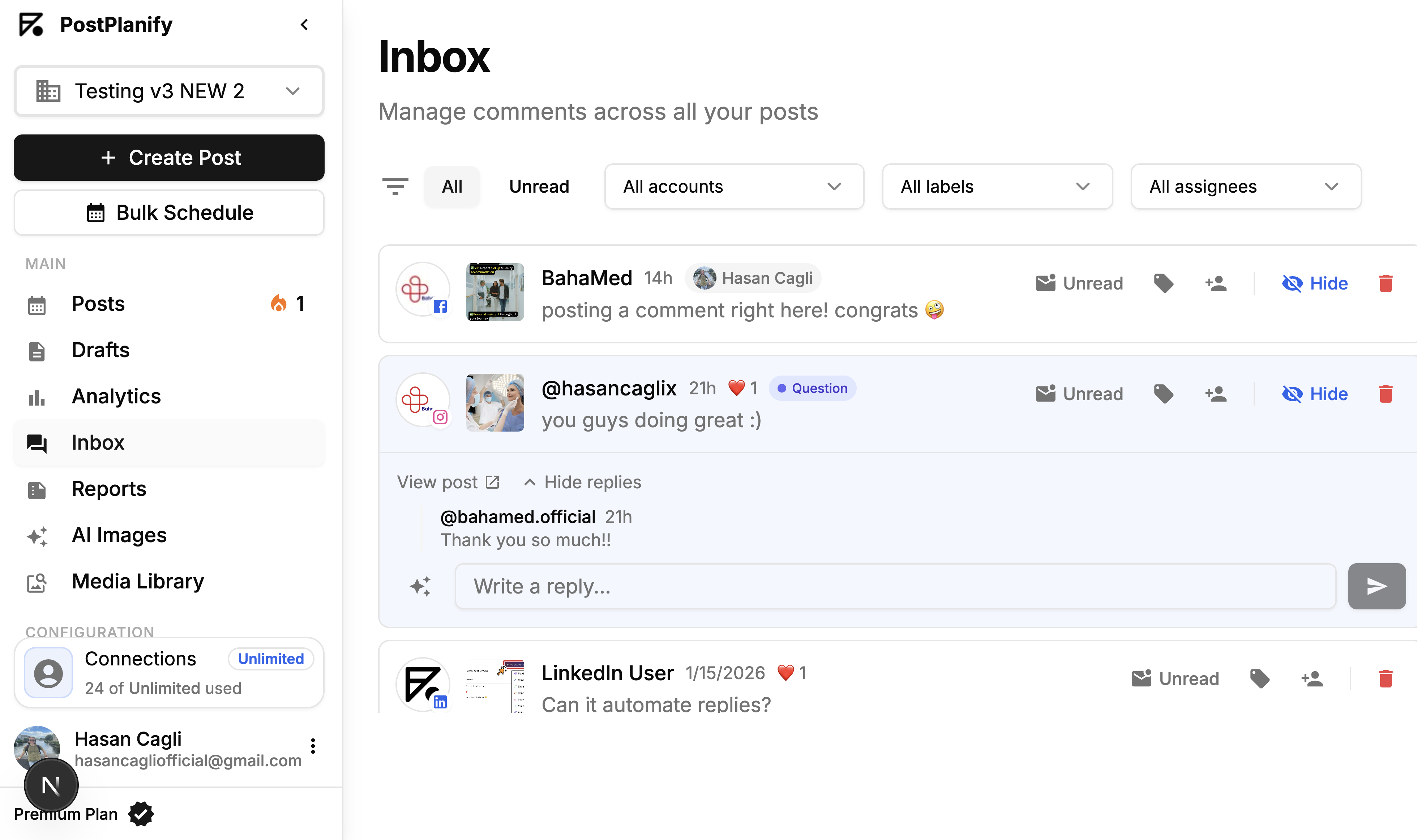
An AI assistant changes the game. AI-powered tools can instantly analyze a comment's sentiment (is the person angry, happy, or curious?) and its intent (are they asking a question or lodging a complaint?). Based on that, the AI drafts a suggested reply.
For that frustrated shipping comment, an AI might suggest: "I'm so sorry to hear about the delay with your order. That's definitely not the experience we want for you. Could you please send us a DM with your order number so we can look into this immediately?"
Your community manager's job then becomes editing and personalizing that draft. This cuts the time spent on each comment from minutes down to seconds. This approach is at the heart of PostPlanify's social inbox, where the AI assistant works alongside your team to draft faster, more consistent responses.
Manual vs AI-Assisted Comment Management
| Aspect | Manual Management | AI-Assisted Management (with PostPlanify) |
|---|---|---|
| Response Time | Minutes to hours, often inconsistent. | Seconds to draft, minutes to finalize and send. 80% faster. |
| Cost | High. Requires more staff hours to cover all comments. | Lower. Existing staff can handle 5x more volume. |
| Consistency | Varies by team member and their workload/mood. | Highly consistent tone and messaging, based on pre-set brand voice. |
| Spam/Troll Handling | Reactive and manual. Team members must find and hide spam. | Proactive and automatic. Rules instantly hide spam before most see it. |
| Team Burnout | High. Repetitive, negative comments lead to fatigue. | Low. AI handles the mundane tasks, freeing up humans for creative work. |
| After-Hours Coverage | Limited or non-existent, leading to long wait times. | Basic issues are handled 24/7 with auto-replies and routing. |
2. Create Automation Rules for Common Scenarios
Beyond drafting replies, you can set up powerful automation rules that act as an intelligent filter for your comments section.
Here are a few practical examples you can set up in a tool like PostPlanify:
- Automatic Spam Hiding: Create a rule to instantly hide any comment that contains specific spam triggers like "free crypto," "DM me for a reading," or shady-looking links. This cleans up your feed before your team even sees the junk.
- Keyword-Based Private Replies: If a comment on Facebook or Instagram includes words like "refund," "broken," or "return," set up an automation to instantly send a private message asking for their order details. This moves sensitive support conversations out of the public eye.
- Tagging and Assigning: Automations can also tag incoming comments based on keywords. If a comment mentions "price" or "buy," it can be automatically tagged as a "Sales Lead" and assigned to the right person on your team for immediate follow-up.
3. Uphold the Ethical Guardrails of AI
Crucial Limitation: AI should assist, not replace. A fully automated, robotic reply can destroy trust. Your audience wants to feel heard by a person, not processed by a machine.
The goal is efficiency with empathy. Use AI for:
- Drafting first-pass replies for your team to personalize.
- Filtering out obvious spam and hate speech.
- Categorizing and routing comments to the right human expert.
By letting automation handle high-volume, low-value tasks, you free up your community managers for meaningful conversations. For more options, our guide on the best AI social media management tools provides a great overview of the 2026 landscape.
PostPlanifyAll your social media in one simple dashboard
Schedule posts, track analytics, and reply to comments/DMs without switching tabs.
Engagement
+18%
Views
52.8k
Analyzing Comment Data to Inform Your Strategy
Your Facebook comment section is a direct, unfiltered focus group. It's not just a place for likes; it's a goldmine of audience intelligence. When you stop just counting comments and start listening to them, you can turn raw feedback into a real strategic advantage.

The Problem: Ignoring Feedback is Guessing at Your Strategy
If you're not analyzing your comments, you're essentially flying blind. You're guessing what content your audience wants, what product features they need, and what problems they're facing. A dozen comments about a confusing feature aren't noise—they're a direct signal to your product team that the UI or marketing missed the mark. Ignoring that is like hitting snooze on an alarm bell.
Actionable Fix: A System for Tracking and Analysis
To find real insights, you need to look at both the numbers (quantitative) and the meaning (qualitative).
1. Track Key Comment Metrics
- Quantitative Metrics:
- Comment Volume Per Post: Which content formats or topics get people talking?
- Average Response Time: How fast is your team replying? This is a key customer service metric.
- Comments by Time of Day/Day of Week: When is your audience most active? This should inform your posting schedule.
- Qualitative Metrics:
- Comment Sentiment: Are comments mostly positive, negative, or neutral? A sudden sentiment shift after a campaign launch is a critical insight.
- Recurring Themes & Keywords: Are people constantly mentioning a specific product, a common problem, or a competitor?
- Unsolicited Product Feedback: What features are they asking for? What bugs are they finding?
The goal is to go from "We got 100 comments" to "We got 35 comments about shipping confusion, which points to a problem on our checkout page." One is a vanity metric; the other is actionable intelligence.
2. Turn Qualitative Feedback into Actionable Data
The biggest challenge with analyzing comments on Facebook is that they're unstructured text. This is where a tagging system becomes essential. A unified inbox, like the one in PostPlanify, lets you apply labels to every comment.
Create a tagging system that aligns with your business goals:
[Product-Feedback][Shipping-Issue][Positive-Review][Sales-Lead][Confusing-Ad]
Once you tag comments consistently, you can run reports that turn messy feedback into hard numbers. You can clearly see that [Shipping-Issue] tags spiked by 40% last month, giving you solid data to take to your operations team. Understanding how to use AI document analysis can supercharge this process, helping you spot trends in thousands of comments almost instantly.
3. Use Comment Analysis to Refine Your Content Strategy
The insights you pull from your comments should directly feed back into your content plan, creating a powerful feedback loop.
- Scenario: You see comments asking how your product compares to a competitor.
- Action: Create a post—a video or a graphic—that tackles that comparison head-on. You're showing you listen and giving valuable info to customers close to making a decision.
- Scenario: A post about a niche feature gets a surprising amount of positive comments.
- Action: That's a signal your audience wants more. Double down. Create a "deep dive" tutorial, feature a customer who loves it, or share a behind-the-scenes on why you built it.
When you systematically analyze comments, you stop guessing what your audience wants. For a deeper look at turning insights into reports, check our guide on social media analytics and reporting. And if you want to understand how comment engagement ties into broader performance, our social media engagement rate calculator guide breaks down the math.
Facebook Comment Types: Text, GIFs, Images, and More
Facebook comments aren't just text anymore. Users can respond with GIFs, images, videos, stickers, and voice clips. Understanding the different comment types helps you moderate more effectively and engage more creatively.
- Text comments: The standard. Range from one-word reactions to detailed feedback.
- GIF comments: Often used for humor or quick reactions. Generally harmless, but watch for inappropriate GIFs in professional contexts.
- Image comments: Users can attach photos — great for UGC (showing your product in use) but also used by spammers to bypass text-based keyword filters.
- Video comments: Less common but impactful. Customers sometimes post video reviews or demonstrations.
- Stickers: Lightweight reactions, similar to emoji but larger and more visual.
Moderation tip: Image and video comments can bypass your text-based keyword blocklist. In Moderation Assist, enable the option to auto-hide comments containing images or links if spam through visual media is a recurring problem on your Page.
Troubleshooting & FAQs
Even with the best strategy, tricky situations will arise. Here are direct answers to the most common questions about managing Facebook comments.
How Can I Deal with Negative Comments Without Hurting My Page?
The secret isn't avoiding negativity—it's having a process. For pure spam, use Facebook's moderation tools to set up a blocklist that automatically hides most of it.
For genuine negative feedback:
- Respond Quickly and Publicly: Acknowledge the person's frustration to show everyone you care.
- Take It Private: Always offer to resolve the issue via Direct Message. A simple, "I'm so sorry to hear about your experience. Could you please send us a DM with your order number? We want to make this right," moves the sensitive chat out of the spotlight and proves your accountability.
- Don't Delete: Deleting legitimate criticism almost always backfires. It looks like censorship and users often return angrier. Reserve deletion for hate speech or clear violations of Facebook's rules.
Is It Better to Hide or Delete a Problematic Comment?
Hide. Hiding is almost always the better choice. It's the most effective—and underused—moderation tool Facebook provides.
When you hide a comment, it vanishes for the public but stays visible to the poster and their friends. This is a brilliant de-escalation move. The commenter doesn't know they've been moderated, so you avoid the "You censored me!" drama.
Deleting zaps the comment completely. It's a loud action that often escalates the problem. Reserve the delete button for severe violations like hate speech, threats, or explicit content.
How Can I Encourage More Meaningful Comments?
If you want more than just "Nice!" you have to invite a real conversation.
- Ask Open-Ended Questions: Instead of "Do you like our new feature?" try "What's the one thing you're most excited to try with our new feature?"
- Use Interactive Content: Polls, quizzes, and "fill-in-the-blank" posts are low-effort for your audience and naturally get people typing.
- Run a Contest: A simple "Comment with your favorite emoji to enter!" can explode your comment count and send a powerful engagement signal to the algorithm.
- Reply to Existing Comments: When people see you're actually talking to others, it shows their input matters and encourages more people to join in.
- Feature User Comments: Highlight a great comment in your Stories (and tag the user!). This is amazing social proof.
For more proven tactics, our guide on how to create engaging social media content dives deep into content formats that naturally drive comments and conversations.
What Is the Ideal Response Time for a Comment?
It depends on the comment type.
- Within 1 Hour: For urgent issues like customer complaints, order problems, or pre-sale questions. Speed is critical for your brand's reputation.
- Within a Few Hours: For general questions or positive comments. Quick replies boost engagement, which the Facebook algorithm loves.
If you don't have the full answer, don't stay silent. A quick acknowledgment like, "Great question! We're checking on this and will be right back with an answer," shows you're on the ball.
How Do I Pin a Comment on Facebook?
To pin a comment on your Page's post, click the three dots (...) next to the comment you want to pin and select "Pin comment." The pinned comment will appear at the top of the comment thread with a small "Pinned" label. You can only pin one comment per post. To unpin, click the three dots again and select "Unpin comment." Pinning is a great way to highlight FAQs, positive reviews, or important announcements.
How Do I Turn Off Comments on a Facebook Post?
When creating or editing a post, click the three-dot menu in the post composer and select "Who can comment on your post?" You can restrict commenting to specific groups or turn comments off entirely. Note: you can only change this setting on new posts or posts you haven't published yet. For already-published posts, you cannot disable comments retroactively, but you can hide individual comments or use Moderation Assist to auto-hide most incoming comments.
How Does Facebook Comment Ranking Work?
Facebook uses comment ranking to display the most relevant comments first, rather than showing them in chronological order. This is enabled by default for all Pages. The algorithm considers factors like the number of reactions and replies a comment receives, whether the commenter is friends with the viewer, and overall comment quality. You can disable comment ranking in your Page settings under Settings > General > Comment Ranking, though most Pages benefit from leaving it on.
Can Someone Tell If I Hid Their Comment on Facebook?
No. When you hide a comment, the original commenter and their friends can still see it, but it's invisible to everyone else. Facebook does not notify the commenter that their comment was hidden. This makes hiding a much safer moderation tool than deleting, because the commenter is unlikely to escalate or re-post. It's the recommended approach for handling trolls, off-topic rants, and mildly negative comments that don't violate community standards.
How Do I Manage Comments Across Multiple Facebook Pages?
If you manage more than one Page, jumping between them to moderate comments is a time sink. Meta Business Suite lets you switch between Pages, but it's still one-at-a-time. A dedicated social media management tool with a unified inbox — like PostPlanify — lets you see and respond to comments from all your Facebook Pages (plus Instagram, LinkedIn, and more) in a single feed. This is especially valuable for agencies and brands with multiple locations. For a broader look at this challenge, see our guide on how to manage multiple social media accounts.
Do Facebook Comments Affect My Page's SEO?
Indirectly, yes. While Facebook comments themselves aren't indexed by Google in the traditional sense, a highly engaged post is more likely to be shared, linked to, and embedded — all of which create external signals that can boost your broader web presence. More importantly, comments drive algorithmic reach within Facebook, which increases impressions and brand awareness. Pairing great comment management with solid social media best practices creates a compounding effect on your visibility.
Final Checklist for Mastering Your Facebook Comments
- Set Up Your Defenses: Activate the Profanity Filter and build a custom keyword blocklist in Moderation Assist.
- Establish a Workflow: Create a triage system, define team roles, and use saved replies for efficiency.
- Leverage AI for Scale: Use AI to draft replies, identify sentiment, and automate routing, but always keep a human in the loop for personalization.
- Listen and Analyze: Systematically tag comments to identify trends in sentiment, feedback, and customer issues.
- Close the Loop: Use the insights from your comment analysis to inform and improve your content strategy.
- Prioritize Hiding Over Deleting: Use the hide function for trolls and negative rants to de-escalate without censorship.
- Pin Key Comments: Use pinned comments to highlight FAQs, social proof, or important context.
- Monitor Ad Comments Separately: Treat ad comment moderation as a distinct workflow with faster response times.
Ready to take control of your comments and win back hours every week? PostPlanify's unified social inbox puts all your Facebook, Instagram, and other platform conversations in one place. You can assign comments to teammates, use AI to draft replies in your brand voice, and make sure no customer ever gets ignored. Start your free 7-day trial and feel the difference.
Key Takeaways
- Comments on Facebook are a direct signal to the algorithm — a lively, two-way conversation boosts organic reach, while unanswered comments tell Facebook your content isn't worth showing
- Use Moderation Assist (profanity filter + custom keyword blocklist + profile-based rules) to build an automated first line of defense against spam and trolls
- Hiding is almost always better than deleting — the commenter doesn't know they've been moderated, which prevents escalation and "censorship" backlash
- Build a structured triage workflow with defined categories, response time goals, saved replies, and clear team roles to handle comments efficiently at scale
- AI-assisted comment management can cut response times by up to 80% — use AI to draft replies and filter spam, but always keep a human in the loop for personalization
- Pin important comments to the top of your threads to highlight FAQs, positive reviews, or critical context for your audience
- Systematically tag and analyze comments to turn unstructured feedback into actionable data that informs your content strategy and product decisions
- Ad comments need separate attention — negative or unanswered comments on ads directly hurt ROAS and ad delivery performance
Related Reading
- Social Media Community Management: Full Guide
- How to Improve Social Media Engagement
- How to Create Engaging Social Media Content
- Best Practices for Social Media
- How to Schedule Facebook Posts
- Best Time to Post on Facebook
- Why Can't I Post on Facebook?
- Social Media Analytics and Reporting
- Social Media Engagement Rate Calculator Guide
- Best AI Social Media Management Tools
- How to Manage Multiple Social Media Accounts
- Save Time on Social Media Management
- Best Social Media Scheduling Tools
- Best Social Media Management Tools for Teams
PostPlanifyAll your social media in one simple dashboard
Schedule posts, track analytics, and reply to comments/DMs without switching tabs.
Engagement
+18%
Views
52.8k
About the Author

Hasan Cagli
Founder of PostPlanify, a content and social media scheduling platform. He focuses on building systems that help businesses, agencies, and teams plan, publish, and manage content and social media more efficiently across platforms.


