


You scheduled LinkedIn posts for the week — thought leadership, company updates, carousel breakdowns. But now you're staring at your LinkedIn feed and can't find any of them. Did they actually schedule? Are they sitting somewhere you haven't checked?
Unlike TikTok where the scheduling system is desktop-only with no editing, LinkedIn's native scheduler is more flexible. You can schedule and view posts from both desktop and mobile, and you can even edit personal profile posts after scheduling. The catch? Your scheduled posts only live in the tool you used to create them.
Your scheduled posts are in one of these places:
- LinkedIn's native scheduler — if you scheduled directly through LinkedIn's post composer.
- Your third-party scheduling tool — if you used a tool like PostPlanify to schedule.
- Your tool's draft or failed queue — if the post was saved as a draft, sent for approval, or failed silently due to an expired token.
They don't sync between tools. A post scheduled natively on LinkedIn won't appear in your third-party tool, and vice versa.
Quick Answer: How to View Scheduled LinkedIn Posts
To see scheduled posts on LinkedIn, follow the method that matches how you scheduled:
- LinkedIn (Desktop) — Click Start a post → click the clock icon → click View all scheduled posts.
- LinkedIn (Mobile) — Tap Post in the navigation bar → tap the clock icon → tap View all.
- Third-party tool — Log in to your scheduling tool (e.g., PostPlanify) → open the content calendar.
Scheduled posts only appear in the tool that created them. LinkedIn's native scheduler and third-party tools do not share a queue.
Where Your Scheduled Posts Live: A Quick Breakdown
| Scheduling Method | Where to Find Scheduled Posts | Access From |
|---|---|---|
| LinkedIn Native | Post composer → clock icon → View all scheduled posts | Desktop + mobile |
| Third-Party Tool | Tool's content calendar or dashboard | Desktop + mobile |
| Failed/Draft Posts | Scheduling tool's failed queue or draft section | Depends on tool |
LinkedIn Scheduling Capabilities by Tool
| Feature | LinkedIn Native | PostPlanify |
|---|---|---|
| Cost | Free | Paid (free trial available) |
| Schedule window | 90 days ahead | Unlimited |
| View from mobile | Yes | Yes |
| Text posts | Yes | Yes |
| Image posts | Yes | Yes |
| Video posts | Yes | Yes |
| PDF/document carousels | Yes | Yes |
| Multi-image carousels | Yes | Yes (via API) |
| Polls | No (manual only) | No (LinkedIn limitation) |
| Articles/newsletters | No (manual only) | No (LinkedIn limitation) |
| Edit after scheduling (personal) | Yes | Yes |
| Edit after scheduling (Page) | Reschedule only (no content edit) | Yes |
| Failure notifications | No | In-app + email |
| Multi-platform scheduling | No (LinkedIn only) | 10 platforms |
| Bulk scheduling | No | Yes |
| Calendar view | List only | Daily / weekly / monthly |
| Team collaboration | No | Yes (approval workflows) |
| Analytics | Basic LinkedIn Insights | Cross-platform analytics |
 PostPlanify
All your social media in one simple dashboard
Schedule posts, track analytics, and reply to comments/DMs without switching tabs.

Engagement
+18%
Views
52.8k
Why Can't I Find My Scheduled LinkedIn Posts? Common Causes
If you've looked everywhere and your scheduled content is missing, it's almost always one of these:
- You're looking in the wrong tool. A post scheduled natively on LinkedIn won't appear in PostPlanify, and vice versa. Go back to the exact tool you used.
- Your OAuth token expired. This is the #1 cause of silent failures on LinkedIn. LinkedIn tokens expire every 60 days. When they expire, your third-party tool can no longer see or publish your scheduled content — and most tools don't warn you proactively. The post sits in your tool as "Scheduled" but never publishes.
- You saved it as a draft instead of scheduling it. If you used a third-party tool with approval workflows, you may have sent the post "to your inbox" or "for review" rather than scheduling it directly. It's sitting in your tool's draft or pending approval queue — it was never actually scheduled. Check your tool's Drafts, Inbox, or Pending Approval section.
- You don't have the right permissions. For Company Pages, you need Super Admin access to schedule through third-party tools. Without it, the tool can't publish on your behalf and posts fail silently.
- The post already published. LinkedIn removes the scheduled placeholder once a post goes live. If you can't find it in your scheduled queue, check your published posts — it may have already gone out.
- You're scheduling an unsupported post type. Polls, events, and articles/newsletters cannot be scheduled on LinkedIn — not natively, not through any tool. The schedule button simply won't appear for these post types.
Method 1: Finding Scheduled Posts on LinkedIn (Native)
LinkedIn's built-in scheduler lets you view your queued posts from both desktop and mobile. Unlike TikTok (desktop-only), LinkedIn gives you full access from your phone.
On Desktop
- Go to linkedin.com and log in
- Click Start a post at the top of your feed
- In the post composer, click the clock icon (bottom-right area)
- In the schedule pop-up, click View all scheduled posts (bottom-left corner)
- All your queued posts appear in a list with their scheduled dates and times
Alternative path: If you've scheduled posts before, LinkedIn may show a Scheduled posts link in your feed's left sidebar under your profile card.
On Mobile
- Open the LinkedIn app on your phone
- Tap Post in the bottom navigation bar
- Tap the clock icon in the post composer
- Tap View all in the schedule pop-up
- Your scheduled posts appear in a scrollable list
What You Can Do with Scheduled LinkedIn Posts
LinkedIn has improved its native editing capabilities. However, there's an important distinction between personal profiles and Company Pages:
Personal profiles:
- View details — See the full post content, media, and scheduled time
- Edit content — Change the caption, hashtags, and media before it publishes
- Reschedule — Click the three-dot menu → Modify schedule → pick a new date and time
- Delete — Remove the post from your queue entirely
Company Pages:
- View details — See the full post content, media, and scheduled time
- Reschedule — Change the publish date and time
- Delete — Remove the post from your queue
- Cannot edit content — You cannot modify the text, images, or other content of a scheduled Company Page post. To change the content, you must delete and recreate the post.
| Edit Capability | Personal Profile | Company Page |
|---|---|---|
| Edit caption/text | ✅ Yes | ❌ Delete and redo |
| Edit media | ✅ Yes | ❌ Delete and redo |
| Change scheduled time | ✅ Yes | ✅ Yes |
| Delete scheduled post | ✅ Yes | ✅ Yes |
LinkedIn Scheduling Limits
- Scheduling window: Up to 90 days (3 months) ahead
- Minimum lead time: At least 10 minutes in the future
- Supported content: Text, images, videos, PDF/document carousels, multi-image carousels, link previews
- Not supported: Polls, events, articles/newsletters, Group posts
- Bulk scheduling: Not available — one post at a time
Related: How to Schedule LinkedIn Posts | Best LinkedIn Scheduling Tools
Method 2: Using a Third-Party Tool for a Unified View
LinkedIn's native scheduler works well for basics, but it has gaps: no bulk scheduling, no cross-platform view, limited analytics, no team approval workflows, and no failure notifications.
Problem: You manage LinkedIn alongside Instagram, TikTok, Facebook, and other platforms, and switching between each platform's scheduler is time-consuming.
Fix: Use a scheduling tool with a unified content calendar that shows all your platforms in one view.

Why a Unified Calendar Works Better
- Cross-platform view — See your LinkedIn, Instagram, TikTok, Facebook, YouTube, and other schedules in one calendar
- Edit Company Page posts — Unlike LinkedIn's native scheduler (which doesn't allow editing Company Page posts), third-party tools let you edit everything before publish
- Failure notifications — Get alerted immediately when a LinkedIn post fails instead of discovering it hours later. This is critical given LinkedIn's 60-day token expiry
- Bulk scheduling — Upload and schedule multiple LinkedIn posts at once via CSV or batch upload
- Team workflows — Approval processes, role-based access, and collaboration tools for content teams
- Analytics — Track LinkedIn performance alongside your other platforms, with best time to post suggestions based on your actual audience data
- Media library — Store, organize, and reuse your images, PDFs, and videos in a centralized library instead of re-uploading every time
- Integrations — Connect Canva, Google Drive, and Unsplash directly into your scheduling workflow so your content pipeline stays in one place
- AI captions — Generate LinkedIn-optimized captions with a vision-powered AI assistant that understands your brand voice
Connecting LinkedIn to a Third-Party Tool
To connect LinkedIn to a scheduling tool, you need:
- Any LinkedIn account (personal profiles connect directly)
- For Company Pages: Super Admin role (not just Admin or Content Admin)
- To authorize the tool through LinkedIn's OAuth flow
- Re-authentication every 60 days (LinkedIn tokens expire — set a reminder at day 50)
Important: If you change your LinkedIn password, all connected third-party tools lose access immediately. You'll need to reconnect in every tool.
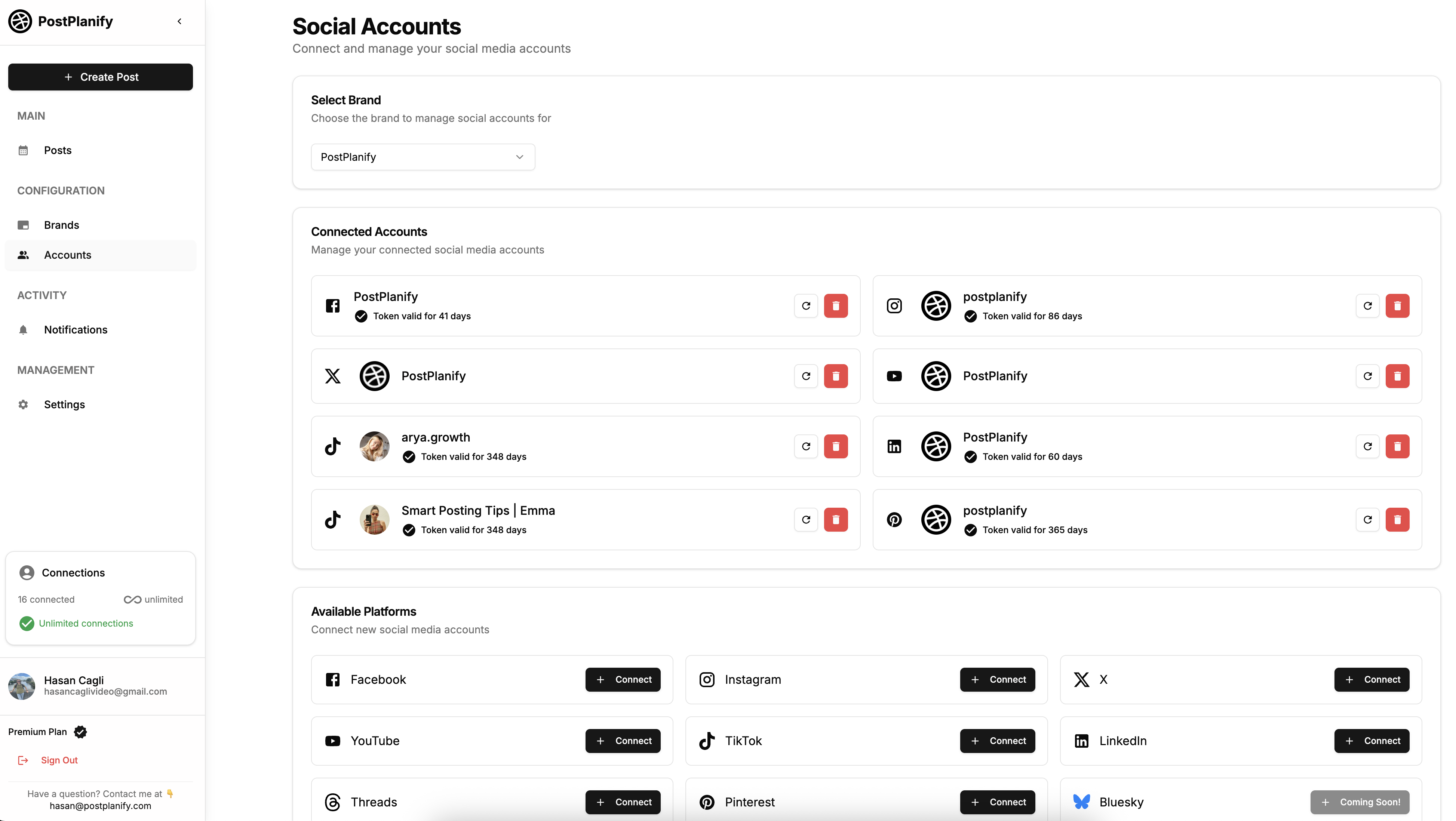
For a detailed comparison of LinkedIn scheduling tools, see our best LinkedIn scheduling tools guide.
Related: Best Apps to Post to All Social Media at Once | Social Media Cross-Posting Guide
PostPlanifyAll your social media in one simple dashboard
Schedule posts, track analytics, and reply to comments/DMs without switching tabs.
Engagement
+18%
Views
52.8k
Method 3: Checking for Failed or Draft Posts
LinkedIn scheduled posts can fail silently — no notification, no error message. The post just doesn't publish. This is especially common with third-party tools due to LinkedIn's 60-day token expiry.
Where to Check for Missing Posts
In your third-party tool:
- Log in to your scheduling tool
- Look for a Failed, Error, or Needs Attention section in the dashboard
- Check the Drafts or Pending Approval queue — your post may never have been scheduled in the first place
- If you use approval workflows, check whether the post is waiting for someone to approve it
On LinkedIn directly:
- Go to your profile or Company Page
- Check your Activity tab to see if the post actually published (you may have missed it)
- For Company Pages: click Admin tools → check Analytics → Content to see recent posts
Why LinkedIn Scheduled Posts Fail Silently
- Expired OAuth token — LinkedIn tokens expire every 60 days. This is the #1 cause of silent failures and is unique to LinkedIn (Meta refreshes tokens automatically)
- Missing Super Admin role — Company Page posts require Super Admin access. If your role was downgraded, posts fail without warning
- Character limit exceeded — Company Pages are capped at 700 characters (personal profiles allow 3,000). The post fails silently if you exceed the limit
- Media specs violated — Company Page videos are capped at 200MB (personal profiles allow 5GB). Images must be under 8MB
- Password changed — Changing your LinkedIn password invalidates all connected tool tokens immediately
- Duplicate content — LinkedIn flags identical or very similar posts sent to the same profile/page
- LinkedIn outage — Check Downdetector for real-time status
Pro tip: Set a recurring calendar reminder every 50 days to reconnect your LinkedIn account in your scheduling tools. This prevents the 60-day token expiry from catching you off guard. In PostPlanify, connection health indicators warn you before tokens expire.
For a complete troubleshooting guide with 10 step-by-step fixes, see LinkedIn scheduled posts not working.
Personal Profile vs Company Page vs LinkedIn Group
LinkedIn treats these three account types very differently when it comes to scheduling:
| Capability | Personal Profile | Company Page | LinkedIn Group |
|---|---|---|---|
| Native scheduling | ✅ Yes | ✅ Yes | ❌ No |
| Third-party scheduling | ✅ Yes | ✅ Yes (Super Admin required) | ❌ No |
| View scheduled posts | ✅ Via clock icon | ✅ Via clock icon | ❌ Not applicable |
| Edit scheduled content | ✅ Yes | ❌ Reschedule only | ❌ Not applicable |
| Character limit | 3,000 | 700 | N/A |
| Video file size | Up to 5GB | Up to 200MB | N/A |
| Image file size | Up to 8MB | Up to 8MB | N/A |
| PDF carousel | ✅ Yes (2-100 pages) | ✅ Yes (2-100 pages) | ❌ No |
| Multi-image carousel | ✅ Yes | ✅ Yes | ❌ No |
Key takeaways:
- LinkedIn Groups cannot be scheduled at all — not natively, not through any tool. You must post to Groups manually.
- Company Pages have stricter limits: 700-character cap (vs 3,000), 200MB video cap (vs 5GB), and no content editing after scheduling.
- Personal profiles have the most flexibility: higher limits, full editing, and no special permissions needed.
Best Times to Schedule LinkedIn Posts
LinkedIn is a professional platform, so engagement patterns follow business hours more closely than consumer platforms like TikTok or Instagram.
| Day | Peak Windows | Notes |
|---|---|---|
| Monday | 8-10 AM | Week starts slow; morning is best |
| Tuesday | 8 AM - 1 PM | Consistently strong — one of the best days |
| Wednesday | 8 AM - 1 PM | Mid-week peak; often the highest engagement |
| Thursday | 8 AM - 1 PM | Strong all day; good for thought leadership |
| Friday | 8-11 AM | Morning only — engagement drops after lunch |
| Saturday | Low engagement | Avoid unless targeting weekend readers |
| Sunday | Low engagement | Avoid for most content types |
These are general patterns. Check your LinkedIn Analytics (Profile → Analytics → Post impressions) for your specific audience data.
For a full breakdown by industry and content type, read our best time to post on social media guide.
Pro Tip: LinkedIn's algorithm weighs the first 60-90 minutes of engagement heavily. Comments matter more than likes — a post with 10 comments in the first hour typically outperforms one with 50 likes. If you schedule posts, set a reminder to engage with replies during that critical window. This applies whether you post from your personal profile or Company Page.
PostPlanifyAll your social media in one simple dashboard
Schedule posts, track analytics, and reply to comments/DMs without switching tabs.
Engagement
+18%
Views
52.8k
LinkedIn Scheduling FAQ
Can I see scheduled LinkedIn posts on my phone?
Yes. LinkedIn's native scheduler works on mobile. Tap Post in the navigation bar → tap the clock icon → tap View all to see your scheduled queue. You can also view, reschedule, and delete scheduled posts from the mobile app. Third-party tools with mobile apps (like PostPlanify) also let you manage your LinkedIn schedule from your phone.
How far in advance can I schedule LinkedIn posts?
LinkedIn's native scheduler allows up to 90 days (3 months) ahead. Third-party tools don't have this limitation — they hold your content on their servers and publish via LinkedIn's API at the scheduled time, so you can schedule months in advance.
Can I schedule LinkedIn polls, events, or articles?
No. LinkedIn does not support scheduling polls, events, or long-form articles (newsletters) — not natively, and not through any third-party tool. These post types must be published manually. You can schedule: text posts, image posts, video posts, PDF/document carousels, multi-image carousels, and link preview posts.
Why did my scheduled LinkedIn post not publish?
The most common cause is an expired OAuth token — LinkedIn tokens expire every 60 days. Other causes include: missing Super Admin permissions on Company Pages, media exceeding LinkedIn's limits (200MB video cap for Pages, 8MB images), character count over the limit (700 for Company Pages), or a LinkedIn platform outage. For step-by-step fixes, see LinkedIn scheduled posts not working.
Can I edit a scheduled LinkedIn post before it goes live?
It depends on the account type. For personal profiles, yes — you can edit the content, media, and scheduled time. For Company Pages, you can only reschedule or delete the post — you cannot edit the content after scheduling. Third-party tools let you edit both profile and Page posts before they publish.
Do scheduled LinkedIn posts get less reach than manual posts?
No. LinkedIn treats scheduled posts the same as manually published posts. The algorithm evaluates content based on relevance, engagement, and quality — not how it was posted. Scheduling can actually improve reach because you're more likely to post consistently and at optimal times.
Why do I need Super Admin access for Company Page scheduling?
LinkedIn's API requires Super Admin permissions to authorize third-party tools to publish on behalf of a Company Page. Regular Admin, Content Admin, and Analyst roles don't have sufficient API access. To check your role: go to your Company Page → Admin tools → Manage admins → verify your name shows Super Admin.
I scheduled a post but it didn't publish — could it be a draft?
Yes. If you used a third-party tool with team approval workflows, you may have sent the post "to your inbox" or "for review" rather than scheduling it directly. The post is sitting in your tool's draft or pending approval queue — it was never scheduled to publish. Log in to your scheduling tool and check the Drafts, Inbox, or Pending Approval section. Also check that you completed the final "Schedule" step in LinkedIn's native composer.
Can I schedule posts to LinkedIn Groups?
No. LinkedIn's API does not support posting to Groups. This applies to all third-party tools and LinkedIn's native scheduler. Group posts must be created manually within the Group.
How often do I need to reconnect LinkedIn in my scheduling tool?
Every 60 days at maximum, since that's when LinkedIn OAuth tokens expire. Set a calendar reminder at day 50 to reconnect proactively. If you change your LinkedIn password, all connected tools lose access immediately — reconnect in every tool after a password change.
What's the character limit for LinkedIn scheduled posts?
Personal profiles: 3,000 characters. Company Pages: 700 characters. LinkedIn counts everything — spaces, emojis, hashtags, and line breaks. The visible text truncates at roughly 210 characters with a "See more" link, but the limit applies to the full post. Posts that exceed the limit fail silently.
Can I bulk schedule LinkedIn posts?
Not through LinkedIn's native scheduler — you create and schedule one post at a time. Third-party tools like PostPlanify support bulk scheduling via CSV import or batch upload, letting you queue multiple LinkedIn posts in one session.
Checklist: How to Find Your Scheduled LinkedIn Posts
- Step 1: Identify which tool you used to schedule (LinkedIn native or a third-party tool)
- Step 2: Check LinkedIn — click Start a post → clock icon → View all scheduled posts
- Step 3: Check your third-party tool — log in and open the content calendar
- Step 4: Check for failed posts — look in your tool's failed, draft, or pending approval queue
- Step 5: If a post is missing, reconnect your LinkedIn account (tokens expire every 60 days), verify Super Admin access for Company Pages, and check if the post already published
Ready to manage your LinkedIn schedule alongside all your other platforms, get failure notifications before you miss a post, and never worry about token expiry again? PostPlanify's LinkedIn scheduler gives you cross-platform analytics, a centralized media library, AI-powered captions, and integrations with Canva and Google Drive — all in one calendar.
Related Reading
- How to See Scheduled Posts on Instagram — Same guide for Instagram
- How to See Scheduled Posts on Facebook — Same guide for Facebook
- How to See Scheduled Posts on TikTok — Same guide for TikTok
- How to Schedule LinkedIn Posts — Step-by-step scheduling guide
- Best LinkedIn Scheduling Tools — Top LinkedIn tools compared
- LinkedIn Scheduled Posts Not Working? 10 Quick Fixes — Troubleshooting when posts fail
- Best Time to Post on Social Media — Platform-by-platform timing
- Best Apps to Post to All Social Media at Once — Multi-platform tools
- Social Media Scheduling Tools — Complete scheduling guide
- How to Automate Social Media Posts — Automation strategies
PostPlanifyAll your social media in one simple dashboard
Schedule posts, track analytics, and reply to comments/DMs without switching tabs.
Engagement
+18%
Views
52.8k
About the Author

Hasan Cagli
Founder of PostPlanify, a content and social media scheduling platform. He focuses on building systems that help businesses, agencies, and teams plan, publish, and manage content and social media more efficiently across platforms.


