


You scheduled TikTok videos for the week. Captions written, hashtags researched, times picked. But now you can't find any of it. Did the posts actually schedule? Are they sitting in drafts? Did they vanish?
This happens constantly with TikTok, and the reason is more frustrating than other platforms: TikTok's scheduling system is desktop-only, has no mobile visibility, and doesn't send confirmations. Unlike Instagram or Facebook where you can check from your phone, TikTok makes you go back to your computer to see what's queued.
Your scheduled posts live in one of three places:
- TikTok Studio on desktop — if you scheduled natively through TikTok's website.
- Your third-party scheduling tool — if you used a tool like PostPlanify to schedule.
- Your Drafts folder — if a scheduled post failed silently (TikTok moves failed posts here without telling you).
They don't sync with each other, and TikTok doesn't send notifications when scheduled posts fail. The key is knowing where to look.
Quick Answer: How to View Scheduled TikTok Posts
To see scheduled posts on TikTok, follow the method that matches how you scheduled:
- TikTok Studio (Desktop) — Go to TikTok Studio → click Content → filter by Scheduled.
- Third-party tool — Log in to your scheduling tool (e.g., PostPlanify) → open the content calendar.
- Drafts folder — Open the TikTok app → go to your profile → check Drafts above your video grid (failed scheduled posts land here silently).
Scheduled posts only appear in the tool that created them. There is no mobile view for natively scheduled TikTok posts.
Where Your Scheduled Posts Live: A Quick Breakdown
| Scheduling Method | Where to Find Scheduled Posts | Access From |
|---|---|---|
| TikTok Studio / Desktop Upload | TikTok Studio → Content → Scheduled tab | Desktop only |
| Third-Party Tool | Tool's content calendar or dashboard | Desktop + mobile |
| Failed Posts | TikTok app → Profile → Drafts | Mobile app |
Important: TikTok does not have a mobile view for scheduled posts. If you scheduled natively through the desktop, you must go back to your computer to see what's queued. This is one of TikTok's biggest scheduling limitations compared to Instagram and Facebook.
TikTok Scheduling Capabilities by Tool
| Feature | TikTok Studio (Native) | PostPlanify |
|---|---|---|
| Cost | Free | Paid (free trial available) |
| Schedule window | 10 days ahead | Unlimited |
| View from mobile | No | Yes |
| Videos | Yes | Yes |
| Photo carousels | No | Yes (up to 35 images) |
| Edit after scheduling | No (must delete and redo) | Yes |
| Failure notifications | No | In-app + email |
| Multi-platform scheduling | No (TikTok only) | 10 platforms |
| Bulk scheduling | No | Yes |
| Calendar view | List only | Daily / weekly / monthly |
| Team collaboration | No | Yes (approval workflows) |
| Timezone handling | Uses computer timezone | Automatic conversion |
| Queue limit | ~50 posts | Unlimited |
 PostPlanify
All your social media in one simple dashboard
Schedule posts, track analytics, and reply to comments/DMs without switching tabs.

Engagement
+18%
Views
52.8k
Why Can't I Find My Scheduled TikTok Posts? Common Causes
If you've looked everywhere and your scheduled content is missing, it's almost always one of these:
- You're checking on mobile. TikTok's native scheduling is desktop-only. There is no way to view scheduled posts from the TikTok mobile app. You must go to TikTok Studio on a computer.
- The post failed and went to Drafts. When a scheduled post fails, TikTok doesn't send a notification. It silently moves the content to your Drafts folder. Check your profile on the TikTok app — Drafts appear above your video grid.
- You're looking in the wrong tool. A post scheduled in TikTok Studio won't appear in a third-party tool, and vice versa.
- Your scheduling window expired. TikTok's native scheduler only allows scheduling up to 10 days ahead. If you tried to schedule further out, the post may not have been saved.
- You have a personal account. Only Business and Creator accounts can schedule posts natively through TikTok Studio. Personal accounts don't have access to native scheduling features (though they can connect to third-party scheduling tools).
- You saved it as a draft instead of scheduling it. This is more common than you'd think. If you used a third-party tool and sent the post "to your inbox" or "as a draft for review" instead of scheduling it directly, it won't auto-publish. It's sitting in your tool's draft/inbox section waiting for you to approve and schedule it. Check your tool's drafts or pending approval queue.
- Timezone mismatch. TikTok's desktop scheduler uses your computer's timezone, not your account location. Your post may have already published at an unexpected time. Check your Published posts.
Method 1: Finding Scheduled Posts in TikTok Studio (Desktop)
TikTok Studio is the only native way to view your scheduled posts. It's a desktop-only interface — there is no mobile version.
Step-by-Step: How to View Your Schedule in TikTok Studio
- Open a browser on your computer and go to TikTok Studio
- Log in with your TikTok account
- Click Content in the left-hand menu
- At the top, you'll see tabs for different post statuses — click Scheduled
- All your queued posts appear in a list with their scheduled publish dates and times. Each scheduled video shows a clock icon ⏱️ and the scheduled date on its thumbnail — these are only visible to you until the post goes live
Alternative path: You can also go directly to tiktok.com → click your profile picture → select TikTok Studio from the dropdown → Content → Scheduled.
What You Can (and Can't) Do from TikTok Studio
Once you find your scheduled posts, your options are limited compared to other platforms:
- View details: See the caption, hashtags, scheduled time, and privacy settings
- Delete: Remove a scheduled post from the queue entirely
- Cannot edit: TikTok does not allow editing a scheduled post. You cannot change the caption, hashtags, thumbnail, or scheduled time after the post is created
- Cannot reschedule: To change the publish time, you must delete the scheduled post and re-upload the video with a new time
This is a major limitation. On Instagram, you can edit captions and reschedule directly. On Facebook, you can modify almost everything. TikTok's approach is all-or-nothing: keep it as-is or delete and start over.
TikTok Studio Queue Limits
TikTok Studio has a queue limit of approximately 50 scheduled posts at any time. If you hit this limit, new scheduling attempts will fail without a clear error message. Keep your queue manageable or use a third-party tool that doesn't have this restriction.
Related: How to Schedule TikTok Posts | Best Time to Post on TikTok
Method 2: Using a Third-Party Tool for a Unified View
TikTok's native scheduling has significant gaps: desktop-only, no editing, no mobile view, 10-day limit, no failure notifications. A third-party scheduling tool solves all of these.
Problem: You can't check your TikTok schedule from your phone, can't edit posts after scheduling, and don't get notified when posts fail.
Fix: Use a scheduling tool that gives you a unified content calendar accessible from any device.

Why a Unified Calendar Works Better for TikTok
- Mobile access — Check and manage your TikTok schedule from your phone, something native TikTok doesn't offer
- Edit after scheduling — Change captions, hashtags, and scheduled times without deleting and re-uploading
- Failure notifications — Get alerted immediately when a post fails instead of discovering it days later
- No 10-day limit — Schedule weeks or months ahead for long-term content planning
- Carousel scheduling — Schedule photo carousels (up to 35 images) that TikTok's native scheduler doesn't support
- Cross-platform view — See your TikTok, Instagram, Facebook, LinkedIn, and YouTube schedules in one calendar
- Analytics across platforms — Track TikTok performance alongside your other channels with cross-platform analytics, including best time to post suggestions based on your actual audience data
- Media library — Store, organize, and reuse your videos, images, and brand assets in a centralized media library instead of re-uploading from your device every time
- Custom integrations — Connect Canva, Google Drive, and other tools directly into your scheduling workflow so your content pipeline stays in one place
Third-Party Tool Requirements
To connect TikTok to a third-party scheduling tool, you need:
- Any TikTok account type — Personal, Creator, and Business accounts can all connect to third-party tools via TikTok's Content Publishing API
- To authorize the tool through TikTok's OAuth flow (re-authentication required periodically)
- An active internet connection on your device at the scheduled publish time is not required — the tool publishes server-side
Important: If your tool loses its API connection to TikTok, scheduled posts will fail. Most tools show a warning when re-authentication is needed.
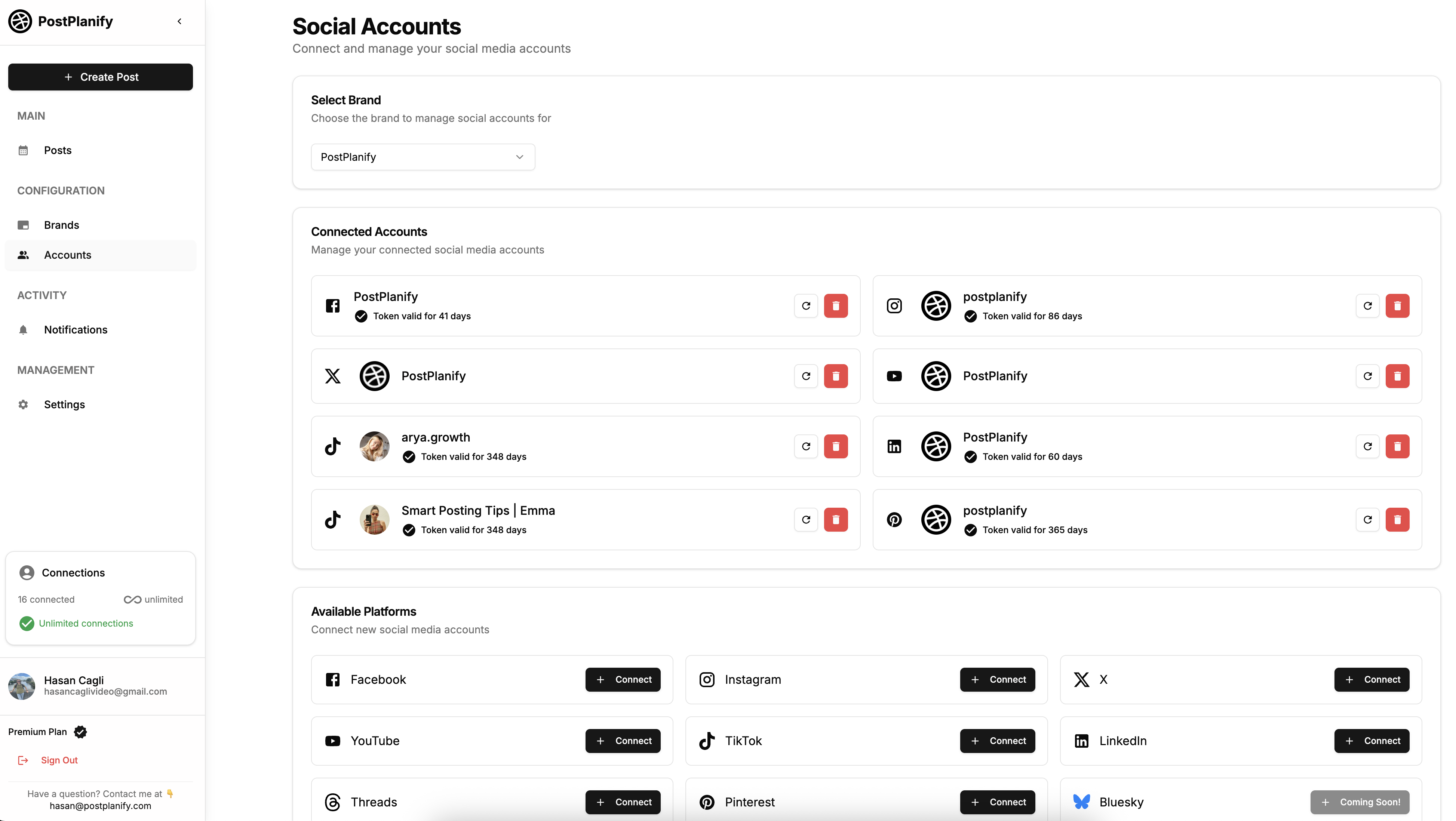
For a comparison of TikTok scheduling tools, see our best TikTok scheduling tools guide.
Related: Best Apps to Post to All Social Media at Once | Social Media Cross-Posting Guide
PostPlanifyAll your social media in one simple dashboard
Schedule posts, track analytics, and reply to comments/DMs without switching tabs.
Engagement
+18%
Views
52.8k
Method 3: Checking the Drafts Folder for Failed Scheduled Posts
This is the method most people miss. When a TikTok scheduled post fails to publish, TikTok doesn't send you a notification. Instead, it silently moves the content to your Drafts folder on the mobile app.
Step-by-Step: How to Check Drafts
- Open the TikTok app on your phone
- Go to your Profile tab
- Look at the area above your video grid — if you have drafts, you'll see a Drafts section
- Tap Drafts to see all saved content
- Check if any of your "missing" scheduled posts ended up here
Why Scheduled Posts End Up in Drafts
- Video format issue — The video codec, resolution, or file size didn't meet TikTok's requirements at publish time
- Content violation detected — TikTok's automated review flagged something at the moment of publishing
- API connection expired — If you used a third-party tool, the authorization token may have expired
- Platform outage — During TikTok outages (like the January 2026 Oracle Cloud incident), scheduled posts fail and may land in Drafts
- Queue limit exceeded — If you had more than ~50 posts scheduled natively
What to Do with Failed Draft Posts
If you find your scheduled content in Drafts:
- Tap the draft to open it
- Review the content — it should be intact
- You can post it immediately or set a new schedule
- If you keep getting failures, check the troubleshooting section below or read our detailed guide on TikTok scheduled posts not working
Note: Drafts are stored locally on your device. If you uninstall TikTok, switch phones, or clear app data, your drafts will be permanently lost. This is another reason to use a third-party tool — your content is stored on their servers, not your phone.
Can You Edit or Reschedule a TikTok Post After Scheduling?
This is where TikTok falls behind every other major platform.
Natively (TikTok Studio): No. You cannot edit any aspect of a scheduled TikTok post — not the caption, not the hashtags, not the thumbnail, not the scheduled time. Your only option is to delete the entire scheduled post and re-upload the video with your changes. This means re-entering the caption, re-adding hashtags, re-selecting privacy settings, and re-picking a time.
With a third-party tool: Yes. Most scheduling tools let you edit captions, hashtags, and the scheduled time before the post publishes. Some tools also let you swap out the video file itself.
| Edit Capability | TikTok Studio | Third-Party Tool (e.g., PostPlanify) |
|---|---|---|
| Edit caption | ❌ Delete and redo | ✅ Yes |
| Edit hashtags | ❌ Delete and redo | ✅ Yes |
| Change scheduled time | ❌ Delete and redo | ✅ Yes |
| Swap video file | ❌ Delete and redo | Varies by tool |
| Edit privacy settings | ❌ Delete and redo | ✅ Yes |
Troubleshooting: Why Did My Scheduled TikTok Posts Disappear?
You scheduled a post, but when you check TikTok Studio, it's gone — and it never published. Here are the most common causes.
The Post Failed Silently
TikTok does not send failure notifications for scheduled posts. If something went wrong at publish time (format issue, content flag, API error), the post simply doesn't publish. Check your Drafts folder on the mobile app.
Timezone Mismatch — It Already Published
TikTok's desktop scheduler uses your computer's timezone, not your TikTok account location. If you scheduled at "3 PM" but your computer was set to a different timezone, the post may have published hours earlier or later than expected. Check your Published posts in TikTok Studio → Content → Published.
Fix: Before scheduling, verify your computer's timezone:
- Mac: System Settings → General → Date & Time
- Windows: Settings → Time & Language → Date & Time
The 10-Day Window Expired
If you scheduled a post more than 10 days ahead using TikTok's native scheduler, it may not have been saved at all. TikTok enforces a strict 10-day scheduling limit.
Your Account Type Changed
If your account was switched from Business/Creator back to Personal (or was temporarily restricted), scheduled posts may have been canceled.
API Connection Expired (Third-Party Tools)
If you used a third-party scheduling tool, the OAuth connection between the tool and TikTok expires periodically. When it expires, the tool can't publish on your behalf. Go to your tool's settings and reconnect your TikTok account.
Platform Outage
TikTok has experienced multiple outages in 2026 (January 25-26 and March 3-4) caused by Oracle Cloud Infrastructure issues. During outages, scheduled posts fail regardless of your settings. Check Downdetector to see if TikTok is currently experiencing issues.
For a complete troubleshooting guide with step-by-step fixes, see TikTok scheduled posts not working.
Best Times to Schedule TikTok Posts
Scheduling at the right time maximizes your reach on TikTok's algorithm.
| Day | Peak Windows | Notes |
|---|---|---|
| Monday | 10 AM, 6 PM, 9 PM | Morning scroll + post-work wind-down |
| Tuesday | 9 AM, 12 PM, 7 PM | Lunch-break browsing + evening entertainment |
| Wednesday | 8 AM, 12 PM, 7 PM | Mid-week peak — morning, lunch, and evening all strong |
| Thursday | 9 AM, 12 PM, 7 PM | Thursday 7 PM is the single highest engagement slot |
| Friday | 11 AM, 3 PM, 7 PM | Wide afternoon-to-evening window |
| Saturday | 11 AM, 3 PM, 8 PM | Late morning and evening leisure scrolling |
| Sunday | 9 AM, 1 PM, 4 PM | Morning and early afternoon relaxation |
These are general patterns based on aggregate data. Your audience may differ — check your TikTok Analytics (Profile → Menu → Business Suite → Analytics → Followers → Follower Activity) for your specific peak times.
For a full breakdown by niche and content type, read our best time to post on TikTok guide.
Pro Tip: TikTok's algorithm is more time-sensitive than Instagram or Facebook. The first 30-60 minutes after posting determine whether your video gets pushed to a wider audience. If you schedule posts, set a reminder to engage with comments during that critical window. A scheduled post that gets immediate engagement performs just as well as a manual post.
PostPlanifyAll your social media in one simple dashboard
Schedule posts, track analytics, and reply to comments/DMs without switching tabs.
Engagement
+18%
Views
52.8k
TikTok Scheduling FAQ
Can I see scheduled TikTok posts on my phone?
No — not for natively scheduled posts. TikTok's scheduling feature is desktop-only, and there is no way to view your scheduled queue from the mobile app. The only mobile option is using a third-party scheduling tool that has its own mobile app. If you use PostPlanify, you can view, edit, and manage your entire TikTok schedule from your phone.
How far in advance can I schedule TikTok posts?
TikTok's native desktop scheduler allows only 10 days ahead, with a queue limit of approximately 50 posts. Third-party tools don't have this limitation — they hold your content on their servers and publish via TikTok's API at the scheduled time, so you can schedule weeks or months in advance.
Can I schedule TikTok carousels and photo posts?
Not through TikTok's native scheduler — it only supports video posts. Third-party tools that connect through TikTok's Content Publishing API can schedule photo carousels with up to 35 images per post. Each image should be JPEG or PNG format at 1080x1920 resolution for best quality.
Why did my scheduled TikTok post not publish?
The most common reasons are: wrong video format (not H.264 MP4), file too large (over 4GB), content flagged by TikTok's automated review, expired API connection (if using a third-party tool), or a platform outage. TikTok does not send failure notifications — check your Drafts folder on the mobile app for the missing post.
Can I edit a scheduled TikTok post before it goes live?
Not natively. TikTok's desktop scheduler does not allow editing any aspect of a scheduled post — you must delete it entirely and re-upload with your changes. Third-party tools like PostPlanify let you edit captions, hashtags, scheduled time, and privacy settings before the post publishes.
Do scheduled TikTok posts get fewer views?
TikTok has never officially confirmed that scheduling affects the algorithm. Some creators report lower views on scheduled posts, but this is likely due to missing the critical first-hour engagement window. The fix: set a reminder to engage with comments within 5-10 minutes of your scheduled post going live.
What happens to scheduled TikTok posts during an outage?
During platform outages (like the January and March 2026 Oracle Cloud incidents), scheduled posts fail regardless of your settings. If using a third-party tool, most will retry automatically once service resumes. Don't delete and reschedule during an outage — wait for TikTok to come back online. Check Downdetector for real-time status.
Can I schedule TikTok posts from a personal account?
It depends on the method. TikTok's native scheduling (TikTok Studio) requires a Business or Creator account — personal accounts don't have access. However, third-party scheduling tools can connect to any TikTok account type, including personal accounts, through TikTok's Content Publishing API. If you want to schedule without switching account types, use a third-party tool like PostPlanify.
Why are my scheduled TikTok posts publishing at the wrong time?
TikTok's desktop scheduler uses your computer's timezone, not your TikTok account location. If your computer is set to EST but you want to post for a PST audience, the timing will be off by 3 hours. Verify your computer's timezone before scheduling, or use a third-party tool that handles timezone conversion automatically.
How many TikTok posts can I schedule at once?
TikTok's native scheduler has a queue limit of approximately 50 posts. Additionally, TikTok's API enforces a daily publish cap of around 15 posts per day (shared across all connected apps). If you need to schedule more than 50 posts or publish more than 15 per day, you'll need to space them out or use a tool with higher limits.
I scheduled a post but it didn't publish — could it be a draft?
Yes, and this catches a lot of people. If you used a third-party tool with team approval workflows, you may have sent the post "to your inbox" or "as a draft for review" rather than scheduling it directly. In that case, the post is sitting in your tool's draft or pending approval queue — it was never actually scheduled to publish. Log in to your scheduling tool and check the Drafts, Inbox, or Pending Approval section. Similarly, if you started creating a post in TikTok Studio but didn't complete the final "Schedule" step, it may have been saved as a local draft on your device instead.
Will TikTok notify me if a scheduled post fails?
No. This is one of TikTok's biggest scheduling shortcomings. When a scheduled post fails, it silently moves to your Drafts folder with no notification — no push alert, no email, no in-app message. You won't know it failed unless you manually check. Third-party scheduling tools send failure notifications via push alerts and email.
Checklist: How to Find Your Scheduled TikTok Posts
- Step 1: Identify which tool you used to schedule (TikTok Studio on desktop or a third-party tool)
- Step 2: Check TikTok Studio — go to TikTok Studio → Content → Scheduled tab
- Step 3: Check your third-party tool — log in and open the content calendar
- Step 4: Check your Drafts — open the TikTok app → Profile → Drafts (failed posts land here silently)
- Step 5: Before your post goes live, run the video through the TikTok safe zone checker to make sure text and key visuals aren't hidden behind UI overlays
- Step 6: If a post is missing, verify your timezone settings, check if it already published, and reconnect your account if using a third-party tool
Ready to manage your TikTok schedule from your phone, edit posts after scheduling, and actually get notified when something fails? PostPlanify's TikTok scheduler gives you the visibility and control that TikTok's native tools don't — plus cross-platform analytics, a centralized media library, AI-powered captions, and integrations with Canva and Google Drive.
Related Reading
- How to See Scheduled Posts on Instagram — Same guide for Instagram
- How to See Scheduled Posts on Facebook — Same guide for Facebook
- How to See Scheduled Posts on LinkedIn — Same guide for LinkedIn
- How to Schedule TikTok Posts — Step-by-step scheduling guide
- TikTok Scheduled Posts Not Working? 7 Proven Fixes — Troubleshooting when posts fail
- Best TikTok Scheduling Tools — Top TikTok tools compared
- Best Time to Post on TikTok — Optimal posting times
- TikTok vs Instagram Reels — Platform comparison
- Best Apps to Post to All Social Media at Once — Multi-platform tools
- Social Media Scheduling Tools — Complete scheduling guide
- How to Automate Social Media Posts — Automation strategies
- TikTok Safe Zone Checker — Free tool to check your video layout before posting
- TikTok Line Break Generator — Format captions with line breaks that actually show up
- TikTok Text Formatter — Bold, italic & aesthetic fonts for TikTok captions and bio
PostPlanifyAll your social media in one simple dashboard
Schedule posts, track analytics, and reply to comments/DMs without switching tabs.
Engagement
+18%
Views
52.8k
About the Author

Hasan Cagli
Founder of PostPlanify, a content and social media scheduling platform. He focuses on building systems that help businesses, agencies, and teams plan, publish, and manage content and social media more efficiently across platforms.


