


TL;DR: There are three practical ways to post to Instagram automatically: Meta Business Suite for basic native scheduling, third-party schedulers for team workflows and cross-platform planning, and custom Instagram Graph API integrations for advanced automation. For true auto-publishing, a Business or Creator account linked to a Facebook Page is the mandatory setup requirement.
You're probably here because manual Instagram publishing is breaking your workflow.
Maybe you're posting client content at odd hours. Maybe your team keeps missing approvals because the final post still needs to go out from someone's phone. Maybe your scheduler says a post is queued, then Instagram still asks for a manual step at the last minute.
The core issue is simple. "Post to instagram automatically" sounds easy, but the details matter. Instagram automation works well when the account setup, permissions, media specs, and scheduling method all line up. It fails when even one of those pieces is off.
For a solo creator, that usually means avoiding unnecessary complexity. For an agency or in-house team, it means building a repeatable workflow that doesn't collapse when you add more accounts, more post formats, or more approvers.
Why You Need an Automatic Instagram Poster
The usual pattern looks like this. Content gets approved in the afternoon, someone schedules a reminder for later, then the actual Instagram post still depends on a phone, a login, and whoever happens to be available when the reminder fires.
That works for a while. It stops working when you manage multiple social media accounts, publish across several time zones, or need a reliable cadence for Reels, feed posts, and carousels.

Instagram's ranking system rewards consistency more than is often recognized. In 2026, the Instagram algorithm heavily favors automated, consistent posting strategies, with Views as the primary ranking signal and scheduled content driving 40% more reach than ad-hoc posts, according to Sprout Social's Instagram algorithm analysis. Posting at the best time for your audience consistently is only realistic with automation.
What manual posting breaks
Manual publishing usually creates three problems:
- Timing slips: Posts go out late, or not at all, when someone is busy.
- Approval bottlenecks: Final edits happen in chat threads, not in the publishing workflow.
- No scale: One account is manageable. Several accounts become operational overhead.
For agencies, the issue compounds fast. One missed post affects the client calendar, reporting, and trust. For in-house teams, the friction shows up as "we'll publish it tomorrow," which slowly turns a content calendar into a backlog.
The three real ways to automate Instagram
Teams often end up choosing one of these:
-
Meta Business Suite
Good for basic scheduling when you want the free native route and you don't need much collaboration. -
Third-party scheduling tools
Better when you need approvals, shared calendars, inboxes, reusable templates, and cross-platform planning. -
Custom API workflows
Best for advanced teams that want content to move from tools like Airtable, Google Sheets, or internal systems directly into Instagram publishing.
If your publishing process still depends on "someone remembers to do it," you don't have automation. You have reminders.
A lot of teams start with native scheduling, then outgrow it once multiple users, multiple brands, or multiple networks enter the picture. If you need broader publishing logic beyond Instagram, this guide on how to automate social media posts is a useful companion.
 PostPlanify
All your social media in one simple dashboard
Schedule posts, track analytics, and reply to comments/DMs without switching tabs.

Engagement
+18%
Views
52.8k
Prerequisites for True Instagram Automation
Before you pick a tool, fix the account setup.
Most Instagram automation failures have nothing to do with the scheduler itself. They happen because Meta only allows publishing through the official Graph API when the account meets specific requirements. If one requirement is missing, the tool falls back to a notification workflow or fails to publish at all.
Instagram's Graph API was introduced in 2018 and expanded by 2020 to support full post creation. By 2026, 68% of social media managers rely on scheduling tools, up from 52% in 2022, according to Sprout Social's social media demographics analysis. That trend makes sense because consistent publishing now depends on an API-based workflow, not manual posting.
The non-negotiable setup checklist
You need all of the following in place:
-
An Instagram Business or Creator account
Personal accounts don't support the same publishing access. If you want real automation, switch the account type first. -
A Facebook Page linked to that Instagram account
Many setups encounter issues here. The Instagram profile and the Facebook Page have to be connected correctly, not just loosely associated inside Accounts Center. See our step-by-step guide on how to link Facebook and Instagram if you need help with this. -
Admin permissions on the linked Facebook Page
Editor access often isn't enough for setup and permission approval. If the person connecting the tool lacks the right role, the account may connect partially and still fail when it tries to publish. -
Approved API permissions
The essential scopes include publish_content and instagram_basic. Without those permissions, the scheduler can often read account data but can't publish.
Why these requirements exist
Meta doesn't let legitimate schedulers log in with your Instagram password and "pretend" to publish from a browser session. Proper tools use OAuth and the Graph API.
That's why account type, page linkage, and permissions matter so much. The scheduler isn't bypassing Instagram. It's requesting access through Meta's approved publishing infrastructure.
Practical rule: If your tool asks for your Instagram password directly instead of connecting through Meta's authorization flow, that's a red flag.
What teams should verify before onboarding accounts
For agencies and multi-brand teams, check this before importing any publishing calendar:
- Who owns the Facebook Page
- Who has Admin access right now
- Whether the Instagram account is Business or Creator
- Whether the page connection is active and correct
- Whether the client will approve permissions promptly
A lot of publishing delays come from ownership confusion, not from content work.
If your team is building a broader process around multiple networks, this walkthrough on how to automate social media posts gives a useful high-level view of where Instagram fits in a larger scheduling stack.
One setup error causes weeks of confusion
The most common bad scenario is this: the account appears connected, the calendar accepts scheduled posts, but actual publishing still reverts to reminders or errors. In most cases, the Facebook Page link or user permissions are wrong.
If you need to verify that connection before troubleshooting anything else, use this step-by-step guide on how to link Facebook and Instagram. And if your scheduled posts aren't publishing at all, our Instagram scheduled posts not working troubleshooting guide covers the 10 most common causes and fixes.
Method 1: Using Meta Business Suite for Basic Scheduling
If you want the simplest free way to post to Instagram automatically, start with Meta Business Suite.
It's the obvious first option because it's native, it uses Meta's own publishing flow, and it's enough for many small businesses that only need light scheduling.
When Meta Business Suite is the right choice
This method fits best when:
- You manage one brand or a very small number of accounts
- You don't need a deep approval workflow
- You're mostly publishing standard Instagram content
- You don't care about managing other platforms from the same dashboard
For a solo creator or local business, that's often fine. For an agency, it usually gets messy quickly.
How to schedule an Instagram post in Meta Business Suite
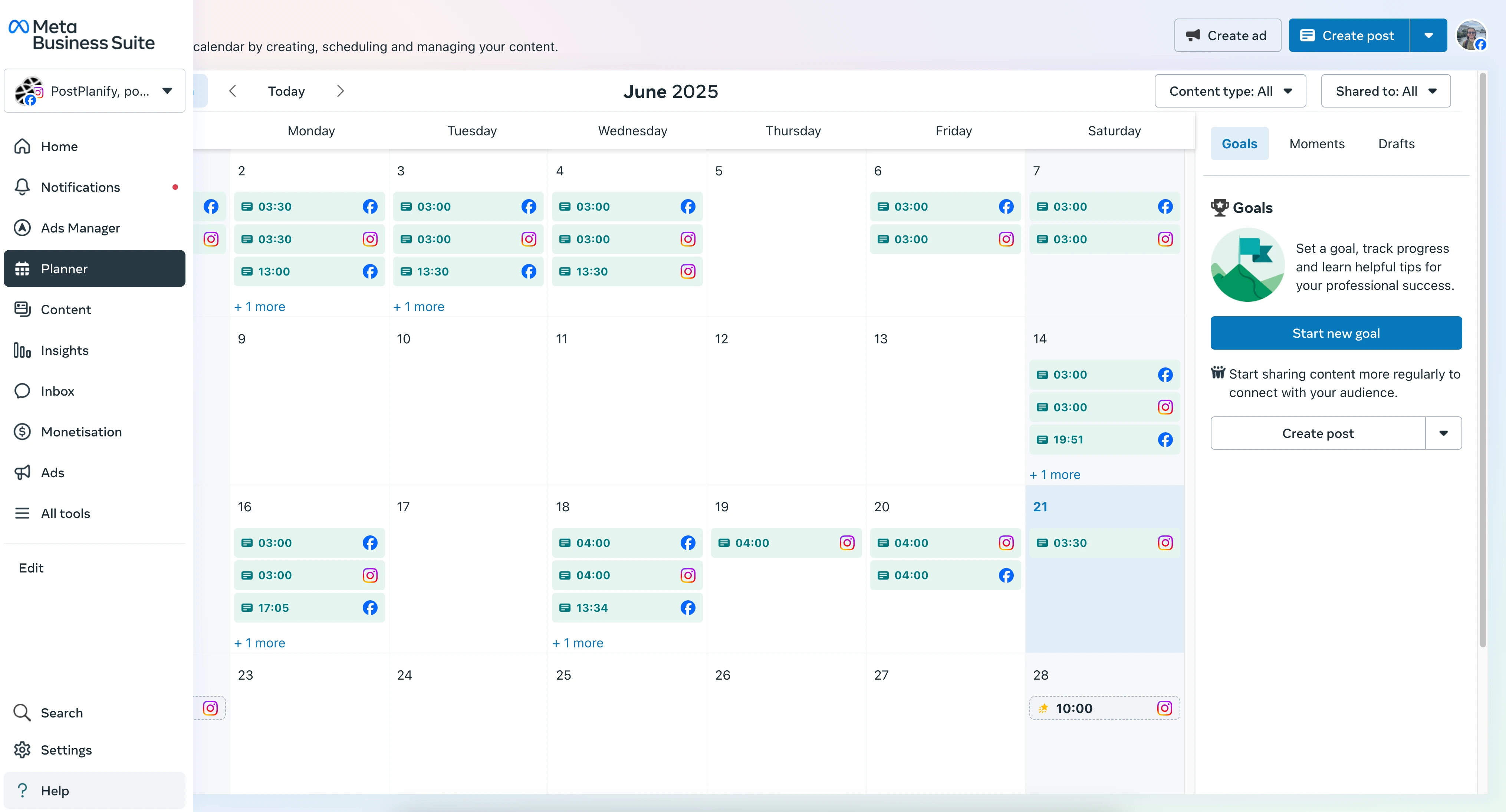
The general workflow is straightforward:
-
Connect your Instagram account to the correct Facebook Page
If that connection is wrong, scheduling will be inconsistent from the start. -
Open Meta Business Suite
Use the desktop version if you're doing any serious planning. The mobile app is useful, but it's not where most teams want to manage a weekly or monthly calendar. -
Create a new post or reel
Add your caption, media, and account selection carefully. This matters if one team member handles several brands. -
Preview the post before scheduling
Check crop, caption formatting, mentions, and whether the first carousel image is the one you want leading the post. -
Choose Schedule instead of Publish now
Set the date and time, then confirm the scheduled item appears correctly in the content planner. -
Recheck the scheduled queue
Don't assume a successful click means a successful publish. Teams should verify the post is sitting in the calendar with the right account and timestamp. Our guide on how to see scheduled posts on Instagram walks through where to find your queue in every tool.
What works well
Meta Business Suite is useful because it removes a lot of unnecessary setup for basic publishing.
It's also the best low-friction option for teams that are already operating entirely inside Meta's ecosystem. If your Facebook Page and Instagram account are already connected properly, you can get a working scheduling flow without introducing another vendor.
Where it starts to break down
The limits show up when the workflow becomes operational, not just occasional.
Here's a simple comparison:
| Need | Meta Business Suite |
|---|---|
| Single-brand scheduling | Good |
| Team approvals | Limited |
| Multi-client visibility | Clunky |
| Cross-platform planning | Weak |
| Shared content calendar across networks | Not ideal |
| Asset organization for many brands | Basic |
The biggest friction points are practical:
- Too much account switching: Managing several brands from native tools is slower than it sounds.
- Limited collaboration: Approvals, revisions, and assignments are harder to track cleanly.
- Basic planning experience: It works as a scheduler, not as a full operations layer.
- Weak cross-platform value: If you also publish to LinkedIn, X, TikTok, or Facebook, you'll still need another system or a patchwork workflow.
Native scheduling is fine when publishing is the task. It's not enough when publishing becomes a process.
Best fit for this method
Use Meta Business Suite if you want a free starting point and your needs are simple.
Move beyond it if your team needs:
- shared approvals
- reusable posting queues
- account-level permissions
- one calendar for multiple platforms
- cleaner reporting for clients or stakeholders
That's the dividing line. Native scheduling is good at posting. It's less good at operating a publishing team.
Method 2: Using a Third-Party Scheduler for Full Control
Teams that publish regularly often don't just need a scheduler. They need a workflow.
That's where third-party tools make sense. They're not just for setting a date and time. They handle approval workflows, asset storage, recurring queues, account switching, post previews, and often comments or inbox management too.

Why teams move past native scheduling
The problem with native scheduling isn't that it fails at basic publishing. It's that it doesn't reduce enough operational work once your content system grows.
A third-party scheduler usually becomes the better option when you need to:
- Manage several brands in one place
- Coordinate designers, copywriters, and approvers
- Schedule across Instagram, Facebook, LinkedIn, X, TikTok, and more
- Keep a reusable media library
- See a real publishing calendar
- Handle comments and replies without jumping between apps
For agencies, this matters because publishing is rarely the only task. Someone drafts. Someone edits. Someone approves. Someone checks the live post. Then someone reports on it.
What a good third-party scheduler actually changes
The biggest gain is control.
Instead of creating content in one place, reviewing in another, storing assets in folders, and publishing in Meta's dashboard, you centralize the workflow. That reduces handoff errors.
A solid scheduling setup usually includes:
-
Content drafting and templates
Reusable caption structures, hashtag groups, and saved brand language reduce repetitive work. -
Calendar-based planning
Dragging posts around a visual calendar is much faster than rebuilding schedules one by one. -
Approval flow
Draft, review, approve, schedule. That sequence is simple, but teams need it tracked inside the tool. -
Media previewing
A real preview catches crop issues, caption spacing problems, and wrong account selection before publish time.
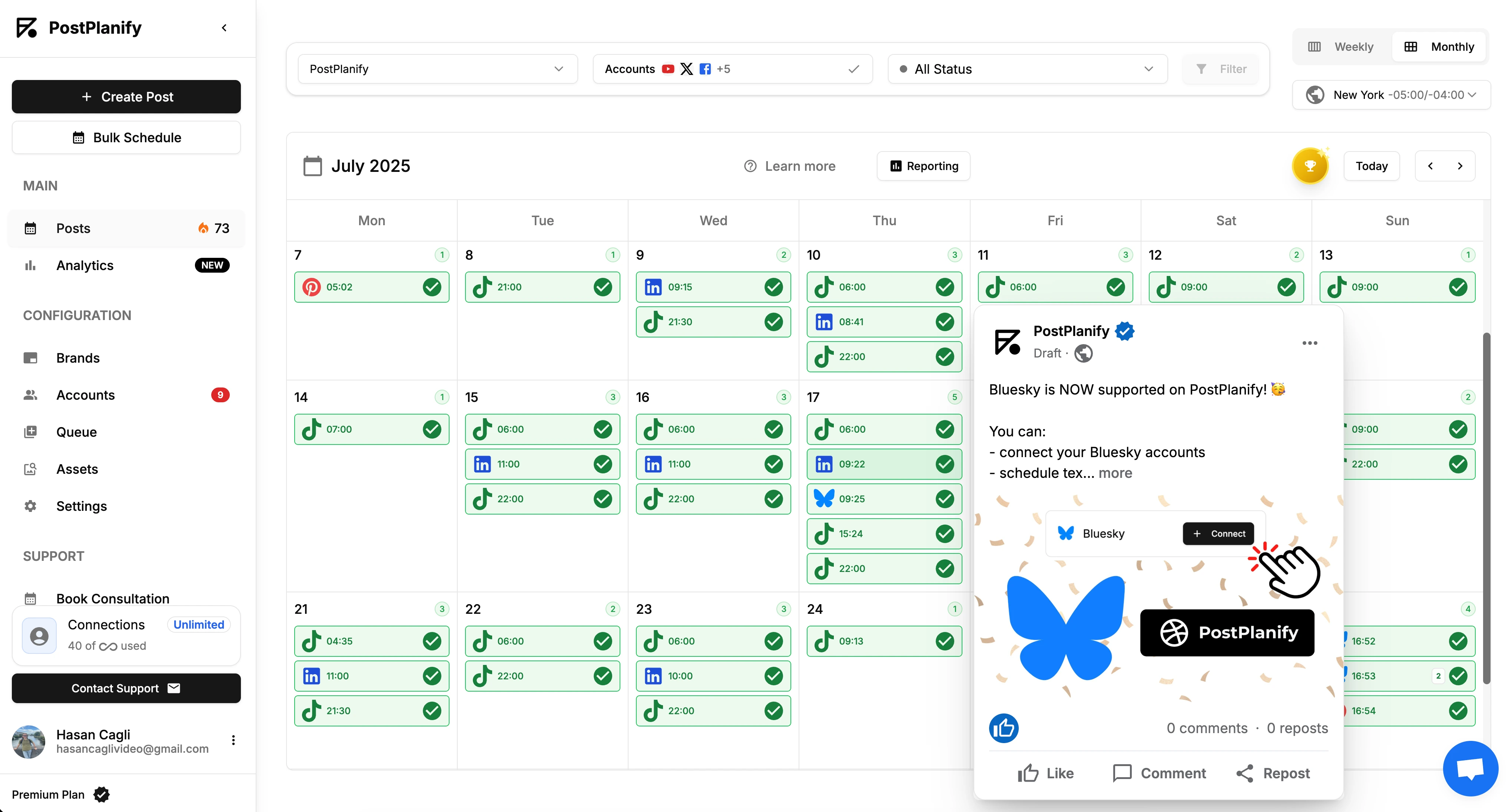
One option in this category is PostPlanify, which supports scheduling across 10 platforms, a drag-and-drop calendar, team approvals, a shared media library, and a unified inbox. If you're comparing tools by workflow rather than just price, this overview of Instagram post scheduler tools is a practical place to compare what matters.
Auto-publish versus reminder-based publishing
Here, users often get confused.
Not every Instagram format behaves the same way in a third-party tool. Some content can be directly auto-published through the API. Some content still triggers a mobile notification workflow, depending on the format and the elements used.
A useful rule of thumb:
| Post type | Typical behavior in third-party tools |
|---|---|
| Feed posts | Usually direct auto-publish |
| Carousels | Usually direct auto-publish if specs are correct |
| Reels | Usually direct auto-publish |
| Stories | Sometimes notification-based, especially with interactive elements |
That distinction matters for staffing. If your agency promises full hands-off publishing but a Story still requires a manual approval tap, someone needs to own that step.
Here's a quick visual comparison before choosing your workflow.
What works well in practice
For most businesses and agencies, third-party scheduling works best when the tool is treated as the source of truth.
That means:
- all drafts live there
- approvals happen there
- assets are attached there
- the scheduled calendar is the final calendar
Problems start when teams split the workflow between Slack, Google Docs, Dropbox folders, and a scheduler that only gets used at the last minute.
The scheduler should be your publishing system, not your final upload box.
The real trade-offs
Third-party tools are better for operations, but they do add a layer of setup.
You still need to:
- connect accounts correctly through Meta
- confirm permission ownership
- validate media specs
- train the team on statuses and approvals
There's also a learning curve. A solo creator with one account may find this overkill. A team with recurring campaigns usually won't.
Best fit for this method
Use a third-party scheduler if any of these are true:
- You publish for clients.
- More than one person touches content before it goes live.
- You need one dashboard for several social platforms.
- You want fewer manual reminders and fewer missed posts.
- You care about workflow consistency as much as publishing itself.
That's the point where "post to instagram automatically" stops being a convenience feature and becomes an operations requirement.
PostPlanifyAll your social media in one simple dashboard
Schedule posts, track analytics, and reply to comments/DMs without switching tabs.
Engagement
+18%
Views
52.8k
Method 3: Building Custom Workflows with the API
If your content already lives in Airtable, Google Sheets, a DAM, or an internal CMS, using a scheduler UI for every post can feel like extra work.
That's where custom workflows with the Instagram Graph API make sense. You're not just scheduling content manually inside a dashboard. You're building a system that moves content from where your team already works into Instagram publishing with minimal handling.

To use the Instagram Graph API, you must convert the profile to a Business or Creator account, link it to a Facebook Page with Admin permissions, and request publish_content and instagram_basic scopes. According to this guide to automating Instagram posts, API tools achieve 95-99% auto-publish reliability but are capped at 25 posts per day per account.
What an API workflow looks like
At a high level, the process works like this:
- Authenticate through Meta
- Store and refresh access tokens
- Send media to an API endpoint to create a media container
- Publish that container at the scheduled time
- Log errors and retry safely where possible
Tools like Make.com and n8n are often enough for this. You don't always need a custom-built app from scratch. For a deeper look at what's available, our guide on the best social media APIs for developers covers publishing endpoints across all major platforms.
Terms that matter
A lot of API documentation is readable once you know the vocabulary.
- Token means the credential your workflow uses to access the account through Meta.
- Scopes are the permissions granted to the app, such as reading account data or publishing media.
- Container is the staged media object created before the actual publish call happens.
- Endpoint is the specific API URL your workflow calls for each action.
If you want a non-Instagram-specific primer on how APIs structure requests, this API endpoints overview is a simple reference.
When custom automation is worth it
Custom workflows are usually worth the effort when:
- Content originates in structured data
- You need to publish from internal systems
- You want approval logic outside a normal scheduler
- You need bespoke branching, such as "publish only if the asset status is approved and the client field is complete"
That's especially useful for agencies with repeatable client workflows or platforms generating content at scale.
What usually goes wrong
The technical failures are predictable:
- Expired access tokens
- Missing scopes
- Media spec mismatches
- Rate-limit errors
- Weak error logging
If your workflow doesn't log exactly where publishing failed, your team ends up debugging from Instagram instead of from the automation layer.
Build the failure path first. Publishing success is easy to notice. Silent failure is what hurts teams.
Who should choose this method
This is the right method for technical marketers, operations leads, and developers.
It’s usually the wrong first move for solo creators who just want a reliable publishing calendar. But for teams that need custom pipelines, the API route removes a lot of repetitive admin work and creates tighter control over content operations.
If you’re comparing API-first publishing options across networks, this overview of the best social media APIs for developers is a useful starting point: https://postplanify.com/blog/best-social-media-apis-for-developers
How to Schedule Different Instagram Post Formats
"Automatic Instagram posting" is not one feature. It's a bundle of different publishing behaviors depending on the format.
That's why one post type works perfectly while another throws an error, gets cropped, or falls back to a reminder. The scheduling method has to match the format rules.

Feed posts
Standard feed posts are the easiest place to start.
They're usually the most stable format for auto-publishing because the media requirements are simpler and the publish flow is mature. If your image is prepared correctly and your account is connected properly, these are usually reliable.
Feed posts work best when you:
- Use final assets, not last-minute exports
- Check preview crop before scheduling
- Keep account selection explicit for every post
For teams, the avoidable mistake is scheduling the right asset to the wrong brand profile. That happens more often than actual API failure. For the exact specifications, see our Instagram image size guide.
Carousels
Carousels are where automation gets less forgiving.
The main operational rule is simple. Keep all slides in the same aspect ratio. If one image is square and another is portrait, the scheduler or API may crop unexpectedly, choose the first slide as the framing baseline, or fail the publish step.
A reliable carousel workflow looks like this:
- Finalize all slides in one design template.
- Export them with matching dimensions.
- Preview the whole carousel before approval.
- Check the first slide carefully because it influences feed presentation.
- Avoid replacing individual slides after approval unless you recheck the whole set.
Carousels don't usually fail because of "Instagram being buggy." They fail because the slide set wasn't normalized before scheduling.
For a full walkthrough of scheduling multi-image posts, see our guide on how to schedule carousel posts on Instagram and Facebook.
Reels
Reels are much more automation-friendly than they used to be.
That doesn't mean every Reel setup is equal. The most dependable approach is to schedule a finished video asset with the caption, cover, and publish time already locked. Teams get into trouble when they treat Reels like something they can keep tweaking after upload.
A few practical rules help:
- Upload the final rendered video
- Verify the cover frame
- Don't assume audio behavior will match manual app posting
- Use a preview before locking the schedule
- Check safe zones so UI elements don't cover key visuals
If your team publishes Reels regularly, this guide on how to schedule Instagram Reels covers the full technical workflow. You might also find our Reels vs TikTok scheduling comparison useful if you're cross-posting vertical video.
Stories
Stories are the most mixed format in automation.
Simple Story publishing can work smoothly. Interactive Stories are where the workflow often changes. Polls, quizzes, stickers, and similar elements may still require a final manual action from a notification-based flow instead of pure auto-publish.
That means Story scheduling should be planned around two buckets:
| Story type | Typical scheduling behavior |
|---|---|
| Simple visual Story | Often close to full automation |
| Interactive Story | Often requires final manual step |
For agencies, that distinction matters for staffing and client expectations. If the campaign depends on a poll or quiz going live at a precise time, someone needs to own the final publish confirmation. Our guide on how to schedule Instagram Stories covers the full breakdown of what can and can't be auto-published.
Troubleshooting and Best Practices for Automation
Most Instagram automation problems are predictable. That's good news, because predictable problems are fixable.
The bad news is that teams often misdiagnose them. They blame the scheduler when the actual cause is permissions, media formatting, token expiry, or a bad content workflow upstream.
A common but under-addressed issue is automatic post cropping. Users report 30-40% of auto-scheduled carousels appear cut off, and the 2026 Instagram algorithm reduces reach by 15-20% for cropped auto-posts, according to this guide on avoiding Instagram posts getting cut off in feed.
The failures you’ll see most often
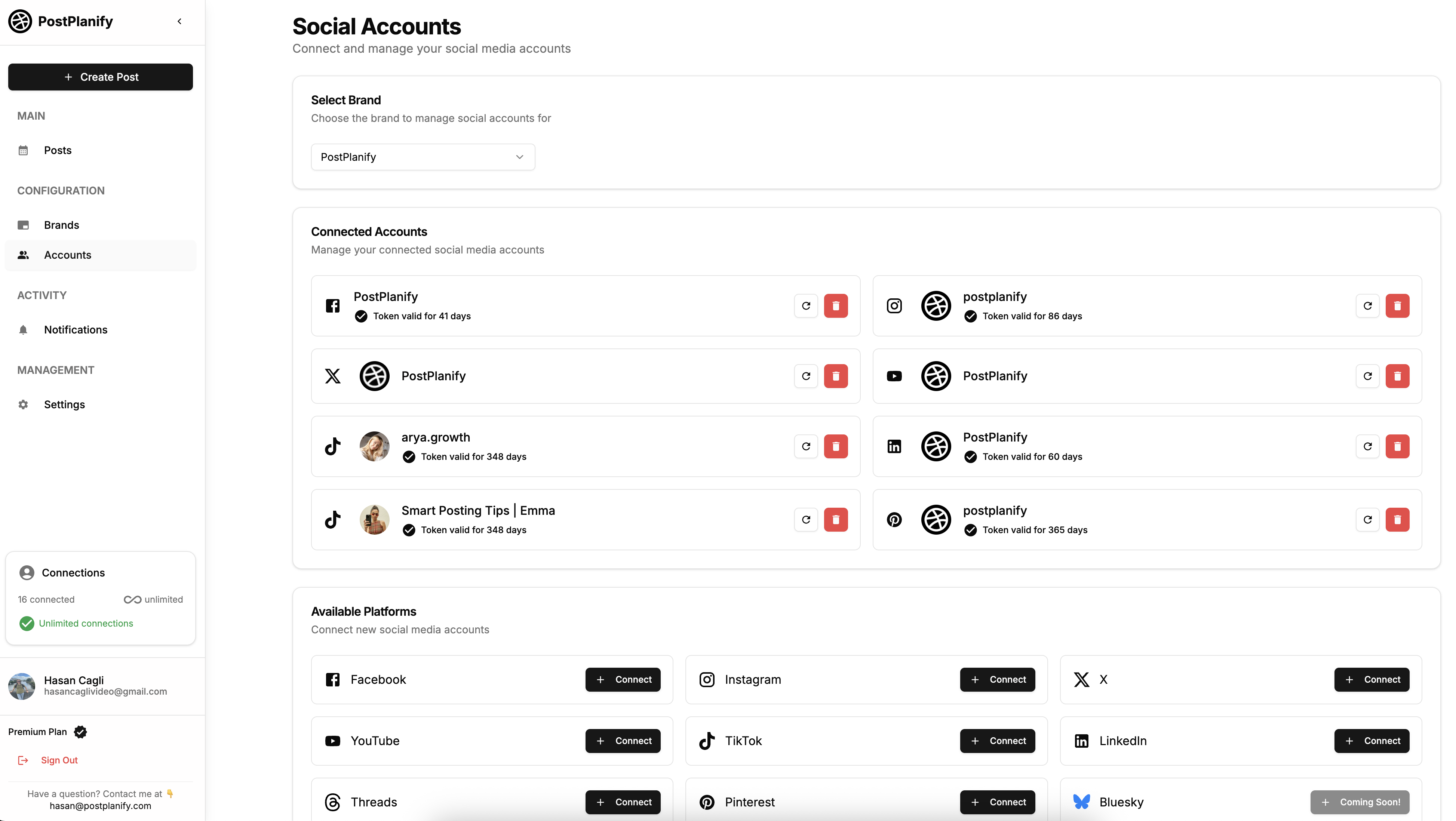
Expired or broken access
Symptoms include scheduled posts not publishing, account reconnection prompts, or unexplained permission errors.
Fix it like this:
- Reconnect the Instagram account through the proper Meta authorization flow.
- Confirm the same user still has the required business permissions.
- Check whether the Facebook Page connection changed.
- Test with a single post before restoring the normal queue.
This tends to happen after role changes, client ownership changes, or account security updates. For a complete diagnosis, our guide on Instagram scheduled posts not working walks through all 10 common causes.
Cropped or cut-off media
This is the most common visual problem, especially with carousels.
Fix it like this:
- Standardize dimensions before upload — use our Instagram image size guide for exact specs
- Keep all carousel slides in the same aspect ratio
- Preview inside the scheduler, not only in your design tool
- Check feed appearance and profile appearance separately when possible
A design can look correct in Canva or Figma and still render awkwardly once scheduled through the API.
Watch for this: If the first slide is framed differently from the rest of the carousel set, the live result often looks wrong even when the files themselves seem fine.
Rate-limit and publish-throttle issues
This usually affects teams running bulk workflows or custom API automations.
Fix it like this:
- Spread publishing events across time
- Avoid unnecessary retries
- Don't rebuild the same failed post repeatedly without checking the cause
- Monitor logs if you're using Make, n8n, or a custom app
Bulk scheduling is helpful. Bulk error creation is not.
Best practices that make automation reliable
A clean automation setup depends less on hacks and more on discipline.
Build around repeatable assets
Batch your content — captions, hashtag groups, link tracking, and media prep — before scheduling day. Don't write every post from scratch at the point of publishing.
That lowers mistakes and makes approval easier.
Use one source of truth
Whether you use Meta Business Suite, a third-party scheduler, or an API workflow, keep the final publishing status in one place. Teams get into trouble when the content plan lives in one system and the actual scheduled calendar lives somewhere else.

Separate content creation from publish validation
These are different steps. Creative approval doesn't guarantee technical readiness.
A good final check includes:
| Validation point | What to confirm |
|---|---|
| Account | Correct Instagram profile selected |
| Media | Aspect ratio and order are correct |
| Caption | Final copy, tags, and spacing checked |
| Format | Feed, carousel, Reel, or Story chosen correctly |
| Publish mode | Auto-publish or reminder workflow understood |
Don't overcomplicate the first setup
A lot of teams try to automate everything immediately. That usually creates a brittle system.
Start with:
- one account
- one post format
- one review flow
- one scheduling method
Then expand after you know where the edge cases are.
A simple checklist before you schedule
Use this every time:
- Account type is Business or Creator
- Facebook Page connection is correct
- User permissions are still active
- Media specs are consistent
- Carousel slides match
- Story expectations are clear if interactivity is involved
- Final preview has been checked
- The team knows whether the post is true auto-publish or notification-based
If you handle those eight checks consistently, Instagram automation becomes much more boring. That's what you want. Reliable publishing should be boring.
PostPlanifyAll your social media in one simple dashboard
Schedule posts, track analytics, and reply to comments/DMs without switching tabs.
Engagement
+18%
Views
52.8k
Automatic Instagram Posting FAQ
Can I post to Instagram automatically for free?
Yes. Meta Business Suite offers free scheduling for feed posts, carousels, Reels, and Stories. You need a Business or Creator account linked to a Facebook Page. The limitations are practical, not financial: no cross-platform scheduling, limited team collaboration, and no bulk scheduling. For free third-party options, see our roundup of free social media scheduling tools.
Do I need a business account to auto-post on Instagram?
Yes. Instagram's API only allows publishing through Business or Creator accounts connected to a Facebook Page. Personal accounts cannot use any form of automated publishing — not through Meta Business Suite, not through third-party tools, and not through the API. Switching to a Professional account is free and takes about 30 seconds in your Instagram settings.
Does automatic posting hurt Instagram reach or engagement?
No. Instagram treats scheduled posts exactly the same as manually published posts. The algorithm does not penalize content based on how it was posted. What matters is content quality, timing, and audience engagement. In fact, automation often improves reach because you're more likely to post consistently and at optimal times.
Can I auto-post Instagram Reels?
Yes. Reels can be auto-published through Meta Business Suite, third-party schedulers like PostPlanify, and the Instagram Graph API. The main requirements are 9:16 aspect ratio, MP4 format, and no copyrighted music from Instagram's in-app library (licensed music gets stripped during API publishing). For the full technical walkthrough, see how to schedule Instagram Reels.
Can I auto-post Instagram Stories?
Partially. Simple image and video Stories can be auto-published through most schedulers. However, Stories with interactive elements — polls, quizzes, countdowns, question stickers — cannot be fully automated through the API. Those elements get stripped during auto-publishing. For interactive Stories, most tools send a mobile notification reminder instead. Our Instagram Stories scheduling guide covers what can and can't be automated.
How many posts can I auto-publish per day on Instagram?
Instagram allows a maximum of 25 published posts per day per account across all methods (native, third-party, and API). This includes feed posts, carousels, Reels, and Stories. Exceeding this limit triggers API errors. If you need high-volume publishing, spread posts across multiple days or use a scheduler with queue management.
Can I auto-post to Instagram and other platforms at the same time?
Not with native tools. Meta Business Suite only covers Facebook and Instagram. For true cross-platform auto-publishing — Instagram, TikTok, X, LinkedIn, YouTube, Pinterest, Threads, and more — you need a third-party scheduler. PostPlanify supports scheduling across 10 platforms from a single dashboard with one upload.
Why did my auto-scheduled Instagram post fail?
The most common causes are: expired access tokens (reconnect your account), invalid media specs (wrong aspect ratio or file too large), unsupported post type for your tool, or a temporary Instagram API outage. Start by reconnecting your account, then check media dimensions. For a complete diagnosis, see our Instagram scheduled posts not working troubleshooting guide.
Is it safe to use third-party Instagram automation tools?
Yes, as long as the tool connects through Meta's official OAuth flow and Instagram Graph API. Legitimate schedulers never ask for your Instagram password directly. They request access through Meta's approved authorization process. Red flags include tools that require your login credentials, promise "unlimited" posting, or use browser automation instead of the official API.
What's the difference between auto-publishing and reminder-based scheduling?
Auto-publishing means the tool publishes the post directly at the scheduled time with no manual action required. Reminder-based scheduling means the tool sends a push notification to your phone at the scheduled time, and you still need to tap "Publish" manually. Most feed posts, carousels, and Reels support auto-publishing. Interactive Stories and Reels with licensed music typically fall back to reminders.
Key Takeaways
- Auto-posting to Instagram requires a Business or Creator account linked to a Facebook Page — personal accounts cannot use any form of automated publishing
- Three methods exist: Meta Business Suite (free, basic), third-party schedulers (team workflows, cross-platform), and custom API integrations (advanced automation from internal systems)
- Meta Business Suite is good for basic single-brand scheduling but lacks team approvals, cross-platform planning, and bulk scheduling
- Third-party schedulers like PostPlanify centralize the workflow — drafting, approvals, calendar planning, and publishing — into one system
- Feed posts, carousels, and Reels can be fully auto-published; interactive Stories may still require a manual step
- Instagram caps auto-publishing at 25 posts per day per account regardless of method
- The most common automation failure is expired access tokens — reconnect your Instagram account in your scheduling tool to fix it
- Always verify media specs before scheduling: 4:5 to 1.91:1 for feed, 9:16 for Reels, MP4 under 100MB for video
Ready to automate your Instagram publishing alongside every other platform? Try PostPlanify free for 7 days — schedule to Instagram, TikTok, X, LinkedIn, YouTube, Facebook, Threads, Pinterest, Bluesky, and Google Business from one dashboard.
Related Reading
- How to Schedule Instagram Posts: Full Guide
- How to Automate Social Media Posts
- How to Schedule Instagram Reels
- How to Schedule Instagram Stories
- How to Schedule Carousel Posts on Instagram and Facebook
- Instagram Scheduled Posts Not Working? 10 Quick Fixes
- How to See Scheduled Posts on Instagram
- Best Instagram Post Scheduler Tools
- Best Apps to Post to All Social Media at Once
- How to Create a Social Media Content Calendar
- Best Time to Post on Instagram
- Instagram Image Size Guide
- Social Media Safe Zones: Complete Guide
- Best Social Media Scheduling Tools
- How to Link Facebook and Instagram
- The Ultimate Guide to Scheduling Instagram Posts
- Automating Instagram Posts Safely
- Content Batching
- Best Social Media APIs for Developers
- 14 Best Social Media Automation Tools
- Best Social Media Management Tools for Teams
PostPlanifyAll your social media in one simple dashboard
Schedule posts, track analytics, and reply to comments/DMs without switching tabs.
Engagement
+18%
Views
52.8k
About the Author

Hasan Cagli
Founder of PostPlanify, a content and social media scheduling platform. He focuses on building systems that help businesses, agencies, and teams plan, publish, and manage content and social media more efficiently across platforms.


