


Instagram Highlights are collections of your Stories that stay on your profile after the usual 24 hours. They sit in a row of circles below your bio, and anyone who visits your profile can tap through them.
To add highlights on Instagram:
- Go to your profile.
- Tap + New in the Highlights row below your bio.
- Select the Stories you want from your archive and tap Next.
- Name the highlight and tap Edit Cover if you want a custom cover.
- Tap Add (iPhone) or Done (Android).
That's the short version. Below you'll find every way to add a highlight, how to edit and delete them, how covers work, and the limits worth knowing. There's also a ready-made highlight setup for business profiles you can copy.
What Are Instagram Highlights?
An Instagram Highlight is a saved group of Stories pinned to your profile. A regular Story disappears from view after 24 hours. A Story you add to a highlight stays visible until you remove it.
Each highlight has a name and a round cover image. Visitors see the covers first, tap the one they care about, and watch the Stories inside it in order.
Here's how highlights compare with regular Stories:
| Regular Story | Instagram Highlight | |
|---|---|---|
| How long it's visible | 24 hours | Until you remove it |
| Where it appears | Stories bar at the top of the feed | Your profile, below the bio |
| Who sees it | Followers (or anyone, on public accounts) | Anyone who can view your profile |
| Viewer list | Visible for 48 hours after posting | Same 48 hours, counted from the original post |
| Best for | Timely updates | Evergreen info: services, reviews, FAQs |
For a business, highlights work like a small menu on your profile. Someone who lands on your page can find your prices, reviews, and FAQs without scrolling through months of posts.
A quick note on layout: Instagram has tested showing highlights as a tab on the profile grid instead of the row of circles, and some accounts still see that version. If you don't see circles under your bio, look for a Highlights tab next to your posts and Reels. The steps below work the same way.
Before You Start: Turn On Story Archive
Every highlight is built from your Story archive. If the archive is off, your old Stories aren't saved and you'll have nothing to pick from.
To check it:
- Go to your profile and tap the menu (three lines) in the top right.
- Tap Archiving and downloading.
- Make sure Save story to archive is turned on.
Instagram turns this on by default, but it's the most common reason people can't find an old Story when they try to make a highlight. Note that it only saves Stories from the moment it's on. Stories you posted while it was off are gone.
How to Add Highlights on Instagram (3 Ways)
If you're wondering how to make highlights on Instagram, there are three ways to do it. They all end in the same place, so use whichever one fits the moment.
Method 1: Create a New Highlight From Your Profile
This is the best option when you want to group several older Stories at once.
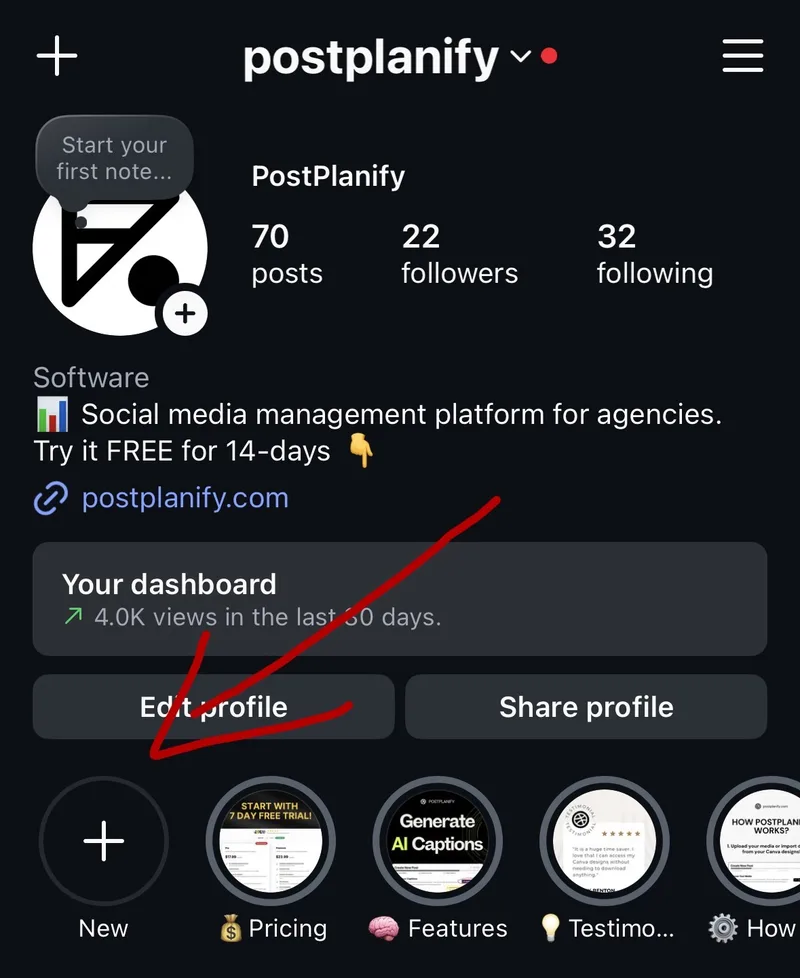
- Go to your profile.
- Tap + New in the Highlights row below your bio. It's the first circle on the left, before any highlights you already have.
- Select the Stories you want from your archive. You can pick as many as you like.
- Tap Next.
- Type a name for the highlight.
- Tap Edit Cover if you want to change the cover image.
- Tap Add on iPhone or Done on Android.
Method 2: Add a Story to Highlights While It's Live
This is the fastest option when you've just posted a Story you want to keep.
- Open your live Story by tapping your profile picture.
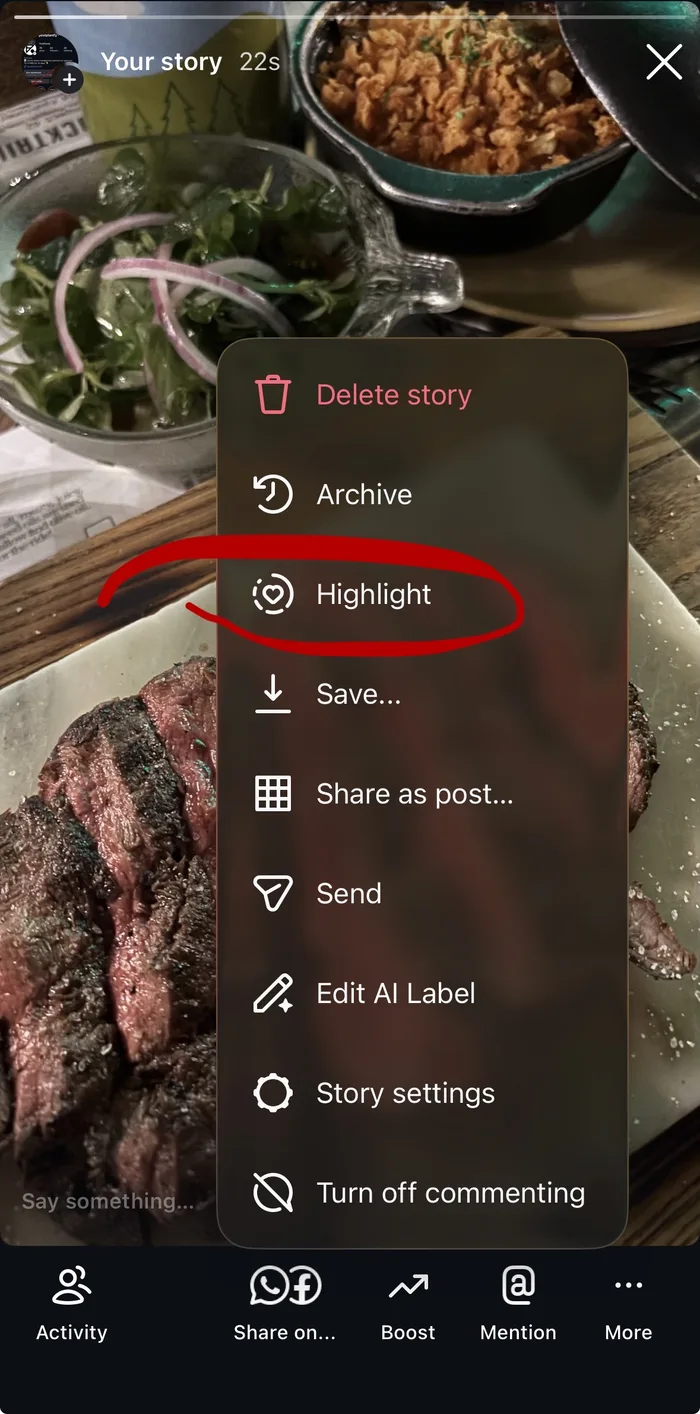
- Tap More (three dots) in the bottom right corner.
- Tap Highlight in the menu.
- Choose an existing highlight, or tap New to create one and give it a name.
The Story keeps running in your Stories bar for the rest of its 24 hours. It also appears in the highlight right away.
Method 3: Add an Older Story From Your Archive
Use this when you want one specific Story from weeks or months ago.
- Go to your profile and tap the menu (three lines).
- Tap Archive. Check that the top says Stories archive.
- Open the Story you want.
- Tap Highlight at the bottom.
- Choose an existing highlight or create a new one.
How to Add Highlights on Instagram Without Posting to Your Story
This is one of the most searched questions about highlights, and the honest answer is that Instagram doesn't officially support it. Every item in a highlight has to start life as a Story.
You'll see a popular workaround online: make a Close Friends list with only yourself on it, post the Story to that list, then save it to a highlight. The problem is that a highlight made from a Close Friends Story is only visible to your Close Friends. With only you on the list, nobody else can see that highlight.
What does work:
- Post it and add it straight away. Post the Story, add it to the highlight in the same minute, and let it run its 24 hours. Most of your followers won't think twice about one extra Story.
- Post at a quiet time. If you're adding a batch of Stories, post them late at night when fewer people are watching.
- Change only the cover without posting. If all you want is a new cover image, you can upload it from your camera roll without posting anything (see the covers section below).
Instagram has been reported to be testing a direct "add to highlight" option for some accounts. If your highlight screen offers to add photos from your camera roll, you have it. If not, use the steps above.
How to Add More Stories to an Existing Highlight
You can add to a highlight any time. There are two ways:
- From the Story: open a live Story, tap More and then Highlight, or open an archived Story and tap Highlight. Then choose the highlight.
- From the highlight: press and hold the highlight on your profile, tap Edit Highlight, open the Stories tab, select more Stories, and tap Done.
One thing to know: when you add a Story to a highlight, that highlight moves to the front of the row. Instagram doesn't let you drag highlights into a custom order, so this is the only way to change it.
To move a highlight to the front without adding anything new, add any old Story from your archive to it, then remove that Story again. Removing a Story doesn't change the order, so the highlight stays in front. Work from the highlight you want last to the one you want first.
How to Edit, Rename or Delete Highlights on Instagram
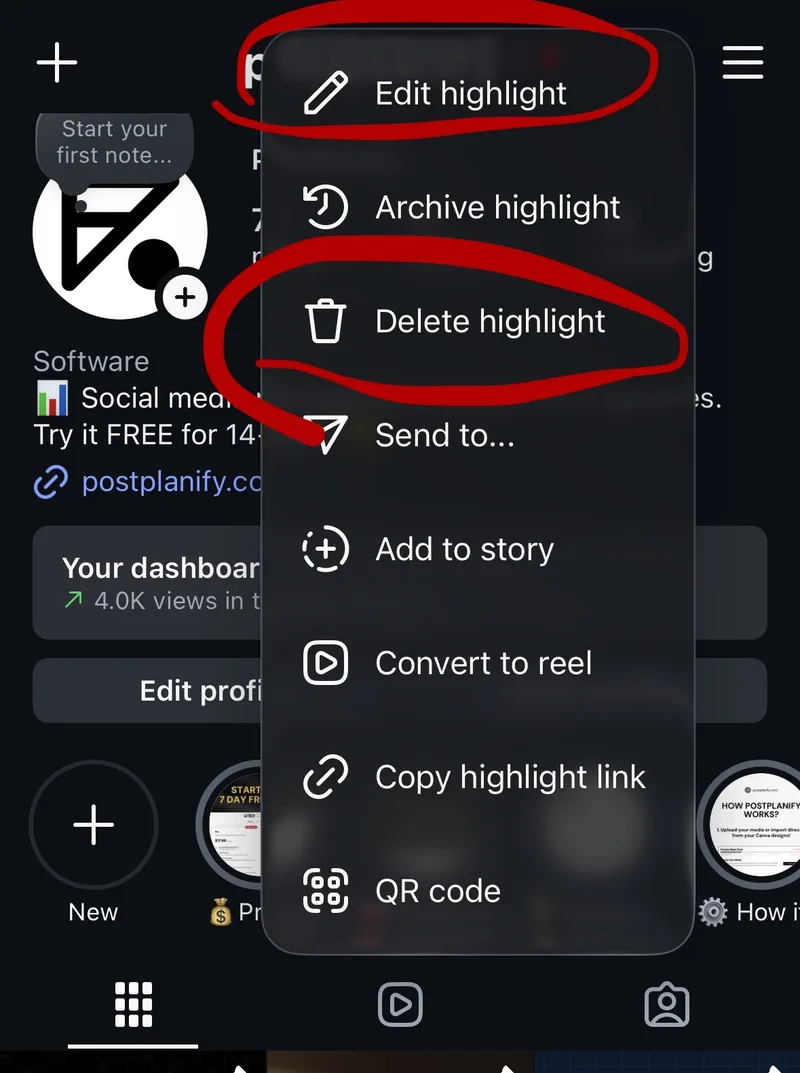
Whether you want to rename a highlight or need to know how to delete highlights on Instagram, it all starts from your profile. Press and hold the highlight you want to change.
To rename a highlight:
- Press and hold the highlight.
- Tap Edit Highlight.
- Change the name and tap Done.
To remove one Story from a highlight:
- Open the highlight and go to the Story you want to remove.
- Tap More (three dots) at the bottom right.
- Tap Remove from Highlight.
To hide a highlight without deleting it:
- Press and hold the highlight.
- Tap Archive highlight.
The highlight disappears from your profile but stays saved, so you can bring it back later. This is handy for seasonal highlights you'll reuse every year.
To delete a highlight completely:
- Press and hold the highlight.
- Tap Delete Highlight and confirm.
Deleting a highlight doesn't delete the Stories inside it. They stay in your Story archive, so you can rebuild the highlight later. If you want to tidy up your archive too, our guide on how to archive posts on Instagram covers how the archive works for posts and Stories.
 PostPlanify
All your social media in one simple dashboard
Schedule posts, track analytics, and reply to comments/DMs without switching tabs.

Engagement
+18%
Views
52.8k
Instagram Highlight Covers: Size, Design and How to Change Them
A highlight cover is the round image people see on your profile before they tap. By default, Instagram uses a frame from one of the Stories inside. A custom cover makes your profile look planned and helps people find the right highlight faster.
How to Change a Highlight Cover
- Press and hold the highlight on your profile.
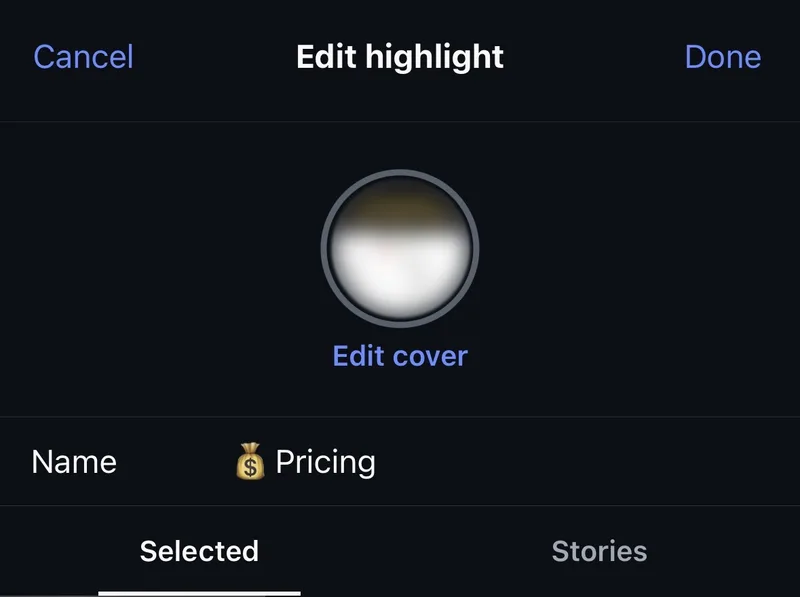
- Tap Edit Highlight.
- Tap Edit Cover.
- Choose a frame from one of the Stories, or tap the gallery icon to pick an image from your camera roll.
- Adjust the image inside the circle and tap Done.
Uploading a cover from your camera roll doesn't post anything to your Story. It only changes the image in the circle.
Highlight Cover Size
Design covers at 1080 x 1920 pixels, the same size as a Story. Instagram crops the cover into a small circle, so keep your icon or text in the center and leave plenty of space around it. Anything near the edges will be cut off.
A few rules that keep covers readable at that tiny size:
- Use one simple icon or one or two words. Detailed images turn into a blur in a circle about the size of a fingertip.
- Stick to your brand colors. The same background color on every cover makes the row look like a set.
- Check contrast. A dark icon on a dark background disappears on phones with dark mode on.
- Make them in one sitting. Covers designed at different times rarely match.

Free tools like Canva and Adobe Express have ready-made highlight cover templates you can edit with your brand colors. If you also want matching Story designs, our roundup of Instagram Story templates has options, and the Instagram image size guide lists every Story and post dimension in pixels.
Instagram Highlight Names and Ideas for Business
Good highlight names are short and obvious. Visitors should know what's inside before they tap. Stick to one or two short words, since longer names get cut off under the circle.
Most business profiles only need five to eight highlights. More than that and the important ones get pushed off screen, because most phones only show the first four or five before people have to swipe.
Here's a setup that works for most service businesses and local brands:
| Highlight name | What goes inside |
|---|---|
| Start Here | Who you are, who you help, and what to do next |
| Services | One Story per service, with a short explanation |
| Pricing | Prices or packages, or how to get a quote |
| Reviews | Screenshots of reviews and reshared customer Stories |
| Results | Before and after photos, case studies, numbers |
| FAQ | Answers to the questions you get most in DMs |
| Behind the Scenes | Your team, your workspace, how things get made |
| Book Now | Booking link, opening hours, location |
A few tips that make these work harder:
- Put your most important highlight first. "Start Here" or "Book Now" should sit at the front of the row. Remember that the last highlight you added to moves to the front.
- Use the FAQ highlight to cut DMs. Every time you answer the same question twice in your inbox, add the answer to the FAQ highlight.
- Refresh Reviews and Results every month. Old screenshots make a business look inactive.
- Archive seasonal highlights. A "Summer Sale" highlight in November tells visitors nobody is watching the account. Archive it instead of deleting it, and bring it back next summer.
A Highlight Setup You Can Reuse for Every Client
If you manage Instagram for several clients, highlights are one of the quickest wins you can show in the first week. Build one template set of names and covers, change the colors per brand, and roll it out to each new account.
A simple routine that keeps it manageable:
- Set up the core highlights (Start Here, Services, Reviews, FAQ) during client onboarding.
- Plan at least one Story a month for each highlight, so every highlight gets fresh content.
- Review the highlights in your monthly client check-in and remove anything out of date.
How Many Highlights Can You Have on Instagram?
There's no limit on how many highlights you can have on Instagram. Each highlight can hold up to 100 Stories.
In practice, the visible limit matters more than the technical one. Most phones only show the first four or five highlight circles before visitors have to swipe, and plenty of visitors never do. Treat those first few spots as the ones that count.
| Limit | Number |
|---|---|
| Highlights per profile | No limit |
| Stories per highlight | Up to 100 |
| Highlights visible without swiping | About 4 to 5, depending on the phone |
| How long a highlight stays up | Until you remove it |
Who Can See Your Instagram Highlights?
Who can see your highlights depends on your account settings:
- Public account: anyone who visits your profile, including people who don't follow you.
- Private account: only your approved followers.
- Close Friends Stories: a Story you originally shared with Close Friends stays limited to Close Friends inside a highlight. People not on the list won't see it. Keep public and Close Friends Stories in separate highlights so nobody opens a highlight that looks half empty.
Can You See Who Views Your Highlights on Instagram?
You can see who viewed a Story in your highlight, but only for 48 hours after you first posted that Story. After that, the list of names disappears.
Adding a Story to a highlight doesn't restart that clock. If you post a Story on Monday and add it to a highlight on Thursday, you won't see who watched it in the highlight.
What you can still see after 48 hours:
- On a Business or Creator account, Instagram Insights keeps reach and other numbers for the Stories you posted, so you can still check how a highlighted Story performed. You won't see who viewed it.
- On a personal account, you won't see names or totals once the 48 hours are up.
The same rule works the other way. If you watch someone else's highlight, they'll only see your name if the Story is less than 48 hours old. For more on how Story viewers work, see our guide to views on Instagram Stories.
Why Can't I Add a Story to My Highlights?
If Instagram won't let you add a Story to a highlight, it's almost always one of these:
- Story archive is off. Without it, old Stories aren't saved. Turn on Save story to archive (see above).
- The Story was deleted. Deleting a Story removes it from your archive too, so it can't go into a highlight.
- The highlight has 100 Stories. That's the maximum for one highlight. Remove some older ones or start a second highlight.
- The app is out of date. Update Instagram, close it fully, and try again.
If a highlight disappeared from your profile, check whether you deleted all the Stories inside it. A highlight with no Stories left is removed automatically.
Plan Your Stories With Highlights in Mind
Highlights are only as good as the Stories inside them. The easiest way to keep them fresh is to plan Stories that are meant to be saved, rather than hunting through your archive later.
When you plan your week, mark which Stories belong in which highlight: a new review for "Reviews", a quick answer for "FAQ", a finished project for "Results". Then add each one to its highlight the day it goes live.
If you schedule ahead, you can plan and schedule Instagram Stories in PostPlanify alongside your posts and Reels, so the Stories you want to keep are already on the calendar. It's especially useful when you manage several client accounts and need every brand's highlights to stay current without logging into each account every day.
PostPlanifyAll your social media in one simple dashboard
Schedule posts, track analytics, and reply to comments/DMs without switching tabs.
Engagement
+18%
Views
52.8k
Frequently Asked Questions
How long do Instagram Highlights last?
Instagram Highlights stay on your profile until you remove them. Unlike regular Stories, they don't expire after 24 hours.
Can you add highlights on Instagram without posting a story?
Not officially. Every highlight item has to be posted as a Story first. You can change a highlight cover from your camera roll without posting anything, but new content has to go through your Story.
Do people get notified when you add something to a highlight?
No. Instagram doesn't notify your followers when you add a Story to a highlight. They'll only see the Story itself if it's still live in your Stories bar.
How do you reorder highlights on Instagram?
You can't drag highlights into a new order. The highlight you most recently added a Story to moves to the front. To move one without adding new content, add an old Story to it and then remove it again.
Can you see who viewed your Instagram highlights after 48 hours?
No. Viewer names are only visible for 48 hours after the original Story was posted. Business and Creator accounts can still see total reach in Insights.
What size should Instagram highlight covers be?
Make covers 1080 x 1920 pixels and keep the icon or text in the center. Instagram crops the cover into a small circle on your profile.
Do highlights help your Instagram profile?
Highlights don't directly change how the algorithm ranks your posts. They help new visitors understand what you do and find key info quickly, which makes them more likely to follow, message, or book.
What happens to highlights when you switch to a private account?
Your highlights stay on your profile, but only your approved followers can see them. Switching back to public makes them visible to everyone again.
Related: How to Schedule Instagram Stories | Views on Instagram Stories | Instagram Story Templates | How to Archive Posts on Instagram | How to Edit Instagram Profile | Difference Between Reels and Stories | Instagram Image Size Guide | Instagram Safe Zone Checker
PostPlanifyAll your social media in one simple dashboard
Schedule posts, track analytics, and reply to comments/DMs without switching tabs.
Engagement
+18%
Views
52.8k
About the Author

Hasan Cagli
Founder of PostPlanify, a social media management platform for agencies and teams. He focuses on building systems that help businesses, agencies, and teams plan, publish, and manage content and social media more efficiently across platforms.


