


Losing access to your YouTube account is more than an inconvenience. For creators, it means losing your subscriber base, your entire video library, your watch history, your revenue stream, and years of work. For businesses, it means losing a direct line to your audience. The good news: in most cases, you can get your account back.
The critical thing to understand before anything else is that your YouTube account is your Google account. You do not sign into YouTube directly. You sign into Google, and YouTube is a product attached to that Google account. This means recovering your YouTube channel always starts with recovering your Google account.
This guide covers every lockout scenario with exact steps, timelines, and what to do when the standard process fails. Whether you forgot your password, got hacked, or woke up to a termination notice, there is a path forward.
Quick Recovery: Which Scenario Are You In?
Before diving into detailed steps, identify your situation. Each scenario has a different recovery path, timeline, and success rate:
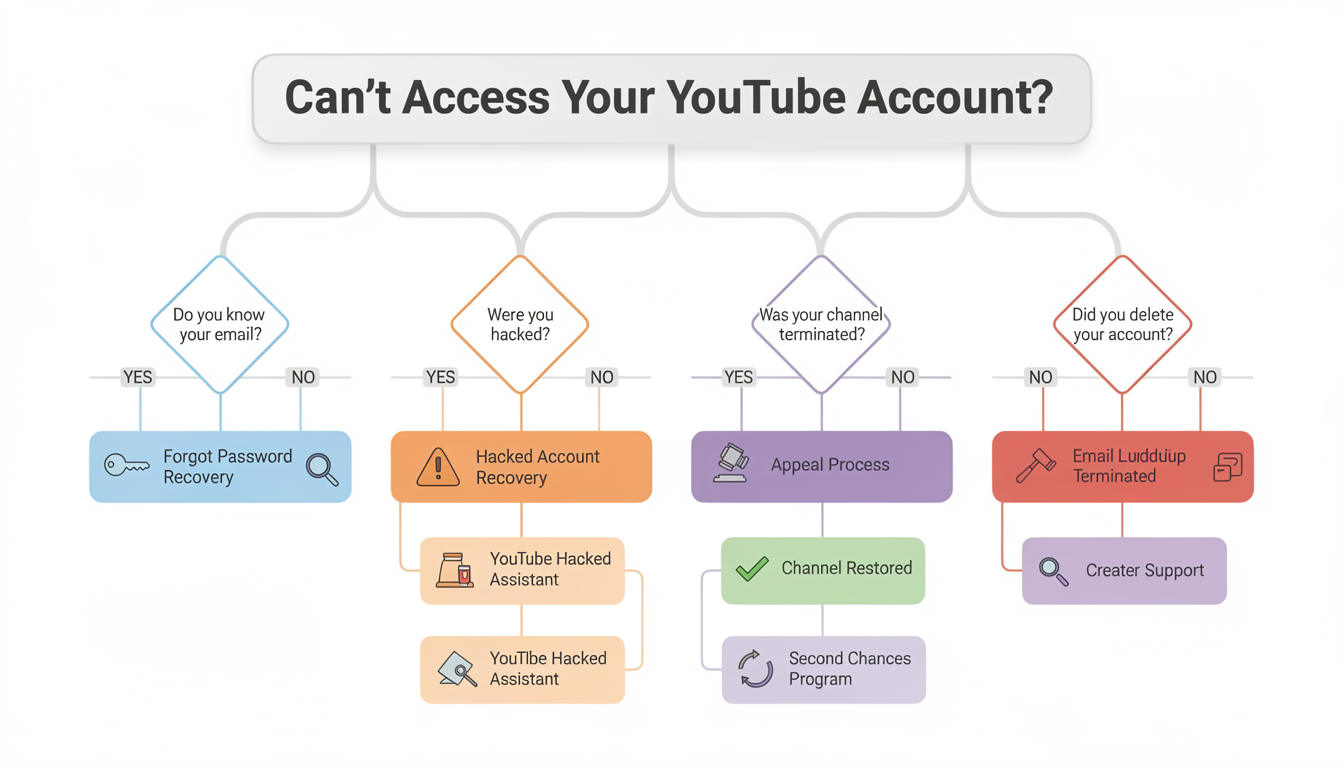
| Scenario | Difficulty | Timeline | Success Rate | Jump To |
|---|---|---|---|---|
| Forgot your password | Easy | 5-10 minutes | Very high | Password Recovery |
| Forgot your email/username | Easy-Medium | 10-20 minutes | High | Email Recovery |
| Lost 2FA/phone access | Medium | 3-7 business days | Medium-High | 2FA Recovery |
| Account was hacked | Hard | 1-7 days | Medium | Hacked Recovery |
| You deleted your account | Medium | Minutes to impossible | Time-dependent | Deleted Recovery |
| Channel was terminated | Hard | 14-30 days | Low-Medium | Termination Appeal |
| Google account disabled | Very Hard | Weeks | Low | Disabled Recovery |
Important: Do not panic. Google allows unlimited recovery attempts. Rushing leads to mistakes. Take your time, gather your information, and follow each step carefully.
Forgot Your Password? How to Reset It
This is the most common lockout scenario and the easiest to resolve. If you know which email address is linked to your YouTube account but cannot remember the password, recovery typically takes under 10 minutes.
Step-by-Step Password Recovery
Step 1: Open your browser and go to Google's account recovery page.
Step 2: Enter the email address associated with your YouTube account and click Next.
Step 3: Google will ask you to enter the last password you remember. This does not have to be your current password — even an old one helps Google verify you are the account owner. If you cannot remember any password, click "Try another way."
Step 4: Google will attempt to verify your identity through one or more of these methods:
| Verification Method | What You Need | How It Works |
|---|---|---|
| Recovery email | Access to your backup email address | Google sends a 6-digit code to your recovery email |
| Recovery phone | Access to the phone number on file | Google sends an SMS code or makes a verification call |
| Security question | Memory of your answer | You answer the question you set during account creation |
| Device verification | A phone/computer you previously signed in from | Google sends a push notification to that device |
Step 5: Enter the verification code or confirm the prompt. You will be directed to create a new password.
Step 6: Create a strong new password (at least 12 characters, mixing uppercase, lowercase, numbers, and symbols). Do not reuse a password from another service.
Pro Tips for Successful Password Recovery
| Tip | Why It Matters |
|---|---|
| Use a familiar device and browser | Google's system recognizes devices you have previously signed in from. Attempting recovery from your usual laptop or phone significantly increases your chances. |
| Try your most recent password first | Google prioritizes recent credential matches. Even a partial or slightly incorrect version of a recent password is more helpful than an old one. |
| Check all email folders | Verification codes can land in Spam, Promotions, or Social tabs. Check all folders and search for "Google" within 2 minutes of requesting the code. |
| Do not skip questions | If Google asks something you are not sure about, make your best guess. A wrong guess is better than clicking "Try another way," which may lead to a dead end. |
| Wait before retrying | If your first attempt fails, wait 24-48 hours before trying again. Google's system may flag rapid repeated attempts as suspicious. |
Forgot Your Email or Username
If you cannot remember which email address is linked to your YouTube account, you need to find it before you can reset your password.
How to Find Your YouTube Account Email
Method 1 — Google's email lookup tool:
- Go to Google's account recovery page
- Click "Forgot email?"
- Enter either the recovery phone number or recovery email address associated with the account
- Enter your full name as it appears on the account
- Google will send a verification code. Once confirmed, it will reveal the email address linked to your account.
Method 2 — Search your email inboxes: Search all your email accounts for messages from "YouTube" or "Google" or "[email protected]." Look for:
- Account creation confirmation emails
- YouTube upload notifications
- Subscription or comment notifications
- Google security alerts
Any of these will reveal which email is linked to your YouTube channel.
Method 3 — Check your browser's saved passwords:
Open your browser's password manager (Chrome: chrome://settings/passwords, Firefox: about:logins, Safari: Settings > Passwords). Search for "google.com" or "youtube.com." Your saved credentials will show the email address.
Method 4 — Ask a trusted collaborator: If you manage a YouTube Brand Account with multiple managers, another manager can see the linked email in YouTube Studio under Settings > Permissions.
Once you have identified the correct email, return to the password recovery steps above.
 PostPlanify
All your social media in one simple dashboard
Schedule posts, track analytics, and reply to comments/DMs without switching tabs.

Engagement
+18%
Views
52.8k
Lost Your Phone or 2FA Device
Two-Step Verification (2SV) adds a critical security layer to your account. But if you lose the phone or device that generates your verification codes, it can lock you out of your own account. This is recoverable, but it takes longer than a simple password reset.
Recovery Options (Try in This Order)
Option 1 — Use your backup codes
When you enabled 2-Step Verification, Google generated a set of 8-digit backup codes. Each code can be used once. If you saved or printed these codes, now is the time to use one:
- Go to the Google sign-in page and enter your email and password
- When prompted for your 2FA code, click "Try another way"
- Select "Enter one of your 8-digit backup codes"
- Enter any unused backup code
- You are in. Immediately go to your Google Account security settings and update your 2FA to a new device.
Option 2 — Use a device that is already signed in
Check your other devices — laptops, tablets, old phones. If any device is still signed into your Google account, you can:
- Change your 2FA settings from that device without needing a new code
- Remove the old 2FA method and set up a new one
- Generate new backup codes
Option 3 — Use Google's identity verification process
If you have no backup codes and no signed-in devices:
- Go to Google's account recovery page
- Enter your email and password
- When prompted for the 2FA code, click "Try another way" repeatedly until you reach the option to verify your identity
- Google will ask detailed questions: when you created the account, recent emails you sent, contacts in your address book, and other information only the real owner would know
- Submit your answers. Google will review and respond, typically within 3-5 business days.
Critical warning: Google does not offer phone or live chat support for account recovery. Anyone claiming to be "Google support" and asking for payment or your password is a scammer. Recovery only happens through the official process at accounts.google.com.
What to Expect During the Review Period
| Timeframe | What Happens |
|---|---|
| Day 1 | You submit the identity verification form. Google's automated systems begin reviewing your answers. |
| Days 2-3 | Google cross-references your answers against account data. If you used a familiar device and answered most questions correctly, you may receive approval. |
| Days 3-5 | More complex cases (old accounts, limited recovery info) take longer. Google may send follow-up questions to your recovery email. |
| Days 5-7 | If approved, you receive an email with a password reset link. If denied, you can try again with different or more detailed answers. |
PostPlanifyAll your social media in one simple dashboard
Schedule posts, track analytics, and reply to comments/DMs without switching tabs.
Engagement
+18%
Views
52.8k
Your YouTube Account Was Hacked
A hacked YouTube account is urgent. Every hour the hacker has access, they can delete videos, change your channel name, upload spam or harmful content, lock you out further, and potentially get your channel terminated. Act fast.
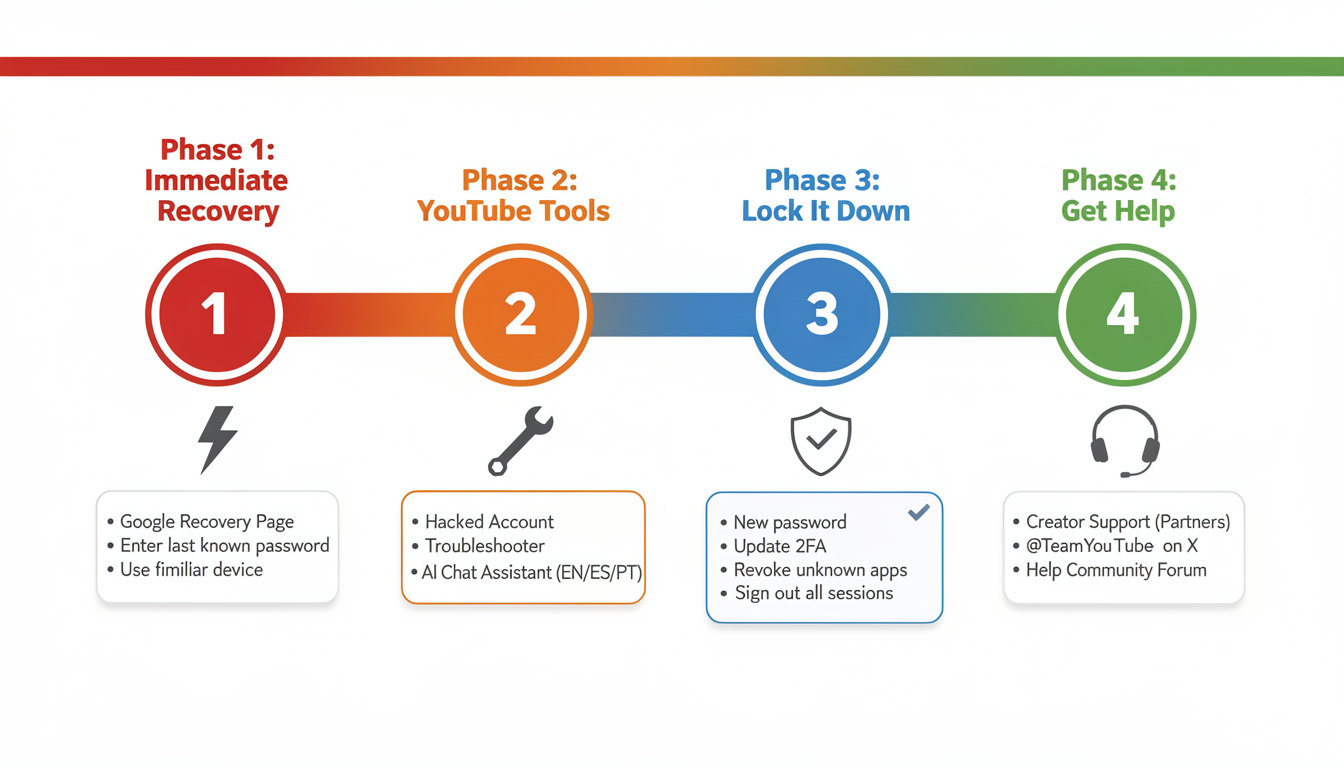
Phase 1: Attempt Immediate Recovery
Try the standard recovery process first. Many hackers change the password but forget (or cannot) change the recovery email or phone number.
- Go to Google's account recovery page
- Enter your email address
- When asked for your password, enter the most recent password you set (not the hacker's password)
- If Google recognizes your recovery info, you may be able to reset the password immediately
If the hacker has changed your recovery info too:
- Click "Try another way" and answer as many verification questions as possible
- Use a device and browser you previously signed in from — this increases Google's confidence that you are the real owner
- Include details like your approximate account creation date, names of contacts, and recent email subjects
Phase 2: Use YouTube's Hacked Account Resources
YouTube provides dedicated support for hacked accounts that goes beyond standard Google recovery:
YouTube's Hacked Account Troubleshooter: Visit YouTube's troubleshooter for hacked accounts. This tool walks you through targeted recovery steps specifically designed for YouTube channel owners.
YouTube's Hacked Account Assistant (launched 2024): An AI-powered chatbot available in English, Spanish, and Portuguese that guides you through the recovery process. Access it through YouTube Help.
Phase 3: Secure Your Account After Recovery
Once you regain access, lock down your account immediately. Do not skip any of these steps — hackers often leave backdoors:
| Security Action | What to Do | Priority |
|---|---|---|
| Change your password | Set a completely new password (12+ characters). Do not reuse any previous password. | Immediate |
| Update recovery email | Verify your recovery email is yours and has not been changed to the hacker's address. | Immediate |
| Update recovery phone | Confirm your phone number is correct. Remove any unfamiliar numbers. | Immediate |
| Enable 2-Step Verification | Set up 2FA with an authenticator app (Google Authenticator, Authy) rather than SMS when possible. | Immediate |
| Generate new backup codes | Old backup codes may be compromised. Generate and securely store a fresh set. | High |
| Review recent account activity | Go to myaccount.google.com/security > "Your devices" and "Recent security events." Look for unrecognized locations or devices. | High |
| Sign out all other sessions | In your Google Account security settings, click "Sign out of all other sessions" to terminate any active hacker sessions. | High |
| Check YouTube Studio changes | Review your channel name, description, profile picture, uploaded videos, and playlists. Revert anything the hacker changed. | High |
| Check connected apps | Go to myaccount.google.com/permissions. Revoke access for any apps you do not recognize. | Medium |
| Scan your devices for malware | Run a full antivirus scan on any device you use to access your account. The hacker may have used phishing malware to get your credentials originally. | Medium |
Phase 4: Escalate to YouTube Support
If the standard recovery process fails, you have additional options depending on your account type:
| Account Type | Support Channel | How to Access |
|---|---|---|
| YouTube Partner Program members | YouTube Creator Support (direct) | Through YouTube Studio > Help > "Get Creator Support" |
| Verified channels or channels with 10K+ subscribers | Priority support queue | Through YouTube Studio or via YouTube Help Community |
| Smaller channels / non-partners | @TeamYouTube on X (Twitter) | Send a public tweet or DM describing your situation. Include your channel URL. |
| All accounts | YouTube Help Community Forum | Post in the YouTube Help Community. Google Product Experts (volunteers) and occasionally Google staff respond. |
Scam warning: Google explicitly states they do not work with any third-party service for account recovery. If someone contacts you (or you find a service online) claiming they can recover your account for a fee, it is a scam. The only legitimate recovery path is through Google's official tools.
You Deleted Your Account
If you recently deleted your Google account (which also deletes your YouTube channel), you may be able to restore it — but timing is everything.
Can You Recover a Deleted YouTube Account?
| Situation | Can You Recover? | What to Do |
|---|---|---|
| Deleted within the last few days | Very likely | Go to accounts.google.com/signin/recovery and follow the prompts. Google may restore the account immediately. |
| Deleted within the last few weeks | Possible | Same recovery page. Google may still have the account data but success is not guaranteed. |
| Deleted months ago | Unlikely | Attempt recovery anyway, but Google permanently deletes account data after an unspecified period. |
| Deleted over a year ago | Almost impossible | Data is almost certainly permanently gone. You would need to create a new account and channel. |
Recovery Steps for Deleted Accounts
- Go to Google's account recovery page
- Enter the email of the deleted account
- Follow the verification steps (same process as password recovery)
- If Google still has the account data, you will be prompted to reactivate the account
- Set a new password
- Check that your YouTube channel, videos, subscribers, and playlists are intact
Important timeline note: Google also has a 2-year inactivity policy. If your Google account has been inactive for 2 years (no sign-ins, no activity across any Google service), Google may permanently delete it. If you have YouTube channels you want to preserve but do not actively use, sign in at least once per year.
What You Cannot Recover
Even after a successful account restoration, some data may be permanently lost:
- Comments you made on other people's videos
- Community posts that were removed during the deletion window
- Some YouTube Analytics data
- Third-party app permissions (you will need to re-authorize apps)
Your Channel Was Terminated or Suspended
Channel terminations and suspensions are the most stressful lockout scenario because they are imposed by YouTube for policy violations. Recovery is not automatic — it requires a formal appeal process.
Why YouTube Terminates Channels
YouTube may terminate your channel for:
- Repeated Community Guidelines violations (three strikes within 90 days)
- A single severe violation (hate speech, terrorism content, child safety, sexual content)
- Copyright strike accumulation (three copyright strikes)
- Spam and deceptive practices (fake engagement, misleading metadata)
- Terms of Service violations (operating under age 13, ban evasion)
The YouTube Channel Termination Appeal Process
Step 1: Check your email. YouTube sends a notification to your linked email explaining the reason for termination. This email contains important context for your appeal.
Step 2: Go to YouTube Studio. If your channel was terminated, you will see a notice with an option to submit an appeal.
Step 3: Write your appeal. This is your one opportunity, so make it count:
| Appeal Element | What to Include | What to Avoid |
|---|---|---|
| Acknowledge the issue | Show you understand which specific content or behavior triggered the termination | Vague statements like "I don't know what I did wrong" |
| Provide context | Explain any legitimate reason for the content (fair use, educational purpose, satire, news reporting) | Making excuses or blaming others |
| Describe corrective action | Explain what you have done or will do to prevent future violations | Promising to "be better" without specifics |
| Be respectful and concise | Keep it professional, factual, and under 500 words | Emotional rants, threats, or demands |
Step 4: Submit and wait. YouTube's team will review your appeal and respond via email, typically within 14 days but sometimes up to 30 days.
Appeal Timelines and Rules
| Detail | What You Need to Know |
|---|---|
| Appeal window | You can appeal within 1 year of termination |
| Number of appeals | You get one appeal per termination — make it thorough |
| Response time | YouTube aims for 14 days but complex cases can take up to 30 days |
| If accepted | Your channel is restored with all content, subscribers, and data intact |
| If rejected | The termination stands. Do not create a new channel to evade the ban — YouTube will terminate that too and may ban you permanently |
YouTube's Second Chances Pilot Program (2025)
In October 2025, YouTube launched a pilot program giving terminated creators a second chance. If your appeal was rejected, you may be eligible to apply for a new channel one year after your original termination. This is not a guaranteed reinstatement — YouTube reviews each application individually. But it is a meaningful new path for creators who were permanently banned.
Copyright Strike Terminations: A Special Case
If your channel was terminated due to three copyright strikes, the appeal process is different:
- You can file a counter-notification for each copyright claim if you believe the strikes were invalid (fair use, public domain, or you own the content)
- Counter-notifications are a legal process. The original claimant has 10 business days to file a court action. If they do not, YouTube must restore the content.
- Consider consulting an intellectual property attorney for complex copyright disputes
How to Recover a YouTube Brand Account
Brand Accounts (formerly called Business Accounts) work differently from personal YouTube channels. A Brand Account can have multiple owners and managers, and it is not directly tied to a single Google login. This creates both unique recovery paths and unique complications.
Understanding Brand Account Ownership
| Role | Permissions | Can Recover the Channel? |
|---|---|---|
| Primary owner | Full control — can transfer ownership, delete the channel, add/remove managers | Yes — standard Google account recovery |
| Owner | Almost full control — can manage content, settings, and add managers | Yes — can operate the channel independently |
| Manager | Can upload, edit, and manage content but cannot add/remove other users | Partial — can keep the channel running but cannot change ownership |
| Communications manager | Can respond to comments and messages only | No — cannot manage core channel functions |
Recovery Scenarios for Brand Accounts
Scenario 1: The primary owner's Google account is inaccessible If the primary owner forgot their password or got hacked, but other owners or managers exist:
- Other owners can continue operating the channel normally
- The primary owner recovers their Google account using the standard recovery process
- Once recovered, they regain full Brand Account access automatically
Scenario 2: The primary owner left the organization or is unreachable This is common for businesses where an employee who created the channel has departed:
- If other owners exist, they can remove the departed person and transfer primary ownership
- If only managers remain (no owners), managers cannot transfer ownership — you need to contact Google support for Brand Accounts
- You may need to verify your business entity through Google's business verification process
Scenario 3: All owners and managers have lost access
- Recover the primary owner's Google account first — this is the only path
- If the primary owner's Google account is permanently unrecoverable, the Brand Account and channel are effectively lost
- As a last resort, if you can prove business ownership, contact Google's support with incorporation documents or business registration
Preventing Brand Account Lockouts
- Always have at least two owners on any Brand Account
- Use a shared company email (not a personal Gmail) as the primary owner for business channels
- Document all account credentials in a secure company password manager
- Review Brand Account permissions quarterly — remove departed team members promptly
What Happens to Your Monetization During Recovery
If you are a YouTube Partner Program member, account lockout or termination directly impacts your revenue. Understanding the timeline helps you plan financially and prioritize recovery.
Monetization Status by Scenario
| Scenario | Ad Revenue | Super Thanks/Memberships | Pending Payouts | YPP Status |
|---|---|---|---|---|
| Password lockout | Continues earning (ads still run) | Paused (can't access Studio) | Queued — paid on normal schedule once you regain access | Unchanged |
| Hacked account | At risk (hacker may change AdSense) | At risk | Hacker may redirect payouts | Unchanged until policy violation |
| Channel terminated | Stopped immediately | Stopped | Forfeited after 60 days if appeal fails | Revoked |
| Google account disabled | Stopped | Stopped | Held — released if account is restored | Suspended |
| Account deleted by you | Stopped | Stopped | Final payout processed if above threshold | Revoked |
Key Financial Details
- AdSense connection: If a hacker changes your linked AdSense account, revenue starts flowing to their account. After recovery, contact AdSense support to reverse unauthorized changes and recover lost earnings.
- Payment threshold: Google pays when your balance reaches $100 (or your local equivalent). If your account is terminated and the appeal fails, any balance below the threshold is forfeited.
- Re-monetization after recovery: If your channel is restored after a successful termination appeal, your YPP status and monetization are fully reinstated. You do not need to re-apply.
- Tax documents: Your tax information (W-8/W-9) stays linked to your AdSense account. Recovery does not affect tax reporting unless the AdSense account itself was compromised.
For a full breakdown of YouTube monetization thresholds and payment timelines, see our guide on when YouTube starts paying you.
Your Google Account Was Disabled
A disabled Google account is different from a terminated YouTube channel. When Google disables your entire account (not just your YouTube channel), you lose access to Gmail, Drive, Photos, YouTube, and all other Google services simultaneously.
Why Google Disables Accounts
- Severe Terms of Service violations across any Google product
- Suspicious activity that appears automated or bot-like
- Age-related disables (account was created by someone under 13)
- Payment or billing fraud
How to Appeal a Disabled Google Account
- Check the email address you have access to — Google often sends a notice explaining the disable
- Look for a "Try to restore" link in the email, or visit accounts.google.com/signin/recovery
- Submit the appeal form with a detailed explanation of your account usage
- Wait for Google's response — this can take several weeks for disabled accounts
Age-related disables: If your account was disabled because it was created when you were under 13, Google provides a specific verification path. You may need to provide a government-issued ID to prove you are now old enough, or have a parent or guardian verify your identity.
Reality check: Disabled Google account recovery has the lowest success rate of any scenario. Google is conservative with disabled accounts because they typically involve serious violations. Document everything, be honest in your appeal, and have realistic expectations.
How to Protect Your YouTube Account From Future Lockouts
Recovery is stressful. Prevention is far better. These steps take 15 minutes now and can save you weeks of recovery effort later.
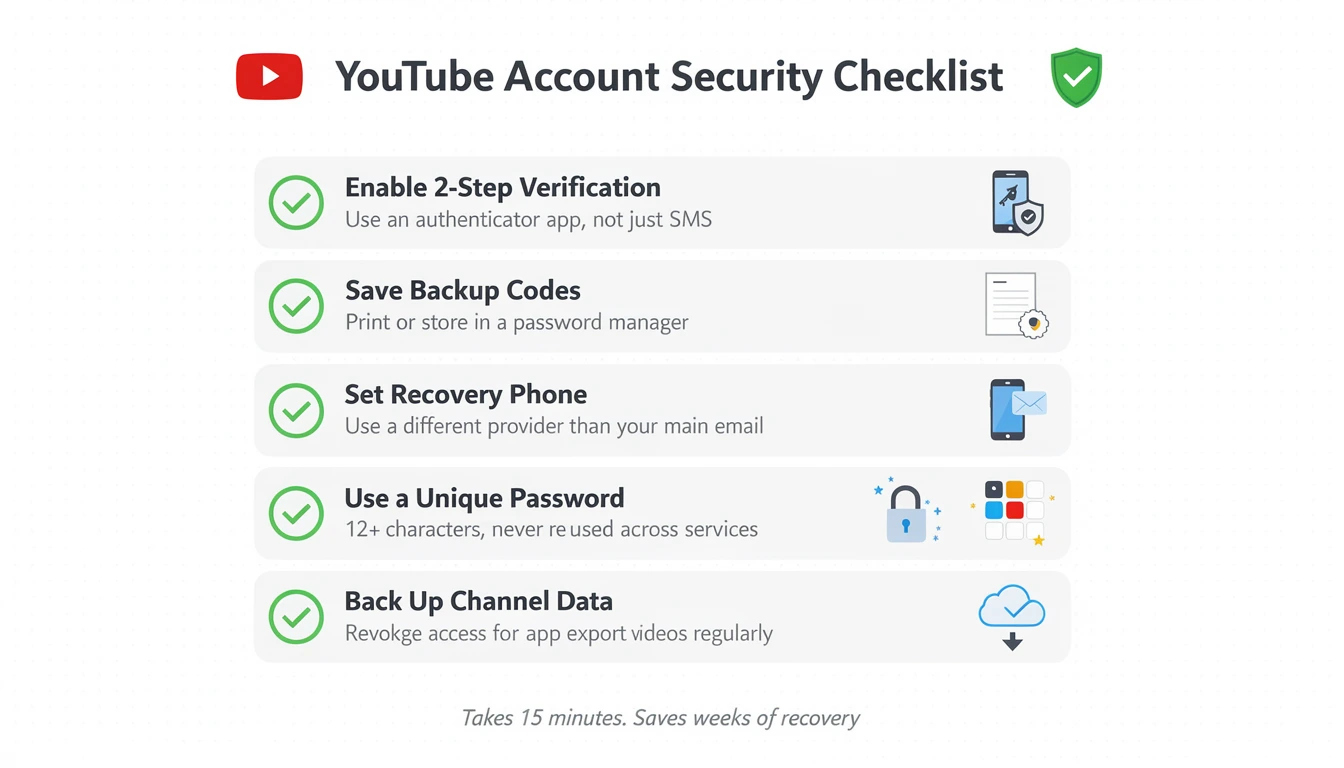
Essential Security Checklist
| Security Measure | How to Set It Up | Why It Matters |
|---|---|---|
| Enable 2-Step Verification | myaccount.google.com/security > 2-Step Verification > Get Started. Use an authenticator app (not just SMS). | The single most effective protection against hacking. Even if someone gets your password, they cannot access your account without the second factor. |
| Save your backup codes | After enabling 2SV, go to Backup Codes and generate a set. Print them or store them in a secure password manager. | If you lose your 2FA device, these codes are your lifeline. Without them, recovery takes 3-7 days instead of 30 seconds. |
| Set a recovery email | myaccount.google.com/security > Recovery email. Use a different email provider than your main account. | If your primary email is compromised, a recovery email on a different service (e.g., Outlook if your main is Gmail) provides an independent recovery path. |
| Set a recovery phone | Same security settings page > Recovery phone. | Provides SMS-based verification as a backup recovery method. |
| Use a unique, strong password | At least 12 characters. Mix uppercase, lowercase, numbers, and symbols. Never reuse across services. Use a password manager. | Most account hacks happen because people reuse passwords that were exposed in data breaches on other services. |
| Review connected third-party apps | myaccount.google.com/permissions. Revoke access for any app you no longer use or do not recognize. | Old third-party apps with access to your account are a potential attack vector. Only keep permissions for tools you actively use. |
| Back up your channel data regularly | Use Google Takeout to export your YouTube data (videos, playlists, subscriptions, comments). | If the worst happens and your account is unrecoverable, at least your video files are safe. |
How to Recognize Phishing Attacks Targeting YouTube Creators
YouTube creators are high-value targets for phishing because hacked channels with large followings can be used for crypto scams, fake livestreams, and spam. Here is how to spot attacks:
Common phishing tactics targeting creators:
| Phishing Method | What It Looks Like | How to Spot It |
|---|---|---|
| Fake sponsorship emails | "Brand deal" offering payment, with a link to a "brief" or "contract" that is actually malware | Check the sender's email domain carefully. Legitimate brands use official domains, not gmail.com or misspelled variations. |
| Fake copyright strike notices | Email claiming your video received a copyright claim, with a link to "appeal" | Real copyright notices appear in YouTube Studio, not just email. Never click links in emails — go directly to studio.youtube.com. |
| Fake Google security alerts | "Unusual sign-in detected" with a link to "verify" your account | Google security alerts are real, but always verify by going directly to myaccount.google.com/security rather than clicking email links. |
| Collaboration requests with malicious files | "Let's collab! Here's my media kit" with a .exe, .scr, or macro-enabled document attached | Legitimate creators share media kits as PDFs or links to their website, not executable files. Never download or run unexpected attachments. |
Using OAuth-Based Tools for Account Safety
When connecting third-party tools to your YouTube account — like scheduling tools, analytics platforms, or thumbnail generators — always verify they use OAuth authentication. OAuth allows you to grant limited access to a service without ever sharing your actual password.
PostPlanify uses official OAuth to connect to your YouTube account, meaning your credentials are never exposed to us. You can review and revoke access at any time through your Google account permissions page. If you schedule YouTube Shorts as part of your content workflow, see our guide on how to schedule YouTube Shorts.
PostPlanifyAll your social media in one simple dashboard
Schedule posts, track analytics, and reply to comments/DMs without switching tabs.
Engagement
+18%
Views
52.8k
Recovery Is Not Working: What Else Can You Try?
If you have exhausted the standard recovery paths and are still locked out, here are additional options before giving up:
Alternative Recovery Strategies
1. Try a completely different device and network. Google's recovery system considers your device, browser, location, and IP address when evaluating whether you are the real account owner. If you have been attempting recovery from a device you never used with the account, try from the device you most frequently signed in from. If that device is unavailable, try from the same Wi-Fi network or physical location.
2. Wait and try again. Google's documentation recommends waiting 24-48 hours between recovery attempts. The system may temporarily limit your options if it detects too many attempts in a short period. A fresh attempt after waiting often presents different verification options.
3. Provide more account details. On subsequent attempts, Google may ask different questions. Be prepared with:
- The approximate month and year you created the account
- Names of frequent email contacts
- Names of any YouTube playlists you created
- Labels or folders you set up in Gmail
- Other Google products you used with the account (Drive, Calendar, Maps)
4. Contact YouTube on social media. @TeamYouTube on X (Twitter) responds to account recovery requests. Send a public tweet describing your situation (no sensitive info) and include your channel URL. They can sometimes escalate cases that are stuck in the automated system.
5. Post in the YouTube Help Community. The YouTube Help Community forum has Google Product Experts who can offer guidance and occasionally escalate issues. Include as much detail as possible (without sharing passwords or personal info).
What Will NOT Help (And What to Avoid)
| Approach | Why It Does Not Work |
|---|---|
| Paying a "recovery service" | These are scams. Google does not authorize any third-party to recover accounts. You will lose money and potentially give scammers even more of your information. |
| Creating a new YouTube account to evade a ban | YouTube detects ban evasion and will terminate the new account too, potentially resulting in a permanent device or IP ban. |
| Contacting Google's corporate office | Google does not have a phone line or walk-in office for individual account recovery. All recovery goes through the online process. |
| Filing a lawsuit | While technically possible, the legal costs vastly exceed the value for most individual creators. Only viable for large businesses with significant proven damages. |
PostPlanifyAll your social media in one simple dashboard
Schedule posts, track analytics, and reply to comments/DMs without switching tabs.
Engagement
+18%
Views
52.8k
Frequently Asked Questions
How long does YouTube account recovery take?
It depends entirely on your scenario. A simple password reset takes 5-10 minutes. Recovery without 2FA access takes 3-7 business days. Hacked account recovery can take 1-7 days depending on the method. Channel termination appeals take 14-30 days. Disabled Google account appeals can take several weeks. The fastest path in every case is using the official Google account recovery page from a device and location you have previously signed in from.
Can I recover a YouTube account without the email or phone number?
It is difficult but possible. Use Google's "Forgot email?" tool to identify the linked email using your recovery phone or backup email. If you have no recovery information at all, try signing into Google from a device that was previously logged into the account — Google may bypass some verification steps when it recognizes a trusted device. As a last resort, the identity verification process lets you answer detailed questions about your account activity.
What happens to my subscribers if my YouTube channel is terminated?
Your subscribers remain on YouTube but they lose access to your channel and content. If your termination appeal is successful, everything is restored — subscribers, videos, playlists, watch time, and analytics data. If the appeal fails and the termination stands, those subscribers are effectively lost. They will not be automatically redirected to a new channel.
Can I recover a YouTube brand account if the owner's Google account is deleted?
Brand Accounts on YouTube can have multiple owners and managers. If the primary owner's Google account is deleted but other managers remain, those managers can continue operating the channel. If all owners and managers lose access, you will need to recover the primary owner's Google account first, then access the Brand Account through it. See YouTube's brand account documentation for details.
Is YouTube's "Second Chances" program available to everyone?
Not yet. The Second Chances pilot program launched in October 2025 and is currently available to a limited set of terminated creators. If eligible, you can apply for a new channel one year after your original termination. YouTube reviews each application individually and approval is not guaranteed. The program is expected to expand, but there is no confirmed timeline for broader availability.
How do I prevent my YouTube account from being hacked?
Enable 2-Step Verification immediately — this is the single most effective protection. Use a unique, strong password (12+ characters) that you do not reuse on any other service. Be extremely cautious with emails claiming to be from YouTube or Google, especially those with links or attachments. Never download files from unverified sponsorship or collaboration requests. Review your Google account security settings and connected third-party apps regularly.
Can I recover videos from a permanently deleted YouTube account?
If your Google account is permanently deleted and cannot be restored, your YouTube videos are gone from the platform. However, if you previously downloaded your videos through Google Takeout or have the original files on your device, you can re-upload them to a new channel. This is why regular backups through Google Takeout are essential for any creator with valuable content.
Does contacting Google support help with account recovery?
Google does not offer traditional customer support (phone or live chat) for individual account recovery. All recovery is handled through the automated online process at accounts.google.com/signin/recovery. For YouTube-specific issues, the best support channels are YouTube Creator Support (available to Partner Program members through YouTube Studio), @TeamYouTube on X (Twitter), and the YouTube Help Community forum.
Next Steps: Keep Your Channel Safe and Growing
Recovering your YouTube account is the urgent first step. Once you are back in, the priority shifts to making sure this never happens again: enable 2-Step Verification, save your backup codes, and set up recovery email and phone.
With your account secured, you can get back to what actually matters — creating content and growing your channel. If you are looking to build a consistent YouTube upload schedule without the stress of manual posting, PostPlanify lets you schedule YouTube Shorts and manage your content across all your social platforms from one dashboard.
Related Reading
YouTube guides:
- How to Schedule YouTube Shorts
- Best Time to Upload YouTube Videos
- How Much Does YouTube Pay for 1,000 Views?
- When Does YouTube Start Paying You?
- How to See Your YouTube Subscribers
- How to Start a YouTube Channel for Kids
- Does YouTube Automation Work?
- Best YouTube Scheduling Tools
- How to Clip a YouTube Video
Account recovery on other platforms:
PostPlanifyAll your social media in one simple dashboard
Schedule posts, track analytics, and reply to comments/DMs without switching tabs.
Engagement
+18%
Views
52.8k
About the Author

Hasan Cagli
Founder of PostPlanify, a content and social media scheduling platform. He focuses on building systems that help businesses, agencies, and teams plan, publish, and manage content and social media more efficiently across platforms.


