


To create a LinkedIn company page, click For Business in the top-right corner of LinkedIn, choose Create a Company Page, pick the page type, fill in your company details, confirm you're allowed to act for the company, and click Create page. It's free, and it takes a few minutes.
The steps are easy. What trips people up is everything around them: the account requirements LinkedIn doesn't show until you hit an error, the URL rules, admin access for agencies, and what to do after the page is live. This guide covers all of it, based on LinkedIn's own Help Center.
What Is a LinkedIn Company Page?
A LinkedIn company page, also called a LinkedIn business page or a LinkedIn page for business, is your organization's official presence on LinkedIn. It's separate from the personal profiles that people use. Members can follow your page, see your posts, read about your business and find your job openings.
A company page is free. You manage it from your personal LinkedIn account, and you can add other people as admins.
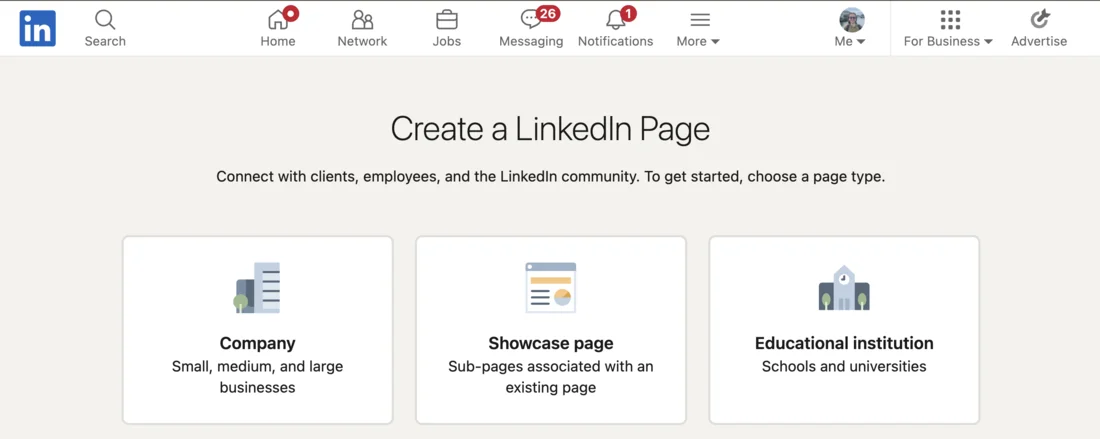
There are three main page types when you create one:
| Page type | What it's for |
|---|---|
| Company | Your main business page. Most businesses should choose this. |
| Showcase page | A sub-page for a brand, product line or initiative, linked to your main page. You can have up to 25. |
| Educational institution | Pages for schools and universities |
Before You Start: LinkedIn Company Page Requirements
Most "how to" guides skip these, but they're the reason most page creation attempts fail. According to LinkedIn's troubleshooting guide, you need:
- A personal LinkedIn account. You can't create a company page without one. Use your real first and last name, and confirm your email address.
- More than one connection. LinkedIn won't let you create a page if your account has only one connection or none.
- An account at least a day old. If you just signed up, wait at least one day.
- A verified workplace, in some cases. LinkedIn may ask you to verify the job on your profile with a work email or Microsoft Entra Verified ID before you can create a page.
Two more checks before you start:
- Make sure the page doesn't already exist. Search LinkedIn for your company name. If a page exists, request admin access instead of creating a duplicate. If it exists as an unclaimed "Listing Page", you can claim it.
- Decide your page URL. Every page lives at
linkedin.com/company/your-name. The URL can only use lowercase letters, numbers and single hyphens, and it needs at least one letter. If your name is taken, try a variation, like adding "inc" or "hq".
How to Create a Company Page on LinkedIn (Step by Step)
On Desktop
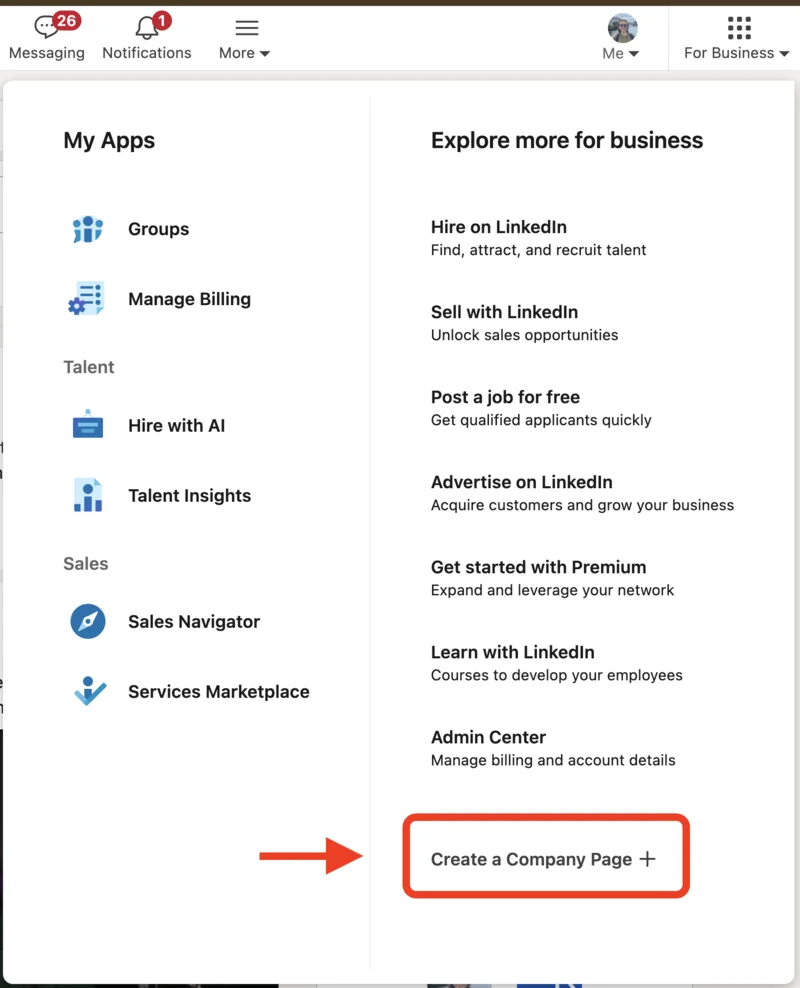
- Click the For Business icon in the top-right corner of your LinkedIn homepage.
- Scroll down and click Create a Company Page.
- Choose your page type: Company, Showcase page or Educational institution.
- Enter your page details: name, LinkedIn public URL, website, industry, company size, company type, logo and tagline.
- Tick the box confirming you have the right to act on behalf of the company.
- Click Create page.
- Click Start building your page! to finish setting it up.
On the LinkedIn App
- Go to any LinkedIn company page.
- Tap the More icon and select Create a LinkedIn Page.
- Enter your company name, LinkedIn public URL, website, industry, company size, company type and tagline.
- Tick the verification box.
- Tap Create in the top-right corner.
Once the page is created, you're its super admin, the role with full control. You can add other admins next.
 PostPlanify
All your social media in one simple dashboard
Schedule posts, track analytics, and reply to comments/DMs without switching tabs.

Engagement
+18%
Views
52.8k
How to Optimize Your LinkedIn Company Page
Once you create a LinkedIn company page, the next job is making it worth following. Start by filling in every section: LinkedIn says complete pages see a 30 percent increase in weekly page views.
Here's what to set up first:
| Element | What to add |
|---|---|
| Logo | 400 x 400 pixels, simple and readable at small sizes |
| Cover image | 1512 x 256 pixels, with key details in the center |
| Tagline | One line on who you help and how |
| About section | A clear description of what you do, who it's for and what makes you different, using the words customers would search for |
| Website and location | So members and search engines can find the real business |
| Industry and company size | Helps LinkedIn show your page to the right people |
| Call-to-action button | Such as Visit website or Contact us |
Get the image sizes right the first time. Many guides still list an old 1128 x 191 cover size, but LinkedIn's current company page cover is 1512 x 256. Our LinkedIn image size guide has every current size.
A few more tips:
- Write the About section for people, then for search. Say plainly what you do in the first sentence. People decide in seconds whether to follow.
- Keep the tagline specific. "We help dental clinics fill their calendars" beats "Innovative solutions for growth." If you're stuck, our free LinkedIn bio generator can draft a few options, and the LinkedIn text formatter helps make posts easier to read.
- Add a second super admin right away. LinkedIn can't replace or remove admins for you, so if your only super admin leaves the company, you can lose control of the page.
LinkedIn Company Page Admin Roles (and How Agencies Get Access)
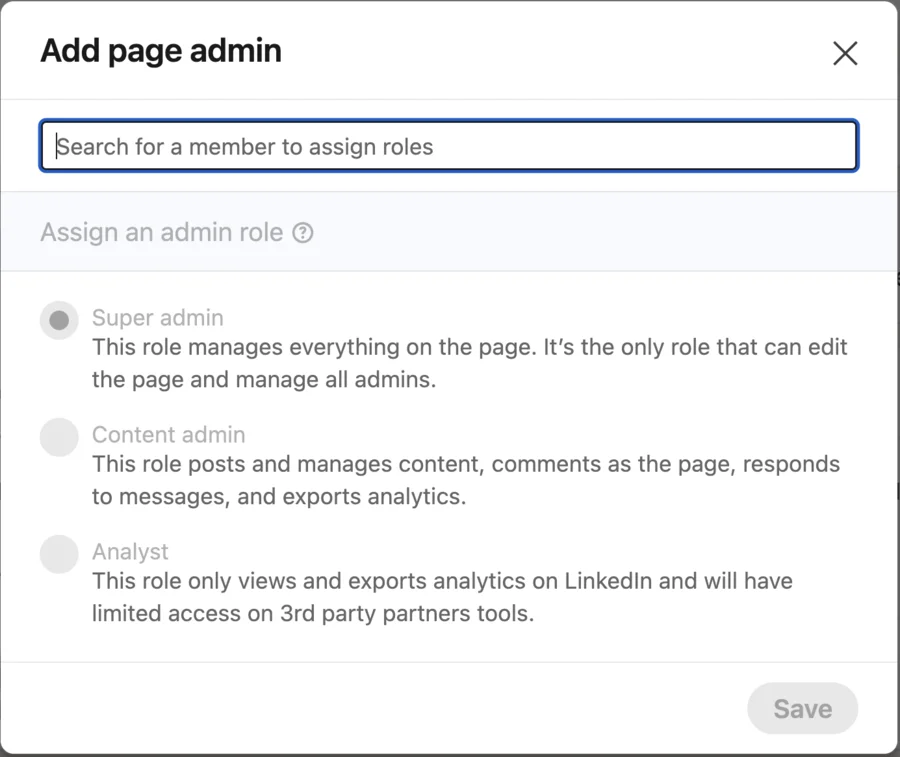
Every LinkedIn company page has three admin roles, according to LinkedIn's admin permissions guide:
| Role | What they can do |
|---|---|
| Super admin | Everything: edit the page, manage admins, create Showcase pages, buy Premium, deactivate the page |
| Content admin | Post as the page, comment and react, manage events and jobs, view analytics, and post through third-party tools |
| Analyst | View and export analytics only |
To add someone, a super admin opens the page's admin view, goes to Manage admins, clicks Add admin, searches for the person and picks a role. LinkedIn describes each role right in that window.
For agencies, the right role is almost always content admin. It lets you post, reply and schedule through tools like PostPlanify without being able to change admins or delete the page. The analyst role won't work for scheduling, because LinkedIn says analysts only get limited access in third-party tools. That protects the client and you.
The usual setup for a new client:
- The client keeps the super admin role, and adds a second super admin from their own team as a backup.
- The client adds your agency team as content admins.
- Anyone who only needs reports gets analyst access.
Never ask a client for their personal LinkedIn password to manage their page. Admin roles exist so nobody has to share logins. Our client onboarding checklist covers access for every platform. If you run LinkedIn for several clients, our guide on managing multiple social media accounts covers the wider workflow, and a clear social media approval process keeps clients signing off before anything goes out under their name.
How to Grow Your LinkedIn Company Page Followers
A new page starts with zero followers. These are the fastest ways to change that:
- Invite your connections. Admins can invite their 1st-degree connections to follow the page. Ask everyone on the team to do it.
- Ask employees to list the page as their employer. Their profiles then link to your page, and the page shows them as employees. LinkedIn says this can take 14 to 30 days to appear. An employee advocacy routine turns this into a habit rather than a one-off ask.
- Post consistently. Pages that post regularly give people a reason to follow. Two to three posts a week is a good start for most businesses.
- Share the page everywhere. Add it to your website, email signature and other social profiles.
- Use Showcase pages for distinct audiences. If you have separate brands or product lines, a LinkedIn Showcase page lets people follow just the part they care about.
- Measure what works. Check your page analytics monthly to see which posts bring followers and clicks. Our LinkedIn engagement calculator and roundup of LinkedIn analytics tools help, and agencies can use our list of KPIs to report to clients.
People usually trust and engage with people more than with brand pages. The pages that grow fastest pair company posts with founders and employees sharing them from their own profiles. It's one of the biggest social media trends for 2027: people beat pages. Our guides on how to post on LinkedIn, what to post on LinkedIn and the best time to post on LinkedIn help with the content side.
LinkedIn Premium Company Page: Is It Worth It?
LinkedIn Premium Company Page is a paid upgrade for your page. According to LinkedIn, it adds:
- Page verification, with a verification badge.
- Who's visited my page, so you can see eligible members who viewed your page each week.
- Auto-invites, to invite people who engaged with your posts and followers of similar pages, not just your 1st-degree connections.
- A custom call-to-action button, shown on your page, next to your posts and in search results.
- A client testimonial at the top of your page.
- Credibility highlights, such as awards and certifications.
- Dynamic cover images, including a slideshow of up to five images.
- A gold LinkedIn logo on your page header.
LinkedIn doesn't list the price on its help pages, and third-party guides report it at around $99.99 a month in the US, so check the current price in your admin view.
It's worth it if LinkedIn is a main source of leads, as it is for many B2B companies, and you'll actually use the visitor data and invites. For a small business that posts occasionally, a well-completed free page plus consistent posting gets you most of the benefit.
LinkedIn Company Page Errors and How to Fix Them
| Error | Fix |
|---|---|
| Page with the same name already exists | Request admin access to the existing page, or pick a different URL if it's another company |
| Not enough LinkedIn connections | Connect with a few people you know, then try again |
| New LinkedIn account | Wait at least one day after signing up |
| LinkedIn URL already in use | Choose a different URL, like yourname-inc |
| Unverified workplace | Verify your job with a work email or Microsoft Entra Verified ID |
| Created too many pages in one day | Wait a few days before trying again |
| More than 25 Showcase pages | Deactivate an inactive Showcase page first |
If none of these apply, LinkedIn suggests clearing your browser cache and cookies or trying another browser.
Keep Your Company Page Active
The biggest reason company pages fail isn't setup. It's going quiet a few weeks later. A page that hasn't posted in months tells visitors the business isn't paying attention.
The fix is to plan posts ahead instead of posting when you remember. With PostPlanify, you can schedule LinkedIn posts to your company page alongside your other networks, so the page stays active even in busy weeks. If you're comparing options, our roundup of the best LinkedIn schedulers covers the main tools, and LinkedIn scheduled posts not working helps when a post doesn't go out. For agencies, that means every client's LinkedIn page runs from one calendar, using content admin access, with no shared passwords.
PostPlanifyAll your social media in one simple dashboard
Schedule posts, track analytics, and reply to comments/DMs without switching tabs.
Engagement
+18%
Views
52.8k
Frequently Asked Questions
Is a LinkedIn company page free?
Yes. Creating and running a LinkedIn company page is free. LinkedIn also offers a paid Premium Company Page upgrade with extra features like verification, visitor insights and a custom button, but the standard page costs nothing.
Can you create a LinkedIn company page without a personal account?
No. You need a personal LinkedIn account to create and manage a company page. The page itself is separate from your profile, and you can add other people as admins.
How many connections do you need to create a LinkedIn company page?
Your account needs more than one connection. LinkedIn blocks page creation for accounts with too few connections, so connect with a few people you know before you start.
What is the difference between a LinkedIn profile and a company page?
A LinkedIn profile represents a person. A company page represents an organization. People connect with profiles and follow company pages, and a company page is managed by admins rather than owned by one person.
How do I add an admin to my LinkedIn company page?
A super admin can add admins from the page's admin view, and choose their role: super admin, content admin or analyst. For agencies and freelancers, content admin is usually the right role.
Why can't I create a LinkedIn company page?
The most common reasons are having too few connections, a brand-new account, a URL that's already taken, or an unverified workplace on your profile. LinkedIn shows a specific error message for each, and the fixes are in the table above.
Related: LinkedIn Image Size Guide | How to Post on LinkedIn | What to Post on LinkedIn | Best Time to Post on LinkedIn | How to Schedule LinkedIn Posts | LinkedIn Bio Generator | LinkedIn Scheduler
PostPlanifyAll your social media in one simple dashboard
Schedule posts, track analytics, and reply to comments/DMs without switching tabs.
Engagement
+18%
Views
52.8k
About the Author

Hasan Cagli
Founder of PostPlanify, a social media management platform for agencies and teams. He focuses on building systems that help businesses, agencies, and teams plan, publish, and manage content and social media more efficiently across platforms.


